In AveeCare, every form response is tied to the patient or caregiver who was asked to fill it out. Open their record, switch to the Forms tab, and you get one row per assigned form with a status, dates, and the full filled-in detail one click away. There is no central responses-by-template view, the data lives on the person.
Quick answer
Open the patient or caregiver record. Click the Forms tab. Each row is one assigned form with a Status of Completed or Incomplete, plus Field Count, Created At, and Updated At. Click the blue eye icon to open the filled-in detail. The Export CSV link under the table downloads the visible rows.
Where form responses live
The Forms page in the sidebar holds the Form Presets table, your library of templates. The responses themselves do not live there. Each time a form is assigned to someone, AveeCare creates a per-person record on that person, and the person's Forms tab is where you read, complete, or export it. Caregiver forms work the same way under the caregiver record.
1. Open the patient or caregiver record
Click Patients in the left sidebar, then click a patient row.
For a caregiver form response, click Caregivers in the sidebar instead and pick a caregiver. The flow on the detail page is identical, just with Caregiver Forms in place of Patient Forms.
2. Switch to the Forms tab
In the patient detail tab strip, click Forms.
The URL updates to/patients/<Name>/<id>/forms, and the page swaps in a New Form tile plus the Patient Forms table. Columns: Name, Description, Field Count, Status, Created At, Updated At, Controls.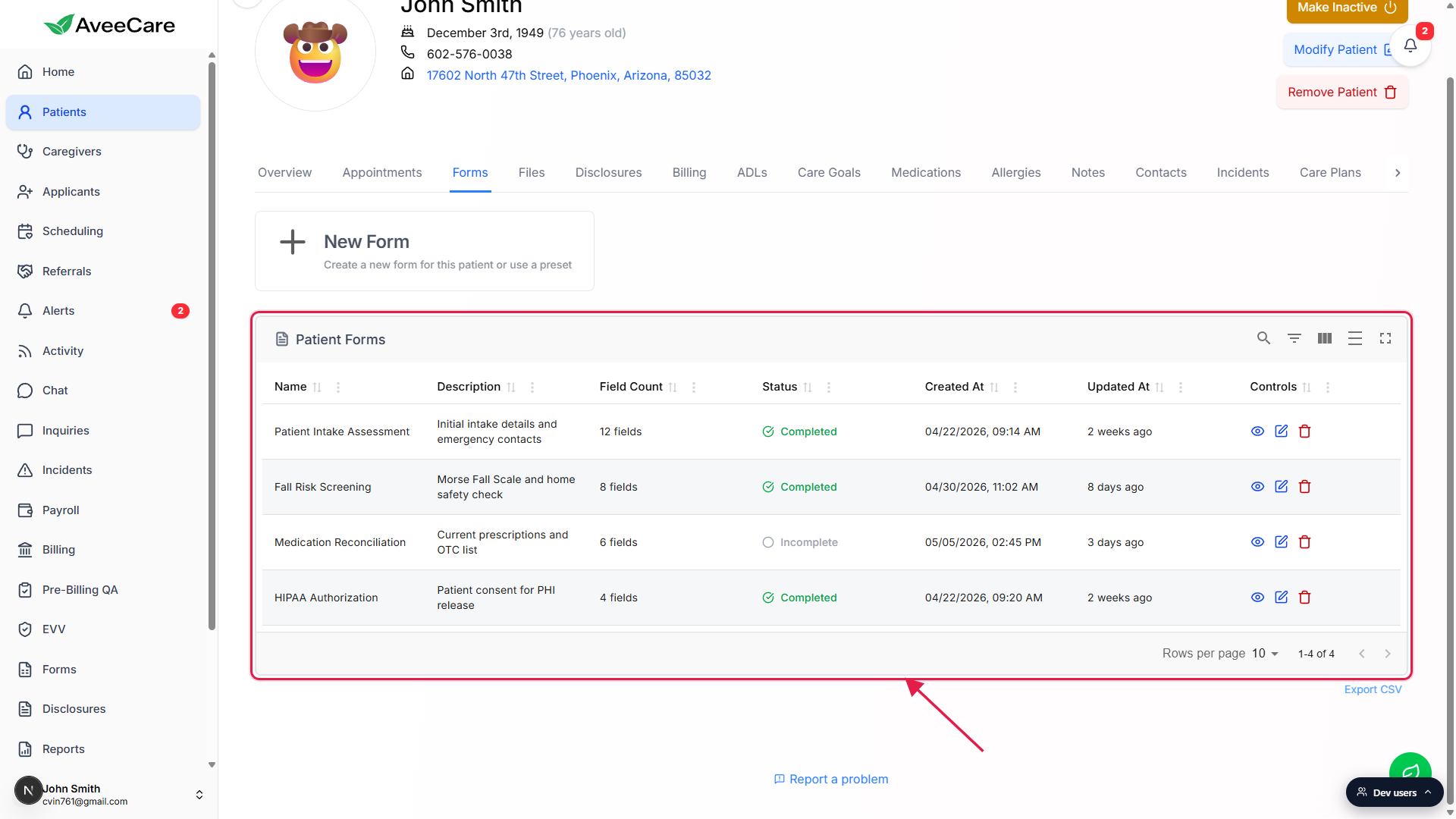
Read the Status column at a glance.
Green Completed means every required field was answered the last time the form was saved. Gray Incomplete means at least one required field is still blank. Status flips automatically based on the answers, there is no separate publish step.
3. Filter, search, and export the responses
Use the icon toolbar on the right of the Patient Forms title bar.
Five icon buttons sit at the top right: Show/Hide search, Show/Hide filters, Show/Hide columns, Toggle density, and Toggle full screen. Show/Hide filters drops a per-column filter row under the headers, which is the fastest way to narrow to only Completed rows or to a date range.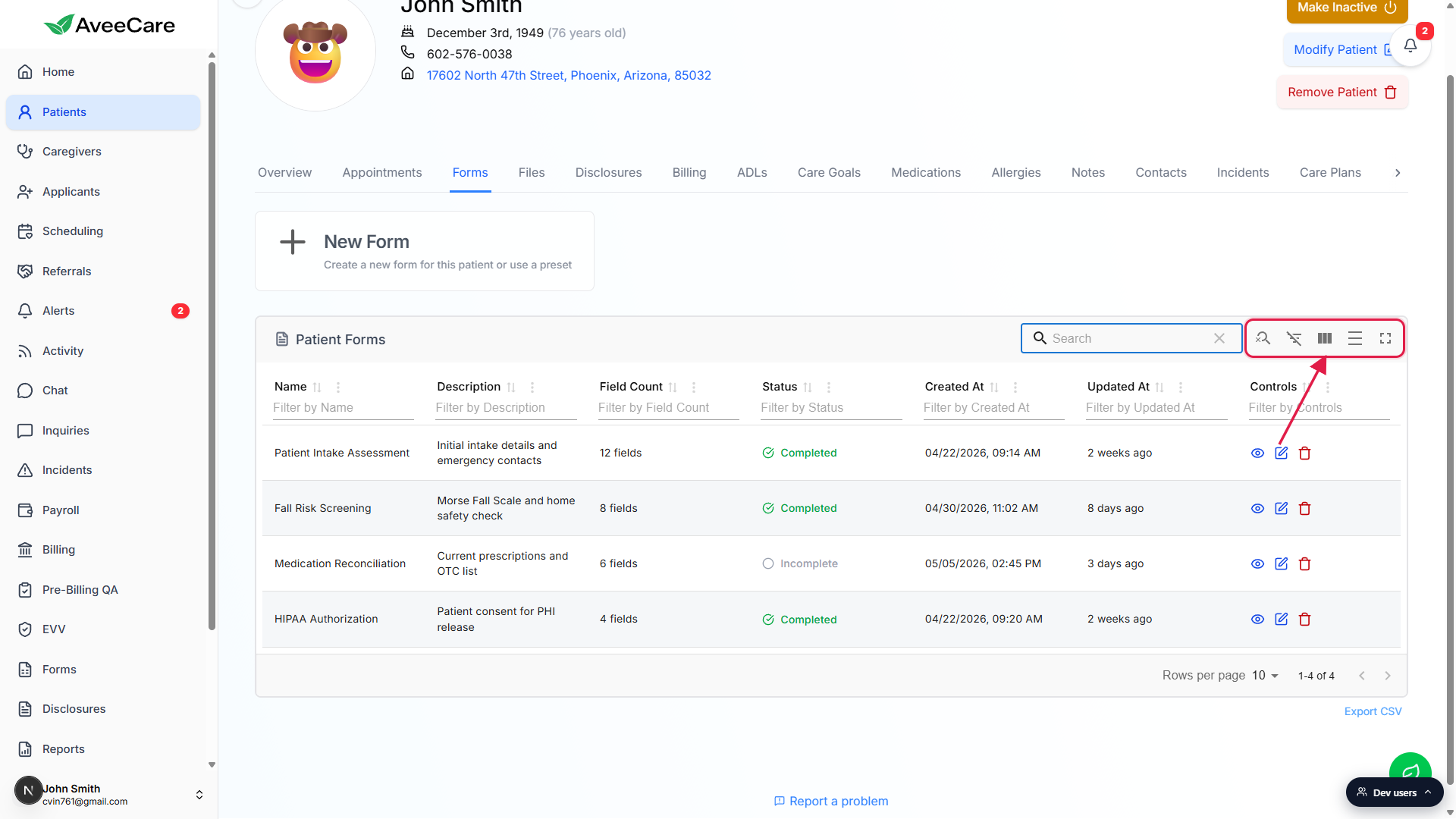
Click Export CSV beneath the table to download the visible rows.
The file is named likepatient-forms-YYYY-MM-DD.csvusing today's date. Export honors current filters, so filtering to Completed first and then exporting gives you a clean compliance-ready snapshot.
4. Open a single response to read or finish it
In the Controls column, click the blue eye icon (View/Fill Form).
Hovering the icon shows a View/Fill Form tooltip. The full-screen modal that opens renders every field with its saved answer, including checkboxes, radio choices, date pickers, free-text notes, and signature pads. Required fields are marked with a red asterisk.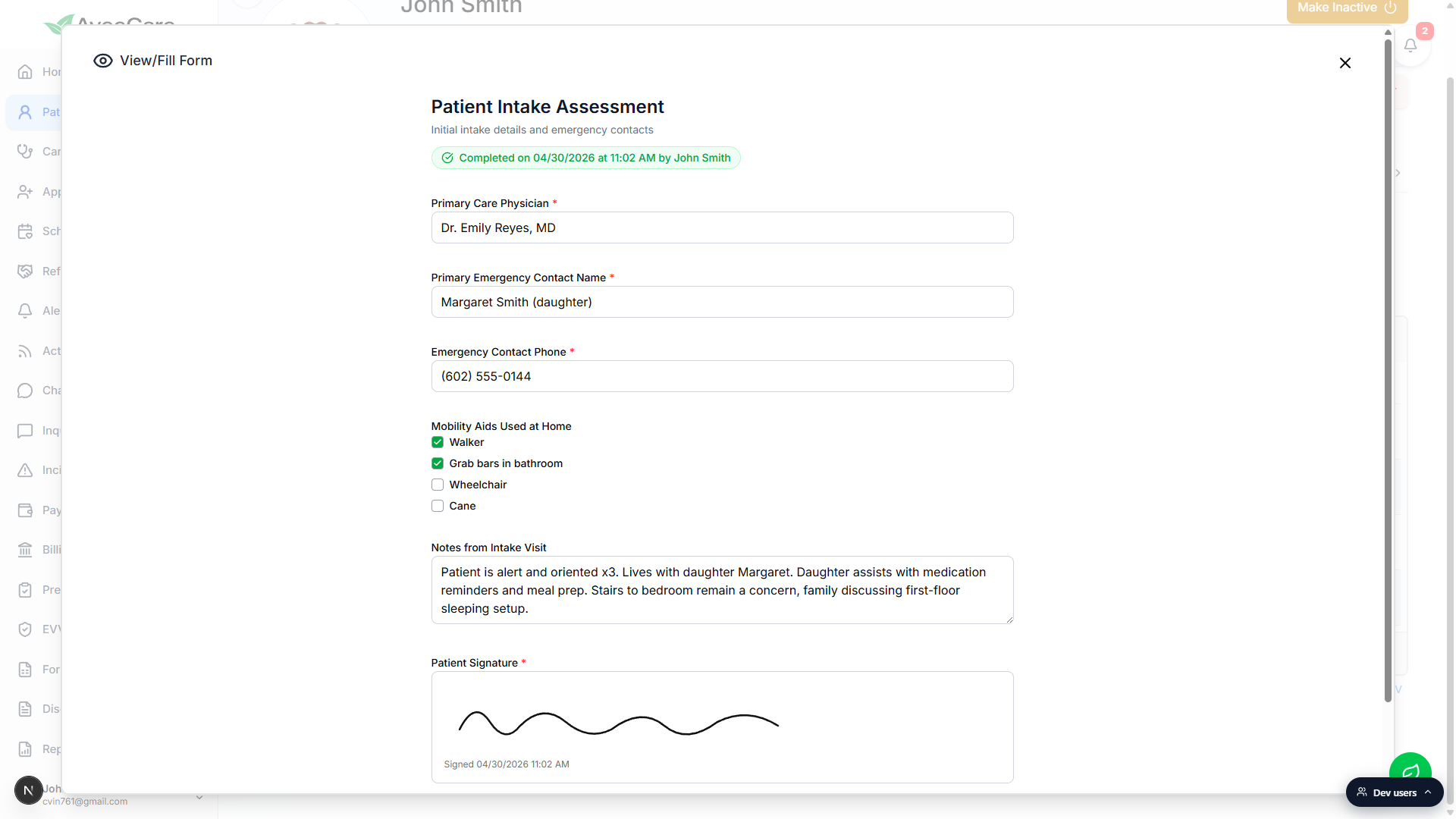
Edit any field, then click Save Form Data at the bottom right.
The modal recalculates the Completed/Incomplete status, records who last touched the form (lastFilledBy) and when (lastFilledAt), and reloads the table. There is no separate lock or sign-off step, the saved state is the response of record.
Common pitfalls
- Looking for responses on the Forms page. The Forms sidebar route shows templates, not responses. To see how a form was answered, open the patient or caregiver and switch to their Forms tab.
- No cross-patient roll-up. Each patient's Forms tab is scoped to that one patient. For a tenant-wide count of completed Patient Intake Assessments, export each patient's CSV and concatenate, or build a report in Reports off the underlying PatientForm data.
- Editing a template after responses are saved. If you go back to a Form Preset and add or rename fields, existing patient responses keep the field set they were saved with. The Field Count column on a response row reflects that older shape until someone re-saves the response.
- Delete is per response, not per template. The red trash icon in the Controls column removes that one patient's copy of the form, not the template itself. Templates live on the Forms gallery page.
- Required-field validation only happens on save. Status flips to Completed the moment every required field has a value and the form is saved. Saving with a blank required field leaves the row as Incomplete instead of throwing an error.