AveeCare can add an AI Overview section to the top of any scheduled report email. It is a plain-English summary of the same numbers the report already contains, with callouts for credential expirations, alert backlog, denial spikes, and similar items that are worth flagging. The overview travels with the report, so the people on the recipient list get the headline before they open the PDF.
Quick answer
Open Reports, switch to the Scheduled Reports tab, and click Add Scheduled Report. Fill out the name, report types, schedule, and recipients, then check Include AI Overview before saving. The next scheduled run includes a short summary at the top of the email with insights based on the data in the report.
What the AI Overview actually contains
The AI Overview is a bullet list at the top of the email that calls out things like:
- Compliance risk. Expired caregiver credentials and credentials expiring within 30 days.
- Alert backlog. Active alerts pending resolution, with stronger wording when the count is high.
- Revenue and aging trends. Outstanding amounts, collections, and denials when financial report types are included.
- Incident summary. Active safety incidents and recent complaints for the period.
The overview is generated when the email is built, not on demand. There is no “Generate” button on the Reports page itself, the toggle lives on each scheduled report definition.
1. Open Reports and switch to Scheduled Reports
Click Reports in the left sidebar.
The Reports page opens with the Recent Reports tab selected by default. Recent Reports lists every report run that has already been generated. Scheduled Reports is the one you want for the AI Overview toggle, since the overview only attaches to scheduled emails.Click the Scheduled Reports tab at the top of the page.
The Add Scheduled Report button appears on the right side of that tab. If you have no scheduled reports yet, the empty-state copy reads “No scheduled reports configured” with “Set up automated report delivery” below it.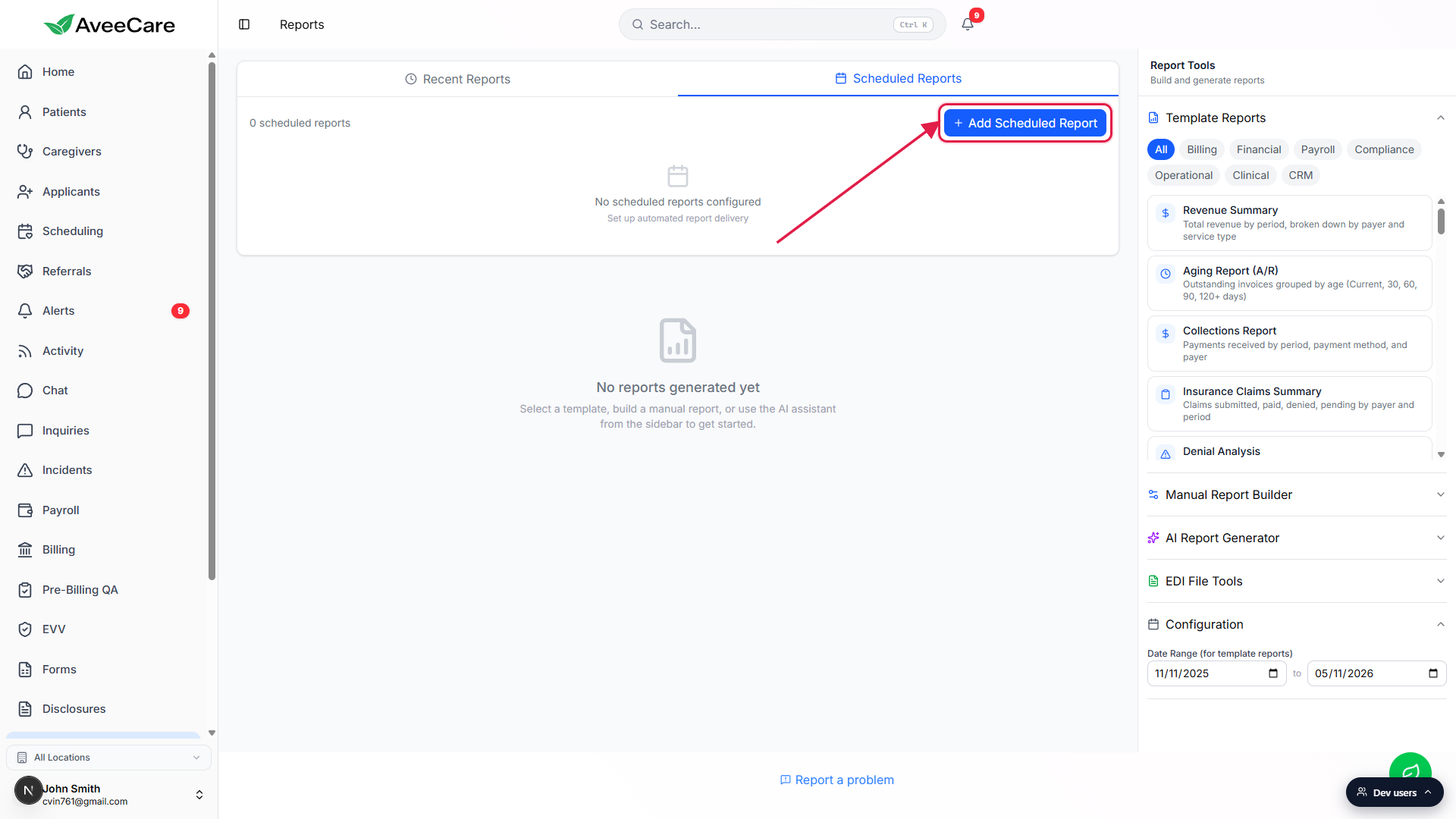
2. Click Add Scheduled Report and pick the data
Click Add Scheduled Report.
The modal opens with a long form. Start at the top with Report Name (something the recipients will recognize, like “Weekly Operations Summary”), then pick one or more report types from the multi-select grid.Pick report types, schedule, format, and recipients.
Schedule supports Daily, Weekly, and Monthly. Format is PDF or CSV. Add a Default Recipient Email plus any extra Recipients with name and email. The AI Overview reads from whichever report types you checked, so picking Revenue Summary, Visit Volume, Credential Compliance, and Incident Report Summary together gives the richest overview.
3. Check Include AI Overview
Scroll to the toggles at the bottom of the modal.
Below Recipients you see three checkboxes: Include AI Overview, Include Month Comparison, and Active. The AI Overview toggle is the top one, with the helper text “Add an AI-generated summary with insights.”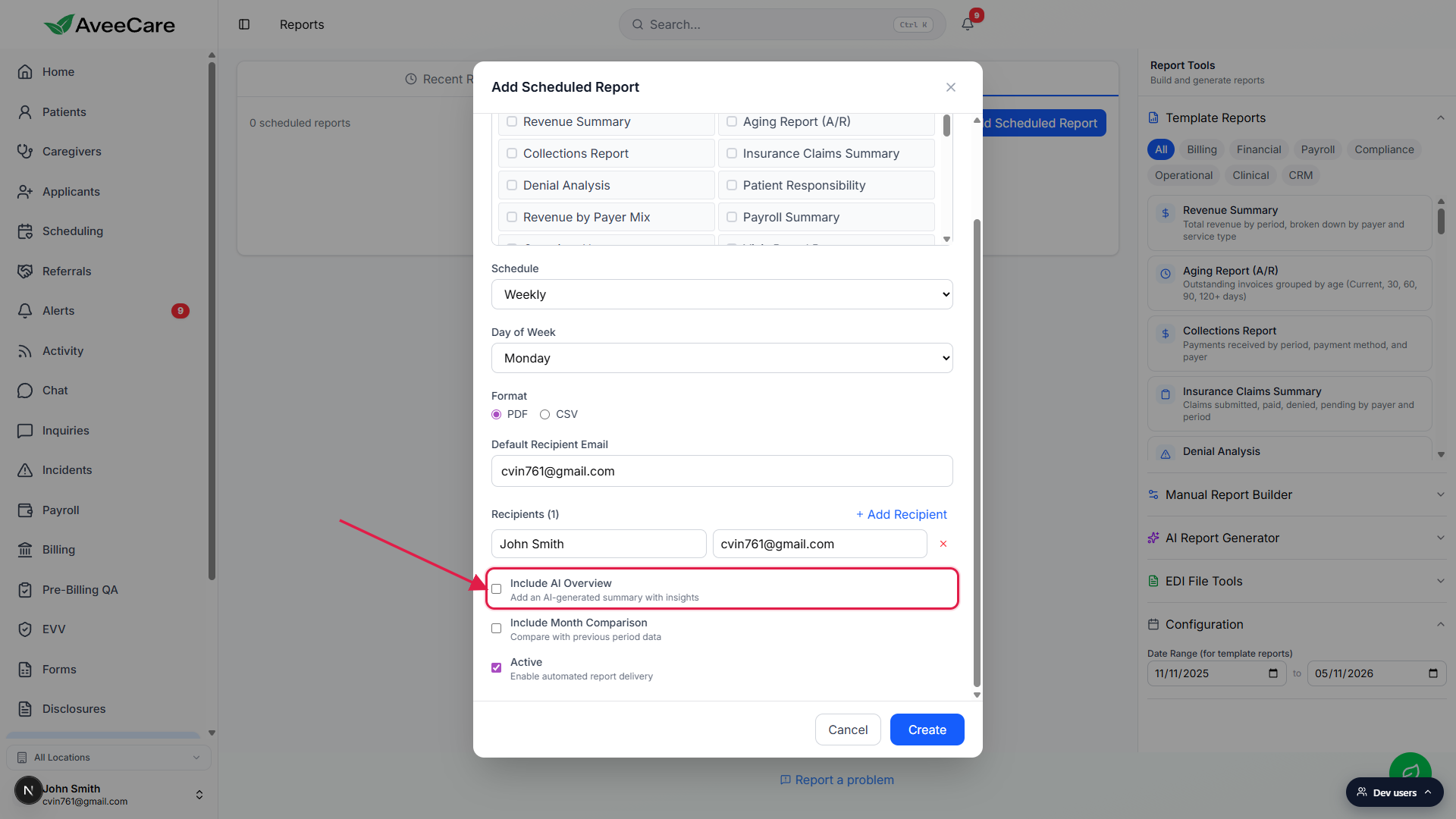
Check the box, then optionally check Include Month Comparison.
Month Comparison pairs nicely with the AI Overview: the table shows last period versus this period side by side, and the overview can reference the direction of change in its bullets. Leave both on if you want the full picture in the email.
4. Save and read the AI Overview in your email
Click Create at the bottom of the modal.
The new entry appears in the Scheduled Reports list with a green status dot when Active, the cadence pill (Daily, Weekly, or Monthly), the report-type count, and the recipient count. It waits there until the next scheduled run.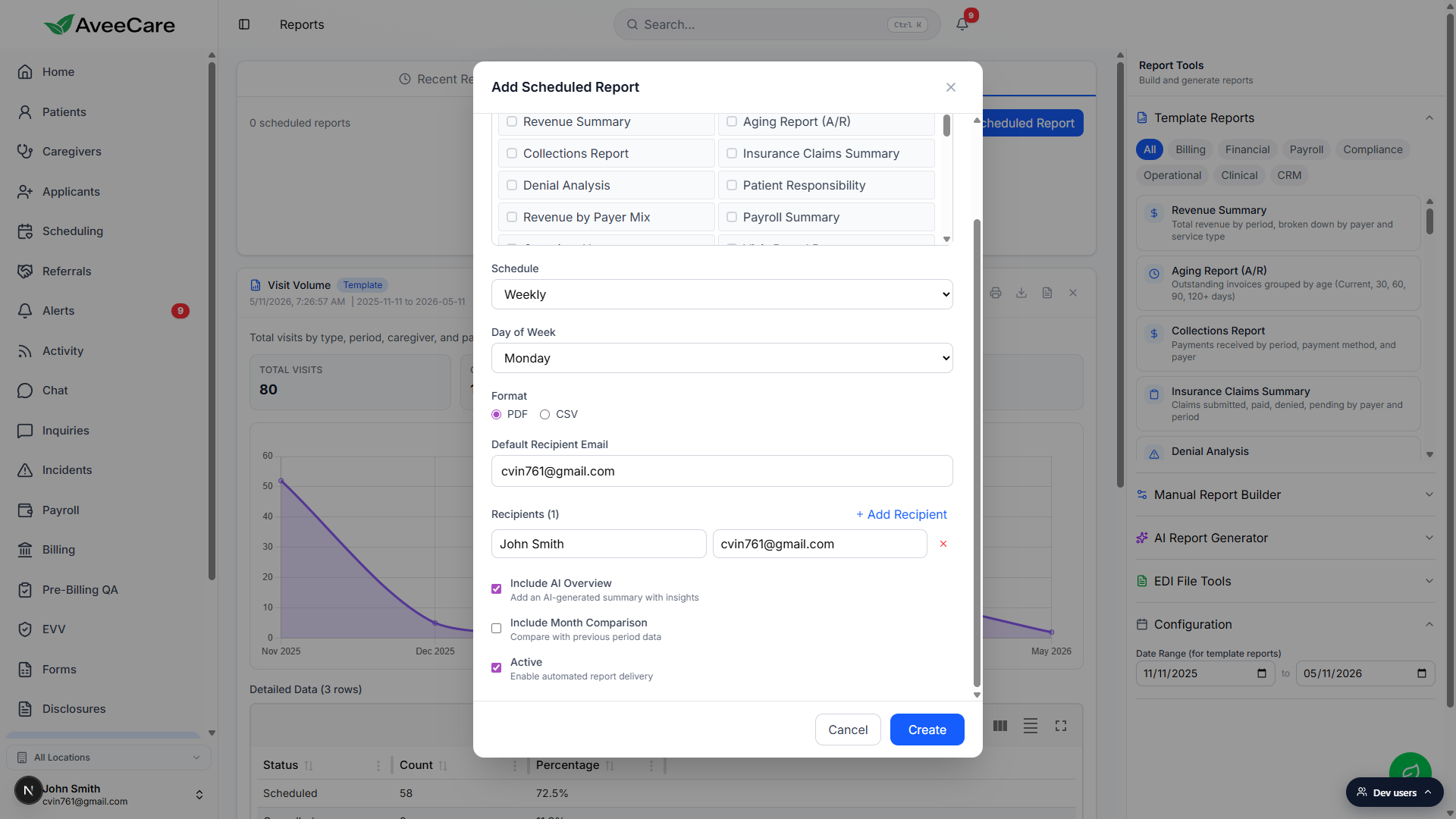
Wait for the next run, then open the email.
The AI Overview shows up as a blue-bordered card at the top of the email with the heading “AI Overview” and a bullet list of insights. Below that you get the regular per-report sections, plus the Month Comparison table if you enabled it.Edit or pause the scheduled report any time from the same list.
Click the row to edit. Toggle the Active checkbox off to pause delivery without losing the configuration. The AI Overview toggle is on every edit too, so you can turn it on for a single tenant and leave it off elsewhere.
Common pitfalls
- Looking for an AI Summary button on a patient page. The AI Overview lives on scheduled report emails. There is no per-patient “Generate Summary” button on the patient overview tab. For a patient-level snapshot, open Avee from the floating launcher and ask a question like “summarize Betsy's last four visits.”
- Forgetting to check the box. The toggle defaults to off when you open the modal. Old scheduled reports stay unchanged after you upgrade, so you have to edit them and check the box if you want the overview on existing schedules.
- Picking only one report type. A single-type scheduled report gives a thin overview. Two to four complementary types (revenue, compliance, visits, incidents) give the overview enough material to surface useful bullets.
- Confusing AI Overview with the AI Report Generator. AI Report Generator builds a one-off report from a natural-language prompt and lives in the sidebar of the Reports page. AI Overview is a checkbox on scheduled report emails. Different feature, different surface.
- Expecting raw model output. The overview is concise on purpose. It is a digest, not a long-form essay, and it is built from the report data, so it cannot mention anything that is not already in the report.