A payer plan is for the client whose care is paid for by more than one person: four children paying 25% each, or one paying up to $300 a month and the others splitting the rest. Each person pays their share their own way, and you can see who has paid and who has not.
Quick answer
Open the client, go to the Billing tab and find Split this patient’s bills across multiple payers. Add each payer, how they pay and their share, switch on Use this plan for billing and press Save payer plan. On the Billing page, the client’s visits then show Bill payer plan.
1. Add the payers and their shares
On the client’s Billing tab, give the plan a name.
For example “Family split plan”. Add plan notes the office should see, such as who to call first.Add each payer: their name, relationship and how they pay.
Stored card charges a card on the client’s Payment Methods. Emailed invoice and QuickBooks card go through QuickBooks and need it connected. Outside AveeCare is for the person who pays by check: their share waits until you mark it paid.Set their share: A percentage, A set amount, or Whatever is left.
A set amount can carry an optional cap, “pays up to this much”. One payer set to Whatever is left pays everything the others do not.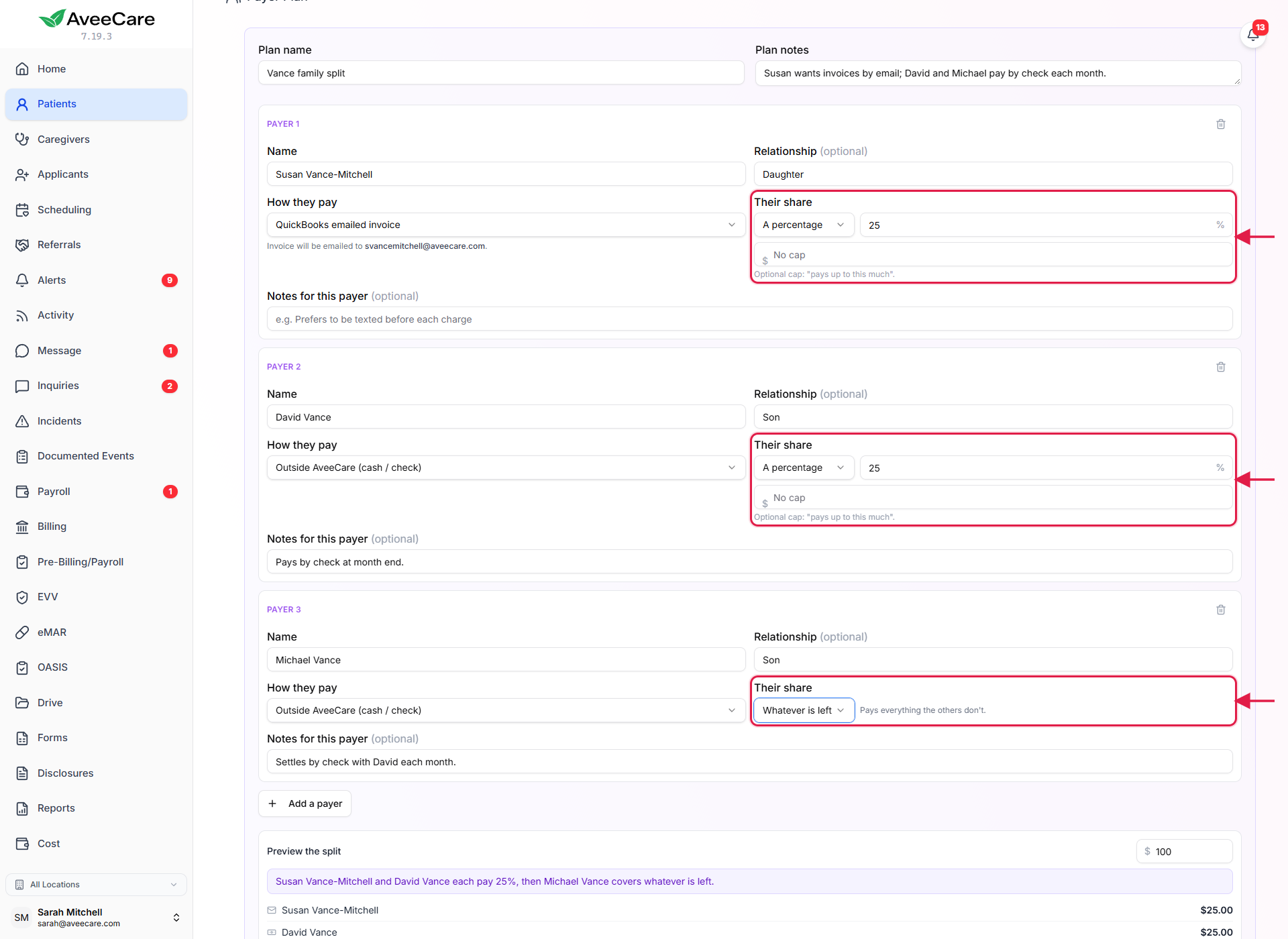
2. Preview the split and turn the plan on
Type a sample visit amount under Preview the split.
You see what each payer would be billed for that amount, to the cent, before anything is charged.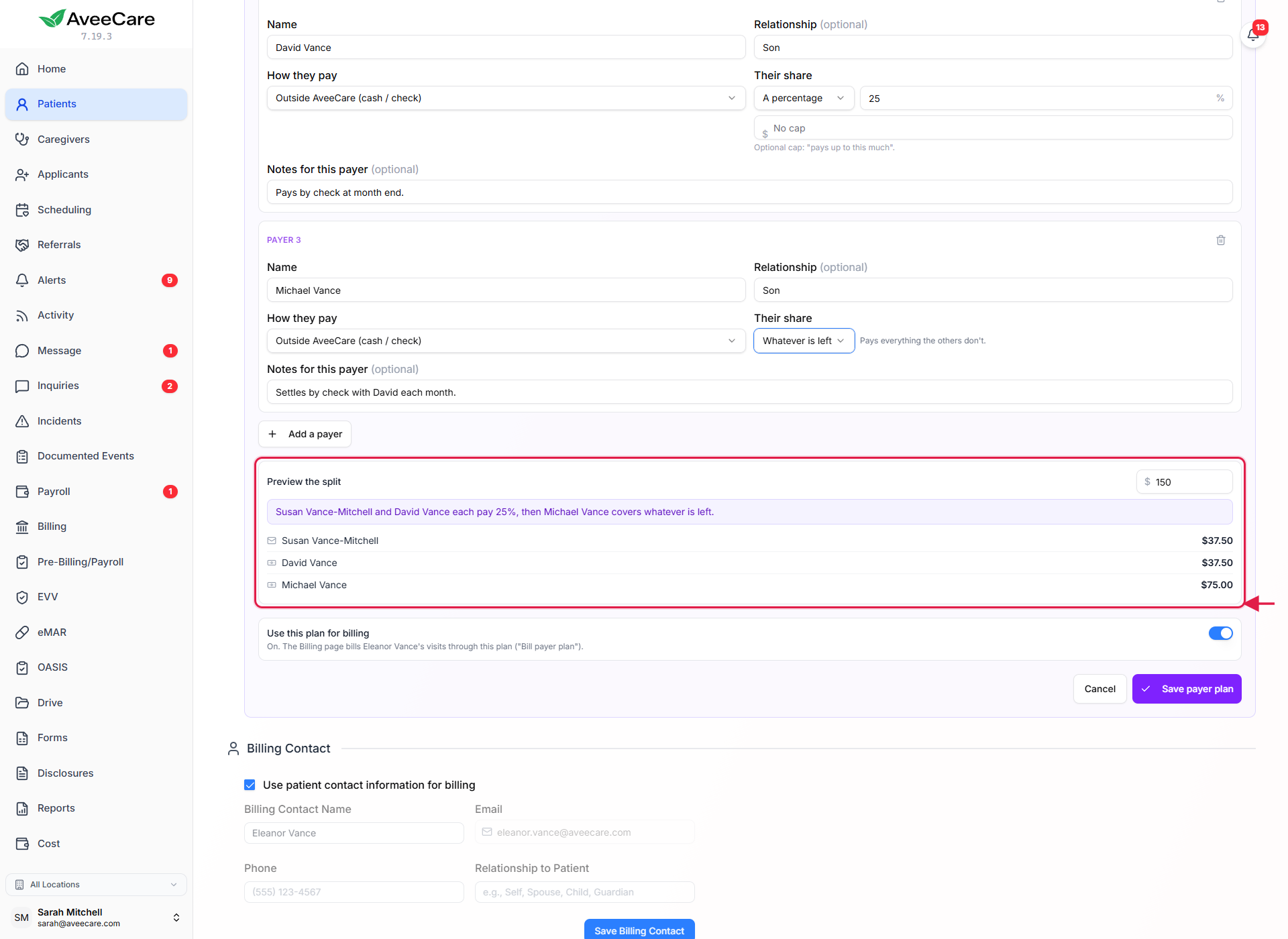
Switch on Use this plan for billing and press Save payer plan.
If a payer is set to pay by stored card and the client has no active card, AveeCare warns you before you rely on it.
3. Bill a visit with Bill payer plan
On the Billing page, press Bill payer plan on the client’s visit.
Each payer gets their own charge or emailed invoice for their share. When you create an invoice for the client instead, choose Payer plan as the billing method and the total is split the same way. The per-payer invoices are under Billing, Invoices.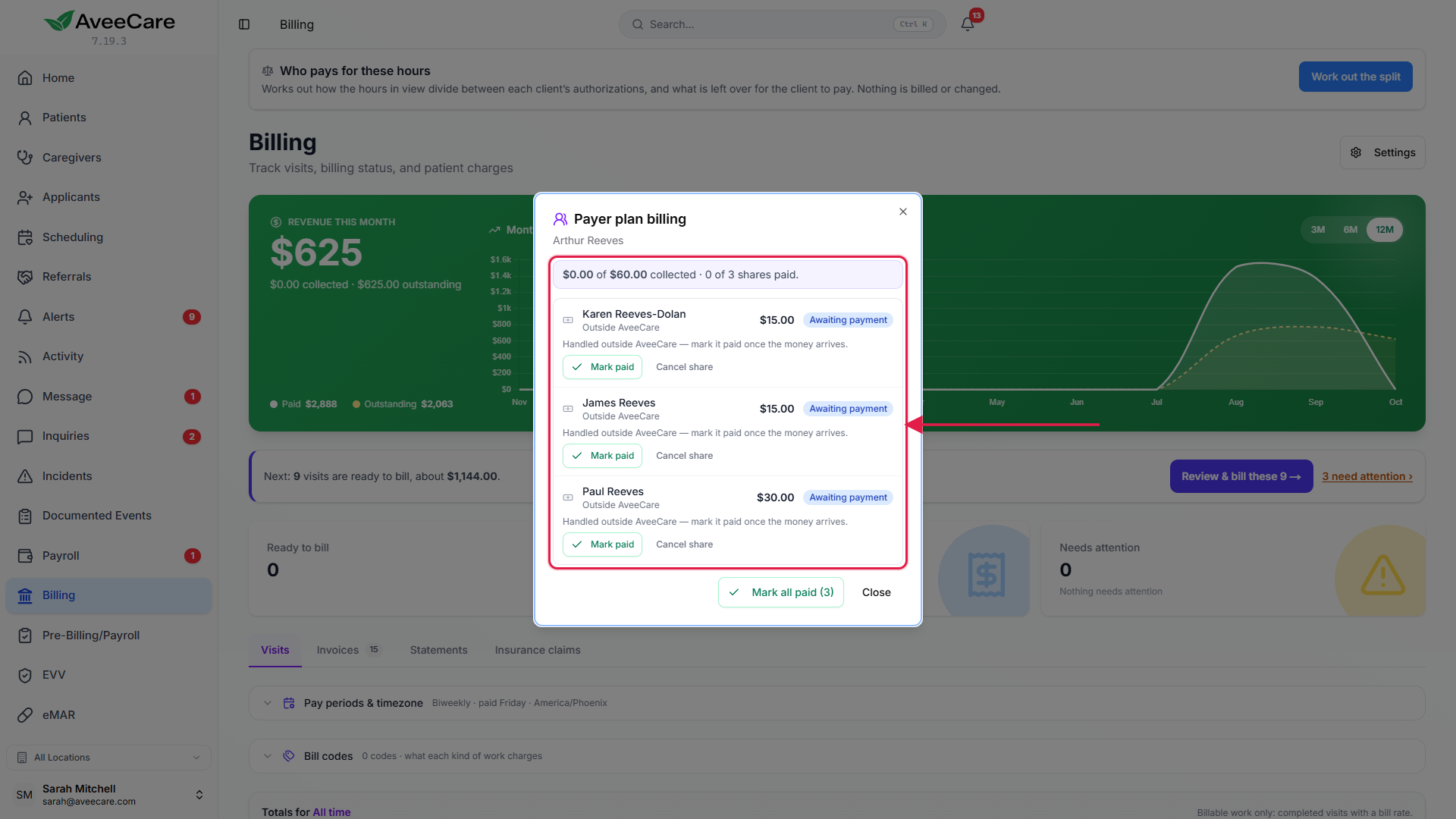
4. Follow each share to paid
Check each share’s status.
A share is Awaiting payment, Processing, Paid, Failed or Cancelled. A failed share says why in plain words, and your office is alerted.Act on one share without touching the others.
Mark paid (with a check number if you like), Retry a failed charge, or Cancel share. Recent payer shares on the client’s Billing tab show the history.
Common pitfalls
- Percentages that do not reach 100%. Add a payer set to Whatever is left so nothing goes unbilled.
- Choosing Emailed invoice before QuickBooks is connected. The choice is greyed out until it is.
- Saving the plan with the switch off. The plan is kept but standard billing still applies.