Create user accounts, and the types of user
Who can sign in to AveeCare: the owner, office users, caregivers, and clients with their families, and how each one gets a login.
3 parts · 1 minUser accountsFor the office
The lesson plays on a sample agency, so nothing you do in it changes anything. Open any item in the lesson's panel to read about it, and press See how to watch it done.
What this lesson covers
Everything the lesson says, part by part.
- 1
On the way: Logins are on the Accounts page, in the sidebar.
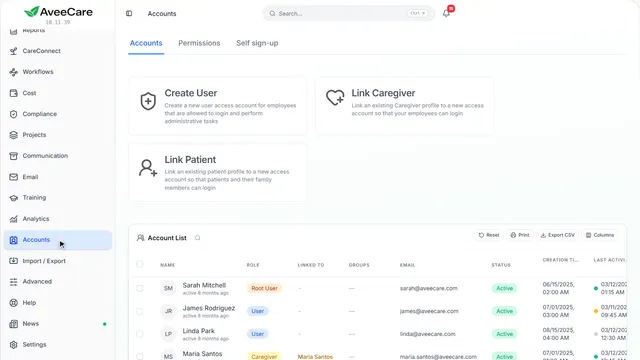
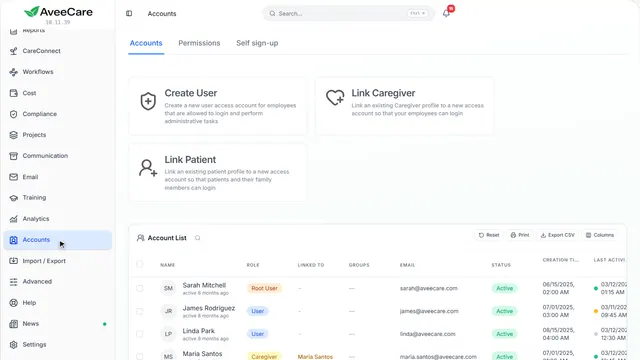
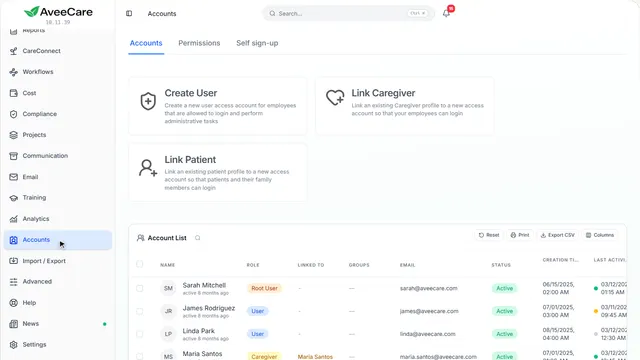
This is your Accounts page
Everyone who can sign in to AveeCare, and a button for each type of login.
In the sidebar under Accounts.
On this page
Office usersCreate User
For staff who run the agency: scheduling, clients, billing and reports. They start with full office access.
See how jumps ahead to part 2: Create User Access Account.
Read the guideCaregiversLink Caregiver
Gives someone already on your Caregivers page a login for the AveeCare app, where they see their visits and clock in and out.
See how plays the lesson Give a caregiver a login.
Read the guideClients and familyLink Patient
Lets a client, or someone in their family, see that one client’s records and nothing else. One client can have several logins.
See how plays the lesson Give a client or family member access.
Read the guideEveryone who can sign inThe Account List
Each login, its type under Role, and whether it is active. The buttons on each row reset a password, sign someone out or turn a login off. The account owner, who set up your agency, always has full access.
Read the guideSee how shows:
- The Account List Role says which type of login each person has.
- 2
Create User Access Account
An office login: their name and the email they sign in with, then the agreements, then Create User.
Accounts, then Create User.
On this page
Their email is their loginTyped twice
They sign in with this email, so each person needs their own. Temporary or throwaway addresses are not allowed.
See how shows:
- The email they sign in with Type it twice so a typo cannot lock them out.
Their sign-in detailsShown once it is made
When you press Create User, AveeCare shows a temporary password you can pass on, and emails the same details to them.
See how shows:
- Create User Their temporary password shows as soon as the login is made.
Full office accessUnless you change it
A new office user can do everything an office user can. The owner can turn things off on the Permissions tab, for every office user or a group of them.
See how plays the lesson Permissions.
Read the guide - 3
On the way: Each row’s first button is Manage access.
Access for one person
One login can be both: an office user who also works visits, or a caregiver who also helps in the office.
Accounts, then Manage access on their row.
On this page
Office and caregiver in one loginAdd caregiver access
Attach a caregiver profile and they can be scheduled, clock in and document visits while keeping their office account. They switch between the two from the top bar, with no second login.
See how shows:
- Add caregiver access Pick the caregiver profile that is theirs.
No caregiver profile to pickAdd them as a caregiver first
The list only shows caregiver profiles that have no login yet. Add their caregiver profile on the Caregivers page, then come back to Manage access.
See how plays the lesson Add a caregiver.
At the end
Now you know the types of user and how to create each one
Watch next