Add a caregiver
Where to find your caregivers, the two ways to add one, and the least you need to start scheduling them.
4 parts · 2 minCaregiversFor the office
The lesson plays on a sample agency, so nothing you do in it changes anything. Open any item in the lesson's panel to read about it, and press See how to watch it done.
What this lesson covers
Everything the lesson says, part by part.
- 1
On the way: Your caregivers are under Caregivers in the sidebar.
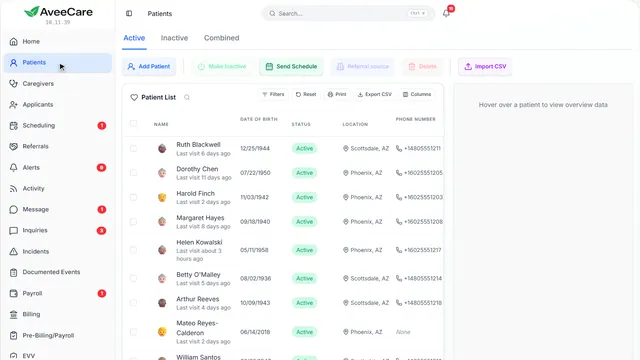
This is your Caregivers page
Everyone who works for you, with their details, certifications and availability.
In the sidebar under Caregivers. It is always there.
On this page
Add caregivers one at a timeType them in yourself, or send them a link
Add Caregiver opens a short form. A name and a way to reach them is enough to start scheduling them; everything else can come later.
See how jumps ahead to part 2: Two ways to add someone.
Read the guideImport caregivers in bulkBring in a spreadsheet of everyone at once
Upload a spreadsheet of your caregivers. Only a first and last name are needed (one full-name column works too); email, phone, address and the rest come along if you have them. Exports from ADP, Gusto, Paychex and QuickBooks match on their own. You see every row before anything is saved.
Read the guideSee how shows:
- Import opens here Pick a spreadsheet, or start from our template so the columns already match.
- Nothing is saved until you say so You see every row first, with anything that needs a look marked.
Make caregivers inactiveFor someone who left. Their history stays
Tick the caregivers in the list, then Make Inactive. They can no longer be scheduled or sign in, but their visits and pay records are kept. To bring someone back, open the Inactive tab, tick them and Make Active.
Read the guideSee how shows:
- Tick them, then Make Inactive The button counts how many you ticked. On the Inactive tab the same button reads Make Active.
Send out schedulesEmail each caregiver their own week
Tick caregivers and Send Schedule emails each of them their own visits. The arrow beside it sends everyone’s week at once.
See how shows:
- Send Schedule Each caregiver you ticked gets an email with only their own visits.
- 2
On the way: Add Caregiver is at the top of the list.
Two ways to add someone
Fill it in yourself, or send them a secure link and let them do it.
Caregivers, then Add Caregiver at the top of the list.
On this page
Manual AddYou type in what you know
Best when you have their details in front of you. Next you choose how much to fill in now.
See how jumps ahead to part 3: How much to fill in now.
Remote AddThey fill it in on their own phone
Make a secure link and send it by email or a QR code. They enter their own details and upload their certifications, and you choose whether they get a login when they finish.
Read the guideSee how shows:
- Remote Add Choose how long the link lasts and whether they get a login, then make the link.
- Send it however suits them Copy the link, show a QR code, or have us email it to them.
- 3
How much to fill in now
Just the basics gets them on the schedule today. Full setup is everything in one sitting.
Add Caregiver, then Manual Add.
On this page
Just the basicsA name and a way to reach them
The least we need to create the caregiver and start scheduling them. Add the rest from their record whenever you like.
See how jumps ahead to part 4: Just the basics.
Full setupPay, certifications, documents and more
Everything in the basics, plus their license, certifications with expiry dates, EVV details, notes and forms.
See how shows:
- Full setup The same form with every section open. You can stop and come back: a draft is kept.
- 4
Just the basics
Their name, and an email or phone number. Create Caregiver and they are ready to schedule.
Add Caregiver, Manual Add, then Just the basics.
On this page
How to reach themAn email or a phone number
We use it to send them their schedule and, if you want, a login for the AveeCare app.
See how shows:
- Email or phone Either one is enough.
Give them a login nowOr do it later from Accounts
Tick it and they get a welcome email with a login for the AveeCare app, where they see their visits and clock in and out.
See how shows:
- A login for the app Leave it off and give them one later from Accounts, with Link Caregiver.
At the end
Now you know how to add a caregiver
Watch next
 Recommended