Give a client or family member access
Give a client, or someone in their family, a login of their own that shows that one client and nothing else.
3 parts · 1 minUser accountsFor the office
The lesson plays on a sample agency, so nothing you do in it changes anything. Open any item in the lesson's panel to read about it, and press See how to watch it done.
What this lesson covers
Everything the lesson says, part by part.
- 1
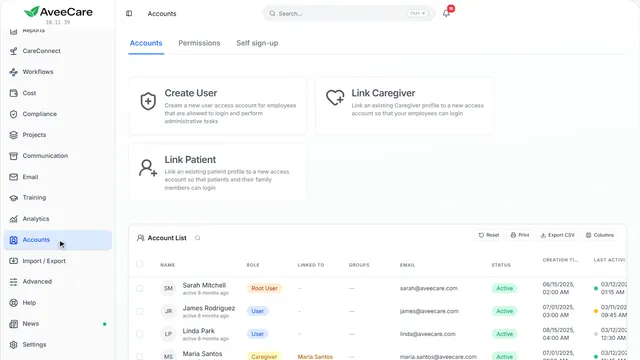
On the way: Logins are made on the Accounts page.
Your Accounts page
Link Patient gives a client, or someone in their family, a login of their own.
In the sidebar under Accounts.
On this page
Link PatientFor a client you already added
Pick the client, type the email this person will sign in with, and the login is made.
See how jumps ahead to part 2: Link Patient Access Account.
Read the guideOr let them ask for oneSelf sign-up
A sign-up link for clients and family lets a relative request access. When you approve, you choose which client they belong to.
See how jumps ahead to part 3: Self sign-up.
- 2
Link Patient Access Account
Pick the client, then the email this person will sign in with.
Accounts, then Link Patient.
On this page
Pick the clientAvailable Patients
Click their row and they show as the Selected Patient. The login only ever sees this client.
See how shows:
- Pick a client The login sees this client and nobody else.
Family members tooSeveral logins for one client
Make one for each family member who should see this client. Each needs an email of their own.
See how shows:
- Their own email Make another login for the next family member.
What they can seeThat client only
That client’s documents and care records, and nothing about anyone else. Turn off what clients and family should not have on Permissions.
See how plays the lesson Permissions.
- 3
Self sign-up
Give a family a link, or a code to type at aveecare.com/signup. Nobody gets a login until you approve them here.
Accounts, then Self sign-up.
On this page
Make a sign-up linkFor clients and family
Choose Clients and family, how long it works and how many requests it takes. Share the link, its QR code or its code.
See how shows:
- New sign-up link Choose who it is for, how long it works and how many requests it takes.
- Who is this link for? Caregivers, or clients and family. Share the link, its QR code or its code.
Approve each requestYou choose the client
When you approve, you choose which client the login belongs to. The request says whether it is the client or a family member. It emails their sign-in details.
See how shows:
- Requests waiting for you Approve or decline each one.
At the end
Now you know how to give a client or family member access
Watch next