Permissions
Choose what each type of login can see and do, and make groups for the people who need something different.
2 parts · 1 minUser accountsFor the office
The lesson plays on a sample agency, so nothing you do in it changes anything. Open any item in the lesson's panel to read about it, and press See how to watch it done.
What this lesson covers
Everything the lesson says, part by part.
- 1
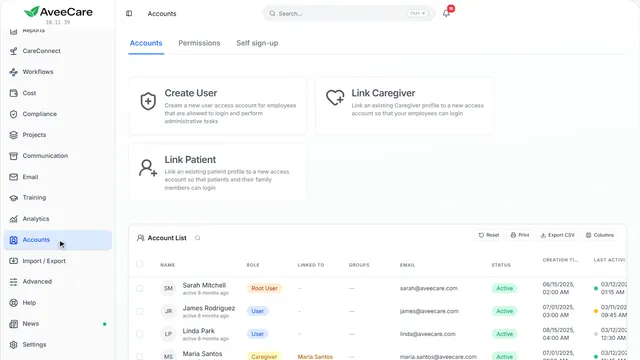
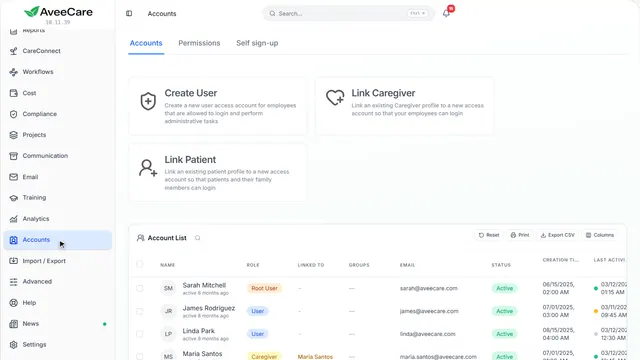
On the way: Permissions are on the Accounts page, in the sidebar.
Your Accounts page
Permissions is the second tab along the top.
In the sidebar under Accounts.
On this page
The Permissions tabNext to Accounts
One place for what every login can do.
See how jumps ahead to part 2: This is Permissions.
The types of loginOffice users, caregivers, clients and family
Permissions are set for each type of login: office users from Create User, caregivers from Link Caregiver, and clients and family from Link Patient.
See how shows:
- Create User A login for someone in your office.
- Link Caregiver A login for one of your caregivers.
- Link Patient A login for a client or someone in their family.
- 2
This is Permissions
Everyone starts with full access for their type of login. Turn things off for a whole type, or make a group for the people who differ.
Accounts, then Permissions.
On this page
A list for each type of loginOffice users, caregivers, clients and family
Choose one, All caregivers for instance, and turn off what none of them should have, like their pay history.
See how shows:
- Choose a type of login Each one has its own switches.
Allowed, view only or turned offOne switch per item
Each item is a switch. Some, like billing and claims or payroll, can also be view only. A badge says whether it is enforced everywhere or only changes what the app shows.
Read the guideSee how shows:
- A switch for each item Grouped by client records, pay and schedule, communication and more.
Groups for people who differNew group
Make a group, put people in it, and change only what is different for them. When a person is in two groups and one turns something off, it is off.
See how shows:
- New group Name it, add people, then change only what differs.
Save your switch changesSave changes
Switch changes wait until you press Save changes, and Discard throws them away. Adding or removing a person from a group saves at once.
See how shows:
- Save changes Or Discard to put everything back.
Only the owner changes office usersOwners always have full access
Other office users can see the office settings here but not change them. The account owner always has full access.
See how shows:
- Office users Only the account owner can change these.
At the end
Now you know how to set permissions
Watch next