AveeCare uses four roles to control what each login can see and do: RootUser, User, Caregiver, and Patient. The role is baked in when the account is created and is never edited from a row action. Which role a new login gets depends entirely on which entry card you click on the Accounts page.
Quick answer
Open Accounts to see the role of every login in the Role column. To add a new login, pick the entry card that matches the role you want: Create User makes a User (office staff admin), Link Caregiver attaches a Caregiver login to a caregiver record, and Link Patient attaches a Patient login to a patient record. The RootUser is the company founder, created when the agency first signs up, and there is no UI to promote anyone else into it.
The four roles, end to end
- RootUser. The first account created when an agency signs up. Full administrative access plus a handful of owner-only fields like SMS provider credentials and the company name. Cannot be deleted. There is no row action to assign someone else the RootUser role.
- User. The office-staff administrative role. Can add and delete other Users, add and modify patients, add and modify caregivers, run scheduling, run billing, and view almost every page in the dashboard. This is what Create User on the Accounts page produces.
- Caregiver. The caregiver-side surface. Sees only their own assigned visits, their own pay rates (if the company allows it), their own profile, and the caregiver app shell. Cannot see other caregivers, billing settings, or company financials. This is what Link Caregiver on the Accounts page produces, by attaching a Cognito login to an existing Caregiver record.
- Patient. The patient portal. Sees their own visits, their own care plan, and basic profile fields. Cannot see other patients, caregivers, or any company-wide data. This is what Link Patient on the Accounts page produces, by attaching a Cognito login to an existing Patient record.
1. See the role for every account on the Accounts page
Click Accounts in the left sidebar.
The page loads with the three entry cards at the top, an Account List in the middle, and Audit Logs at the bottom. The Role column sits between Name and Linked To.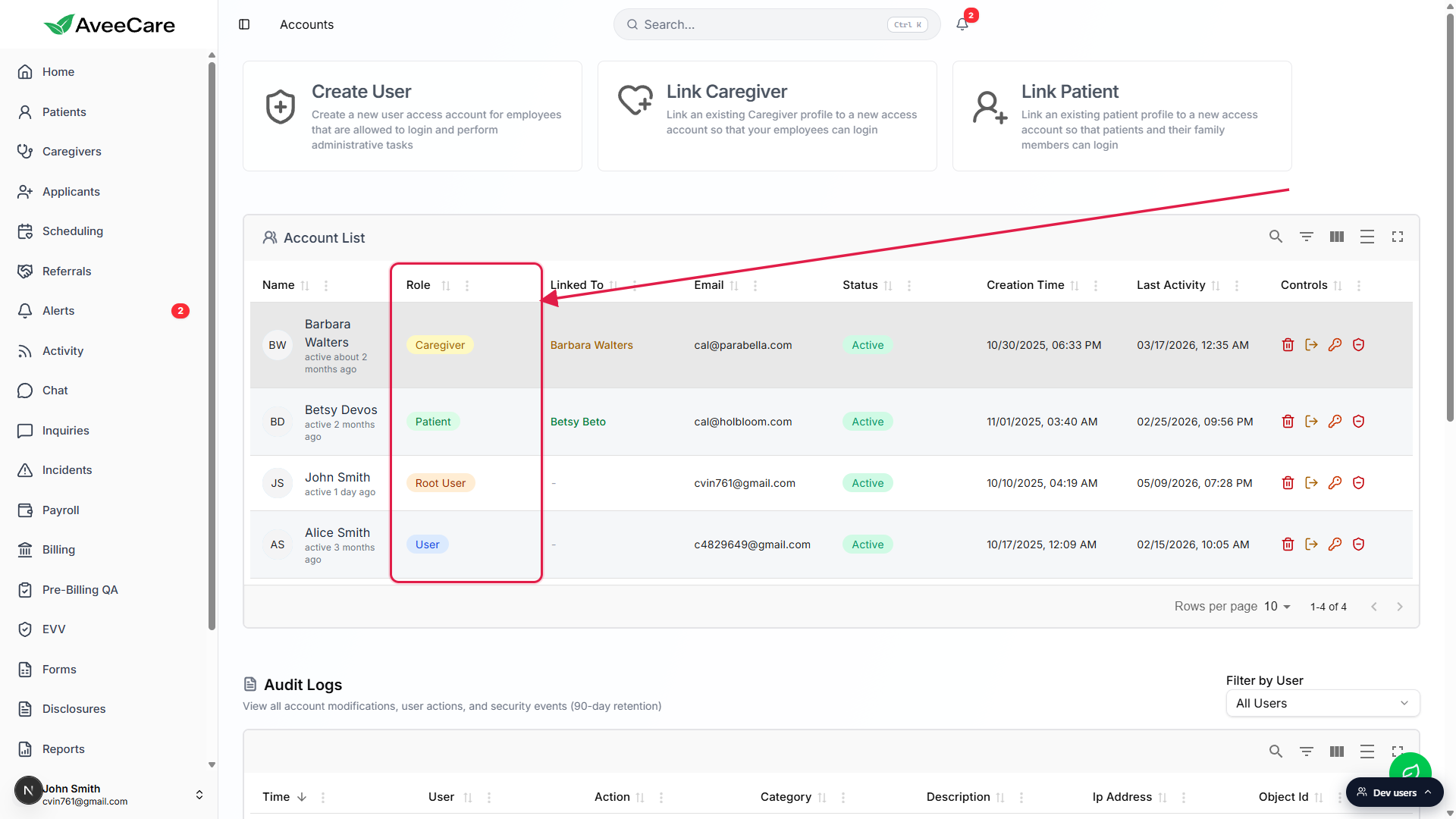
Read the colored pill in the Role column for each row.
Each role has its own pill color so the column is scannable at a glance: RootUser is orange and renders as Root User in the pill, User is blue, Caregiver is yellow, and Patient is green. The Linked To column shows the caregiver or patient record this login is attached to for Caregiver and Patient rows, and a dash for User and RootUser rows.
2. Pick the entry card that matches the role you want
Look at the three entry cards at the top of the Accounts page.
The three cards map one-to-one to the three roles you can assign from the UI. There is no role dropdown on any of the forms, so the card you click is the role you create.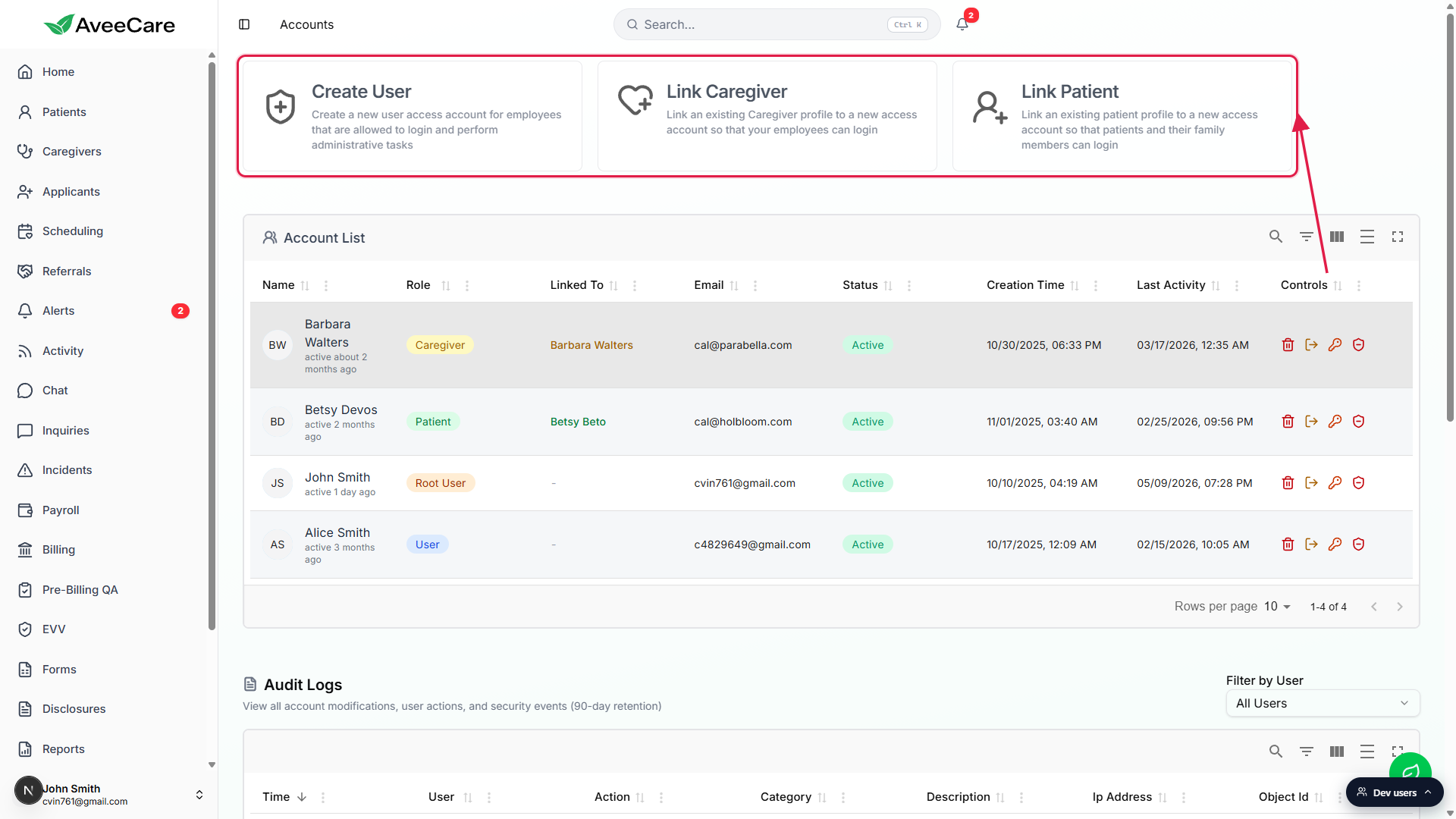
Click Create User for an office staffer who needs administrative access.
Create User makes a User role login. The form opens a red warning panel that lists exactly what the new account can do: add and delete users, add or modify patients, add or modify caregivers, and more.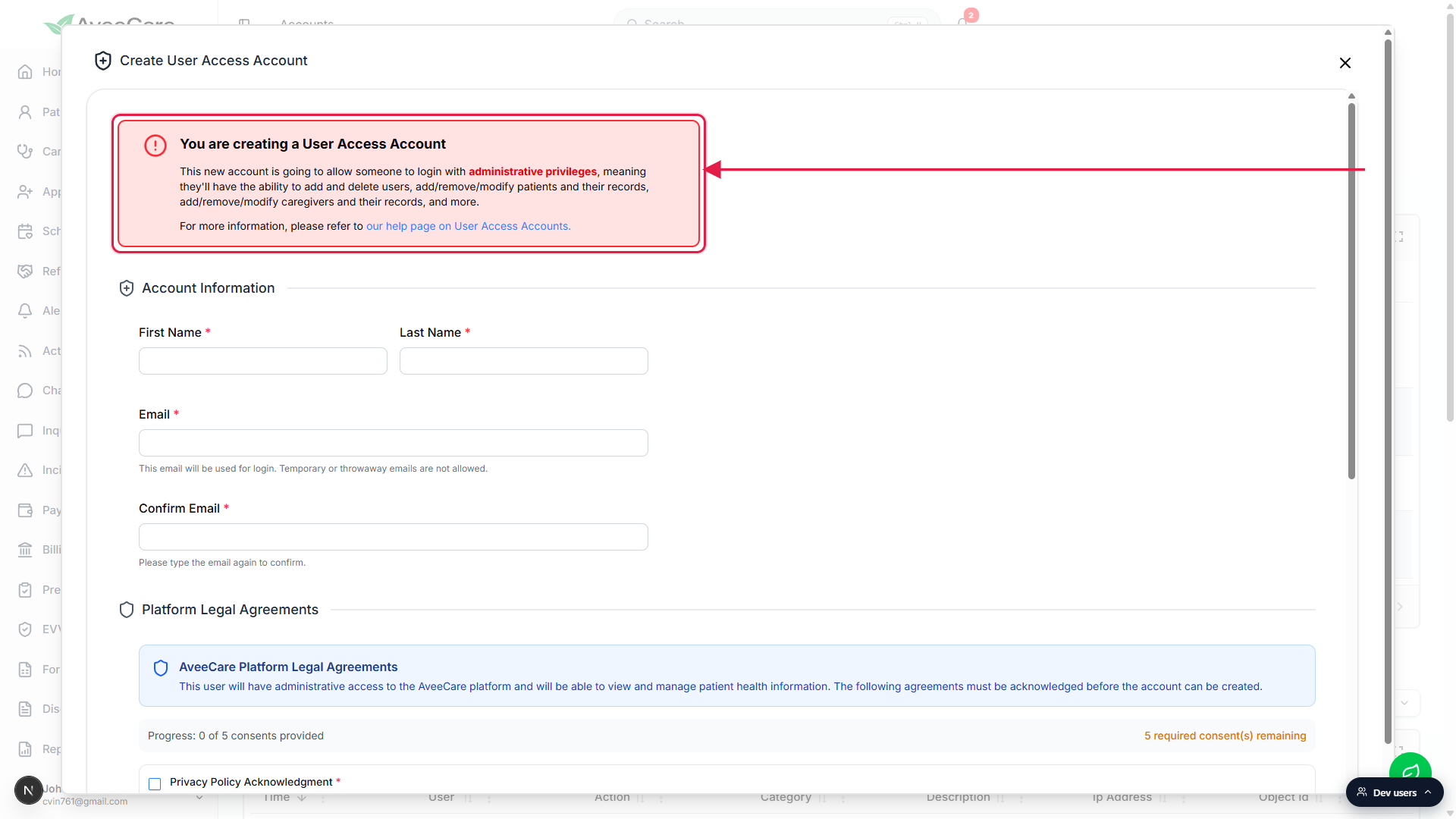
Click Link Caregiver to give an existing caregiver record a login.
Pick a Caregiver record from the company, then attach a Cognito login to it. The new login lands with the Caregiver role and can only see surfaces tied to that caregiver record.Click Link Patient to give an existing patient (or family member) a login.
Pick a Patient record from the company, then attach a Cognito login. The new login lands with the Patient role and only sees the patient portal for that patient.
3. Know what each role can see and do
RootUser is the founder. Full access, cannot be deleted.
RootUser is created automatically when a new agency signs up for AveeCare. It has every permission a User has, plus owner-only fields like the company name, SMS provider credentials, and billing exemption flags. There is no in-product action to delete the RootUser or promote another account into it.User can run the whole agency, with a few exceptions.
User is the office-staff admin role: add and delete other Users, manage patients and caregivers, schedule visits, run billing, configure EVV, manage the Settings page. Owner-only fields like the company name and SMS auth token are read-only for User even though the rest of the company configuration is editable.Caregiver sees only their own visits and profile.
A Caregiver login can clock in and out of their own assigned visits, view their schedule, file incident reports tied to their visits, see their own pay rates if the company allows it, and update their own profile. They cannot list other caregivers, see other patients, or open company-wide pages like Billing or Reports.Patient sees only the patient portal for their own record.
A Patient login can see their own upcoming and past visits, their own care plan and care notes, and their own profile fields. They cannot see other patients, caregivers, or any company-wide setting.
4. Change a role by deleting and re-creating the login
There is no role-change row action.
The Controls column on each Account List row exposes Delete User, Logout User, Change Password, and Disable or Enable User. There is no Change Role action. The role is fixed once the account is created.To convert a Caregiver login to a User, delete it and click Create User.
Click the trash icon on the Caregiver row to delete the Cognito login. The caregiver record itself is preserved and unlinks automatically. Then click Create User at the top of the page and fill out the form with the same email so the person can sign in as office staff. They will receive a new temporary password from Cognito.To convert a User to a Caregiver, delete the User login first, then click Link Caregiver.
Same pattern in reverse. Delete the User from the Account List, then click Link Caregiver and attach a fresh login to the appropriate Caregiver record. There is no shortcut that converts the existing login in place.
Common pitfalls
- Looking for a Role dropdown on Create User. There is no role picker. Create User always produces a User. To make a Caregiver or Patient login, click the matching Link card instead.
- Trying to promote an office staffer to RootUser. RootUser is fixed at signup and cannot be reassigned from the UI. If your founding RootUser needs to leave the company, contact AveeCare support before you delete or disable the account.
- Using Create User for a caregiver who only needs to clock in. Create User grants administrative access to the whole agency. For a caregiver, always use Link Caregiver so the login only sees their own visits.
- Assuming office scoping comes from the role. Role controls what the login can do across the company. Limiting a User to one office is a per-account assignment on the Caregiver or User record, not a separate role.
- Expecting role changes to be live until refresh. A login that was just deleted and re-created with a different role will need to sign in again with the new temporary password. Their old session is invalidated as soon as the row is deleted.
- Forgetting that Delete User unlinks the caregiver record. Deleting a Caregiver login from the Account List unlinks the login from the Caregiver record. The caregiver record itself stays intact, so their visit history, pay rates, and certifications are not lost.