AveeCare flags every patient whose next supervisory visit is due in the next 7 days or already overdue. The flag shows up on the Scheduling toolbar as an SV Due pill with a count. From there you can either narrow the calendar to just those patients, or jump straight into a pre-filled Supervisory Visit scheduler.
Quick answer
Open Scheduling. Look at the toolbar above the calendar. If anyone is due, an SV Due (N) pill and a Show SV Due Only button appear next to Add Visit. Hover SV Due to see the patient list, click a name to open a Supervisory Visit scheduler, or click Show SV Due Only to filter the calendar.
How a patient becomes “due”
Each patient has a Supervisory Visits section on their Patient Overview tab with a Supervisor, an Interval (days) (default 60), and a Next Due Date. AveeCare considers a patient due when the Next Due Date is within 7 days or already in the past. As soon as you finish a supervisory visit through this flow, the Last Supervisory Visit and Next Due Date update automatically based on the interval.
1. Open Scheduling and find the SV Due button
Click Scheduling in the left nav.
The toolbar above the calendar lives just under the Scheduled tab. Look right after the Add Visit button.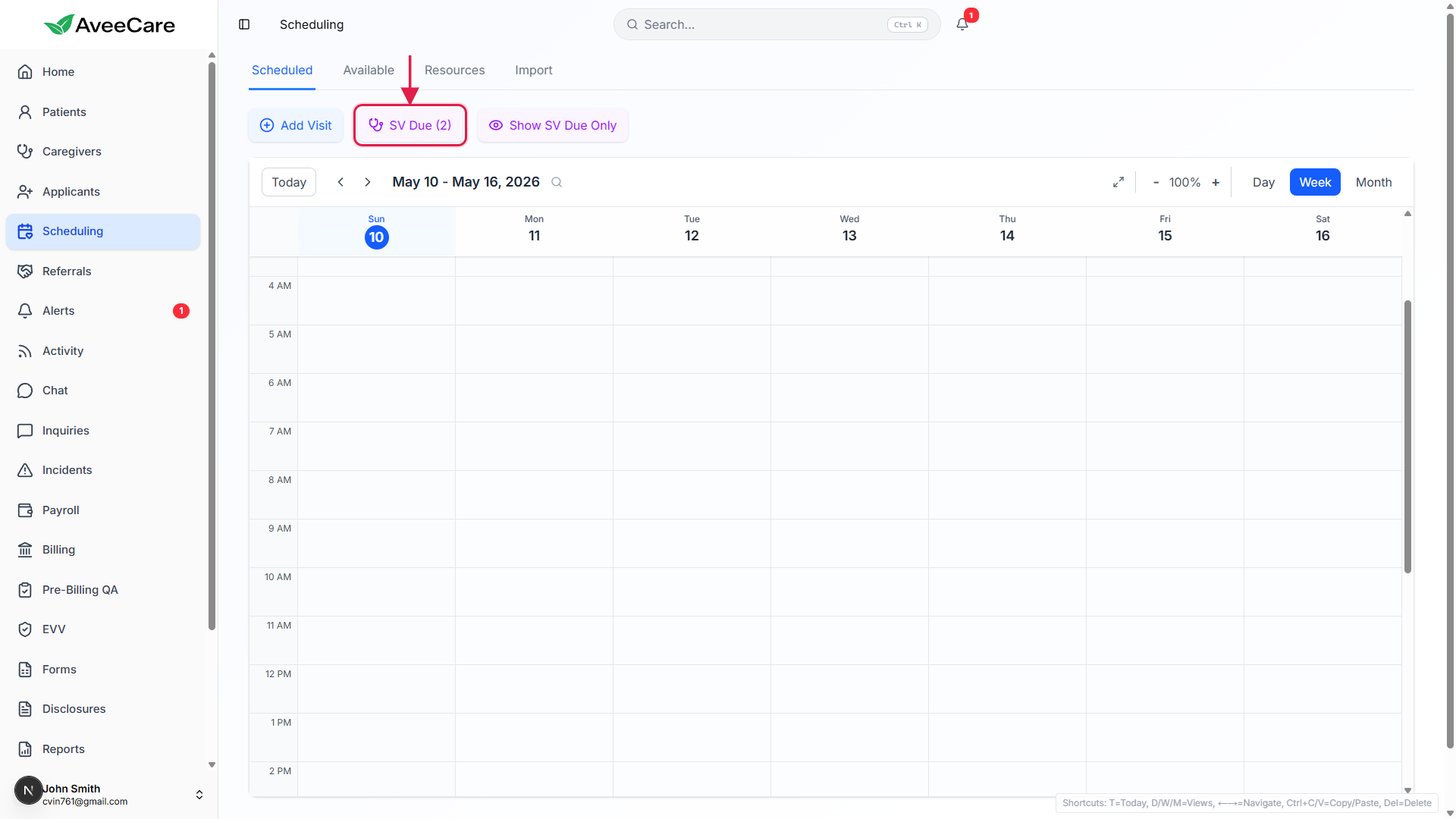
If no one is due, the SV Due pill is hidden.
The pill only renders when at least one patient is within 7 days of their supervisory cadence or already overdue. An empty toolbar after Add Visit means no one is due right now.
2. See who is due in the hover dropdown
Hover the SV Due pill.
A small panel drops down with the heading Patients due for supervisory visit and one row per patient. Each row has a stethoscope icon and the patient's full name.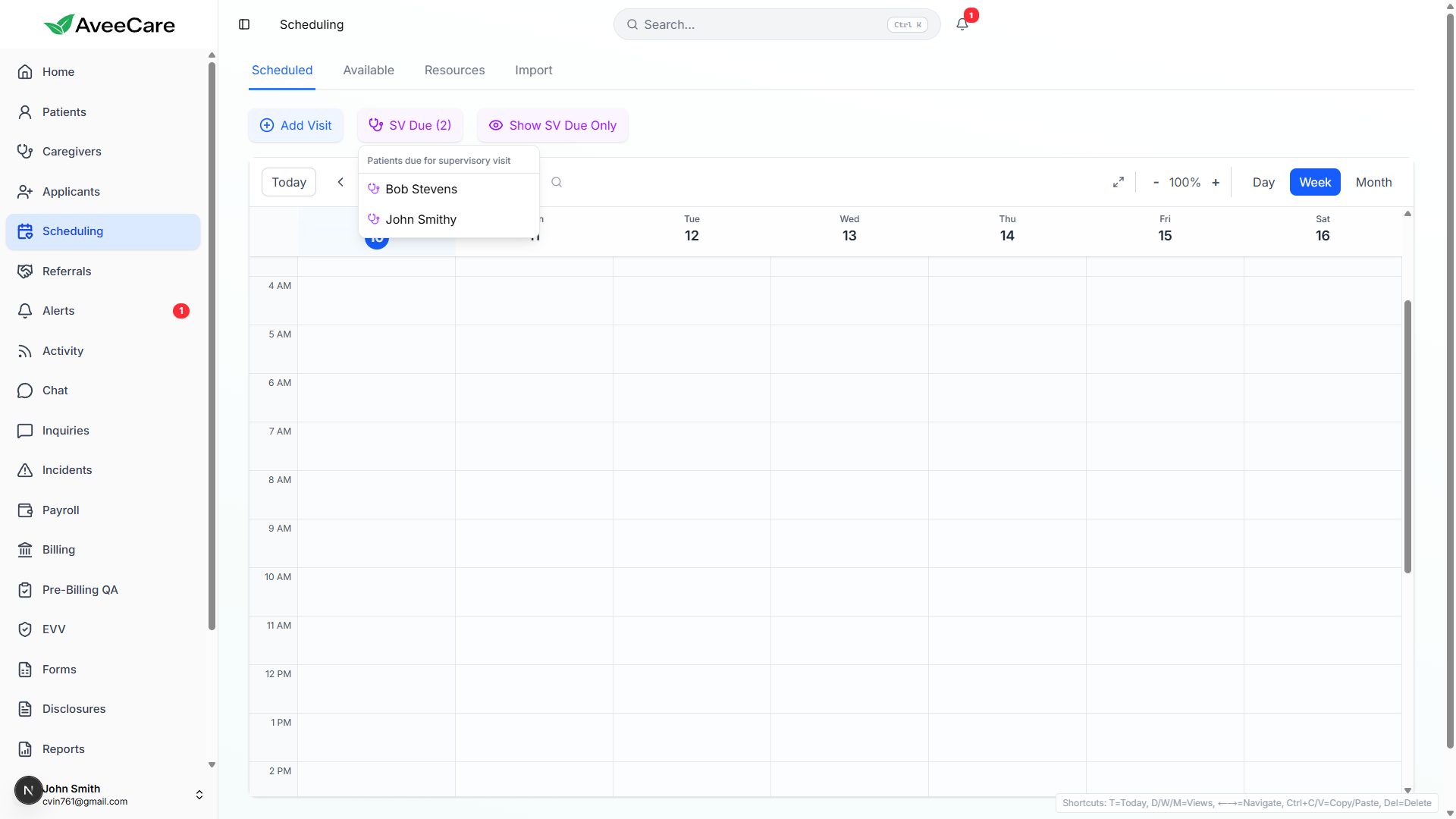
On phones, the pill becomes a smaller chip below the toolbar.
Tap it instead of hovering to see the same patient list.
3. Toggle Show SV Due Only to filter the calendar
Click Show SV Due Only to narrow the calendar.
The button turns solid purple when active. The calendar then hides every visit whose patient is not on the SV Due list. Click it again to clear the filter.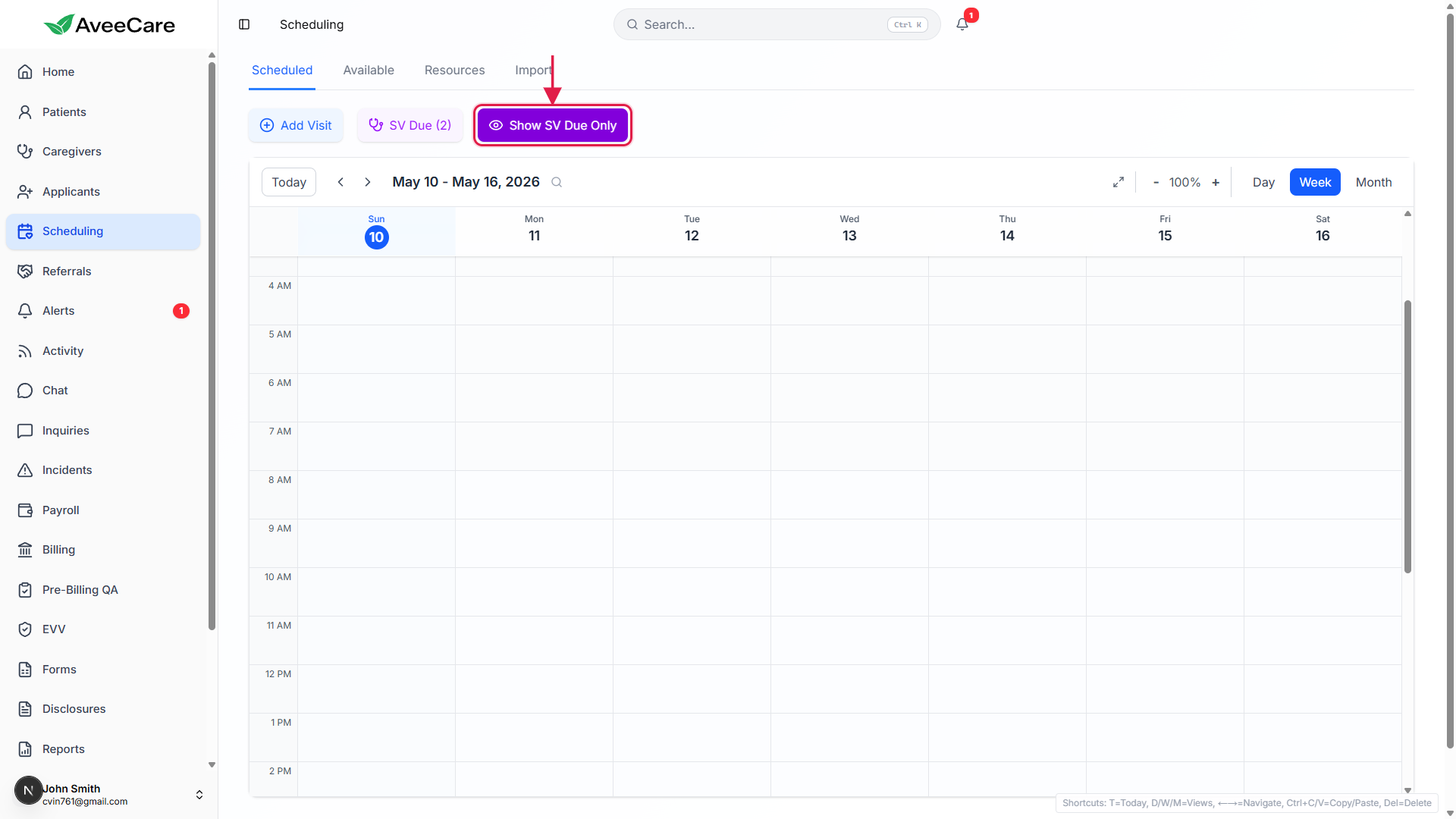
Visits for SV Due patients render in purple with an [SV Due] suffix.
Even with the filter off, an existing visit whose patient is due gets a purple block on the calendar and an [SV Due] tag on the visit title, so the cadence is visible at a glance.
4. Schedule a supervisory visit from the dropdown
In the SV Due dropdown, click a patient's name.
AveeCare opens the Schedule a Visit wizard inside a full-screen modal labeled Supervisory Visit, with the patient already filled in and the visit title and reason pre-set to Supervisory Visit.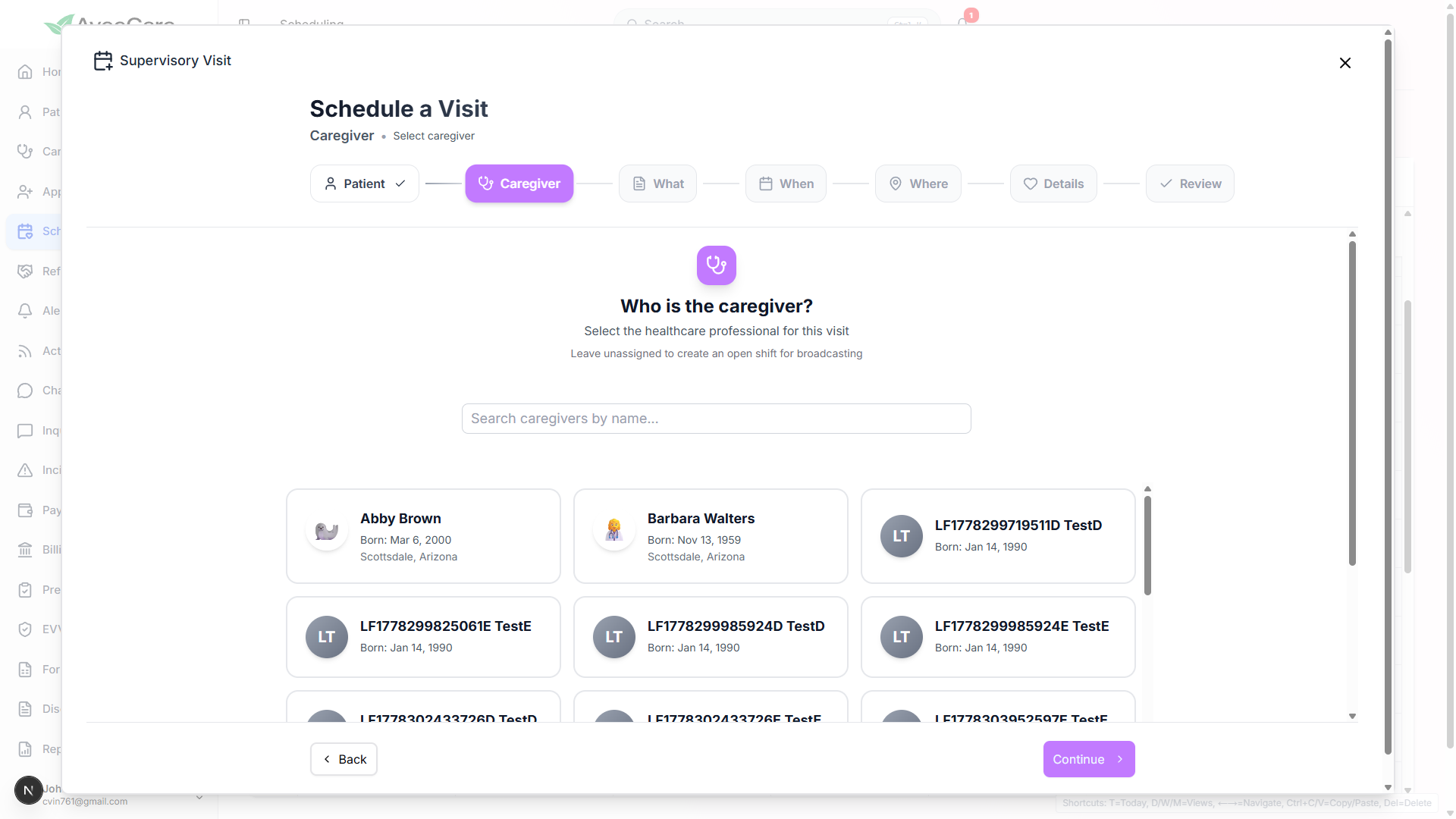
Pick a caregiver, then walk through When, Where, Details, and Review.
Leave the caregiver unassigned to broadcast it as an open shift. The wizard is the same one as a normal Add Visit, just pre-filled.Save the visit. AveeCare bumps the cadence forward.
Once the visit saves, the patient's Last Supervisory Visit jumps to the visit's start date and Next Due Date moves forward by the patient's interval (60 days by default).
Common pitfalls
- The pill is missing entirely. The toolbar only shows SV Due when at least one patient is due. If no patient has a Next Due Date set, or every Next Due Date is more than 7 days out, the pill stays hidden. Check Patient Overview for any patient you expect to see flagged.
- Patient never appears even after setting the date. The cadence lives on the patient. Open the patient, expand Supervisory Visits, click Edit Supervisory Visit Settings, and set Next Due Date explicitly. Saving the row is what flips the patient onto the SV Due list.
- Forgetting to clear Show SV Due Only. The toggle stays on until you click it again. If your calendar suddenly looks empty, check whether the button is solid purple before you panic.
- Confusing supervisory visits with skilled-nursing visits. The SV cadence is a separate field from any nursing visit schedule. The filter only respects the supervisory cadence, not skilled frequency.
- Scheduling outside this flow. Adding a regular visit titled “Supervisory Visit” through Add Visit will not advance the cadence. Use the SV Due dropdown so AveeCare knows to bump Last Supervisory Visit and Next Due Date after save.