Medicaid and insurance claims
Send claims to insurance through your clearinghouse, see what came back, and fix the ones that were denied.
3 parts · 1 minBillingFor the office
The lesson plays on a sample agency, so nothing you do in it changes anything. Open any item in the lesson's panel to read about it, and press See how to watch it done.
What this lesson covers
Everything the lesson says, part by part.
- 1
On the way: Billing is in the sidebar.
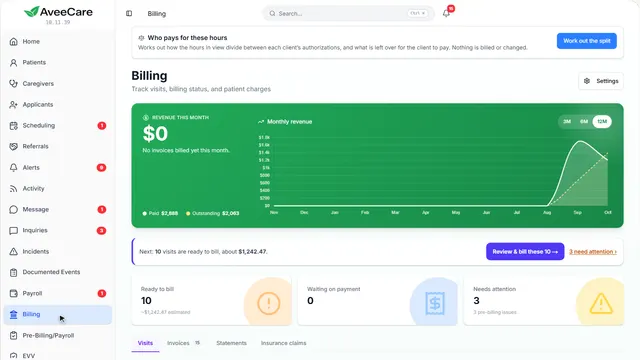
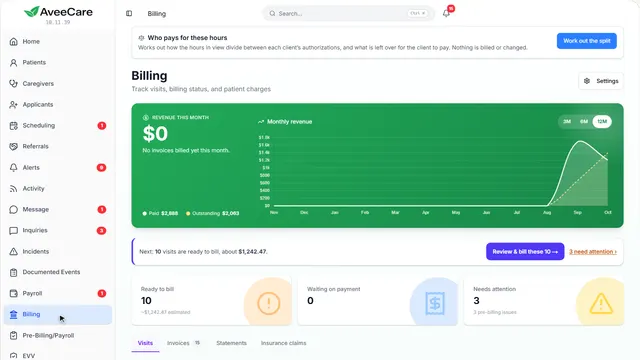
This is Billing
Every finished visit with what it charges, what is ready to bill, and what is still waiting on payment.
In the sidebar under Billing.
On this page
Insurance claimsTheir own tab
Claims to Medicaid and insurance payers are sent, tracked and fixed on the Insurance claims tab.
See how jumps ahead to part 2: Insurance claims.
Read the guideSet up your payers firstWith the payer ID your clearinghouse uses
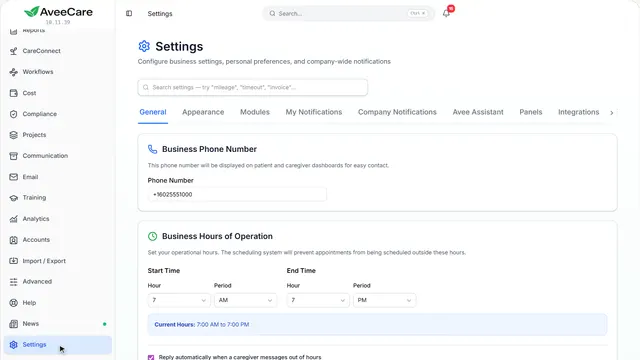
Each claim goes to a payer by its payer ID, so add your payers in Settings before you send.
See how plays the lesson Payers and rates.
- 2
On the way: Claims have their own tab on Billing.
Insurance claims
Every claim with its status, the ones waiting on a payer, and the denials you still have to work.
Billing, then the Insurance claims tab.
On this page
Send claimsThrough your clearinghouse
Send claims to insurance picks the claims to send and the kind of claim.
See how jumps ahead to part 3: Send claims to insurance.
Read the guideWaiting on payersClaims sent and not paid yet
Waiting on payers groups the claims that went out and have no answer yet, by how long they have waited.
See how shows:
- Waiting on payers A claim waiting too long is worth a call.
Denials to workFix and resubmit, or mark it worked
Each denied or rejected claim says why. Fix and resubmit opens it so you can correct it and send it again; Mark as worked records that you dealt with it another way.
Read the guideSee how shows:
- Denials to work The reason the payer gave is on each one.
Check for responsesWhat the clearinghouse sent back
Check for responses collects the acknowledgments and answers your clearinghouse has for you, and moves each claim along.
See how shows:
- Check for responses Rejections show up here before a payment would.
- 3
On the way: Send claims to insurance is at the top.
Send claims to insurance
Choose the claims to send and the kind of claim. Nothing leaves until you press Send at the bottom.
Billing, Insurance claims, then Send claims to insurance.
On this page
Home care or facilityThe two claim forms
Home care and professional services use the 837P claim. Facility and institutional services use the 837I. Pick the one your payer expects.
Read the guideSee how shows:
- What kind of claim is this? Most home care is 837P.
Choose the claimsAll are ticked to start
Every ready claim starts ticked. Untick any you want to hold back, then send the rest together.
See how shows:
- Deselect all Then tick only the ones you mean to send.
At the end
Now you can send claims and work the denials
Watch next