Bill for finished visits
See what is ready to bill, create one invoice per client for the period, and follow each invoice until it is paid.
3 parts · 2 minBillingFor the office
The lesson plays on a sample agency, so nothing you do in it changes anything. Open any item in the lesson's panel to read about it, and press See how to watch it done.
What this lesson covers
Everything the lesson says, part by part.
- 1
On the way: Billing is in the sidebar.
This is Billing
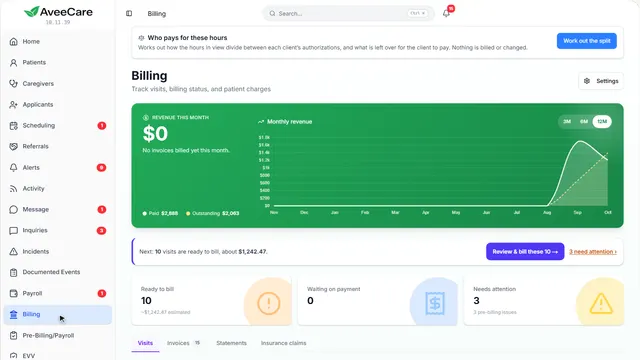
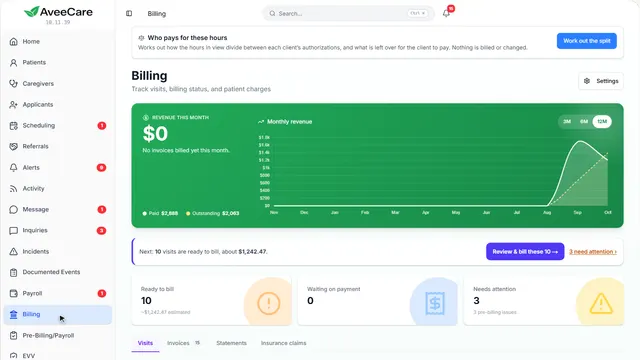
Every finished visit with what it charges, what is ready to bill, and what is still waiting on payment.
In the sidebar under Billing.
On this page
What is ready to billFinished visits not on an invoice yet
The cards across the top count the visits ready to bill, the visits waiting on payment, and anything that needs attention first. The line above them says what to do next.
See how shows:
- Ready to bill, waiting on payment, needs attention Each card filters the list below to those visits.
Each visit and its chargeHours, the rate that priced it, the amount
The list shows each visit with its hours, which rate priced it and the amount. Tick rows to bill only those; leave them all unticked to bill the whole period.
See how shows:
- The visits in this period Priced by names the rate behind each amount.
Check before you billMissing signatures, notes or authorizations
Pre-Billing/Payroll checks every visit in the period for what would get an invoice or claim sent back: a missing signature, notes, an authorization. Fix those first.
Read the guideSee how shows:
- Needs attention It lists what is holding visits back.
Create the invoicesOne per client for the period
Create invoices gathers the finished visits not on an invoice yet into one invoice per client.
See how jumps ahead to part 2: Create invoices.
Read the guideWhere the prices come fromBill rates and bill codes
A visit is priced by the client’s rate, a bill code, or the agency’s standard rate. Set those up once and every visit prices itself.
See how plays the lesson Payers and rates.
- 2
On the way: Create invoices is above the list.
Create invoices
One invoice per client for the period, from the finished visits that are not on an invoice yet. Nothing is created until you press the button at the bottom.
Billing, then Create invoices above the list of visits.
On this page
Who gets an invoiceEach client, their visits and the total
Each client is listed with how many visits and the total. Untick a client to leave them out of this run.
See how shows:
- One line per client Open a client to see the visits behind the total.
What is left out, and whyVisits not finished, already billed, no rate
Below the clients it says what this run leaves out: visits not marked complete yet, visits already on an invoice, and visits with no bill rate. Clients billed through a payer plan are billed there instead.
See how shows:
- Worth knowing before you send Every visit left out is counted here.
After you create themThey are on the Invoices tab
Each invoice is filed as sent and waits on the Invoices tab for payment. Email one from the invoice when you need to.
See how jumps ahead to part 3: Your invoices.
- 3
On the way: The invoices are on their own tab.
Your invoices
Every invoice with its status, how old the unpaid ones are, and the next thing to do with each one.
Billing, then the Invoices tab.
On this page
What is still owedGrouped by how long it has been
Accounts Receivable Aging adds up the unpaid invoices by age: current, 1 to 30 days, and older. Press a group to see just those invoices.
Read the guideSee how shows:
- Accounts Receivable Aging Older money is harder to collect.
The next step on each invoiceSend it, record a payment, download it
Each invoice has one button for its next step: Send now for a draft, Record payment once it is sent, Download PDF once it is paid. The rest are under More actions.
See how shows:
- Record payment For a check or cash the client paid you directly.
At the end
Now you can bill for the visits your caregivers finished
Watch next