AveeCare turns a plain-English prompt into a real report. Type what you want to see (“visits by caregiver this month,” “active patients with allergies,” “denied claims in the last 90 days”), and AveeCare picks the data, builds the table or chart, and drops the result in the canvas. This guide covers the loop from prompt to scheduled email delivery.
1. Open Reports and expand AI Report Generator
Open Reports from the left sidebar.
The page loads with Recent Reports across the top, an empty canvas in the middle, and the Report Tools rail on the right.Scroll the right rail to AI Report Generator and click to expand it.
AI Report Generator sits below Manual Report Builder in the right-rail accordion. Expanded, it shows a privacy note about AI features and a prompt textarea. Reference: AI report generator.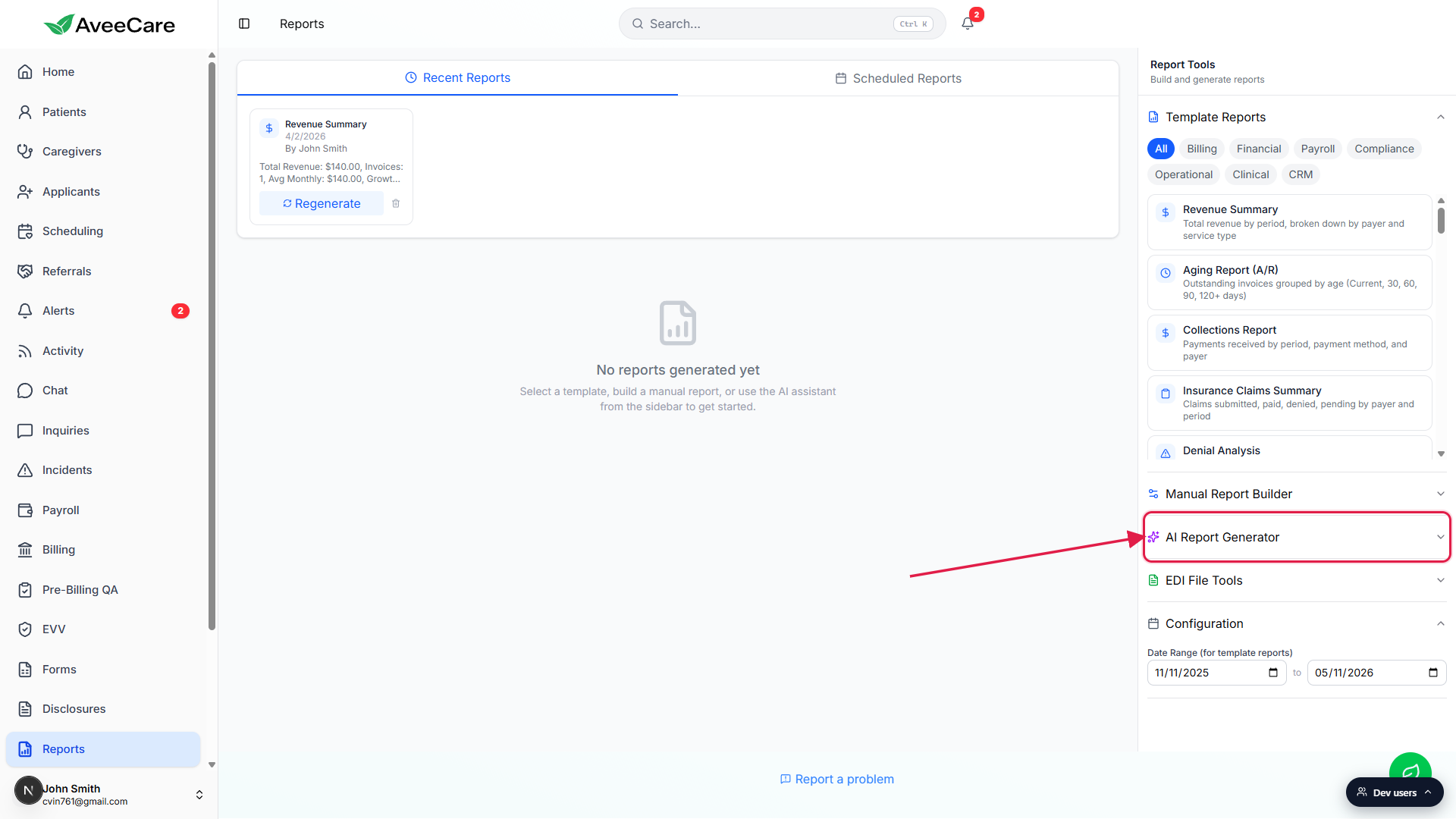
2. Type a specific, well-scoped prompt
The quality of the output tracks the specificity of the prompt. Name the entity (patients, visits, claims, caregivers), the metric (count, total, average), and the time window.
Click the prompt textarea and describe what you want.
Two example prompts in the placeholder: Show all active patients with allergies and Create a pie chart of visit statuses. Both name an entity and either a filter or a chart shape.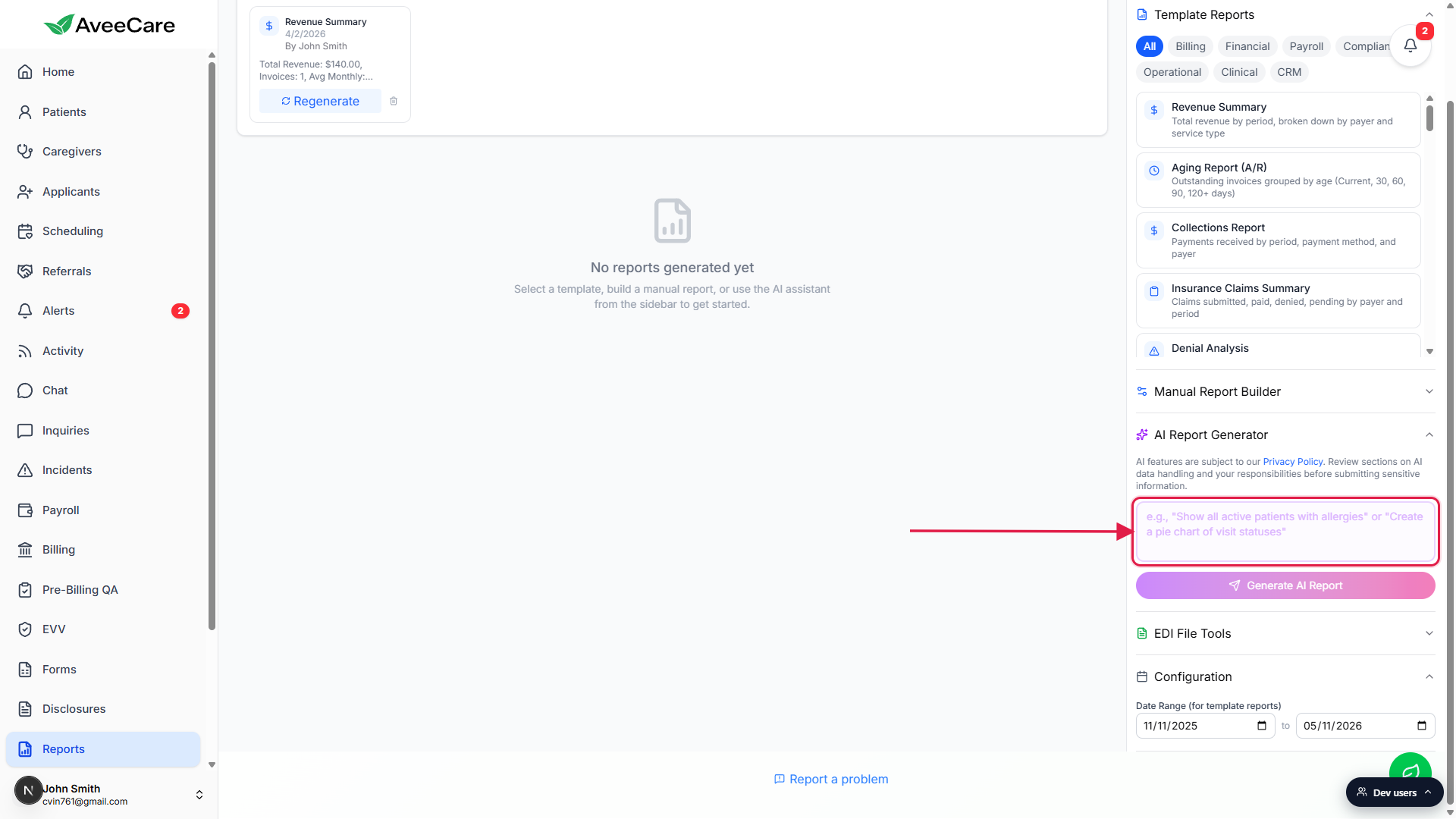
Prompts that work well in our experience.
“Total revenue by caregiver this month, sorted descending”, “Denied claims in the last 90 days, grouped by payer”, “Active patients without a primary contact on file”, “Visit count by service type, last 30 days”. Specific entity, specific filter, specific window.Skim the AI usage notice above the box.
AveeCare reminds you that AI features are governed by the Privacy Policy. Patient data stays on your tenant. The AI sees synthetic test data while drafting the query, then the validated query runs against your real data locally.
3. Click Generate AI Report and read the output
Press the purple-to-pink Generate AI Report button.
The button activates as soon as the prompt has text. Simple lookups land in a few seconds; complex cross-entity queries can take up to a minute. The canvas shows a Generating report… placeholder while the AI works.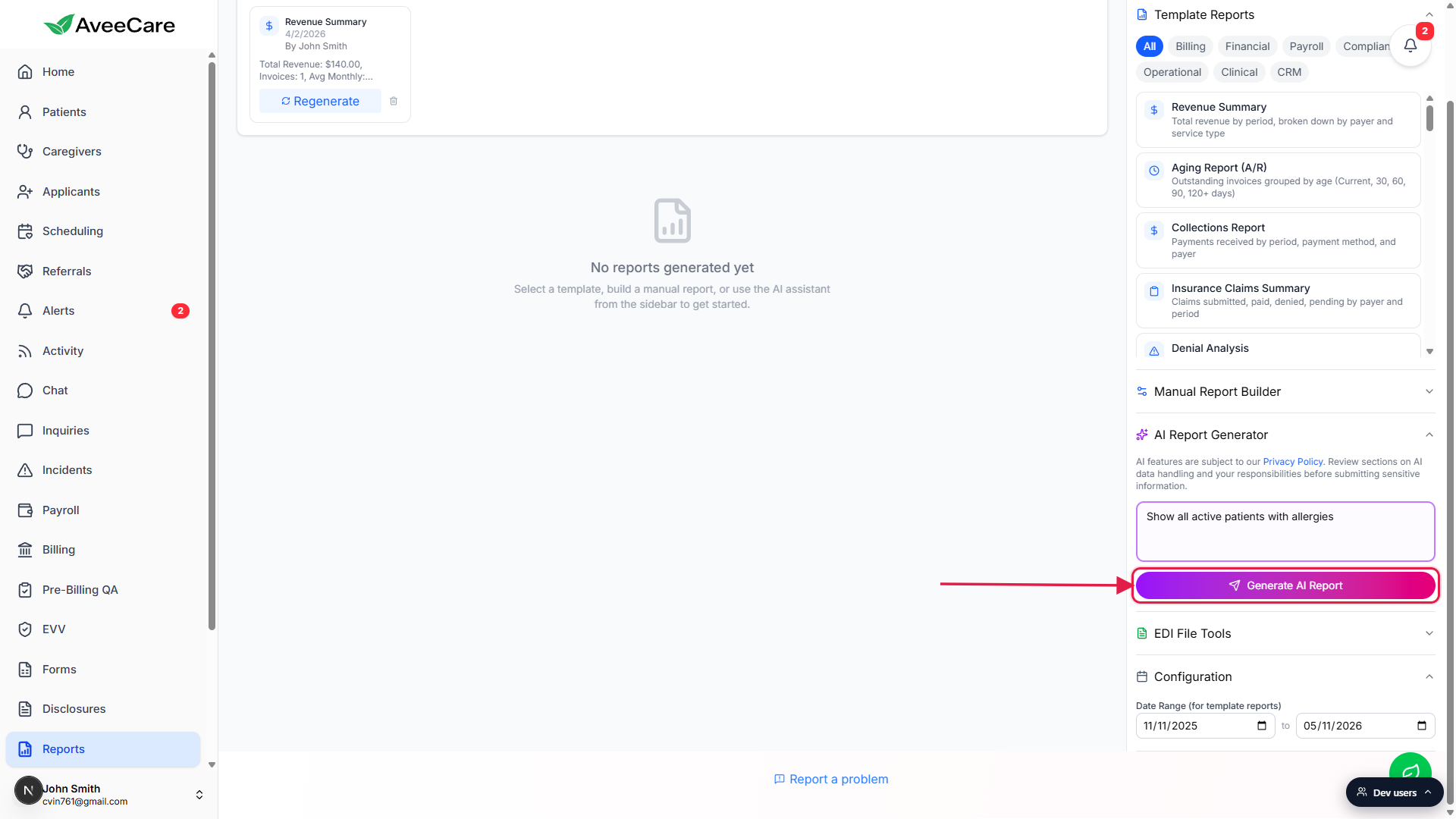
AveeCare picks the output shape automatically.
Tables for record lookups, charts for distributions, text for summaries. Charts come with Total, Count, Average, and Growth headline tiles when those make sense. Tables come with sortable columns and pagination. Full reference: Table / chart / PDF output.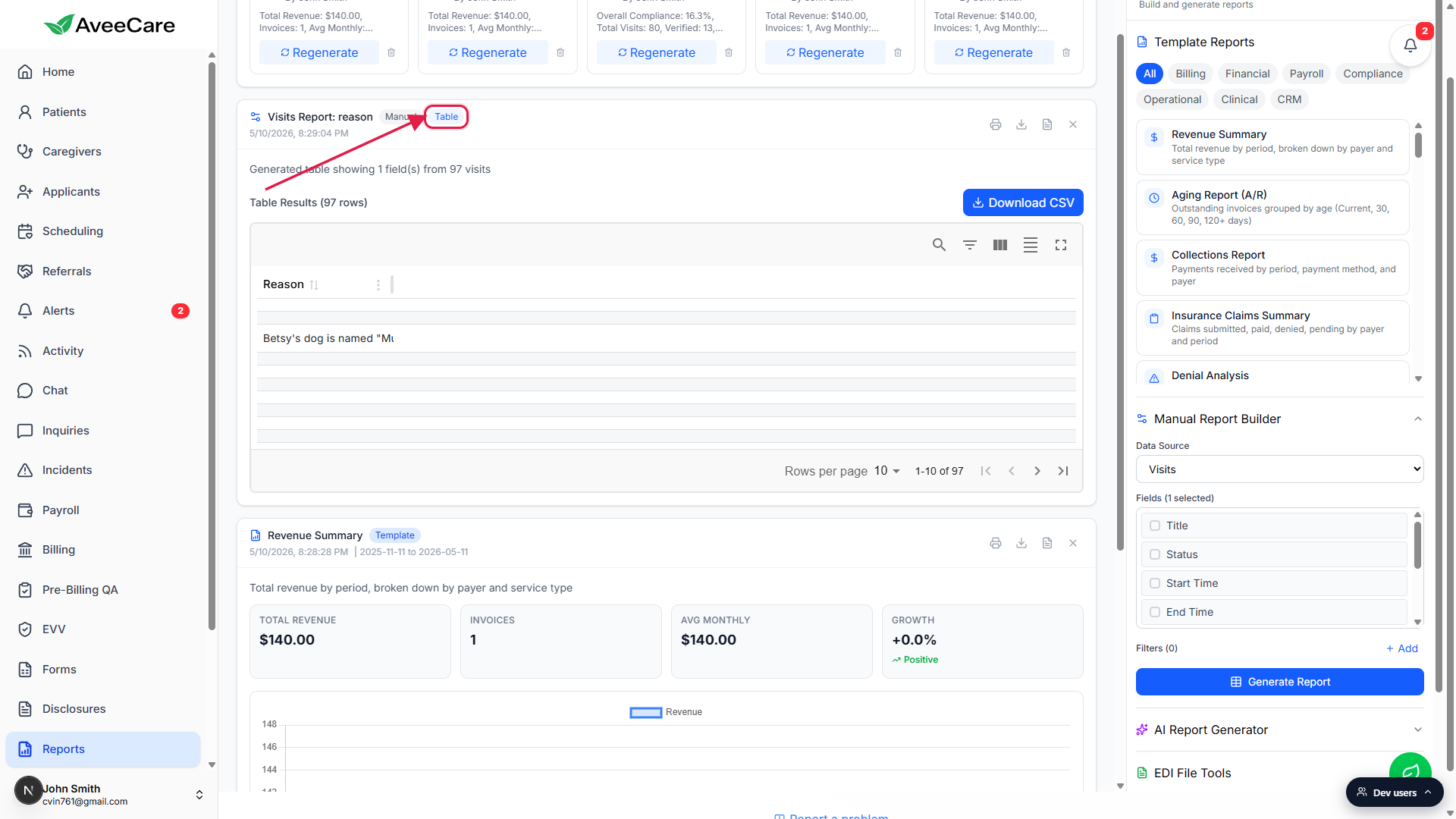
If the AI is unsure, it tells you so instead of guessing.
When AveeCare can't confidently answer the prompt (missing fields, ambiguous request), you get an inline error explaining what was missing, and your prompt is restored in the textarea so you can tweak and rerun.
4. Download, print, or share the report
Use the action icons in the top-right of the report card.
The card carries Print, Download CSV, Download PDF, and Dismiss buttons. Print opens the browser's print dialog. CSV is for analysts. PDF is for sharing.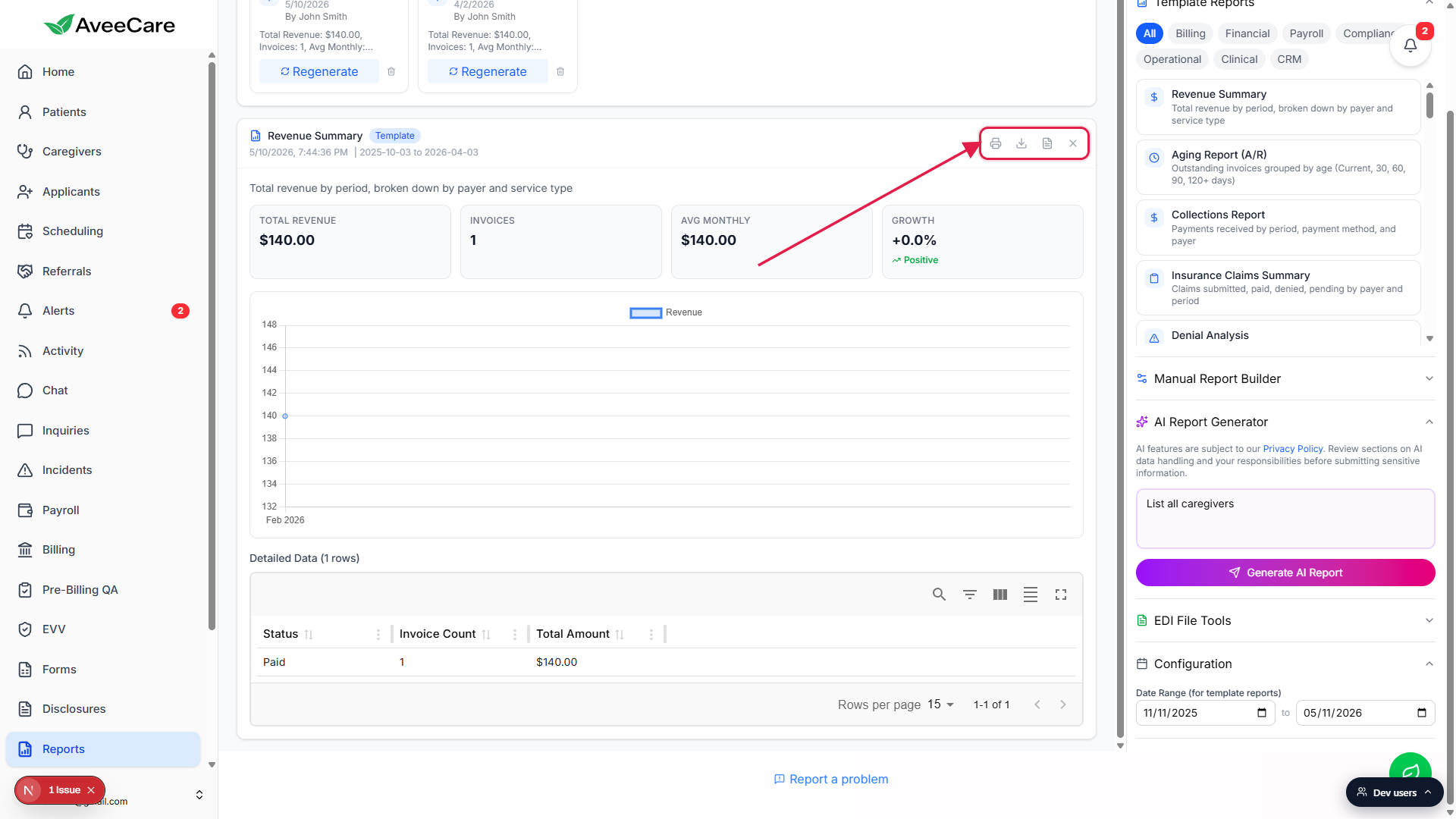
Every report you generate is kept in Recent Reports.
Click any card in Recent Reports to bring it back into the canvas, or click Regenerate to rerun the same prompt against current data. No separate Save step.Pin a chart to the dashboard if it’s a regular check-in.
For charts you check every week, use Download PDF for a one-off, or move to step 5 and schedule the report to arrive in your inbox automatically.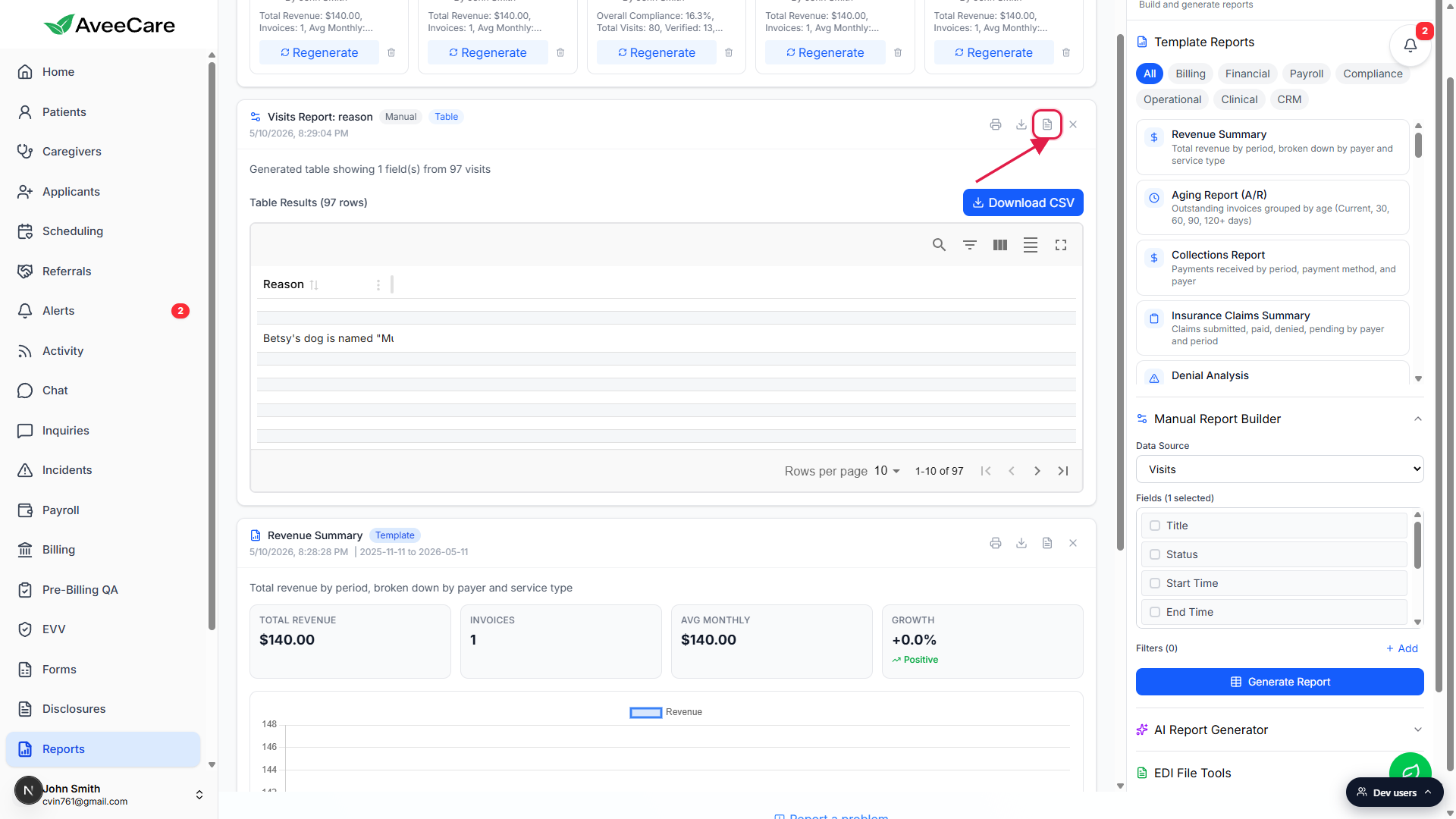
5. Schedule the report to run weekly (or any cadence)
The best AI reports are the ones you don't have to remember to run. Schedule the prompt and AveeCare emails the result to you (and anyone else you add) on the cadence you pick.
On Reports, click the Scheduled Reports tab.
Scheduled Reports lives next to All Reports near the top of the page. Reference: Scheduled reports.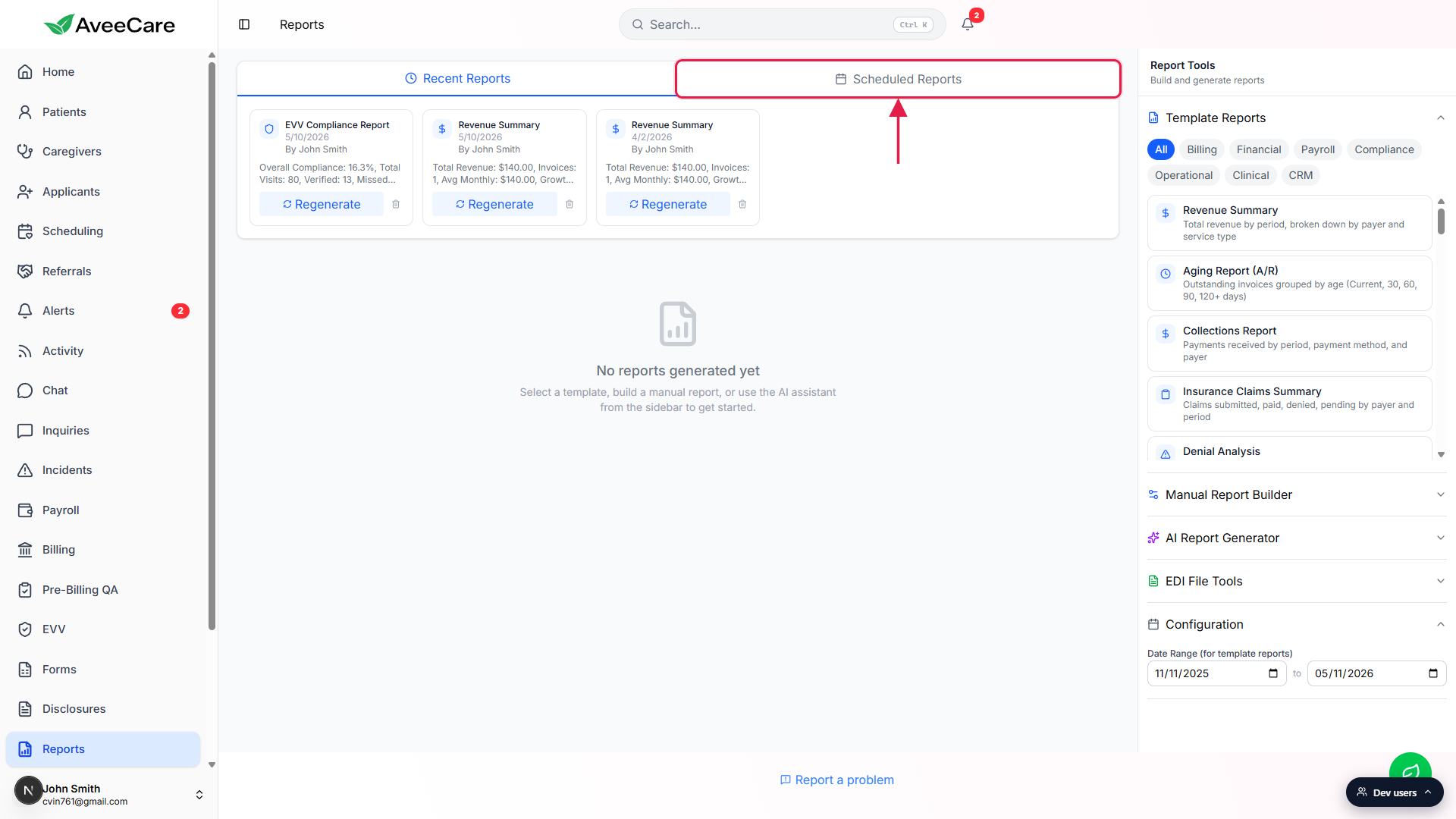
Click Add Scheduled Report.
The modal asks for the report (pick the AI prompt you just ran, or paste a new one), the cadence (daily, weekly, monthly), the day and time, and the recipients.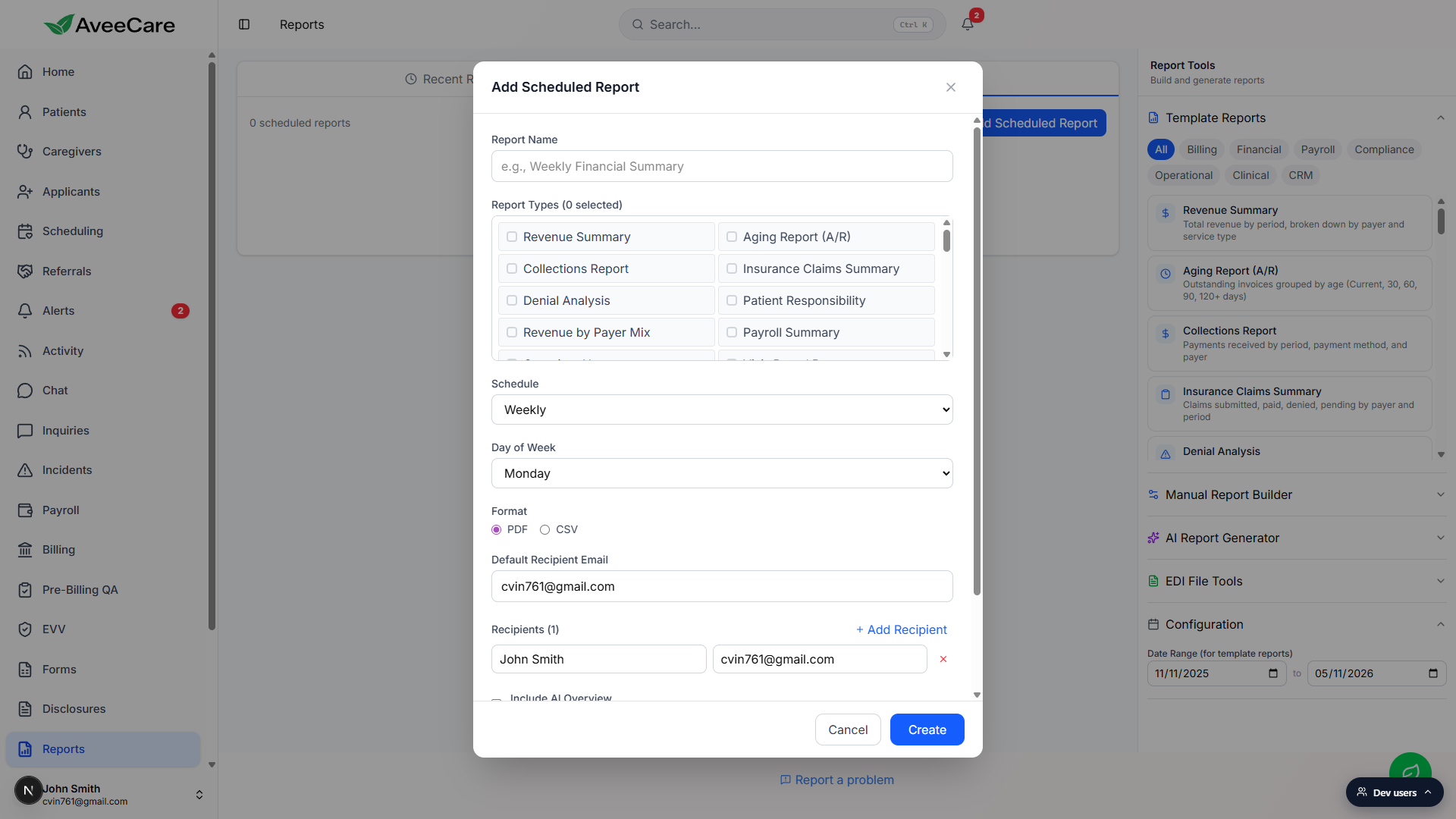
Pick the cadence and recipients, then Save.
Recipients get an email at the scheduled time with the report attached (or linked, for very large outputs). Add an AI Overview to the email and AveeCare also writes a plain-English summary of the result. Reference: AI patient summaries for the AI Overview details.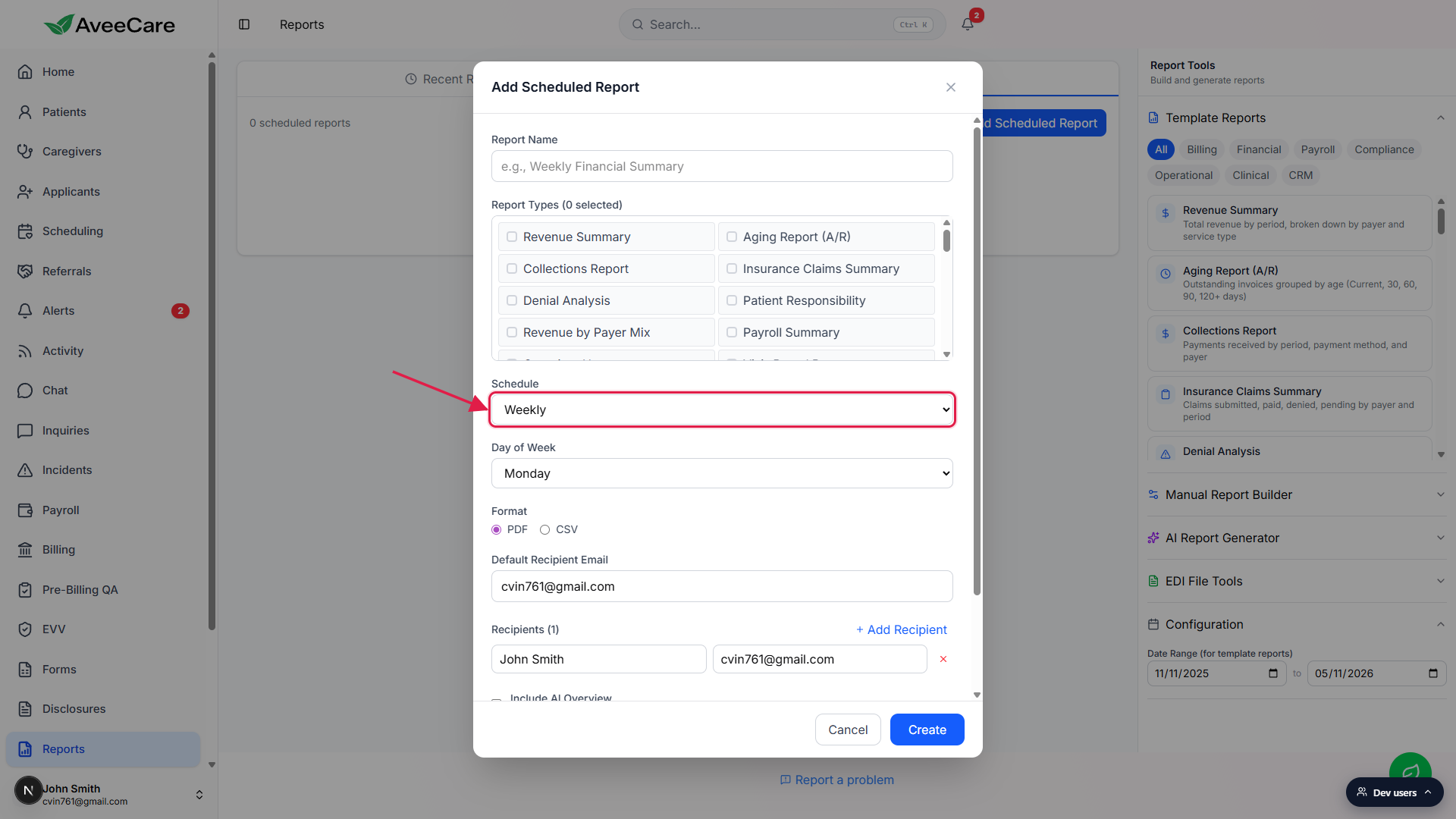
Related
- AI report generator
- Manual report builder
- Report categories
- Table / chart / PDF output
- Scheduled reports
- AI patient summaries