The Reports page groups every built-in report into a category pill row inside the Template Reports panel. Tap a pill and the preset list below it narrows down to that area. AI Report Generator and EDI File Tools live in their own accordion sections in the same right rail.
Quick answer
Open Reports. In the right rail, expand Template Reports. The pill row at the top shows All, Billing, Financial, Payroll, Compliance, Operational, Clinical, CRM. Click a pill to narrow the preset list, then click a preset to run it. AI and EDI live in their own accordion sections lower in the same rail.
The eight Template Report categories
The pill row inside Template Reports filters across eight buckets, plus an All view.
- Billing. Revenue Summary, Aging Report (A/R), Collections Report, Insurance Claims Summary, Denial Analysis, Patient Responsibility, Revenue by Payer Mix, Revenue by Patient, Revenue by Service Type, Collections Rate, Write-Off Report, A/R Aging Report (Detailed), Service Revenue by Procedure Code.
- Financial. Profitability Analysis and the revenue-by-cut variants live here when you want a finance-leadership view rather than a billing-team view.
- Payroll. Payroll Summary, Caregiver Hours, Visit-Based Pay, Payroll Register, Caregiver Earnings Statement, Tax Withholding Summary, PTO/Time Off Report.
- Compliance. Prior Authorization Tracking, Caregiver Credential Tracking, HIPAA Access Log, Incident Report Summary, Missed Visit Report, EVV Compliance Report, Plan of Care Compliance, Late Visit Report, Credential Compliance.
- Operational. Patient Census, Caregiver Utilization, Visit Volume, Service Mix, Referral Source Analysis, Geographic Coverage, Scheduling Efficiency.
- Clinical. Medication Reconciliation, Fall Risk Report, ADL Progress, Patient Assessment Summary, Care Goal Achievement, Wound Care Tracking, Readmission Rate.
- CRM. Referral Source Performance, Pipeline Conversion Report, Revenue by Referral Source.
- All. Every preset in one scrollable list, sorted by area.
AI Report Generator and EDI File Tools are full accordion sections of their own in the right rail, not pills in the Template Reports row. See step 4 for those.
1. Open Reports and find the Template Reports panel
Open Reports from the left sidebar.
The page loads with Recent Reports and Scheduled Reports tabs across the top, an empty canvas in the middle, and the Report Tools rail on the right. Template Reports is the first accordion in the rail and is expanded by default.Find the pill row at the top of the Template Reports panel.
You will see eight pills plus an All pill: Billing, Financial, Payroll, Compliance, Operational, Clinical, CRM. The active pill is filled blue. The rest are light grey.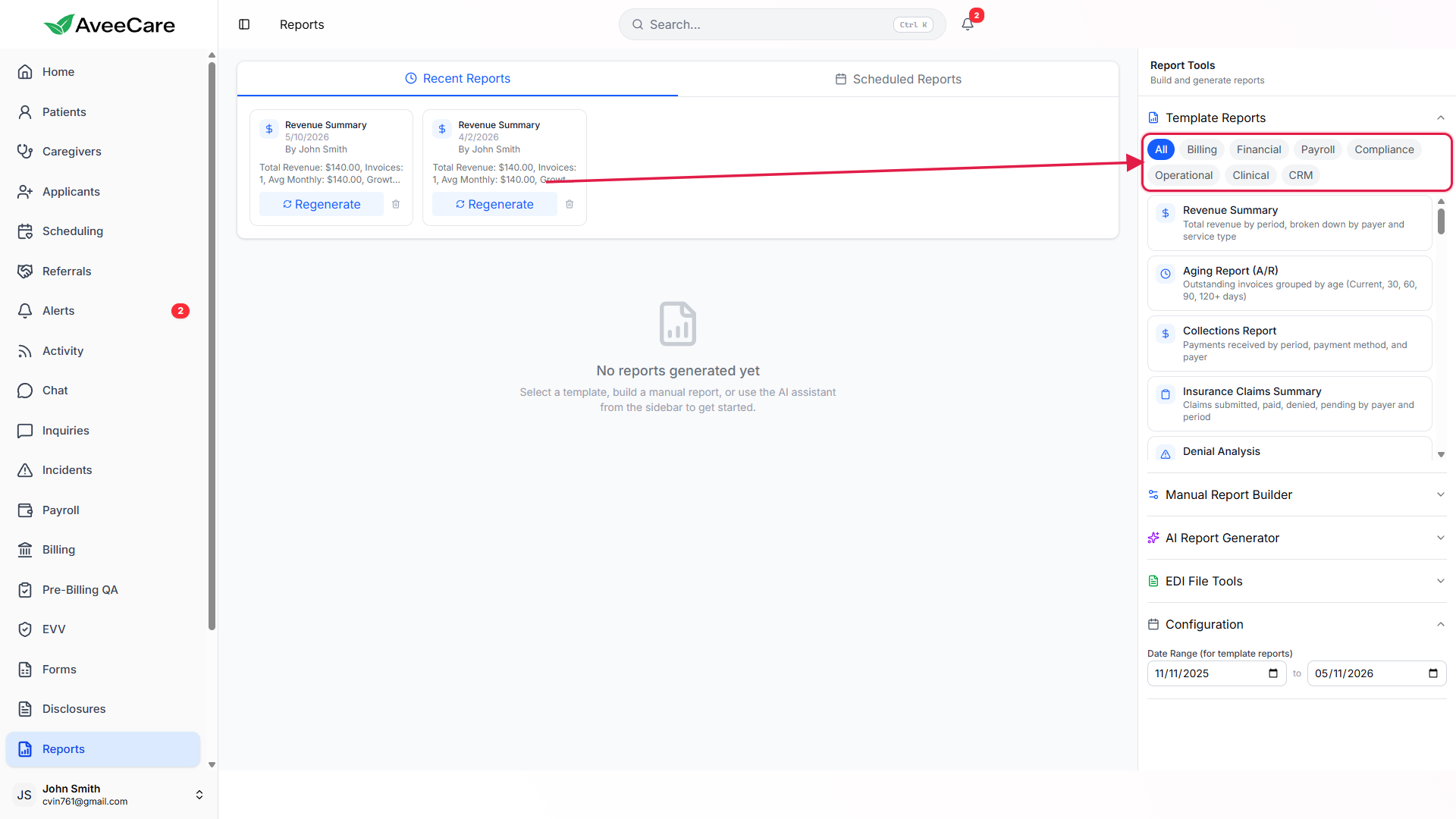
2. Click a category pill to filter the preset list
Click any pill (for example, Compliance).
The pill turns blue to show it is active, and the preset list below the row redraws to only the reports tagged with that category. Compliance, for example, swaps the long All list for Prior Authorization Tracking, Caregiver Credential Tracking, HIPAA Access Log, Incident Report Summary, Missed Visit Report, EVV Compliance Report, Plan of Care Compliance, Late Visit Report, and Credential Compliance.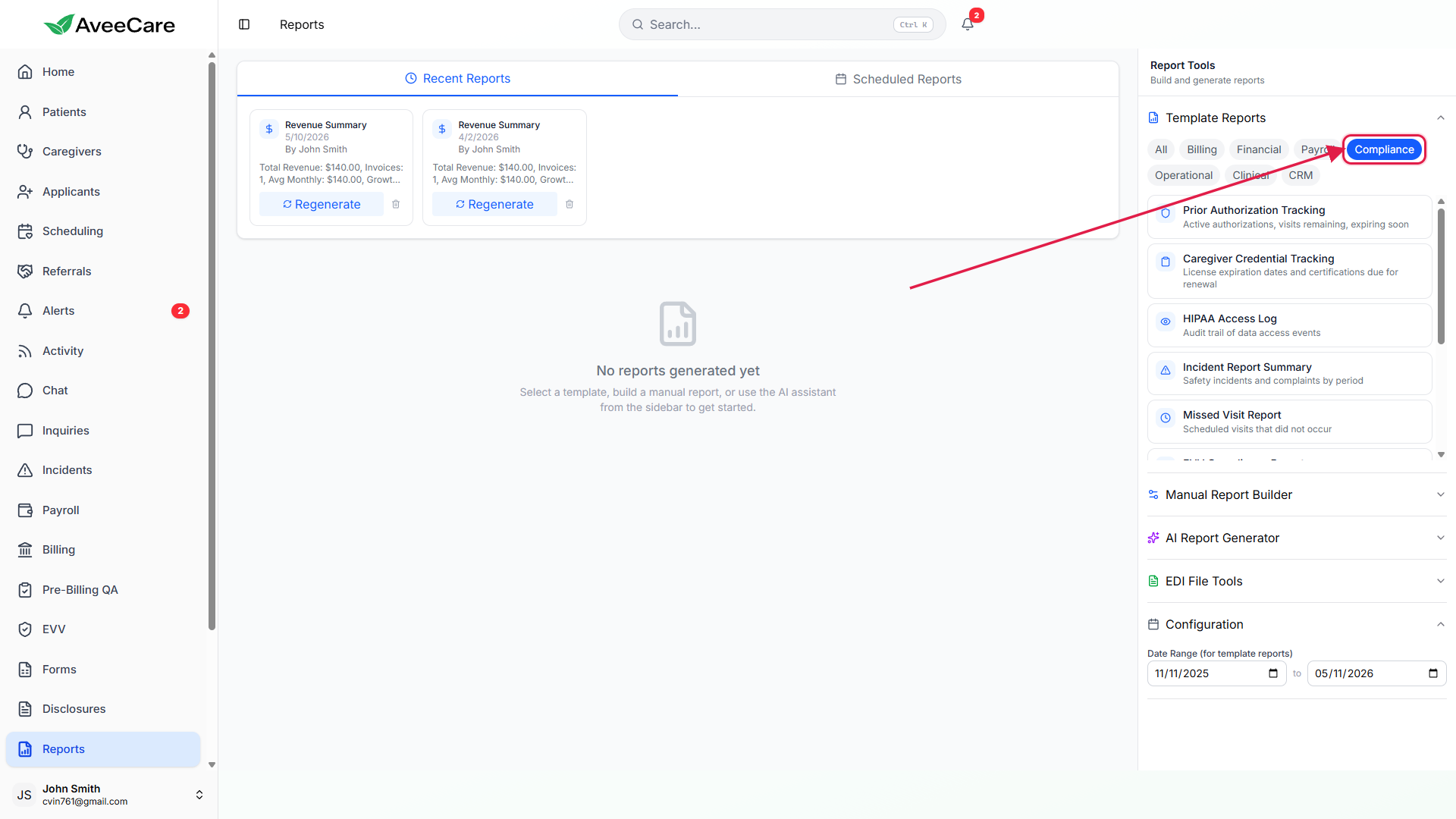
Click All to bring back every preset.
The pill row is a simple filter, not a destructive switcher. Switching categories does not affect anything you have generated. Recent Reports across the top of the canvas keep their full history regardless of which pill is active.
3. Click a preset to run it in the canvas
Click any preset card in the list.
The preset runs against the Date Range set in the Configuration accordion at the bottom of the right rail (defaults to the last six months). The output drops into the middle canvas as a generated report card with metadata, a Template badge, summary tiles, a chart where the preset has one, and a sortable data table below.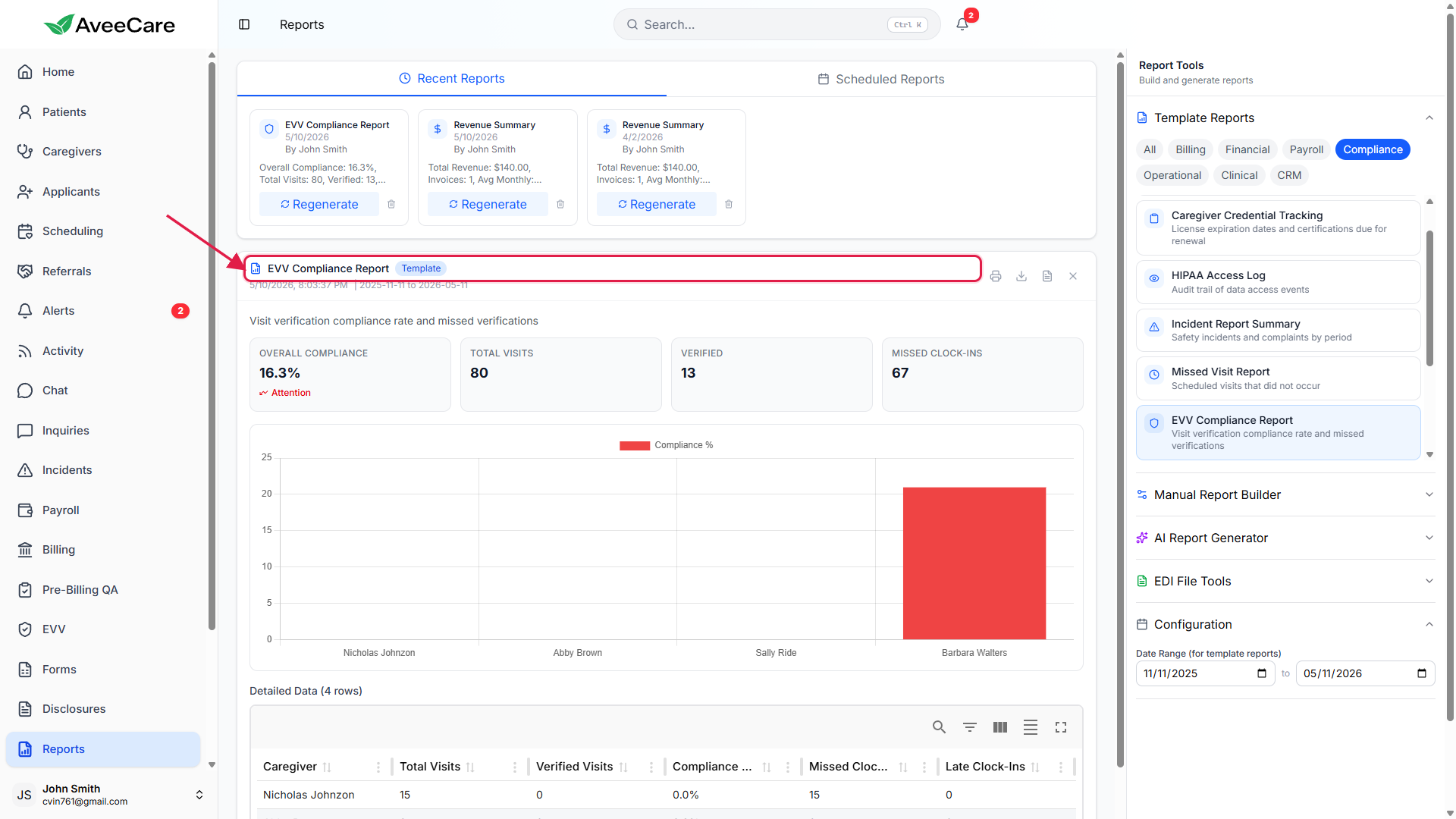
Tweak the Date Range and click Regenerate from Recent Reports to rerun.
Each preset you run lands as a card in Recent Reports across the top of the page. Hit Regenerate on the card to rerun the same preset against fresh data. Hit Remove to clear it.
4. Use AI Report Generator and EDI File Tools for the rest
Expand AI Report Generator below the Template Reports accordion.
AI Report Generator is its own accordion in the right rail, not a pill in the category row. Type a plain-English prompt and the planner picks fields, filters, and a chart type for you. The output card carries an AI badge in the canvas to distinguish it from Template runs.Expand EDI File Tools for claim-cycle exports.
EDI File Tools sits below AI Report Generator in the same rail. Use it for 837 claim files going out and to review 999 acknowledgements and 835 remittance files coming back from payers. Pair this view with the Billing page Claims tab when you need per-claim drill-down.
Common pitfalls
- Looking for AI or EDI pills in the category row. They are not there. AI Report Generator and EDI File Tools are their own accordion sections in the right rail, below Template Reports.
- Custom categories. The pill row is fixed today. You cannot add your own category. Saved AI runs and rerun template reports group into Recent Reports across the top of the canvas, not into a new pill.
- Editing a preset in place. Presets are read-only definitions. To tweak fields, filters, or grouping, rerun the preset, click Manual Report Builder in the rail, and rebuild from the same source so you keep the structure but own the copy.
- Operational vs Clinical confusion. Operational covers staffing, scheduling, and ops KPIs (Patient Census, Visit Volume, Scheduling Efficiency). Clinical covers care plans, ADLs, assessments, and outcomes (Medication Reconciliation, ADL Progress, Readmission Rate). If a report sounds like both, check both pills.
- Date Range affects every preset run. The Configuration accordion at the bottom of the rail sets the date window the next preset run uses. Forgetting to update it gives you a fresh-looking card that actually ran against last month.