The report builder turns any records in AveeCare, or any of the built-in reports, into a report of your own: the columns you want, conditions that keep only the rows you care about, calculated columns, groups with totals and subtotals, a chart, and colored highlights. You save it once and open it, schedule it, or put it on a dashboard whenever you need it.
Quick answer
Open Reports and click Build a report. Pick a source under Any records or A built-in report, then use the Columns, Calculations, Conditions, Group & totals, Charts and Highlights tabs. The preview updates as you go. Click Save to keep it.
1. Open Reports and click Build a report
Open Reports from the left sidebar, then click Build a report.
Build a report is in the bar across the top of Reports, next to Saved and Dashboards. The same button also sits above Recent Reports. Your Recent Reports, Scheduled Reports and the Template Reports rail stay where they always were.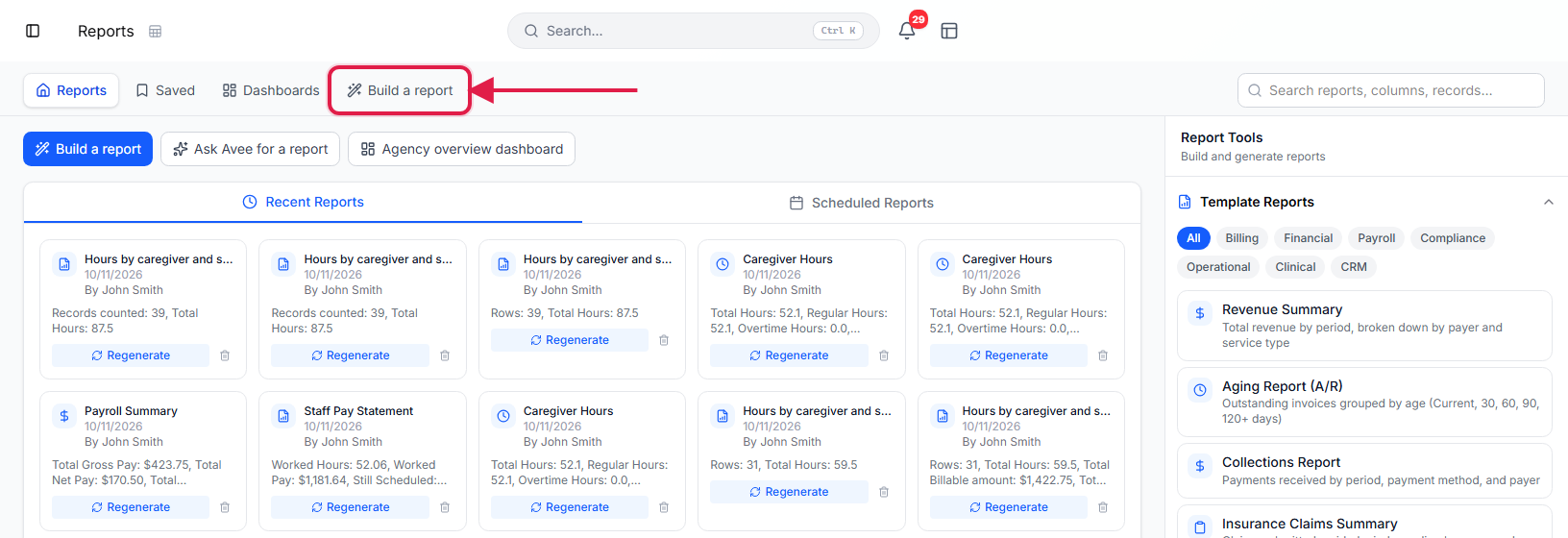
2. Choose what the report is about
Pick a source under Any records or A built-in report.
Any records lists every kind of record a page shows: clients, caregivers, visits, schedule blocks, applicants, referrals, credentials and more. A built-in report starts from one of the templates, such as Caregiver Hours or Staff Pay Statement, so you can narrow or regroup a report you already know. Type in the search box to filter the list.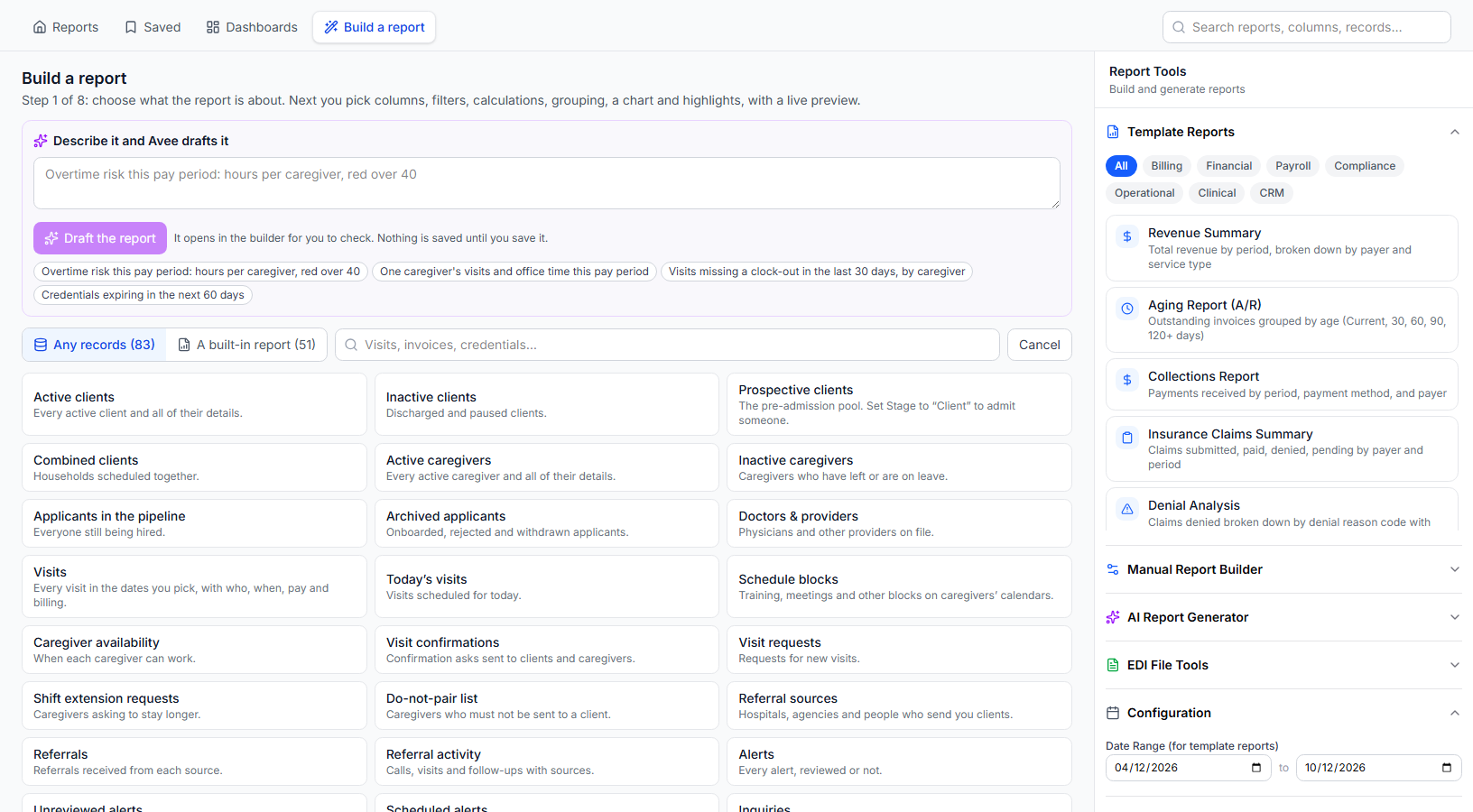
Or describe the report in a sentence and click Draft the report.
Avee drafts the source, conditions, grouping and chart for you and opens the draft in the builder to check. Nothing is saved until you click Save.
3. Keep only the rows you want
On the Conditions tab, click Add condition and pick a column, a test and a value.
Choose whether rows must match all or any of the conditions. Click Add a group to nest a second set with its own all or any, for example status is Completed and (caregiver is one person or the visit ran over 8 hours). Status-style columns offer their full list of choices, even ones with no records yet.
4. Add a calculated column
On the Calculations tab, click Add a calculated column and type a formula.
Formulas work like a spreadsheet. Wrap column names in square brackets, for exampleHOURS_BETWEEN([Start time], [End time]). Open Insert a column or a function for the full list, including IF, ROUND, DAYS_BETWEEN, PAY_PERIOD and CONCAT. Pick the result type (Hours, Money, Number, Text and so on) so totals and charts format it correctly. The line under the formula tells you whether it reads correctly.![Calculations tab with a calculated column named Hours using the formula HOURS_BETWEEN([Start time], [End time]) and the message Formula reads correctly](/help/feature-reference/custom-report-builder/04-calculations.png)
5. Group the rows and add totals
On the Group & totals tab, pick what to group by and what to show for each group.
Group by any column, or by day, week, pay period, month, quarter or year for dates. Click Then by for a second level. Under Show for each group choose Total, Average, Count, Count of different, Lowest, Highest, Median or % of total. Tick A total at the end and A subtotal after each group as needed.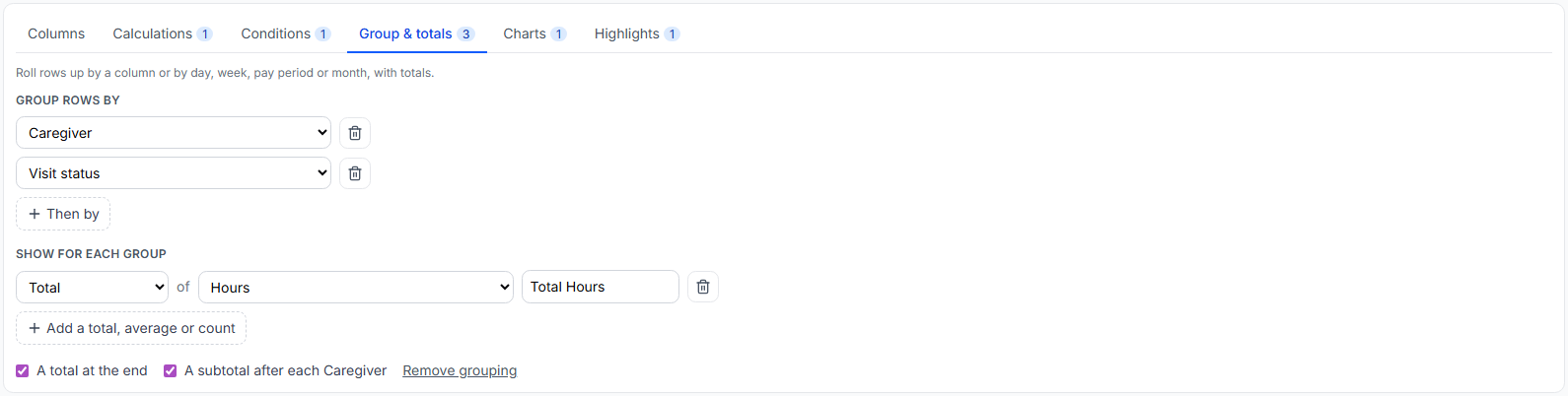
6. Add a chart and highlights, then read the result
On the Charts tab, pick a chart type and what goes on each axis.
Choose Bars, Stacked bars, Horizontal bars, Line, Area, Bars with a line, Pie, Doughnut, Scatter (dots), Heat map or Number tiles. Add a Reference line at a value, such as 8 hours or 40 hours, to see who crosses it.On the Highlights tab, color the whole row or one cell when a condition is true.
Pick a color (Red, Amber, Green, Blue or Gray), choose the whole row or a single cell, and tick Bold if you like. Highlights judge subtotal lines too, never the grand total.Read the tiles, chart and table, and change the period or people at the top.
The period picker includes This pay period and Last pay period, taken from your agency's pay schedule. The people button narrows the report to chosen caregivers, clients or roles. The comparison menu adds Compare with the period before or Compare with the same period last year. On a grouped report the first tile says how many records were counted and how many rows they were grouped into. Click a name in the table to open that person.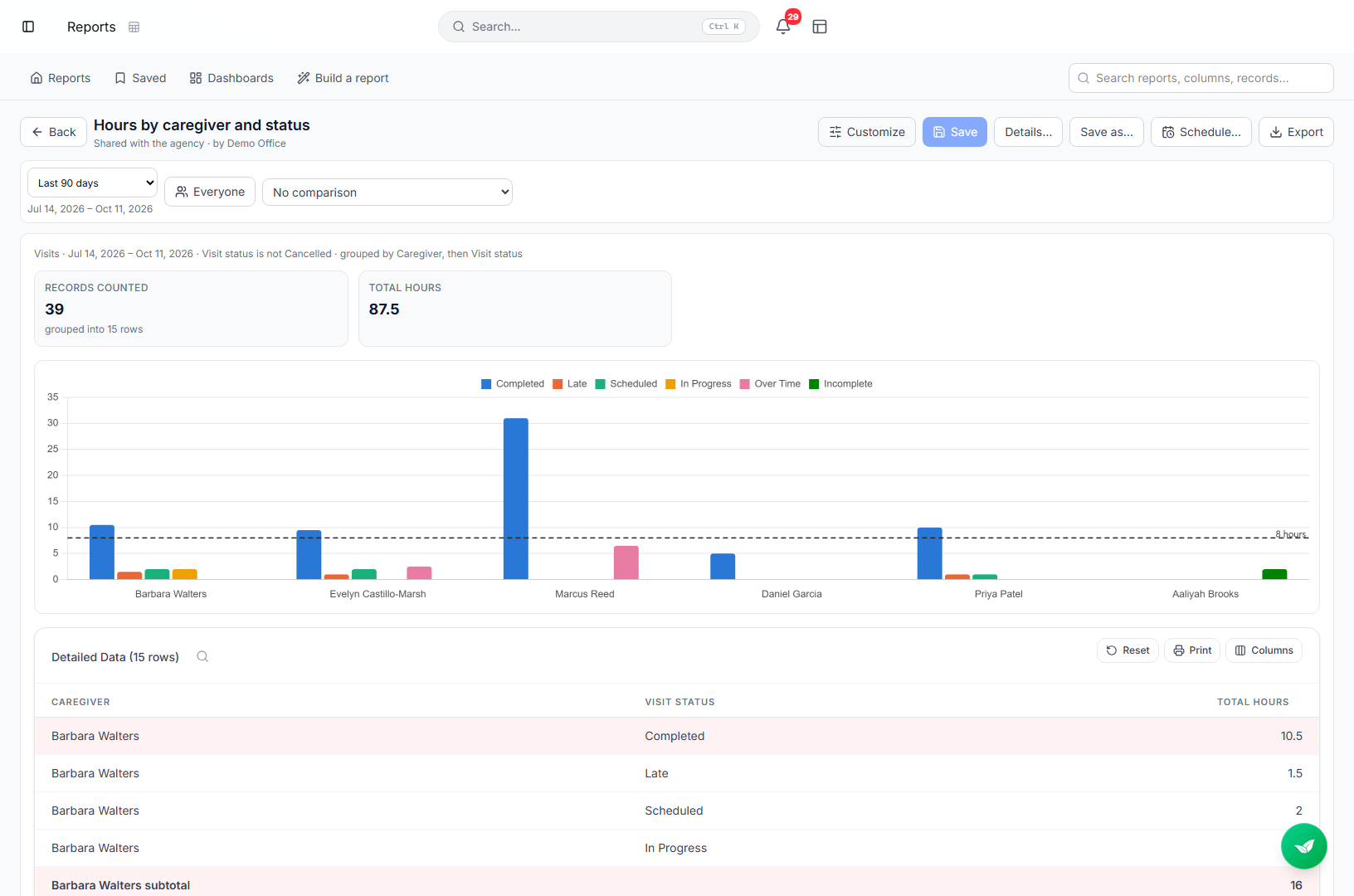
7. Save the report and choose who can see it
Click Save, name the report and choose who can see it.
Add an optional description and folder. Under Who can see it, pick Only me or Everyone in the office at my agency. People only ever see the records their own access allows, whoever saved the report. After the first save, Save keeps your changes in place; use Details to rename or change sharing and Save as to make a copy.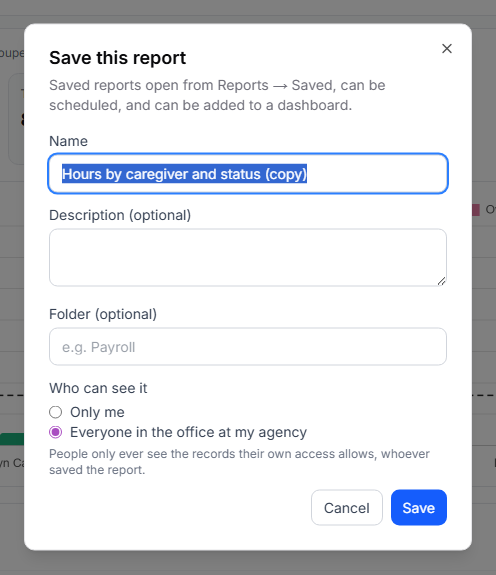
Use Export, Schedule or a dashboard to share it.
Export offers CSV, Excel (.xlsx), PDF, Print, Open in a spreadsheet, Keep it live in a Drive sheet and Copy a link to this report. Schedule emails it on a cadence. Saved reports can also be added to a dashboard.
Common pitfalls
- Expecting a private report to show up for colleagues. Only me reports stay yours. Change sharing under Details if the office needs it, scheduled emails included.
- Narrowing a built-in report it cannot narrow. Some templates, such as Revenue Summary, cannot be split by caregiver. The people button only offers filters the report can honor, and a schedule that asks for one anyway says so in the email instead of sending everyone's rows.
- Forgetting the result type on a calculation. A formula that returns hours but is typed as Text will not total or chart. Set the type next to the column name.
- Reading the Records counted tile as the table's row count. On a grouped report it counts the records behind the groups. The note under it gives the number of rows.
Related
- Report dashboards: put saved reports side by side with one shared period.
- Scheduled reports: email a saved report on a cadence.
- Staff pay statement: one person's work and pay for a pay period.
- AI report generator: ask a one-off question in plain English.