The pay statement shows what one person did in a pay period and what it pays: visits and office time already worked, what is still scheduled, and what the period comes to if the rest is worked as scheduled. It uses the same pay rules as a payroll run, so its totals match the run for the same person and period.
Quick answer
Open the staff member's profile, click the Payroll tab and read the Pay statement panel. It starts on This pay period. For everyone at once, open Reports and run Staff Pay Statement or Pay Period Projection.
1. Open a staff member's Payroll tab
Open the person's profile, click Payroll, and find Pay statement at the top.
Four totals lead the panel. Worked Hours includes paid office time. Worked Pay splits flat-rate pay from hourly pay. Still Scheduled counts the visits and office blocks left in the period, and Projected Pay is what the period comes to if they are worked as scheduled.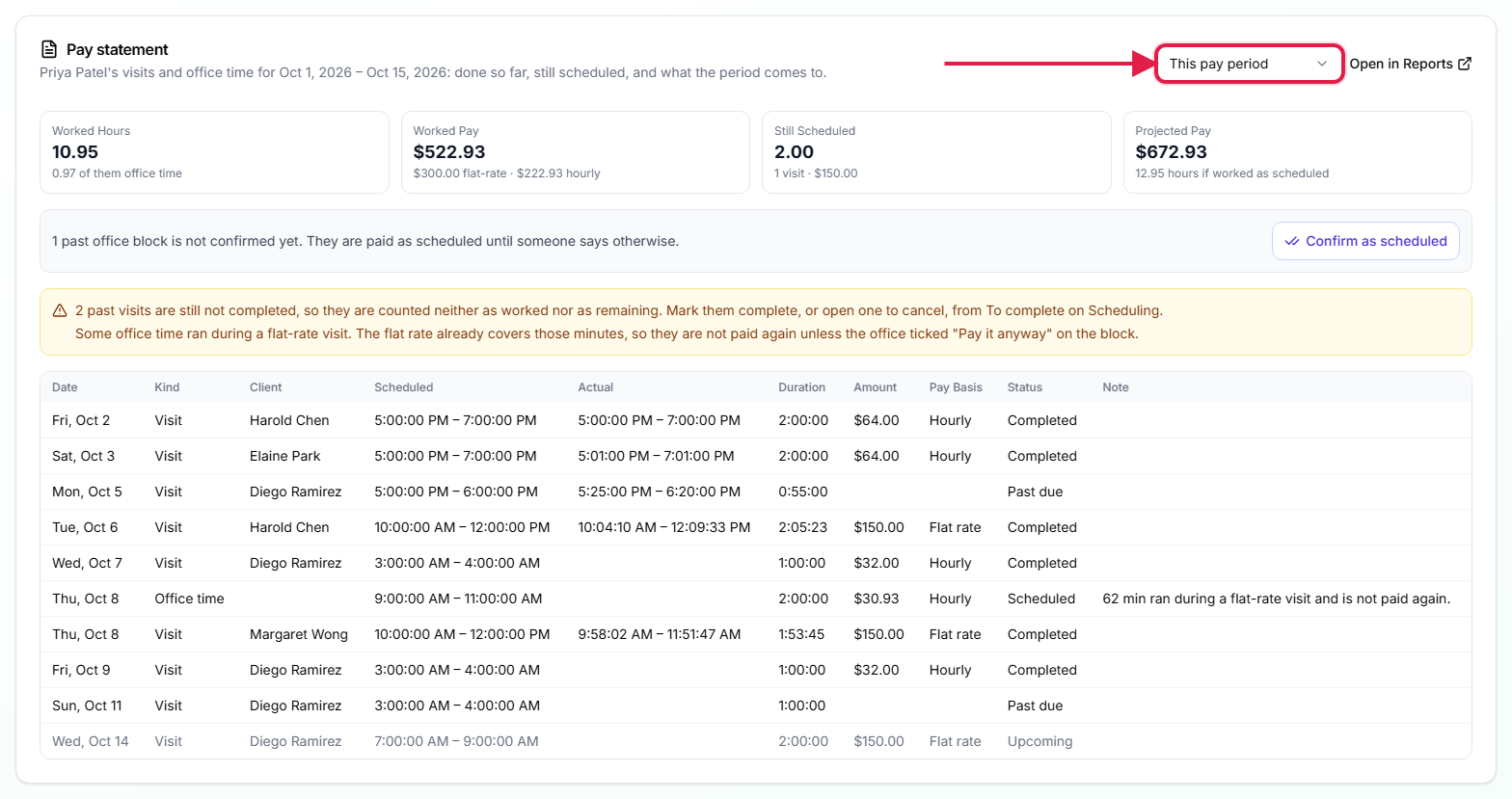
Pick another period from the menu, or click Open in Reports.
The menu offers This pay period, Last pay period, Next pay period, This week, Last week, This month and Last month. Pay periods follow the pay schedule in your payroll settings. Open in Reports opens the same statement with export, print and scheduling.
2. Read each visit and office block
Each line shows scheduled and actual times, the exact duration and how it is paid.
Duration is shown in hours, minutes and seconds, so a visit clocked from 11:54:32 to 2:00:01 reads 2:05:29, not a rounded figure. Pay Basis says Hourly or Flat rate. Upcoming lines are greyed. A note explains any office time that is not paid in full, such as minutes that ran during a flat-rate visit.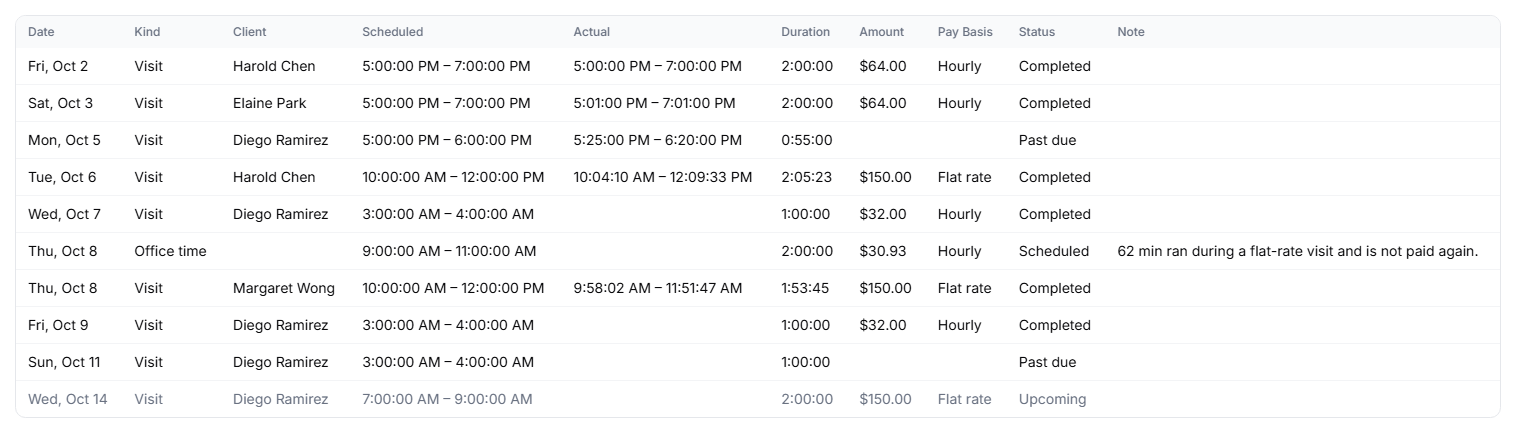
Act on the notes above the table.
Past visits that are still not completed count as neither worked nor remaining until someone marks them complete or cancels them from To complete on Scheduling. Other notes name missing pay setup, such as no payroll profile or no worker type.
3. Confirm past office time
Click Confirm as scheduled when past office blocks were worked as planned.
Unconfirmed office time is paid as scheduled. Confirming changes no amount; it records that the time was worked and stops the statement listing it. To record a different time, or mark someone absent, open the block on the calendar and use Who worked it.
4. Run the statement for everyone in Reports
Open Reports, choose Staff Pay Statement under Payroll, and use the people filter to narrow it.
The report starts with everyone for this pay period. Click Everyone to pick one staff member, a staff role such as Nurse, a license such as RN, or a worker type of W-2 or 1099. Nursing Staff Statement is the same report already filtered to nurses.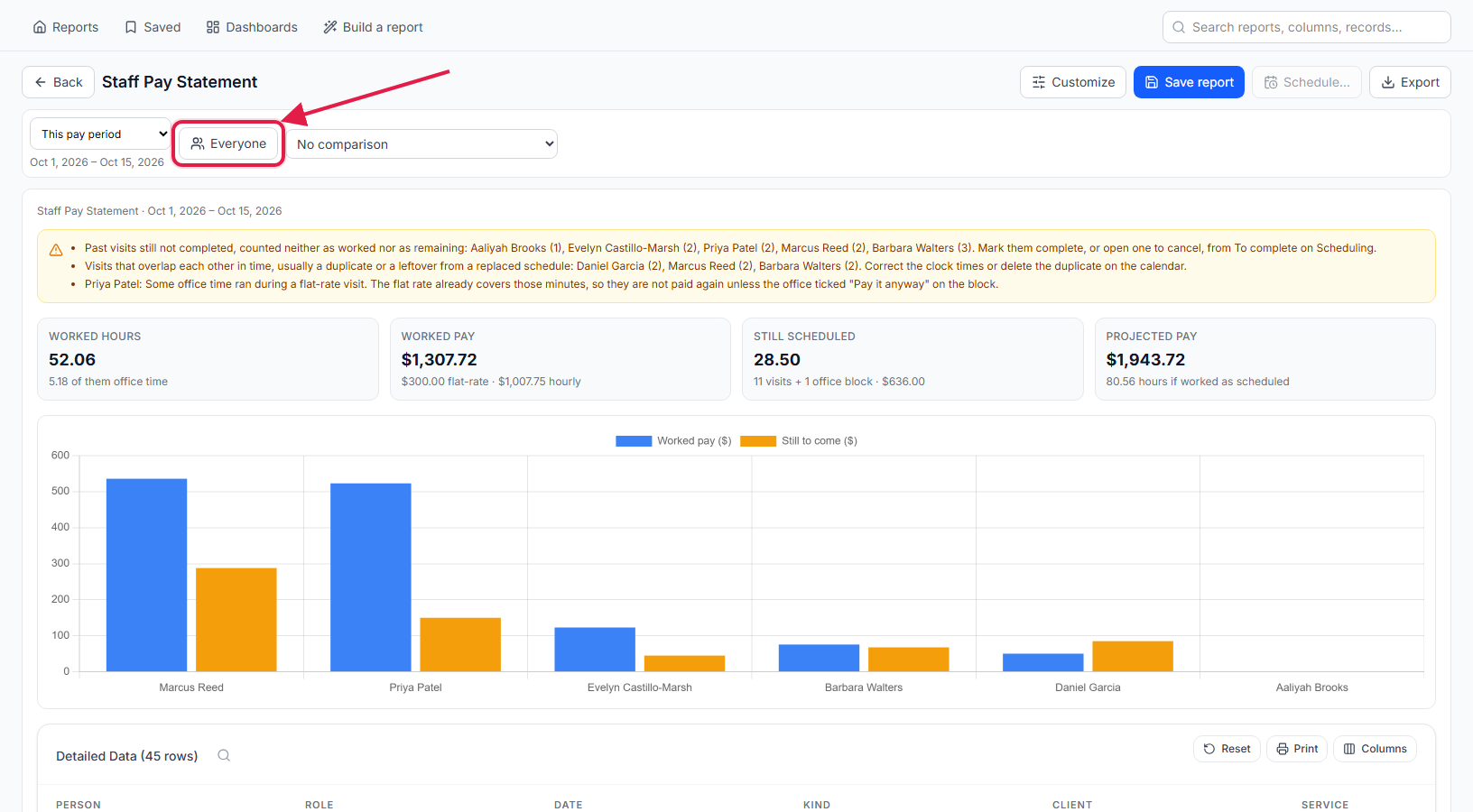
5. See the period's projection per person
Run Pay Period Projection for one row per person.
Each row shows hours and pay worked so far, what is left, and the projected hours and pay for the period. Use Customize to choose which columns show, and Export for Excel, CSV or PDF.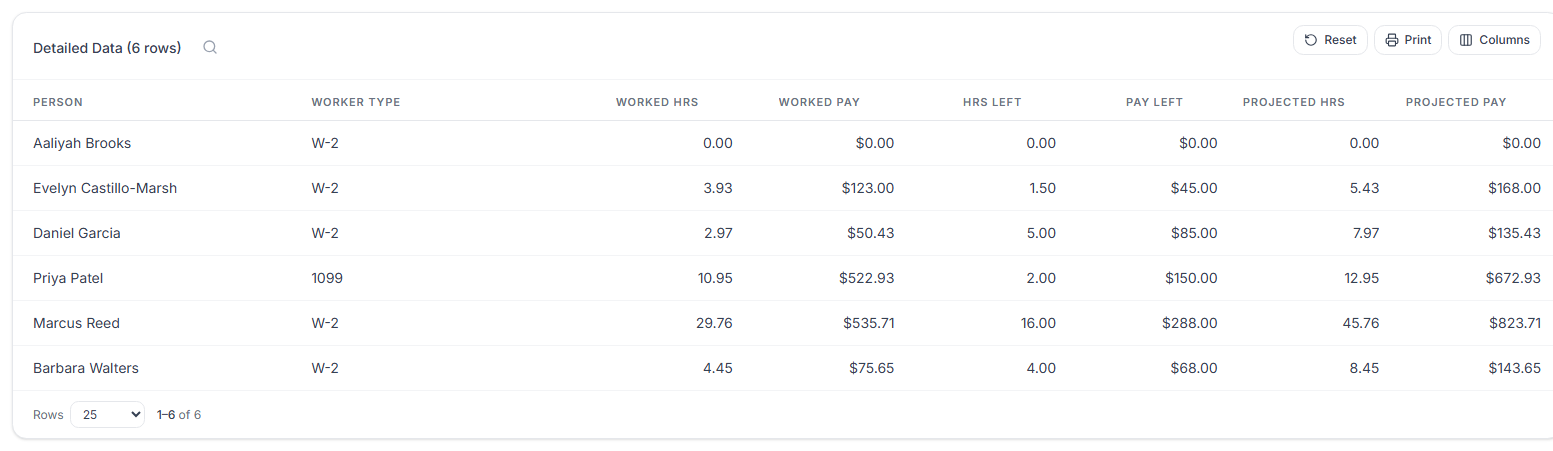
Common pitfalls
- Pay periods missing from the menu. The pay period choices appear once your agency has a pay schedule in payroll settings.
- Past visits left as Scheduled. They count toward neither worked nor remaining hours. Complete or cancel them from To complete on Scheduling.
- Lines that price to $0. No pay rate applies. Set a pay code or flat rate on the visit, or a rate on the person's payroll profile.
- Office time during a flat-rate visit. Minutes that overlap a flat-rate visit are not paid twice. Tick Pay it anyway on the office block if both should be paid.
Related
- Flat-rate visit pay: pay a visit a set amount instead of by the hour.
- Paid office time: schedule, clock and confirm office hours.
- Caregiver payroll tab: pay profile, worker type and pay history.
- Dashboards: Payroll this pay period on the Agency overview.