Paid office time is an office block on the calendar that pays the staff on it by the hour: charting, front desk cover, training, supervision. It is not a visit, so nothing is billed to a client. You can record who actually worked it, staff can start and end it from their own app, and it never pays twice for time a flat-rate visit already covers.
Quick answer
On Scheduling, click Add Block, choose the staff, and turn on Pay the caregivers for this time. After it happens, open the block and use Who worked it to record the real hours. A block left Not confirmed is paid as scheduled.
1. Schedule paid office time
On Scheduling, click Add Block, pick the staff and the hours, and turn on Pay the caregivers for this time.
Set an hourly rate or a pay code on the block, or leave it to use each person's usual rate. These hours reach payroll like a visit does, and appear in the Caregiver Hours report as Office Hrs (incl.).
2. Record who worked it
Open the block on the calendar, click Edit, and find Who worked it.
Each person on the block has four choices. Not confirmed pays the scheduled time. Worked as scheduled confirms it. Different hours lets you enter the real start and end, and pays those. Absent pays nothing. The line underneath shows what will be paid and who recorded it.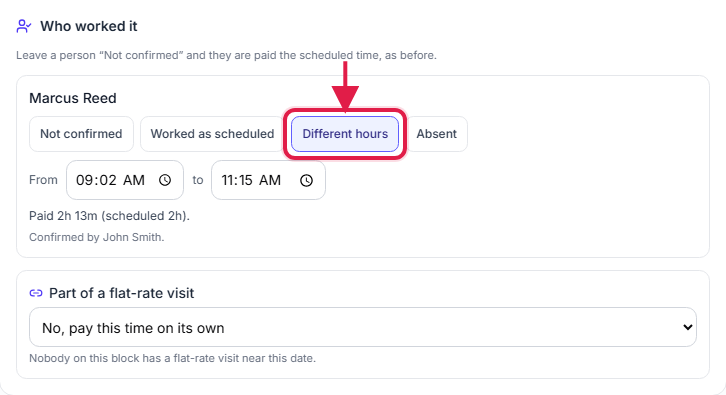
Click Save on the block.
Office time is filed in the pay period of the block's scheduled start, even if someone started a little before midnight on the last day of a period, so it is paid once.
3. Office time during a flat-rate visit
If the block overlaps the person's own flat-rate visit, read the yellow note.
A flat-rate visit already pays for its time, so the overlapping minutes of the office block are not paid again. The note names the visit and how much overlaps. Tick Pay it anyway if both really should be paid; that also confirms the scheduled time. Run payroll warns about any overlap left unpaid.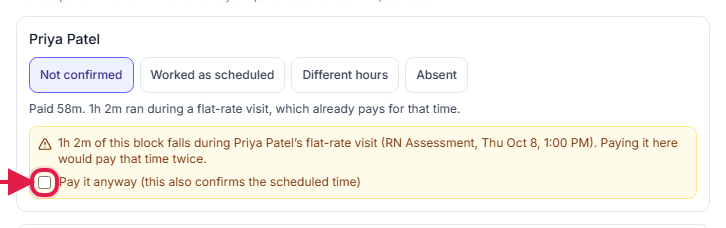
4. Mark office time as part of a flat-rate visit
Under Part of a flat-rate visit, choose the visit the block belongs to.
Use this for prep, charting or travel that the visit's flat fee already pays for. The block stays on the calendar and on the person's pay statement, and is not paid by the hour. Only flat-rate visits of the people on the block, near its date, are offered. If that visit is later cancelled, payroll and the statement tell you the block now pays nobody.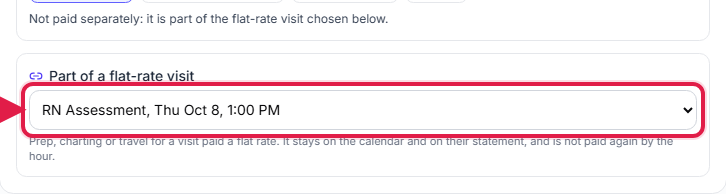
5. Let staff start and end it themselves
On the day, the person sees Office time on their app's dashboard and taps Start, then End.
They can start from two hours before the block begins until it ends. Their times are paid as recorded, and you can still change them on the block. Once the office has recorded the time, they can no longer change it. Times that run well past the schedule are flagged on their pay statement and when you run payroll.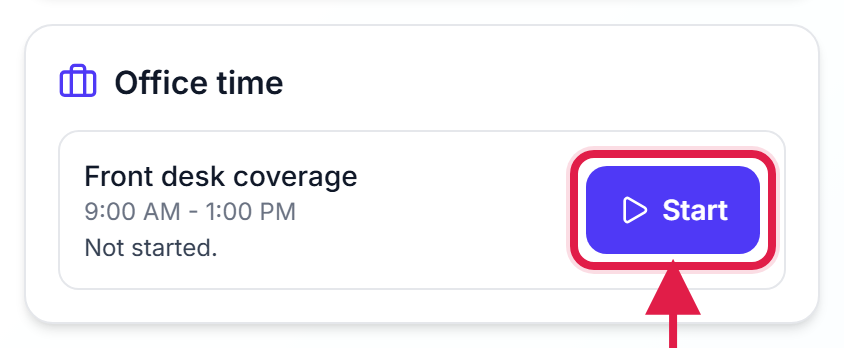
6. Confirm a pay period at once
On the person's Payroll tab, in the Statement panel, click Confirm as scheduled.
It confirms every past office block in the period that nobody has recorded yet. Blocks already recorded, by the office or by the person, are left as they are. See Staff pay statement.
Common pitfalls
- Expecting Absent to happen on its own. A block nobody records is paid as scheduled. Mark someone Absent if they did not come.
- Paying charting twice. If a nurse is paid per visit, link the charting block with Part of a flat-rate visit instead of paying it by the hour.
- Leaving the block unpaid. A block without Pay the caregivers for this time is on the calendar only and never reaches payroll.
Related
- Staff pay statement: office time beside visits for one person and one pay period.
- Flat-rate visit pay: pay a set amount per visit.
- Caregiver payroll tab: the usual hourly rate office time falls back to.