The Payroll tab on a caregiver record is the per-person view of their pay setup. It holds one pay rate, the link to your payroll provider (QuickBooks, ADP, Paychex, Gusto), a year-by-year summary of earnings, and the table of every pay period that caregiver has been part of.
Quick answer
Open Caregivers, click the caregiver, then click the Payroll tab. The page is split into a Payroll Profile card on top (pay type, per-visit or hourly rate, status, hire date, verification flags, and the linked provider), a Payroll Summary band of stat tiles, and a Payroll History table of pay periods. Use Edit on the Payroll Profile to change the rate.
1. Open Payroll on the caregiver
Click the caregiver row in the Caregivers list, then click the Payroll tab.
Payroll sits in the caregiver tab strip between Schedule and Forms. The route is/caregivers/<name>/<id>/payroll, so a bookmarked URL drops you straight on this tab.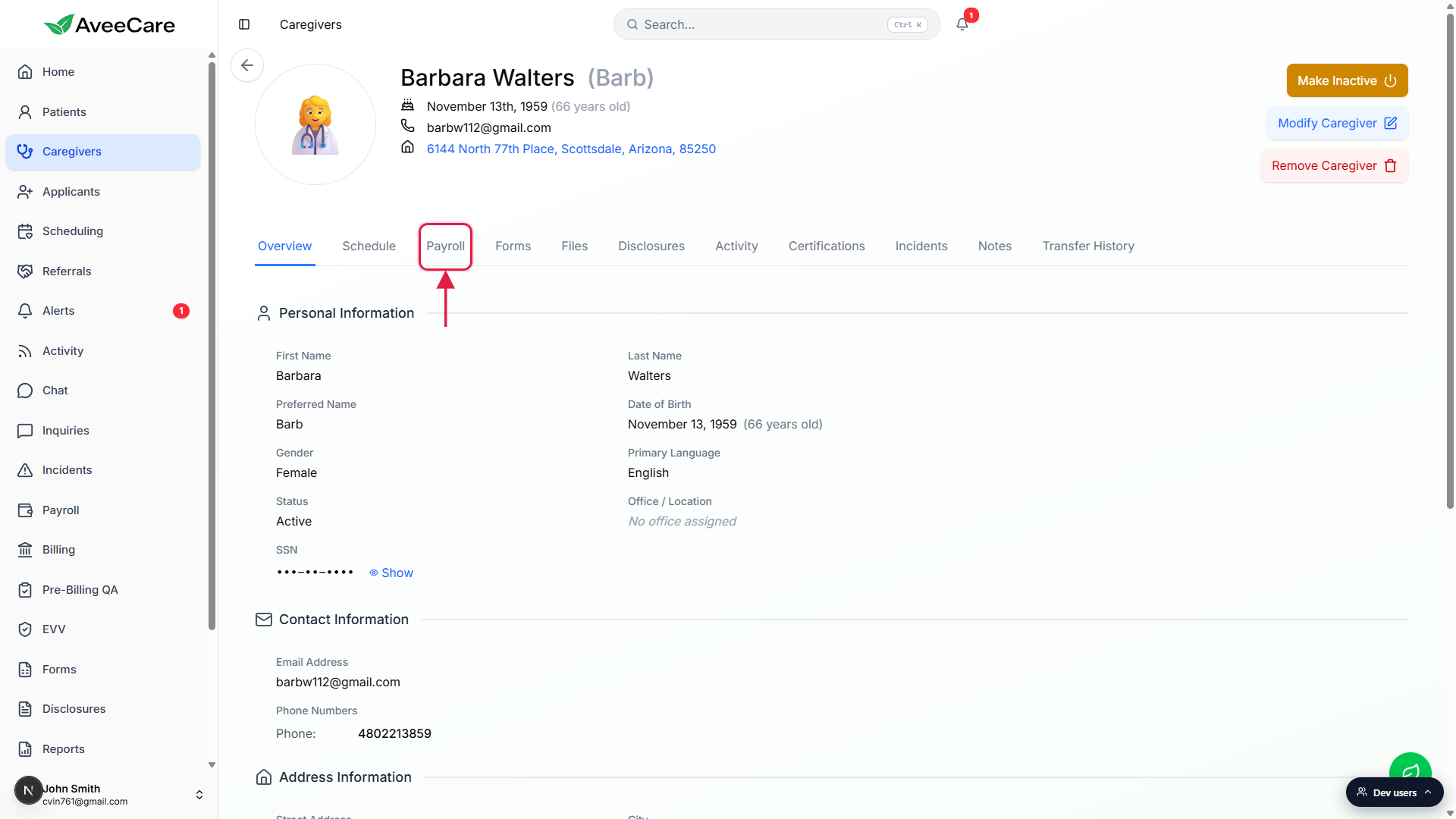
2. Read the Payroll Profile card
The top card surfaces eight read-only fields and two action buttons.
Fields, in order: Pay Type (PerVisit or Hourly), Per Visit Rate or Hourly Rate (e.g. $50.00/visit), Payroll Status (Active or Terminated), Direct Deposit (Set Up or Not Set Up), Hire Date, Tax ID Verified (Yes or No), I-9 Verified (Yes or No), and Last Paycheck. The two action buttons are Edit and Terminate.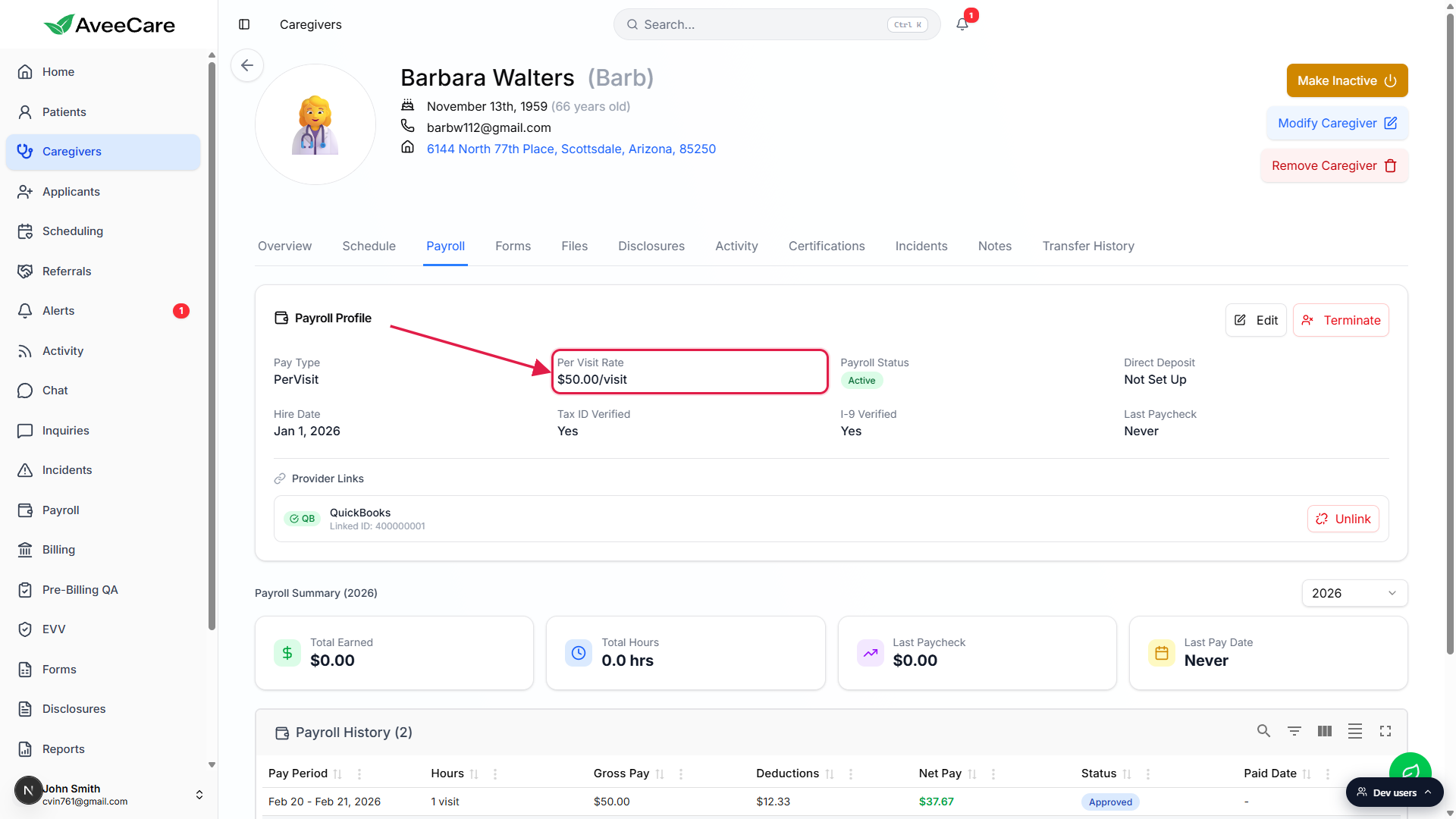
Per Visit Rate and Hourly Rate are mutually exclusive.
The Pay Type dropdown decides which rate field shows. PerVisit surfaces a per-visit dollar amount that applies to every completed visit for this caregiver. Hourly surfaces an hourly rate applied to clocked time. There is no both-at-once mode on the caregiver record.
3. Confirm the payroll provider link
Provider Links sits inside the Payroll Profile card, below the field grid.
If your agency has connected a payroll provider in Settings, each caregiver gets a row showing the provider name (QuickBooks, ADP, Paychex, or Gusto), their Linked ID in that provider, and an Unlink button. If no provider is connected at the agency level, the section is empty.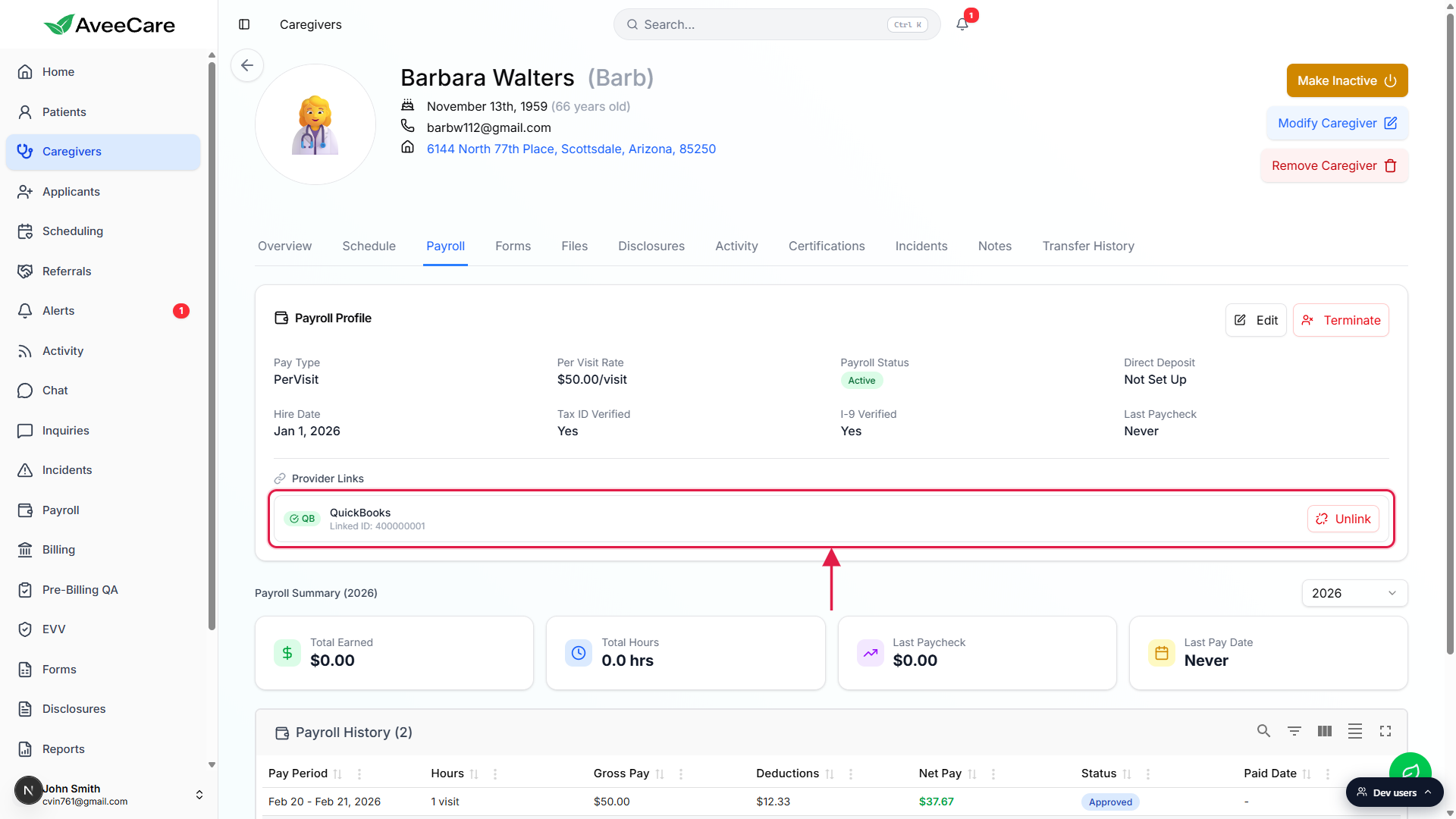
Unlink only detaches this caregiver from the provider.
Clicking Unlink drops the per-caregiver link without touching the agency-wide integration. Reconnect through the agency settings flow, then come back here.
4. Walk Payroll Summary and Payroll History
Pick a year in the Payroll Summary header.
The dropdown sits next to the Payroll Summary (2026) heading and re-runs the summary tiles and Payroll History table for that year only. Default is the current year.Read the four summary tiles.
The tiles are: Total Earned, Total Hours, Last Paycheck, and Last Pay Date. Each one reflects only the year picked above. New caregivers and unworked years show zeros and a Last Pay Date of Never.Open Payroll History to see every pay period.
Columns: Pay Period, Hours (or visit count for PerVisit caregivers), Gross Pay, Deductions, Net Pay, Status, and Paid Date. Status values include Approved and Pending. Use Export CSV below the table to pull the rows into a spreadsheet.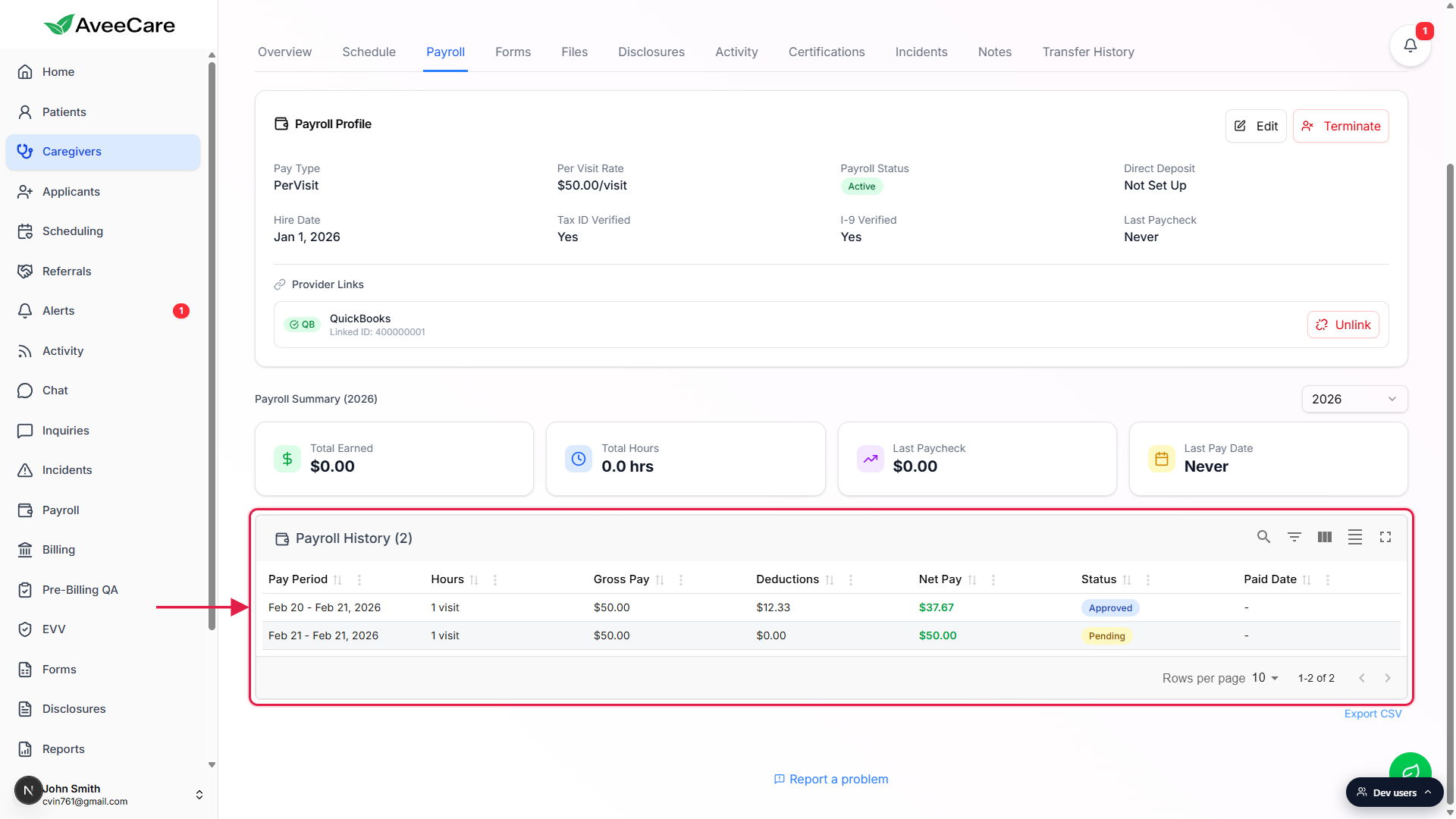
5. Edit pay type, rate, and status
Click Edit on the Payroll Profile card.
The Edit Payroll Profile modal opens with fields for Pay Type, Per Visit Rate ($) (or Hourly Rate), Hire Date, Payroll Status, and a Verification Status block with three checkboxes: Direct Deposit Configured, Tax ID (W-4) Verified, and I-9 Employment Eligibility Verified.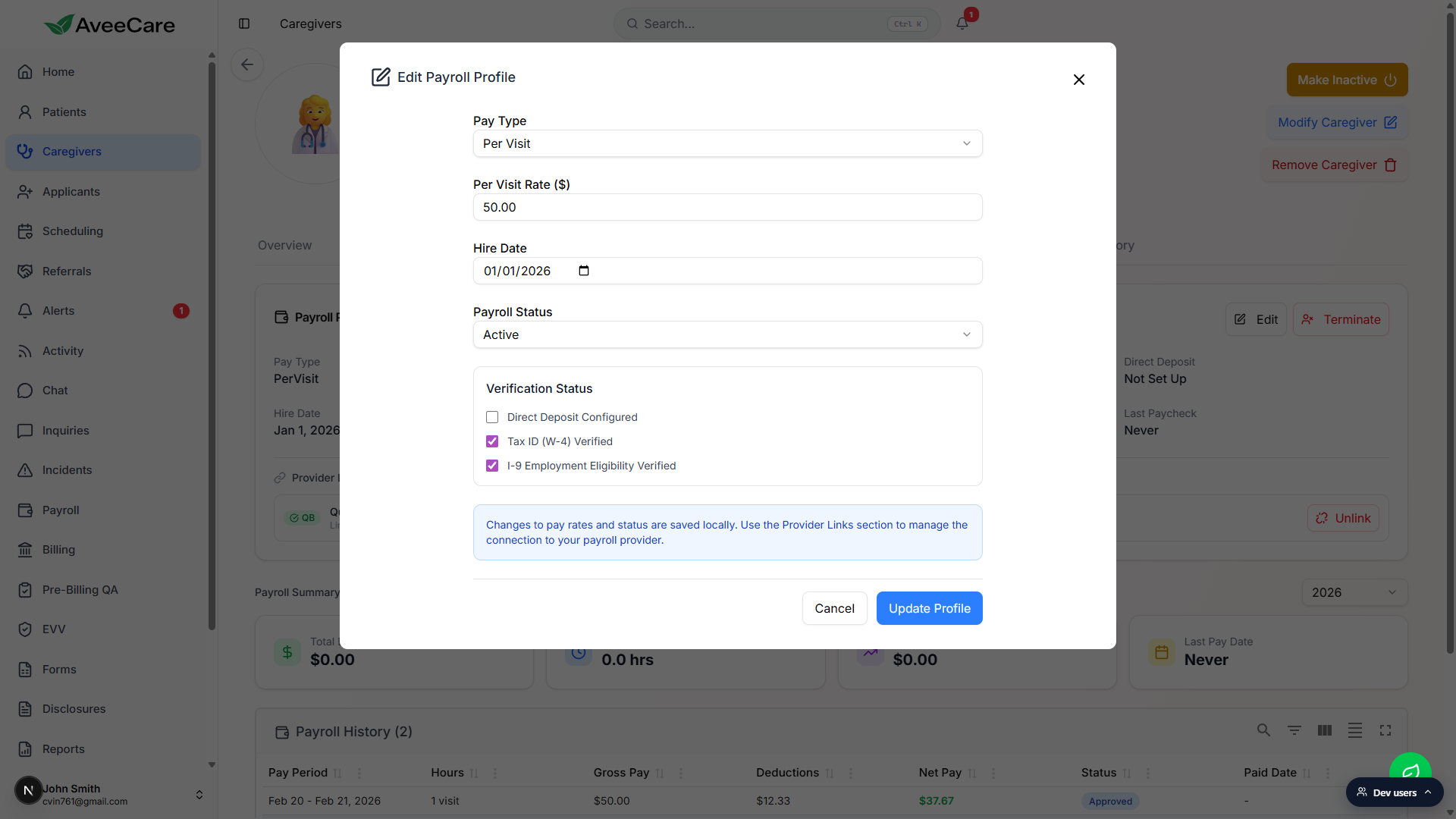
Change Pay Type to switch the rate field shown.
Picking Hourly swaps the Per Visit Rate field for an Hourly Rate field. Picking Per Visit swaps it back. The previous value isn't carried over between modes, so re-enter the rate.Click Update Profile to save.
Save applies to future pay periods only. Past Payroll History rows keep the rate that was in effect when they were generated. To correct an already-paid period, post an adjustment from your payroll provider, don't backdate the rate here.
Common pitfalls
- Editing the rate retroactively. Saved rate changes take effect going forward. Past pay periods in Payroll History keep the rate they were calculated at. Run an adjustment in your payroll provider for prior periods, don't try to fix it on this card.
- Provider not connected at the agency level. The per-caregiver Provider Links section only renders rows for providers connected in Payroll integration. Connect the agency-wide integration first, then come back here.
- Confusing Terminate with Make Inactive. Terminate on the Payroll Profile stops payroll for this caregiver and keeps history visible. Make Inactive on the caregiver header removes them from active staff lists. Use both when the person leaves.
- Last Paycheck shows $0.00. The summary tiles only look at the year selected in the dropdown. Bump the year picker if you expected a payout from a prior year.
- Switching Pay Type clears the rate value. Toggling between Per Visit and Hourly does not migrate the dollar value. Re-enter the rate in the new field before clicking Update Profile.