A dashboard puts several reports on one screen with one period. Every agency gets a built-in Agency overview, and office staff can build their own from any saved report or built-in report, then save, share and email it on a schedule.
Quick answer
Open Reports, click Dashboards and open Agency overview or click New dashboard. Use the period picker at the top to give every tile the same dates, click Edit to add and arrange tiles, then save it.
1. Open Reports and click Dashboards
Click Dashboards in the bar across the top of Reports.
The list shows the built-in Agency overview first, then the dashboards saved at your agency. Click New dashboard to start an empty one. The Agency overview is also one click away from the Reports home, as Agency overview dashboard.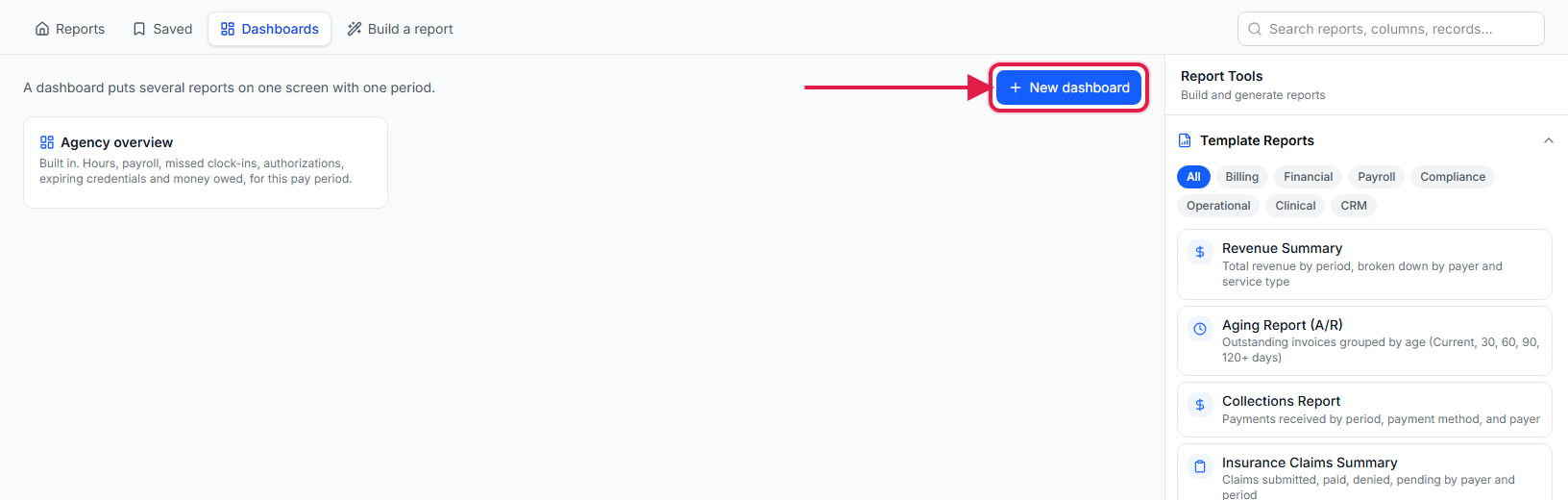
2. Read the Agency overview and set one period
Open Agency overview to see payroll, hours, clock-ins, visits, authorizations, credentials and money owed.
Payroll this pay period shows worked hours and pay, what is still scheduled, and projected pay, using your agency's pay schedule. Each tile names the dates it covers under its title, and any note it needs, such as visits still waiting to be completed.Pick a period at the top to give every tile the same dates.
The picker starts at Each tile's own period. Choosing This pay period, Last month or any other period re-runs every tile for those dates. Click Refresh to run them again with the latest records.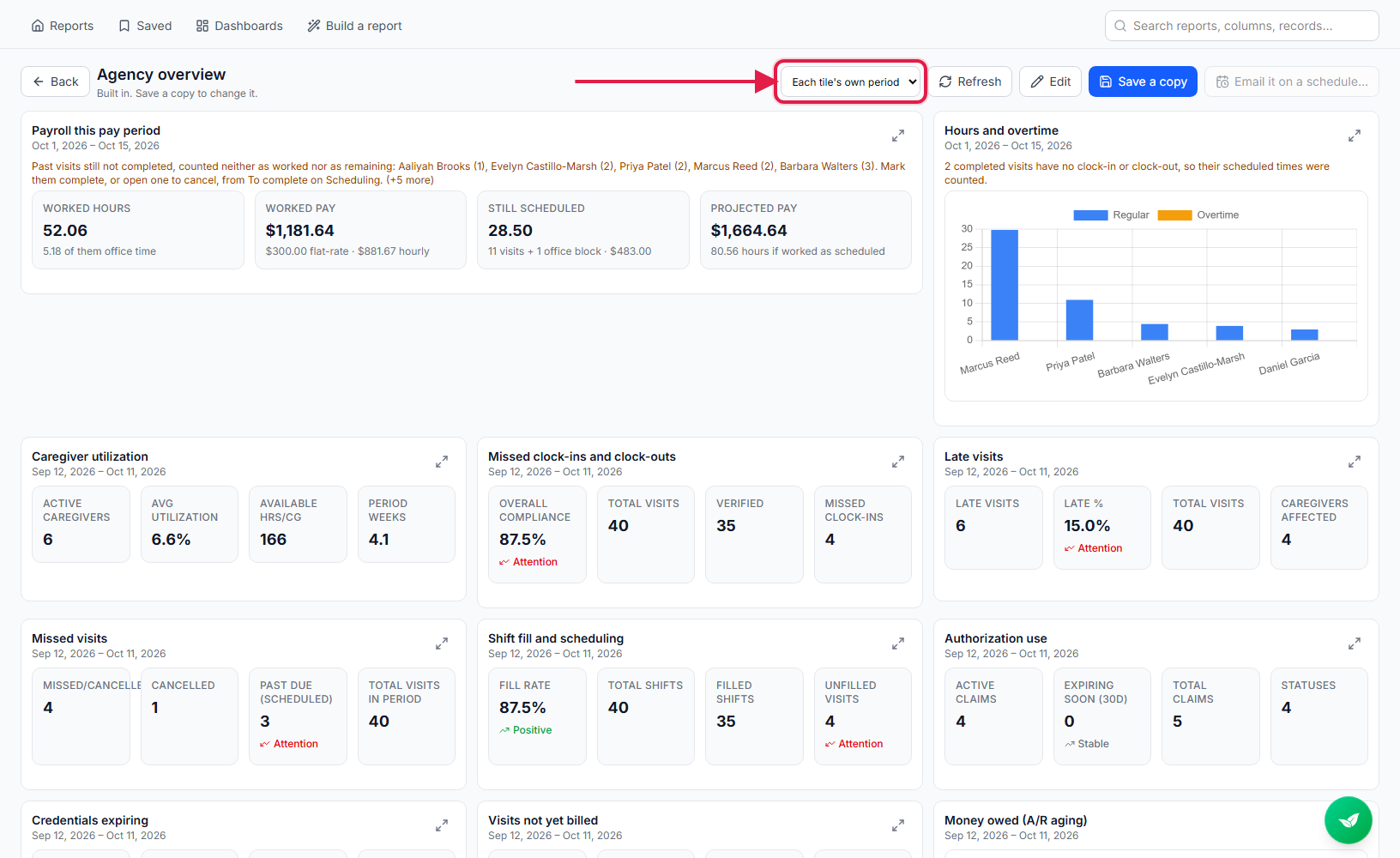
Click the expand icon on a tile to open that report in full.
The report opens with its table, chart and export options. Back returns you to the dashboard.
3. Add tiles to a dashboard
Click Edit, then Add a tile, and pick a saved or built-in report.
Saved reports you can see are listed first, then every built-in report. The Agency overview is built in, so changing it starts from Save a copy; your copy is then yours to edit.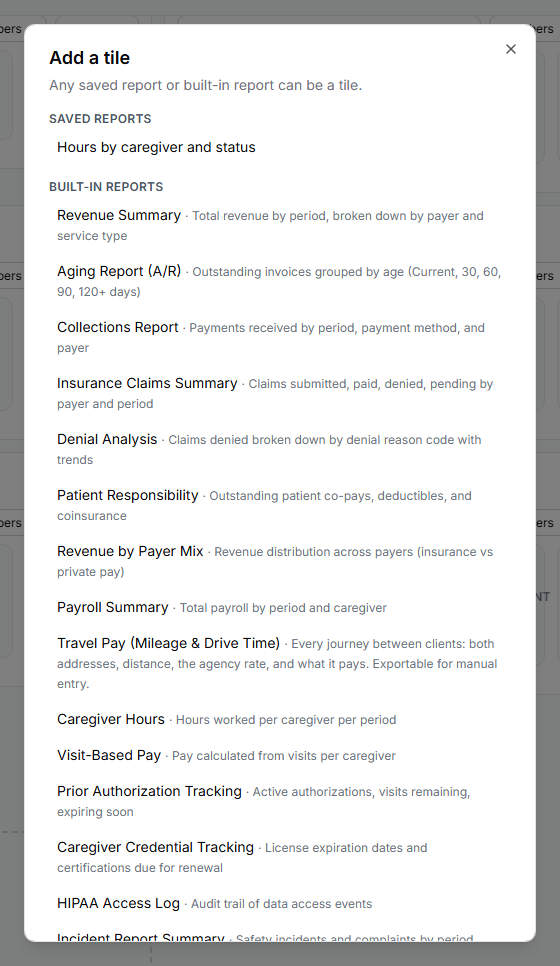
4. Arrange each tile
Choose what each tile shows and how wide it is.
While editing, each tile has a title you can rename, a menu for Numbers, Chart or Table, and a size of Small, Medium or Wide. Drag the handle at the top left to reorder tiles, or use the trash icon to remove one. Click Done arranging when you finish.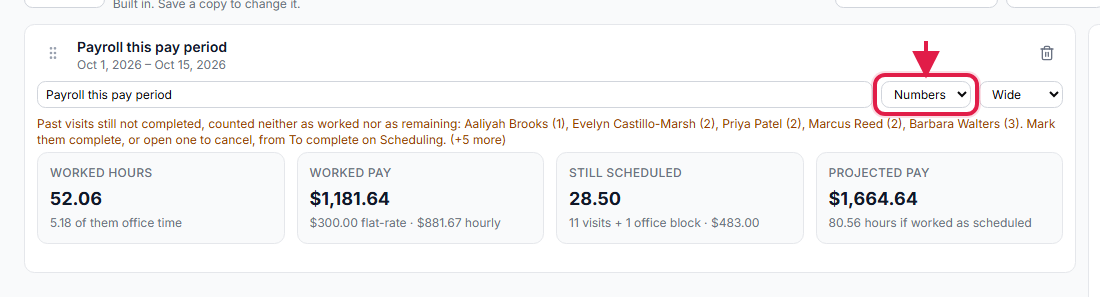
5. Save the dashboard and share or schedule it
Click Save, name the dashboard and choose who can see it.
Only me keeps it to you. Everyone in the office at my agency shares it. Saved dashboards open from Reports, then Dashboards.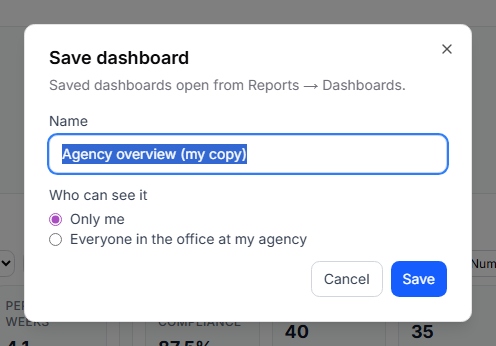
Click Email it on a schedule to send the dashboard as a report.
The button works once the dashboard is saved with no unsaved changes. It opens a scheduled report with the dashboard already chosen, and each tile becomes a section of the email.
Common pitfalls
- Editing the built-in Agency overview. It cannot be changed in place. Click Save a copy first, then edit your copy.
- Comparing tiles with different dates. With Each tile's own period, a payroll tile can cover the pay period while a visits tile covers the last 30 days. Pick one period at the top when the tiles need to line up.
- Scheduling before saving. Email it on a schedule is unavailable until the dashboard is saved and its changes are saved.
- Sharing a dashboard built from private reports. A colleague only sees tiles from reports they can open. Share the underlying reports too.
Related
- Custom report builder: build the reports your tiles show.
- Scheduled reports: email a dashboard every week or month.
- Staff pay statement: the pay figures behind Payroll this pay period.