Caregiver chat is the Messages page inside the caregiver portal. It uses the same chat shell as the admin-side Chat page, with the same threads, attachments, edit window, and read receipts. The difference is who you can talk to. Caregivers message office staff, not other caregivers or patients, and the new-message picker reflects that scope.
Quick answer
From the caregiver portal, click Messages in the left nav. Pick a conversation row to read or reply, or click the + next to Conversations at the top of the sidebar to start a new thread with an office user. Type your message in the composer at the bottom of the thread and press Enter to send.
1. Open Messages from the caregiver nav
Click Messages in the Caregiver Portal sidebar.
The caregiver portal sidebar lists Dashboard, My Visits, Open Shifts, My Schedule, Messages, Alerts, My Profile, and Settings. Messages opens the Conversations sidebar on the left and the most recent thread on the right.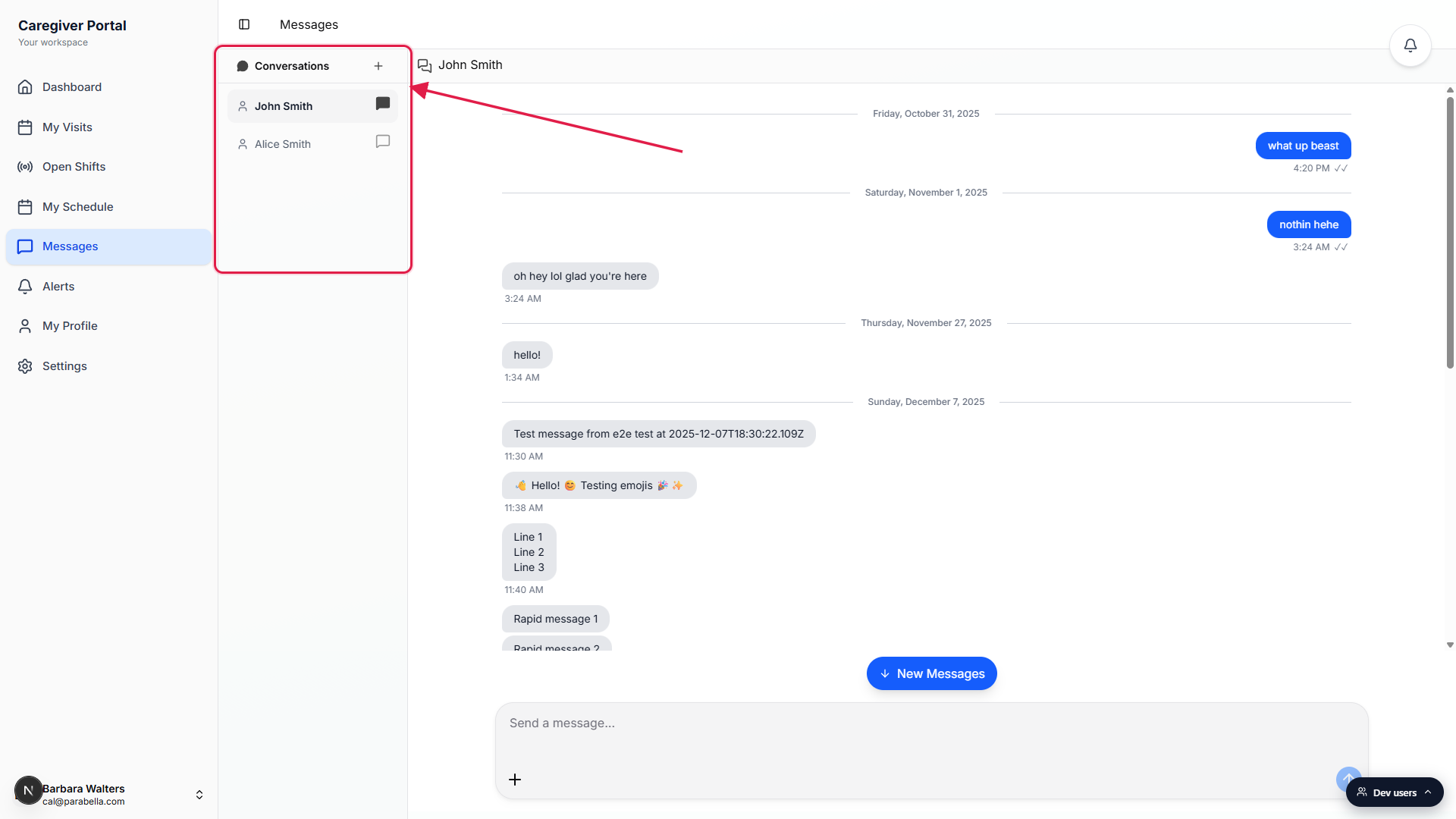
The header reads Messages, not Chat.
The caregiver portal labels the page Messagesin the top bar and in the left nav. Admins see the same feature labelled Chat. Both pages run on the same backend so a message sent from one shows up in the other in real time.
2. Pick a conversation from the sidebar
Click a row to load that thread in the main pane.
Each row shows the office user's name, a small user icon, and a chat-bubble on the right. The active row picks up a muted background and bolder name so you can tell which thread is in the main pane. New activity on a row gets a small red badge with the unseen count, capped at 99+.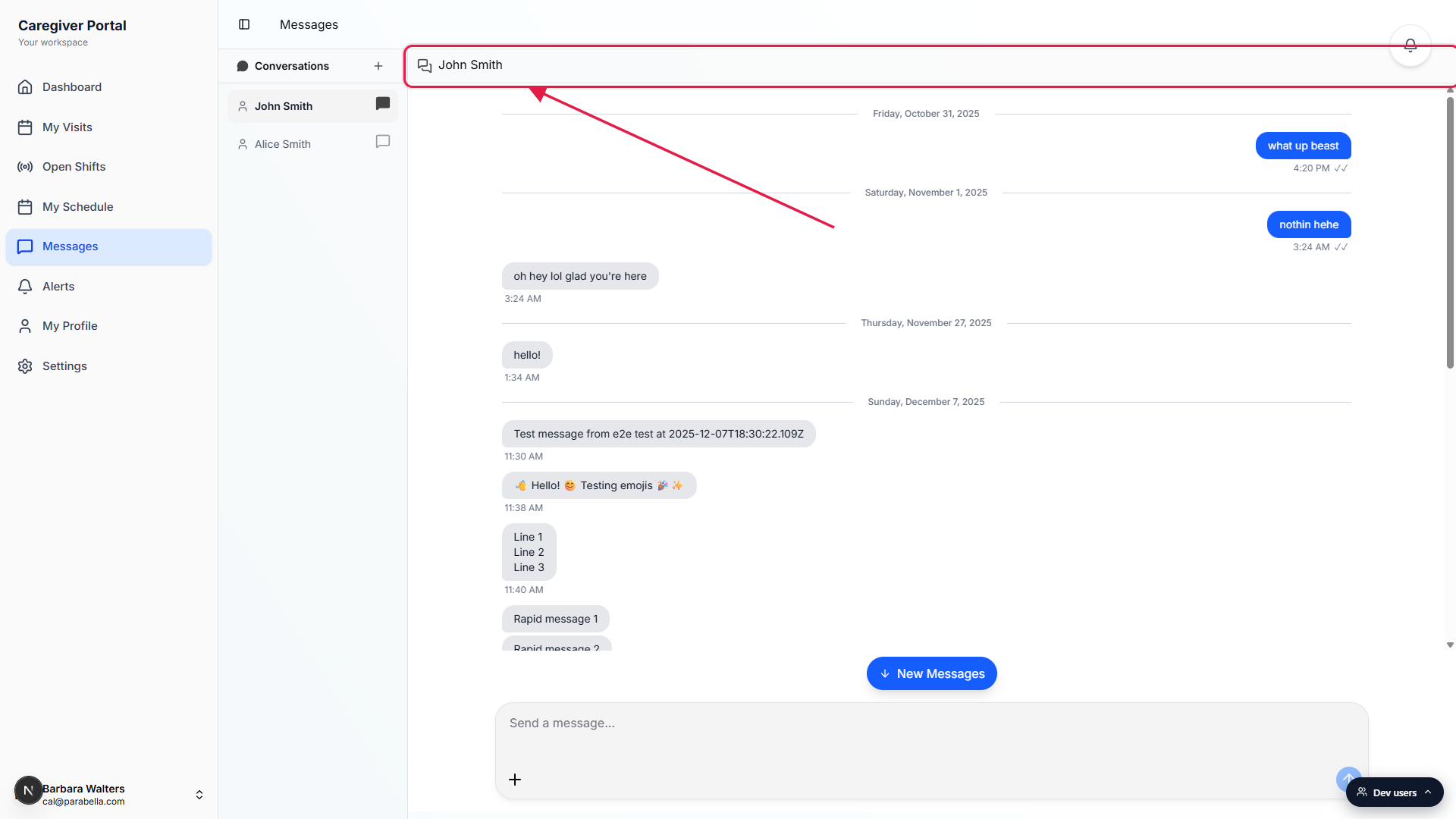
Messages mark as seen the moment you open the thread.
There is no manual mark-as-read button. As soon as the thread loads in the main pane, every visible message marks as seen and the red unseen badge on the sidebar row clears.
3. Start a new conversation with an office user
Click the + button next to Conversations at the top of the sidebar.
The button is labelled New Message for screen readers. A small dropdown opens at the top of the sidebar with a Search users input and a list of the office users you can message.Type a name to filter, or pick a user directly from the list.
The search is a case-insensitive substring match against the full name. Click a user and a fresh thread opens in the main pane. The conversation joins the sidebar list as soon as you send the first message.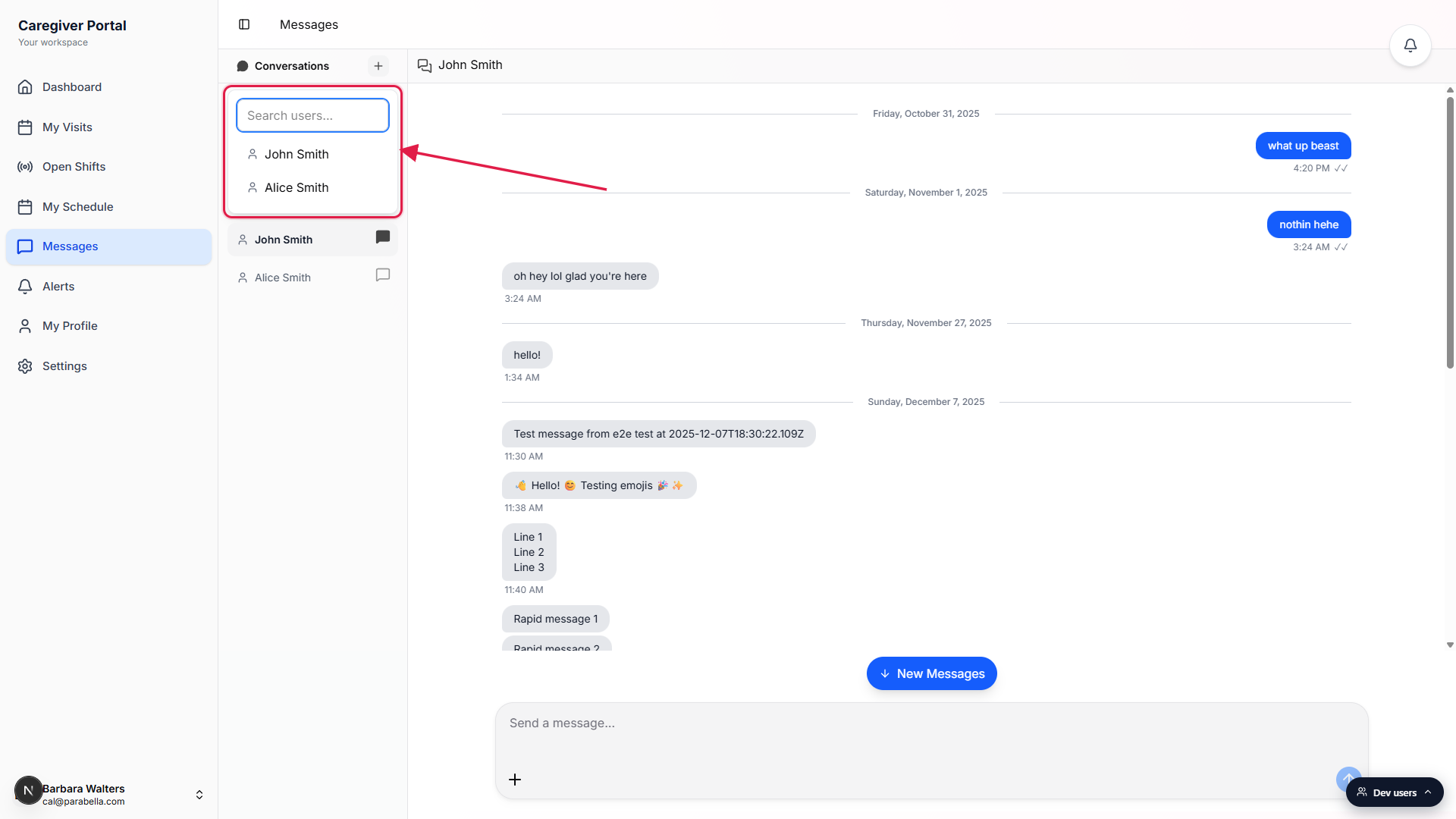
4. Type your reply in the composer and send
Type your message in the Send a message field at the bottom of the thread.
The composer is the rounded card pinned to the bottom of the thread. Type your message. The send button on the right enables as soon as the field has content. Press Enter to send, or Shift+Enter to add a new line without sending.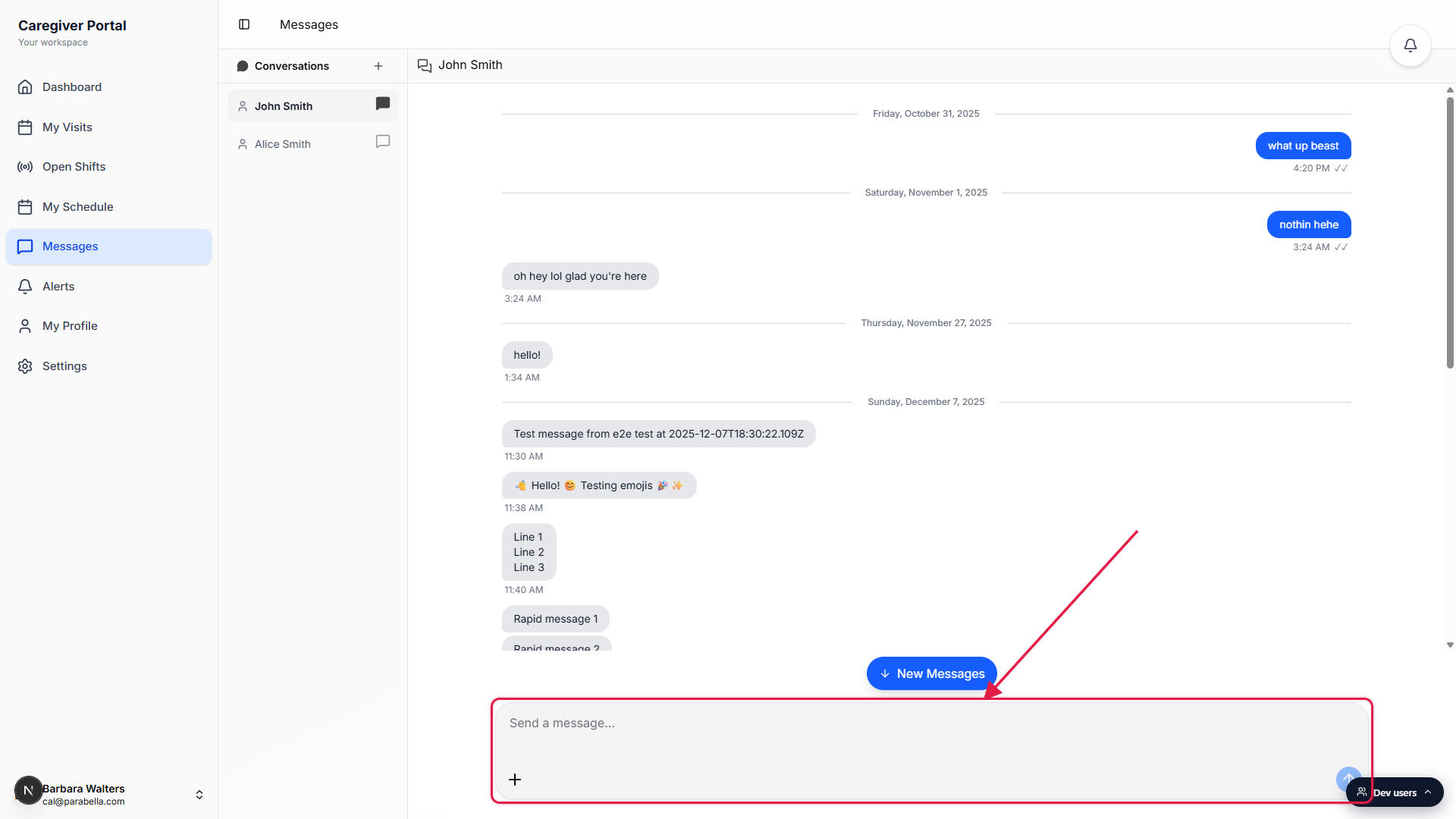
Use the plus icon on the left of the composer to attach a photo or file.
The plus icon opens an attachment picker. From a phone you can pick from the camera roll, take a new photo, or upload a document. The attachment uploads with your message and the office user can open it from the thread.Edit or delete within 10 minutes of sending.
Tap one of your own messages to pull up Edit and Delete actions. After 10 minutes the message becomes permanent for both sides. See Edit and delete (10-min window) for the full rules.
How the contact list is scoped
Caregivers do not see the full user directory. The Conversations sidebar and the New Message search list are scoped to the office staff at your agency. This is the main visible difference between caregiver chat and the admin-side Chat page.
Patient messages are handled separately under Inquiries on the admin side. Caregivers do not get an inquiries inbox, so the only conversations that show up in your Messages page are with office users at your agency.
Common pitfalls
- Looking for a teammate caregiver in the list. Caregivers can only message office staff from this page. To reach another caregiver, message office staff and have them route the message, or use the Open Shifts page for shift-swap requests.
- Trying to message a patient or family member. Patient and family communication does not run through caregiver chat. The office handles those conversations under Inquiries. If a patient needs to reach you, the office relays the message.
- Missing the unseen badge. The unseen count is the small red number on the chat-bubble icon on the right of a sidebar row. There is no message snippet or timestamp on the row itself, so if a row looks compact and unremarkable, scan for that red badge to spot new activity.
- Editing past the 10-minute window. The Edit and Delete actions disappear 10 minutes after a message is sent. If you spot a typo after that, send a follow-up message rather than try to rewrite the original.
- Resizing the window and losing the sidebar. On a narrow window the layout switches to single column, the sidebar takes the full pane, and opening a thread hides it behind a back arrow. That is expected on phones and tablets. Click the back arrow to return to the conversation list.