The message thread is where the actual conversation lives. It loads with the latest message anchored to the bottom, splits the feed by day with date dividers, marks your own sent messages with one or two check marks, and surfaces a New Messages anchor when you have unseen messages sitting above your viewport.
Quick answer
Open Chat and click a conversation in the sidebar. The thread loads in the right pane. Date dividers (Today, Yesterday, or the full date for anything older) split the feed by day. Your own messages appear as blue bubbles on the right with a check mark for sent and double check marks for seen. Received messages appear as gray bubbles on the left.
1. Open a conversation
Go to Chat in the left sidebar.
The Chat page splits into two columns: the Conversations list on the left, and the open thread on the right.Click any conversation row in the Conversations list.
The thread loads in the right pane with the most recent message anchored to the bottom and the recipient's name in the thread header.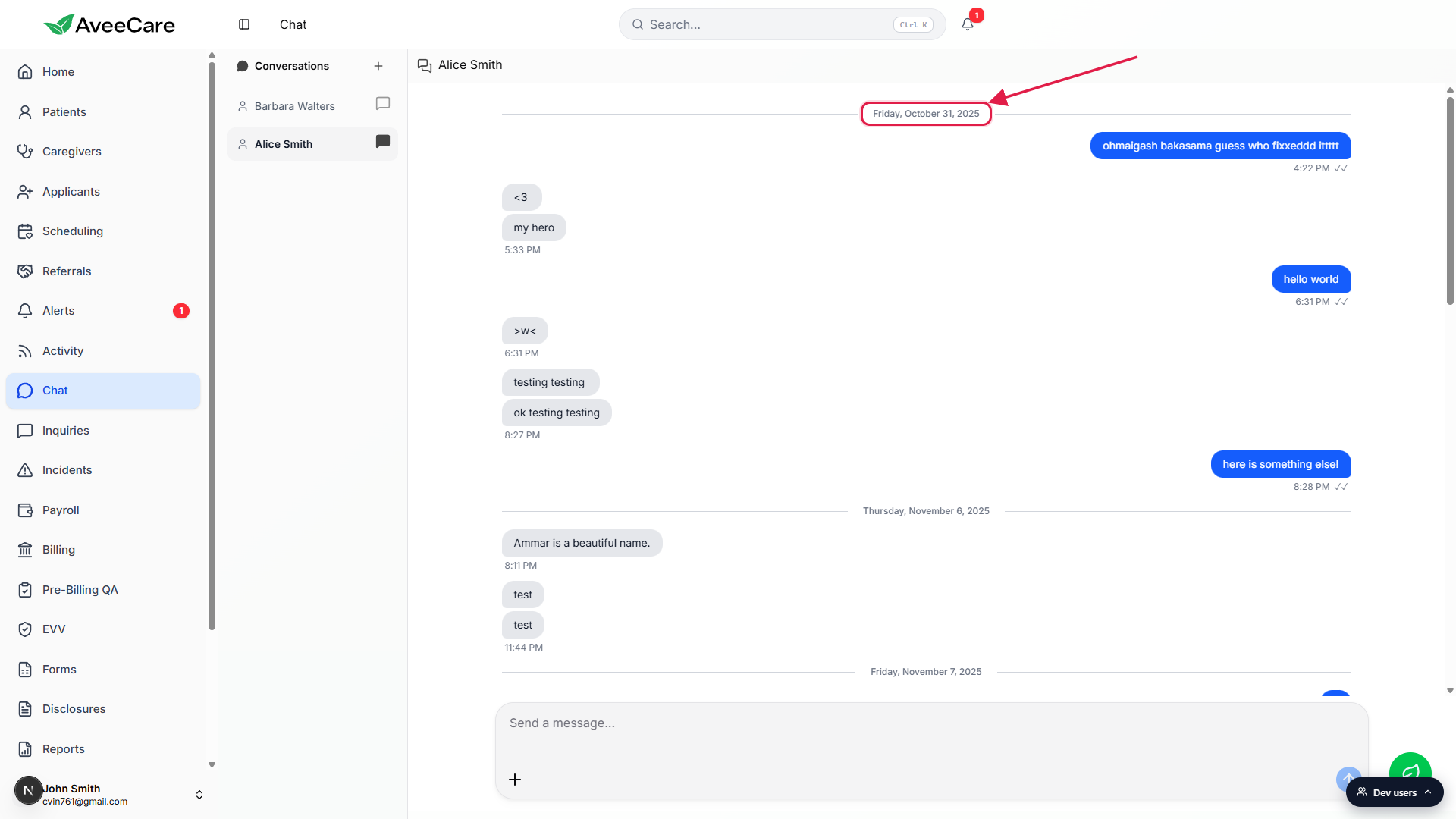
2. Read the date dividers
Date dividers split the feed by day.
Messages sent today sit under Today. Yesterday's messages sit under Yesterday. Anything older shows the full weekday plus month plus day (and the year if it is not the current year), for example Friday, October 31, 2025.Use the dividers as scroll landmarks.
Scroll up to load older history. The thread fetches older messages on demand, so a long-running conversation will keep loading earlier days as you scroll. Each new day gets its own divider.
3. Tell sent from received bubbles
Sent messages: blue bubble, right-aligned.
Anything you sent shows up as a blue bubble pinned to the right edge of the thread, with a square inner corner on the bottom-right. The timestamp and read indicator sit under the bubble on the same side.Received messages: gray bubble, left-aligned.
Messages from the other person show up as gray bubbles on the left with a square inner corner on the bottom-left. The timestamp sits under the last message in a run.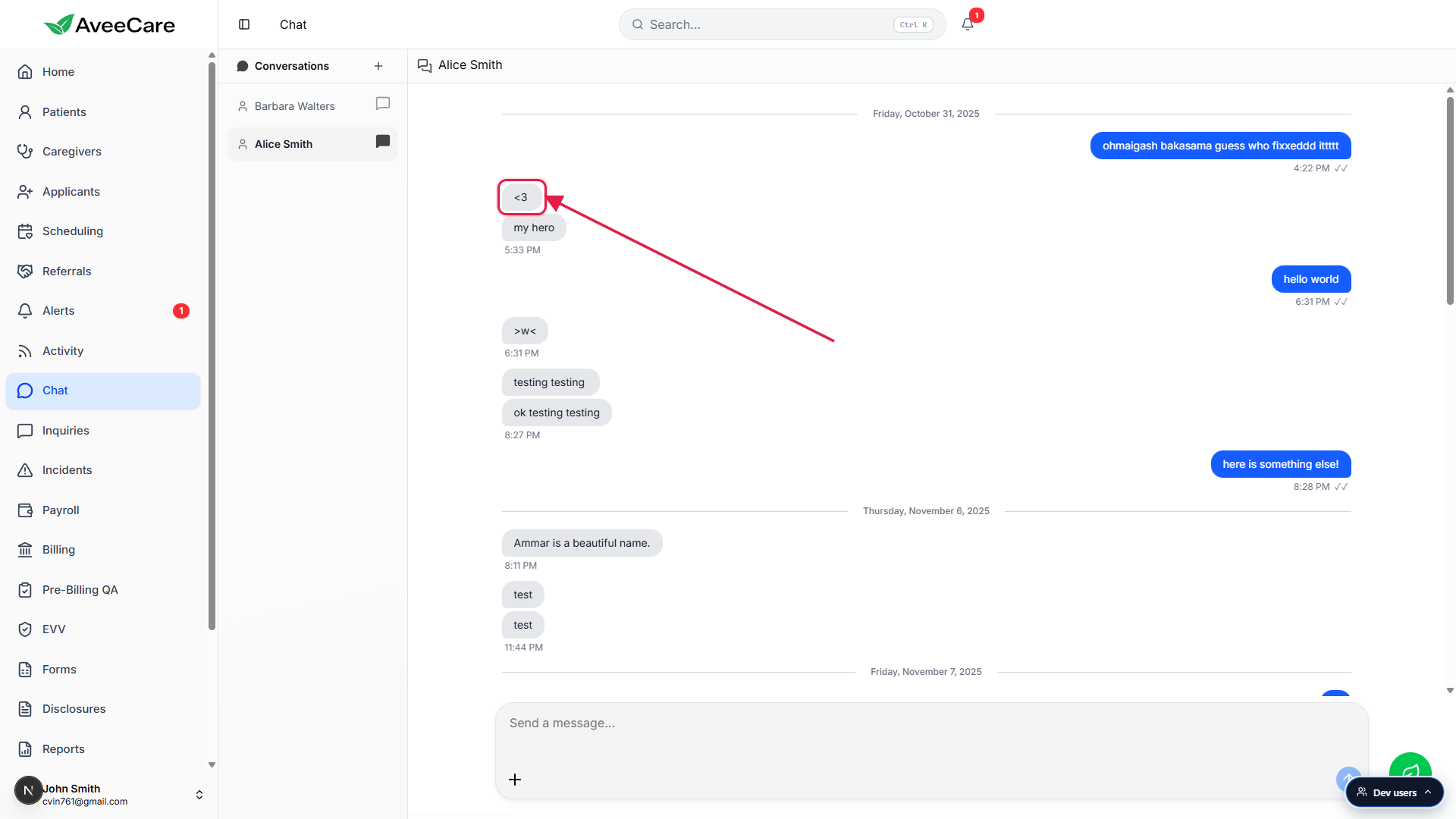
Consecutive messages from the same sender stack.
When the same person sends a few messages back-to-back in the same minute, the bubbles stack tightly with only one timestamp under the bottom message. This keeps the thread compact when someone is typing in bursts.
4. Use read receipts and scroll-to-unread
Look under your own bubbles for a check mark.
A single check mark next to the time means your message was sent. A double check mark means the recipient has seen it. Read receipts only show on bubbles you sent, not on bubbles you received.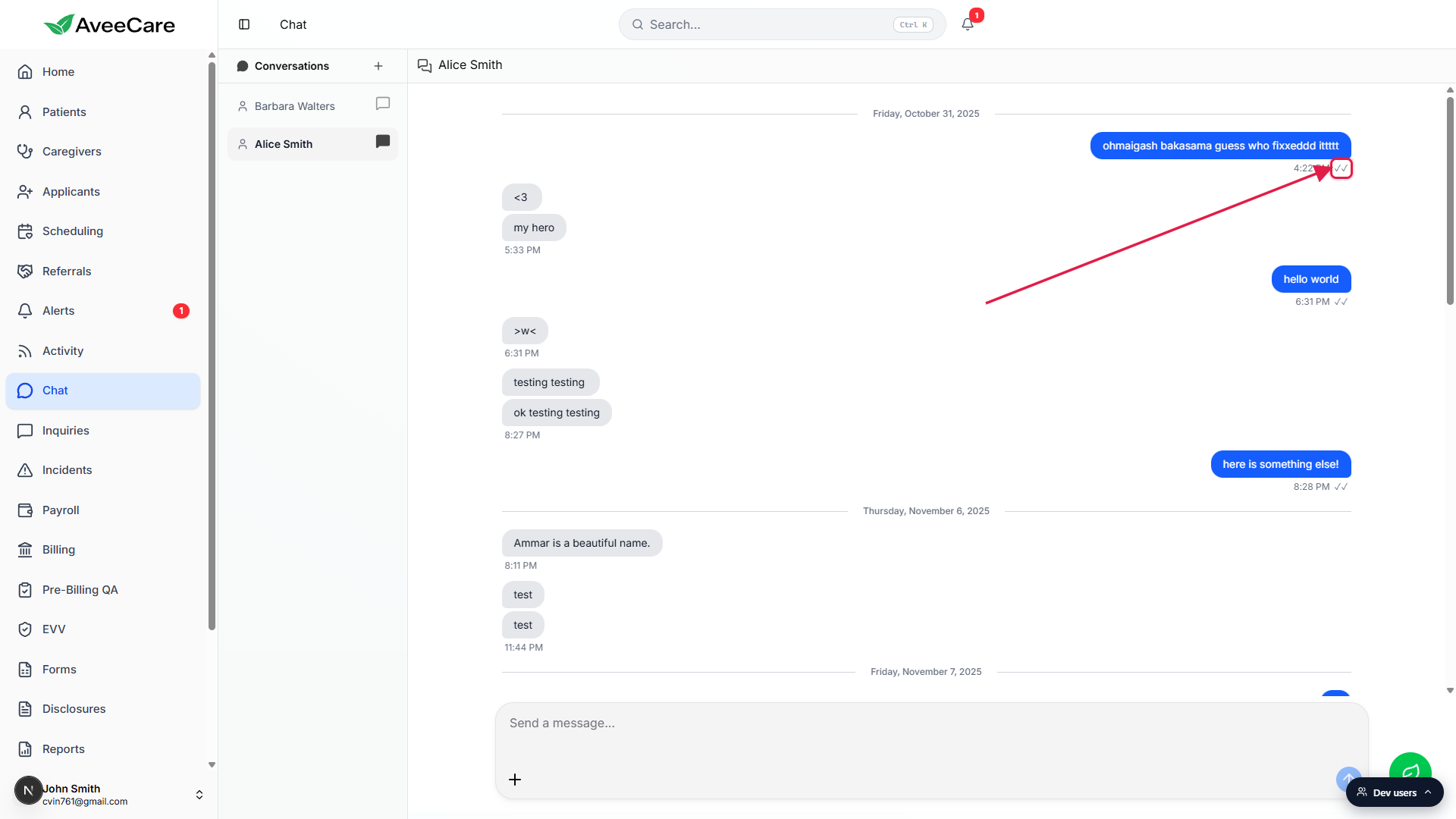
Watch for the New Messages divider on first open.
When the thread opens and you have unseen messages from the other person, a thin blue line labelled New Messages appears just above the first unread message. The thread auto-marks messages as seen once they pass through your viewport, so the divider tells you where you left off.Click the New Messages chip if you scrolled past it.
If you scrolled up to read older history and your unread divider is no longer in view, a floating New Messages button appears in the thread. Click it to jump straight back to the first unread message.
Common pitfalls
- Expecting read receipts on the other person's messages. Receipts only show under bubbles you sent. A gray bubble from the other person does not get a check mark, even after you read it.
- Missing the New Messages divider. The thread auto-marks messages as seen as you scroll past them, so the divider disappears quickly. If you opened the conversation and immediately scrolled, the divider may already be marked as read.
- Reading older messages without scrolling far enough. The thread loads older messages in chunks. If you jump to an old date you remember, you may need to scroll up a few times to get there. Each new day appears with its own date divider.
- Sending an empty message. The Send button stays disabled until you type something. Hitting Enter on an empty input does nothing. Shift plus Enter inserts a new line inside your draft instead of sending.