The Chat sidebar is the conversation list on the left of the Chat page. Every one-on-one thread you have with another office user or caregiver lives there, with the active thread highlighted and a red unseen-count badge on any conversation that has new messages.
Quick answer
Open Chat. The left sidebar lists every conversation you're part of. Click a row to open that thread in the main pane. To begin a new conversation, click the + button next to Conversations at the top of the sidebar and pick a user from the dropdown.
1. Open Chat and read the sidebar
Click Chat in the left nav.
The page opens with the Conversations sidebar on the left and the last conversation you had open in the main pane. If you have no threads yet, the list shows “No conversations yet. Click + to start one!”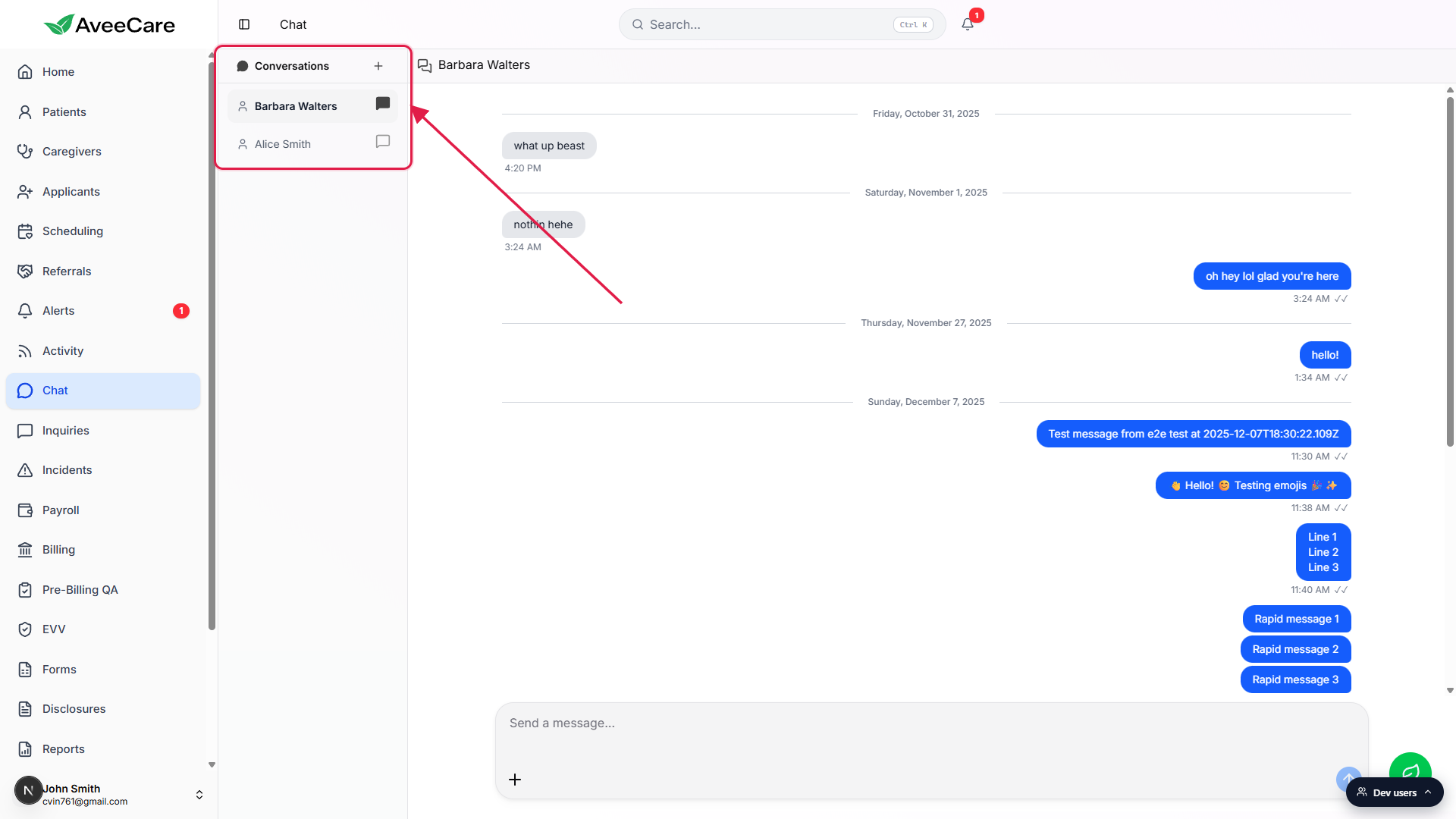
Each row shows the other person's name and a message icon.
Rows are intentionally compact, the user icon, the name, and a small chat-bubble icon on the right. There is no message snippet or timestamp on the row itself, that detail lives inside the thread once you click in.
2. Switch between conversations
Click any row to open that thread in the main pane.
The active row picks up a muted background and bolder name so you can tell at a glance which thread is in the main pane. The other rows stay light. Messages in the open thread mark as seen automatically as soon as you switch to it.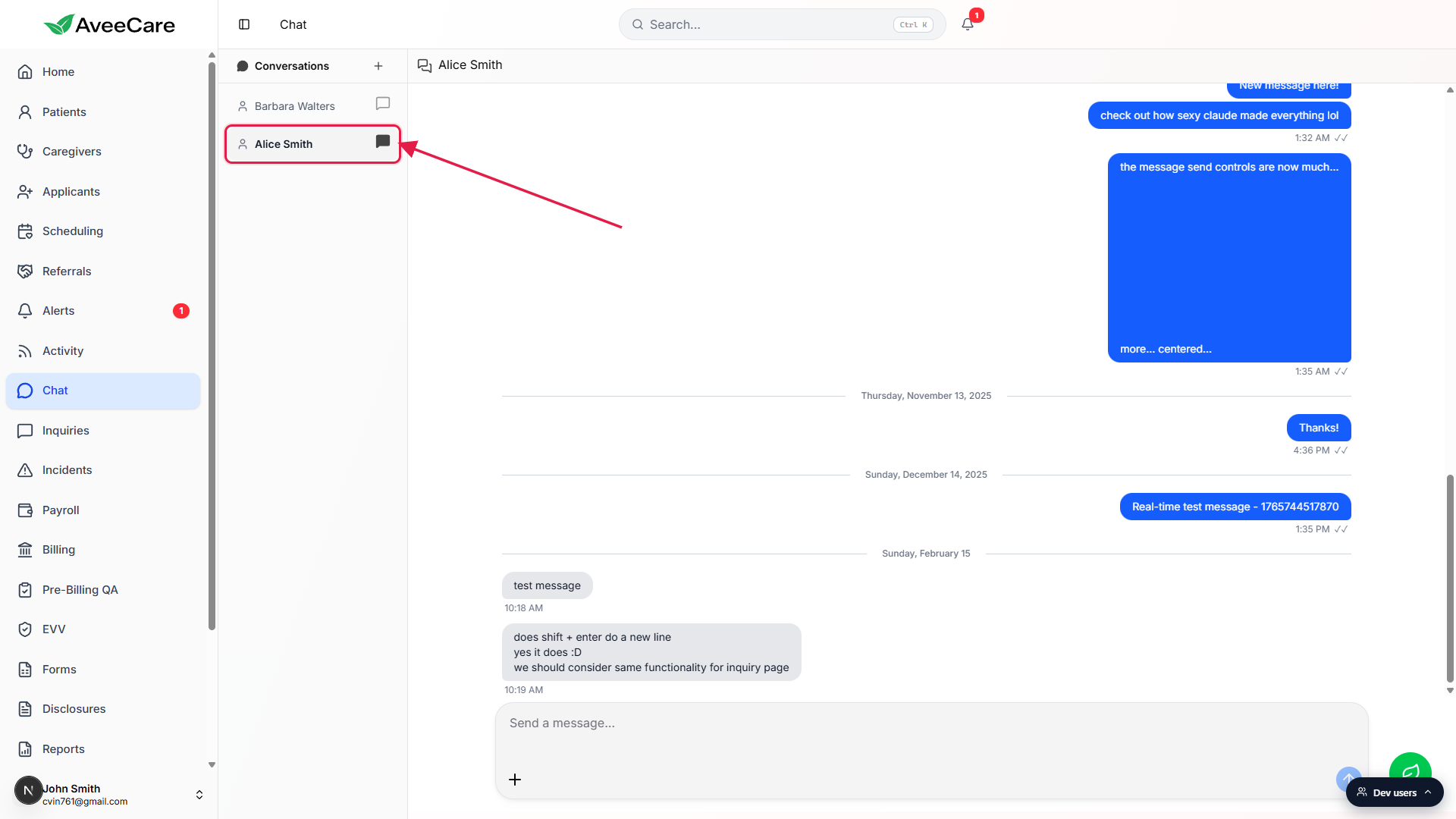
On a narrow window, the sidebar collapses behind a back arrow.
Resize the browser narrow enough and the layout switches to a single-column mobile view, the sidebar takes the full pane and opening a thread hides it behind a Back to conversations arrow. On desktop both panes show side by side.
3. Start a new conversation
Click the + button to the right of Conversations.
The button is labelled New Message for screen readers. A small dropdown drops down at the top of the sidebar with a search box and a scrollable list of every office user and caregiver you can message.Type a name to filter the list, then click a user.
The search is a case-insensitive substring match against the full name. Click a user and a brand new thread opens with them in the main pane. The conversation joins the sidebar list as soon as the first message is sent.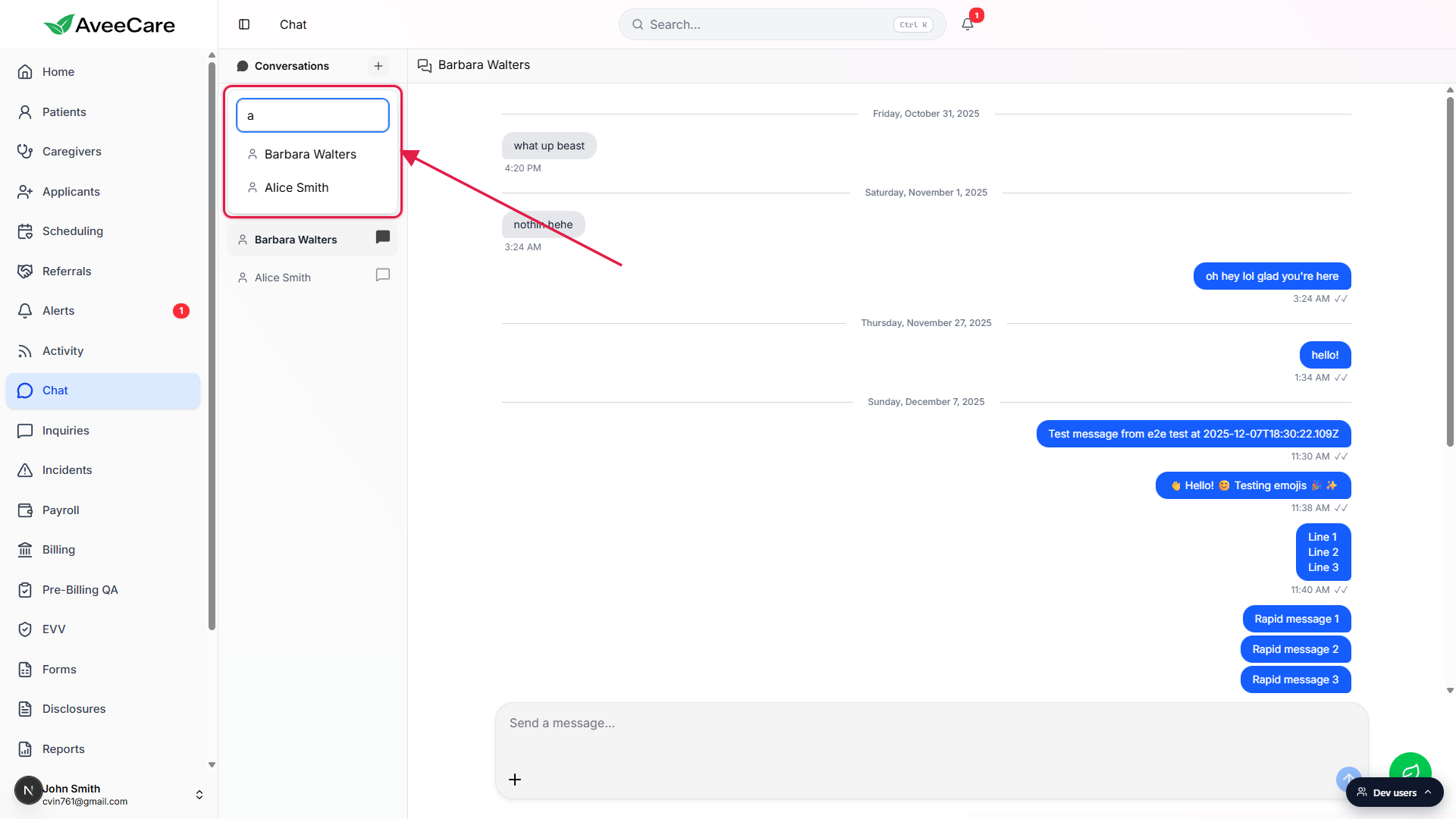
Sort order and unseen badges
Conversations come back from the backend ordered by most-recent activity, so a thread someone just messaged you on rises to the top. When a conversation has unread messages, a small red badge appears on the chat-bubble icon on the right side of the row with the unseen count, capped at 99+. Open the thread to clear it.
If a thread you expect to see isn't in the sidebar, check the Office switcher in the top bar, the list is filtered to the office you're currently viewing. Conversations with users in other offices stay hidden until you switch to that office.
Common pitfalls
- Looking for a conversation-list search box. The sidebar itself doesn't have one, the search you see in the dropdown is for finding a user to start a new conversation with. To find an existing thread, scroll the sidebar or click the user directly in Patients or Caregivers and message them from there.
- Trying to chat with a patient from this page. Patient conversations don't live in Chat, they live under Inquiries. The Chat sidebar only lists other office staff and caregivers.
- Missing a conversation because of the office filter. The sidebar is scoped to the office you currently have selected. If a teammate moved offices, switch offices in the top bar to find their thread.
- Expecting a snippet or timestamp on the row. Rows are intentionally minimal. Open the thread to see the latest message and its time. The unseen count is the only signal of new activity on the row itself.