The composer is the rounded input bar pinned to the bottom of every Chat thread. It is where you type a reply, paste a multi-line update, and find the Add Attachment button. This page covers what the controls look like in the live app today and how Enter, Shift+Enter, and the send button behave.
Quick answer
Open Chat, click a conversation in the left rail, then click into the rounded composer at the bottom of the thread. The placeholder reads Send a message.... Press Enter to send. Press Shift+Enter for a new line. The send arrow on the right activates as soon as you type.
1. Open a conversation and find the composer
Click Chat in the left sidebar.
The Chat page splits into a Conversations rail on the left and the active thread on the right. The composer is the rounded input docked at the bottom of the thread pane.Pick a conversation from the Conversations list.
Click any row in the Conversations rail. The thread loads on the right with date dividers, sent bubbles in blue, received bubbles in gray, and the composer pinned underneath.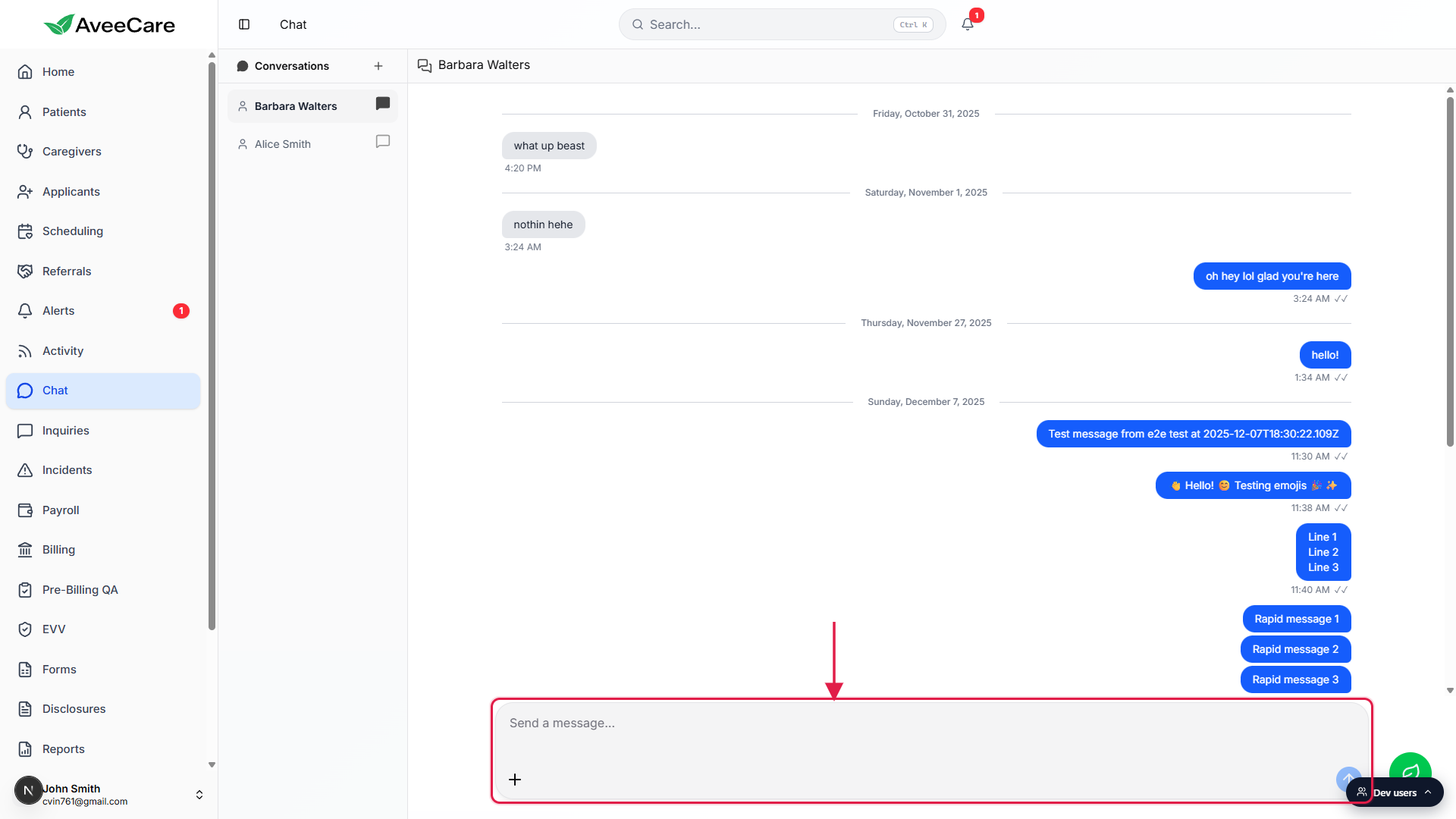
2. Use the Add Attachment button
Look for the plus icon at the bottom-left of the composer.
The Add Attachment control is the round plus button on the left side of the composer footer, sitting opposite the send arrow on the right. Hover it to confirm the Add Attachment tooltip.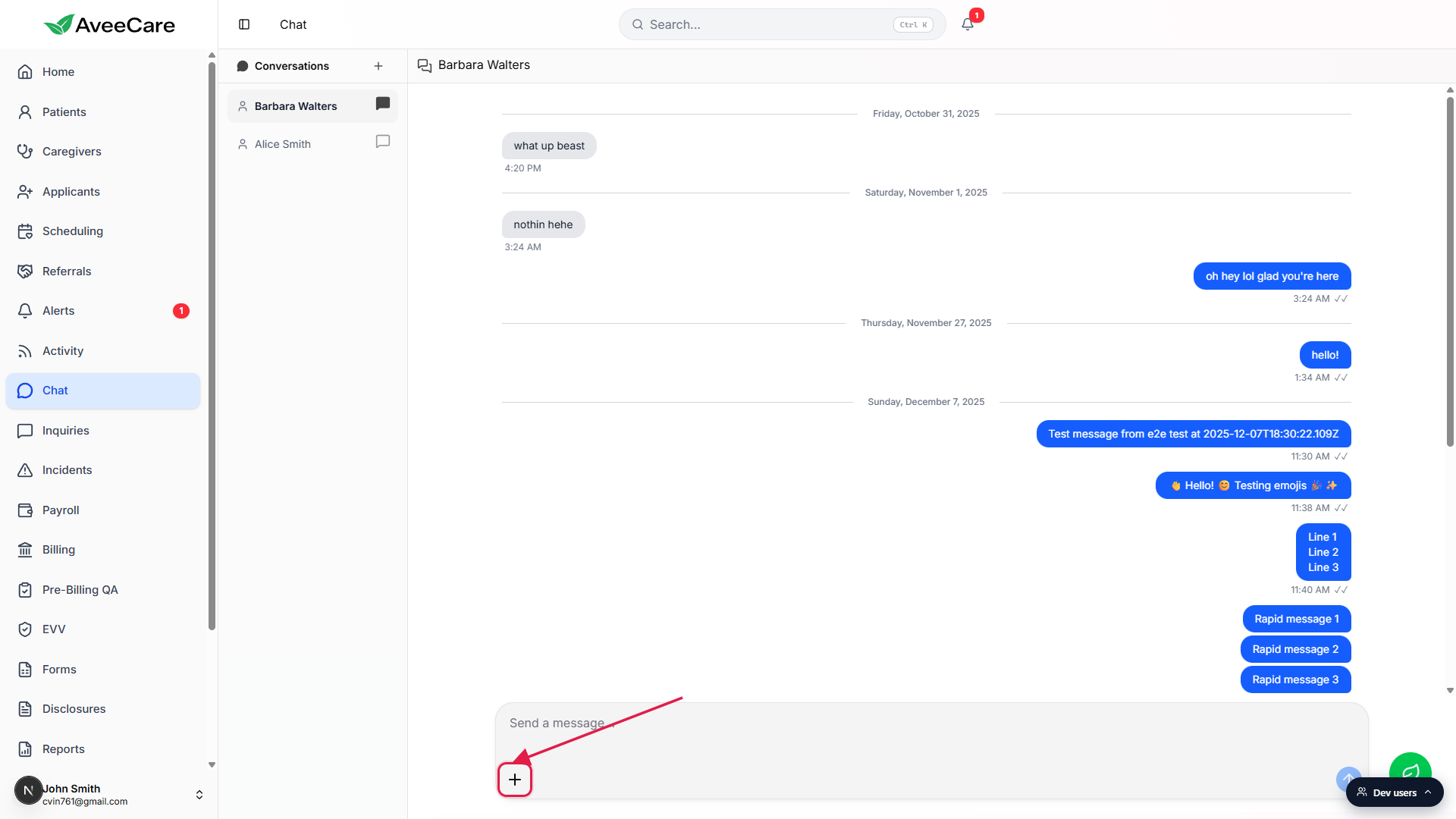
In-thread attachment uploads are not wired up in the app today.
The button is in the UI so workflows can grow into it, but the file picker, drag-and-drop, and paste-from-clipboard flows have not landed yet. If you need to share a file with a coworker right now, send a link to it from the patient or caregiver record where the document lives, or attach it through the email or document tools you already use.
3. Send the message with Enter, multi-line with Shift+Enter
Click into the composer and start typing.
The placeholder Send a message... disappears as soon as your cursor lands in the input. The send arrow on the right stays grayed out until the input has at least one non-blank character.Press Enter to send.
Enter alone sends the current message and clears the composer. The bubble appears at the bottom of the thread with a checkmark once the server confirms delivery, then a second checkmark when the other side has it on screen.Press Shift+Enter for a new line.
Use Shift+Enter to start a new line without sending. The composer grows in height as you add lines, up to roughly the full thread height, so long updates and short checklists both fit. The send arrow on the right turns blue once the input has content, even across multiple lines.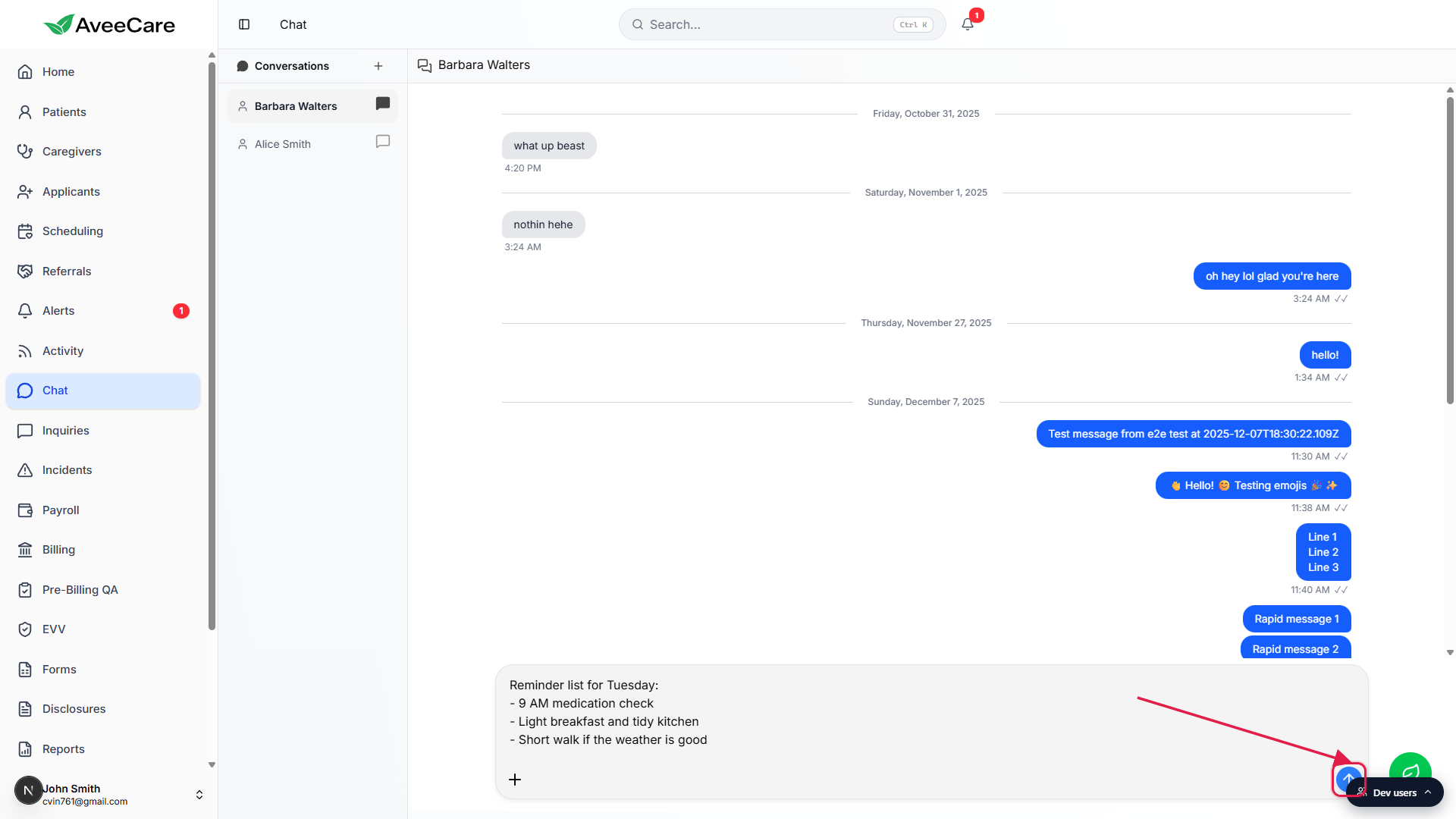
Common pitfalls
- Hitting Enter mid-thought sends the message. The composer treats Enter as send, so half-finished thoughts go out. Hold Shift before Enter when you want a line break, or finish drafting in a note first and paste the result in.
- The send arrow looks broken. The arrow is grayed out on purpose until the input has a non-blank character. Trailing spaces and newlines alone do not count, so a composer that only contains a blank line will not send.
- Trying to drag a file onto the composer. The Add Attachment button is in the layout but the upload flow is not wired up in the dashboard yet. Drag-and-drop and paste-from-clipboard do not attach files today. Share the document a different way until the flow ships.
- Looking for emoji and markdown controls. The composer is a plain textarea right now. Type emoji directly with the OS picker (Win + period on Windows, Control + Command + Space on macOS). Formatting like bold and italics renders as the raw characters you type.
- Forgetting Chat is a closed loop for now. Chat threads only connect coworkers inside your AveeCare tenant. They are not a patient or family-facing inbox. For caregiver-to-patient communication, stay inside the patient record.