Patient Inquiries is the inbox of messages and questions your patients submit from the patient portal. Every inquiry shows up here with the patient name, the subject, and a timestamp. From this list you can triage, reply, resolve, or convert into a referral.
Quick answer
Click Inquiries in the left sidebar. The page opens with three tabs at the top of the list: All, Open, and Resolved, each with a live count. Click a row to open the message thread in the right pane.
1. Open Inquiries from the sidebar
Click Inquiries in the left navigation.
The page loads with a Patient Inquiries panel on the left and a Select an inquiry placeholder on the right. The total inquiry count shows next to the panel title.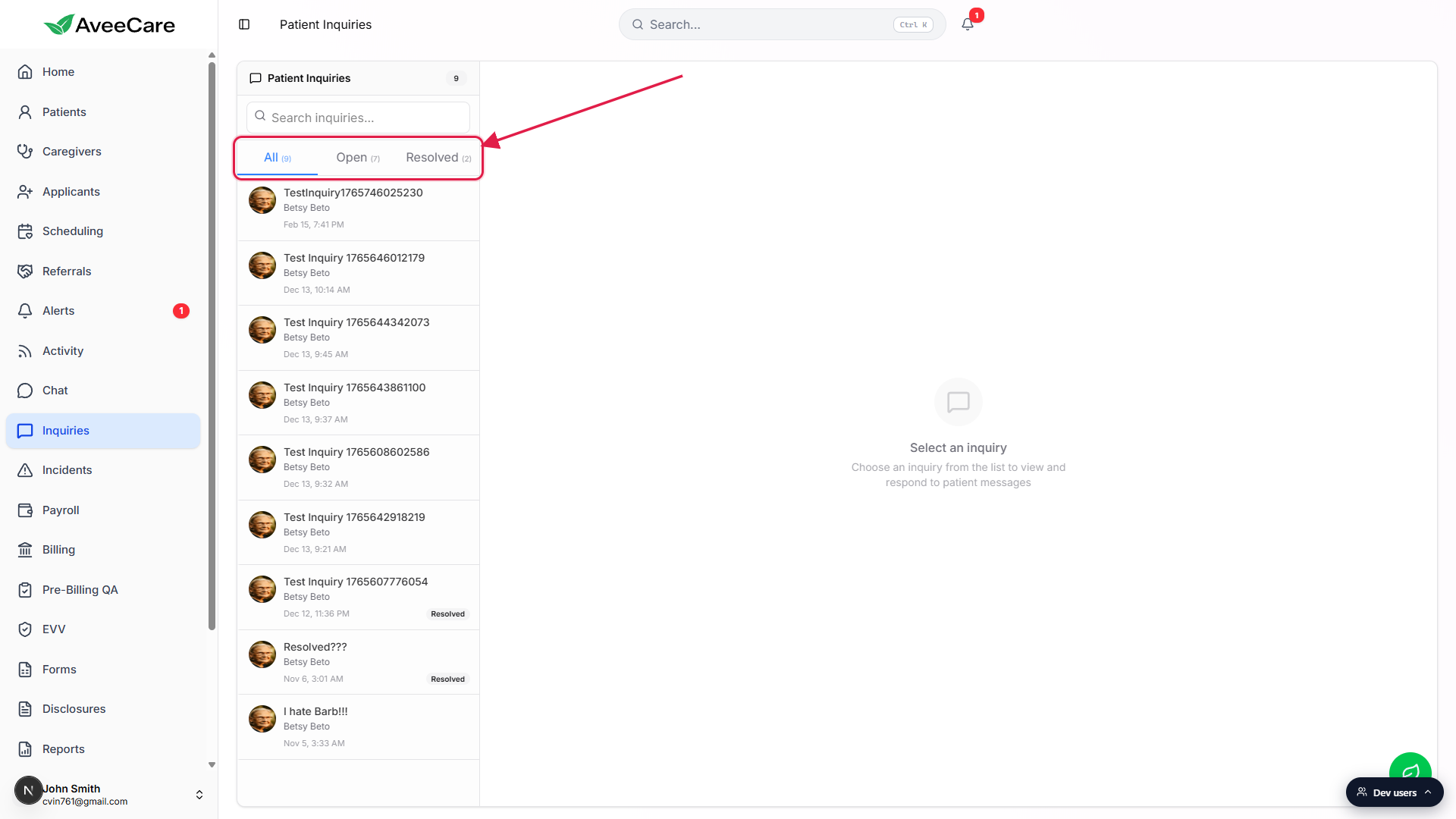
2. Switch tabs to filter by status
Click All, Open, or Resolved to change which inquiries are shown.
The tabs are right below the search box. Each tab has a count in parentheses, for example All (9), Open (7), and Resolved (2). The counts are live, so resolving an inquiry moves it from Open to Resolved right away. Rows on the All tab that have been resolved show a small Resolved chip next to the date.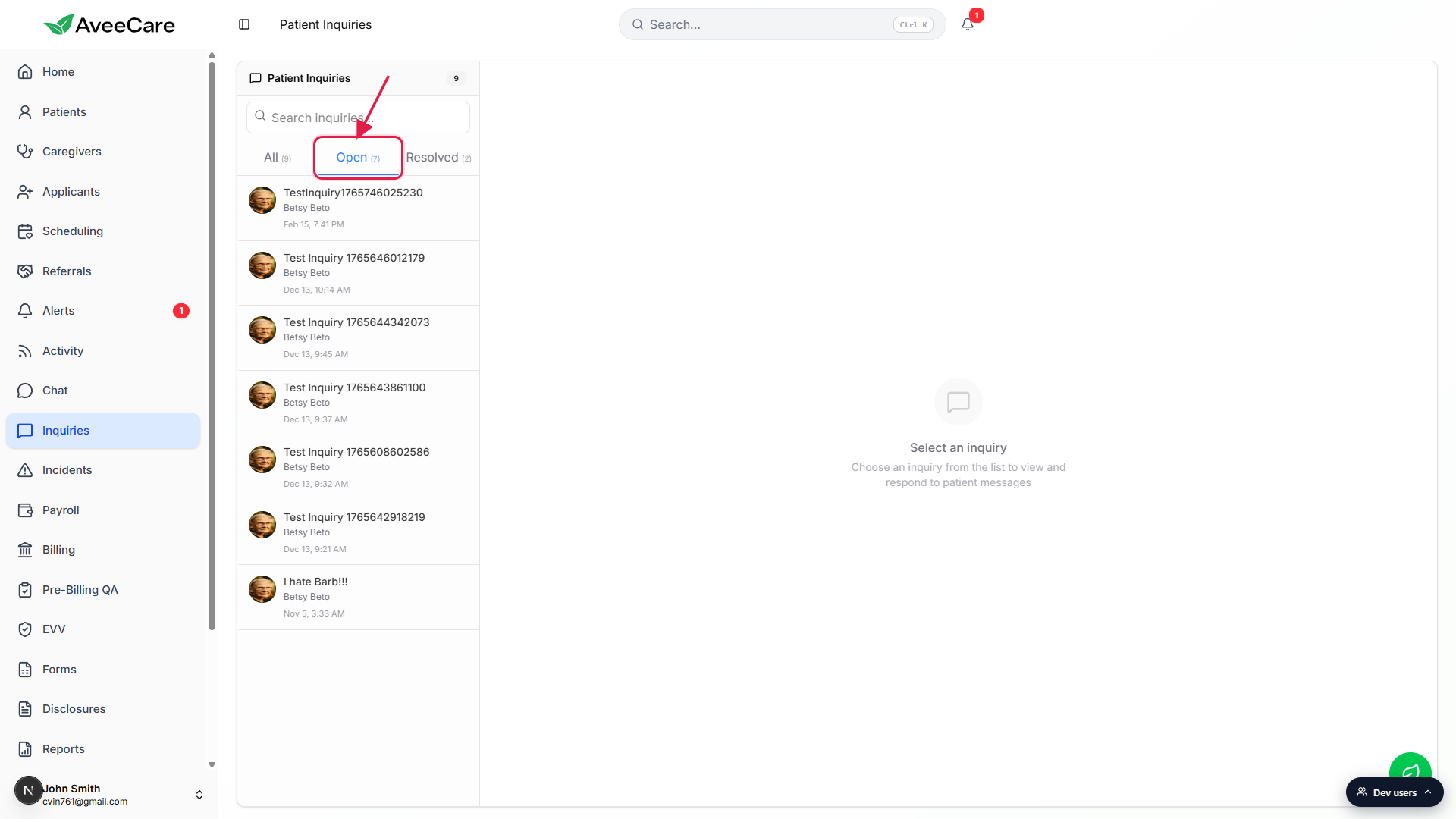
3. Search the list to narrow it down
Type in the Search inquiries box at the top of the panel.
The search matches against the subject line and the patient name. As you type, the list filters down to matching rows in real time. Combine search with the All, Open, or Resolved tab you have selected to scope the results further.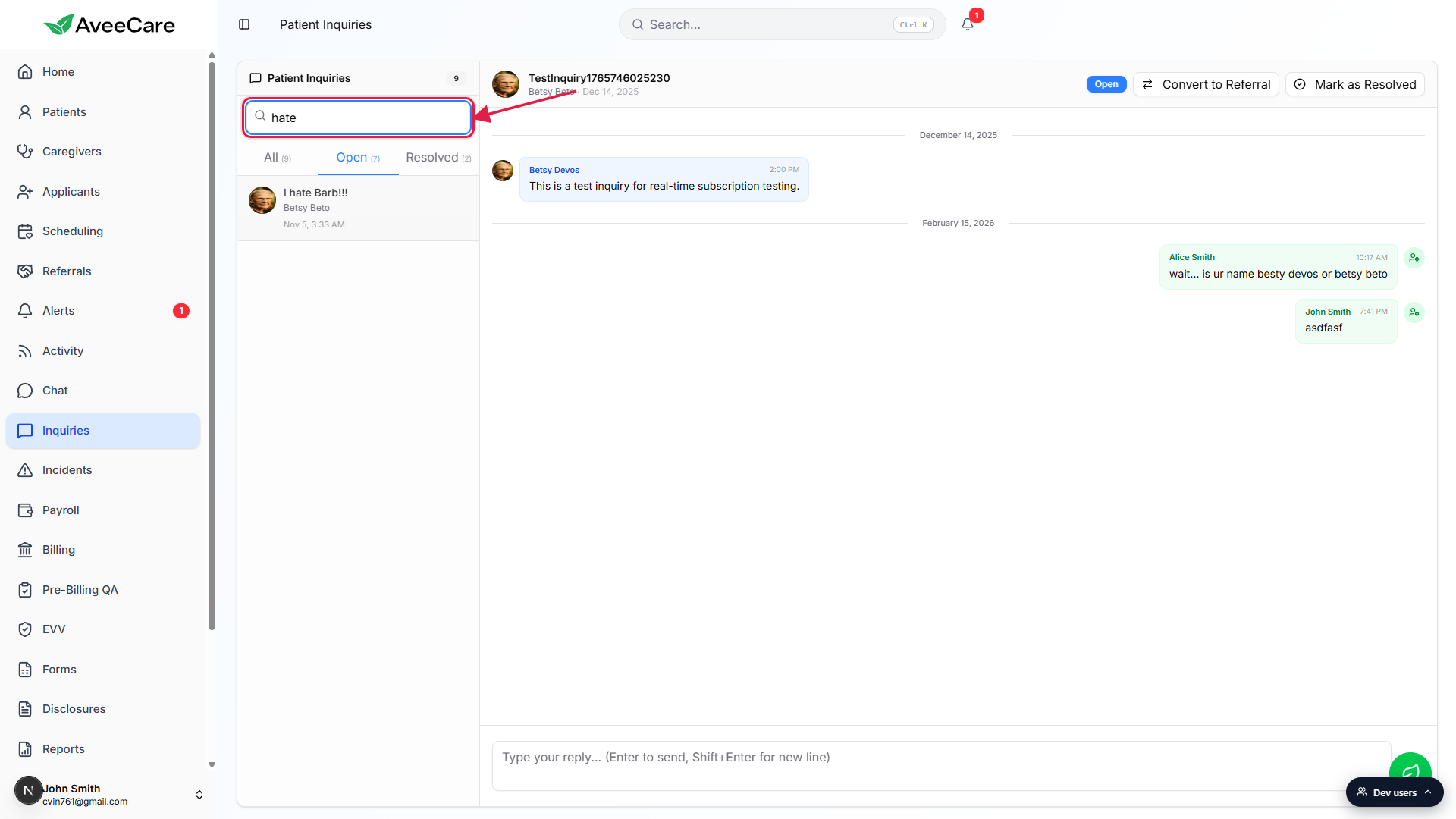
4. Click a row to open the thread
Click any row in the list to open that inquiry in the right pane.
The right pane fills in with the full message thread, a status chip (Open or Resolved), a Convert to Referral button, a Mark as Resolved button, and a reply composer at the bottom. The row you clicked stays highlighted in the list so you can see which inquiry is open. See Inquiry thread reply for the full message-thread workflow.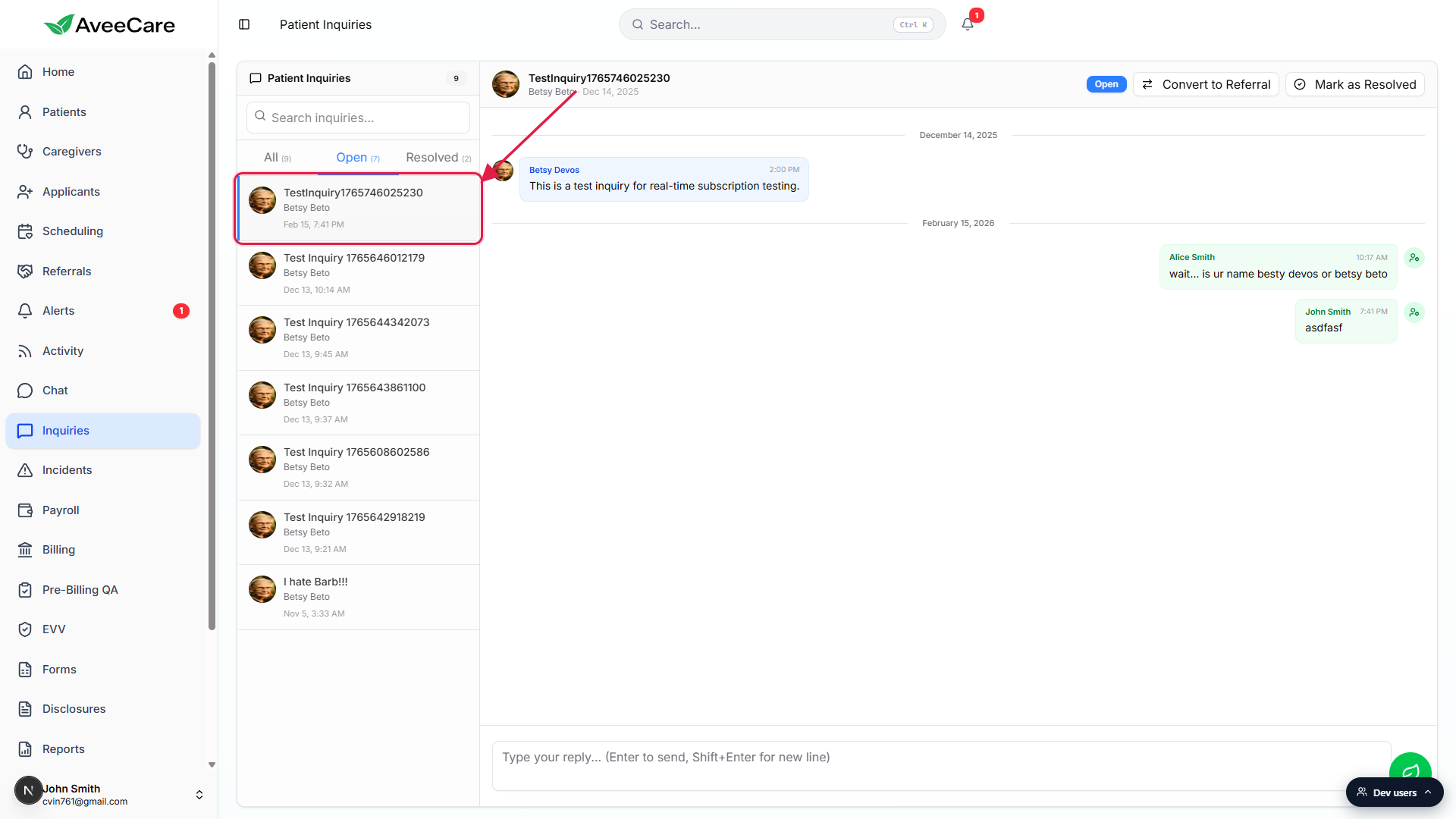
Common pitfalls
- Looking for a resolved inquiry on Open. The Open tab hides anything that has been resolved. Switch to All or Resolved if you remember the inquiry exists but cannot find it.
- Search not finding a name you expect. Search runs against the subject and the patient name on the inquiry, not the full message body. If the patient name is spelled differently in the patient record, search for the subject instead.
- Forgetting that counts are live. The number next to each tab changes the instant you resolve or reopen an inquiry from the right pane. Refreshing the page is not needed.
- Missing overnight inquiries. The home dashboard has an Overnight inquiries panel that surfaces anything submitted while your team was off. Start there in the morning, then come back to /inquiries for the full list.
Related
Frequently asked questions
Patients submit them from the patient portal. Each one lands in the Inquiries list with the patient name, subject, and a timestamp so anyone on your team can pick it up.
Yes. The minute you mark an inquiry resolved from the right pane, it moves from Open to Resolved and both counts update. No refresh needed.
Search matches against the subject line and the patient name on the inquiry. If you need to find a phrase from inside the thread, open the inquiries one at a time on the Open or All tab.
Yes. Each row opens independently in the right pane for each user. There is no per-row lock, so you can both have different inquiries open at the same time.
The home dashboard has an Overnight inquiries panel that pre-filters to anything submitted while your team was off. From there you can jump straight into /inquiries to triage each one.
The inquiry moves from Open to Resolved, the count chips update, and a small Resolved chip appears next to the row on the All tab. The full thread stays searchable so you keep the context.
Yes. Open the inquiry, click Convert to Referral in the right-pane header, and the inquiry gets promoted into the referral pipeline. The original thread stays linked.