Every patient inquiry opens into a two-pane view: the inquiry list on the left and the full message thread on the right. The thread shows the original message at the top, every reply below it in time order, and a reply composer at the bottom of the pane. Replies post back to the same thread the patient sees in the portal.
Quick answer
Open Inquiries, click any row in the list. The thread loads in the right pane with the patient's message and any prior replies. Type into Type your reply... at the bottom and press Enter. Use Shift plus Enter for a new line. A green Send button to the right of the textarea also sends.
1. Open the inquiry from the list
Click any row in the Patient Inquiries list on the left.
The row gets a left border and a tinted background to show which inquiry you are viewing. The right pane fills in with the thread header (patient name, subject, status, action buttons), the message thread itself, and the reply composer.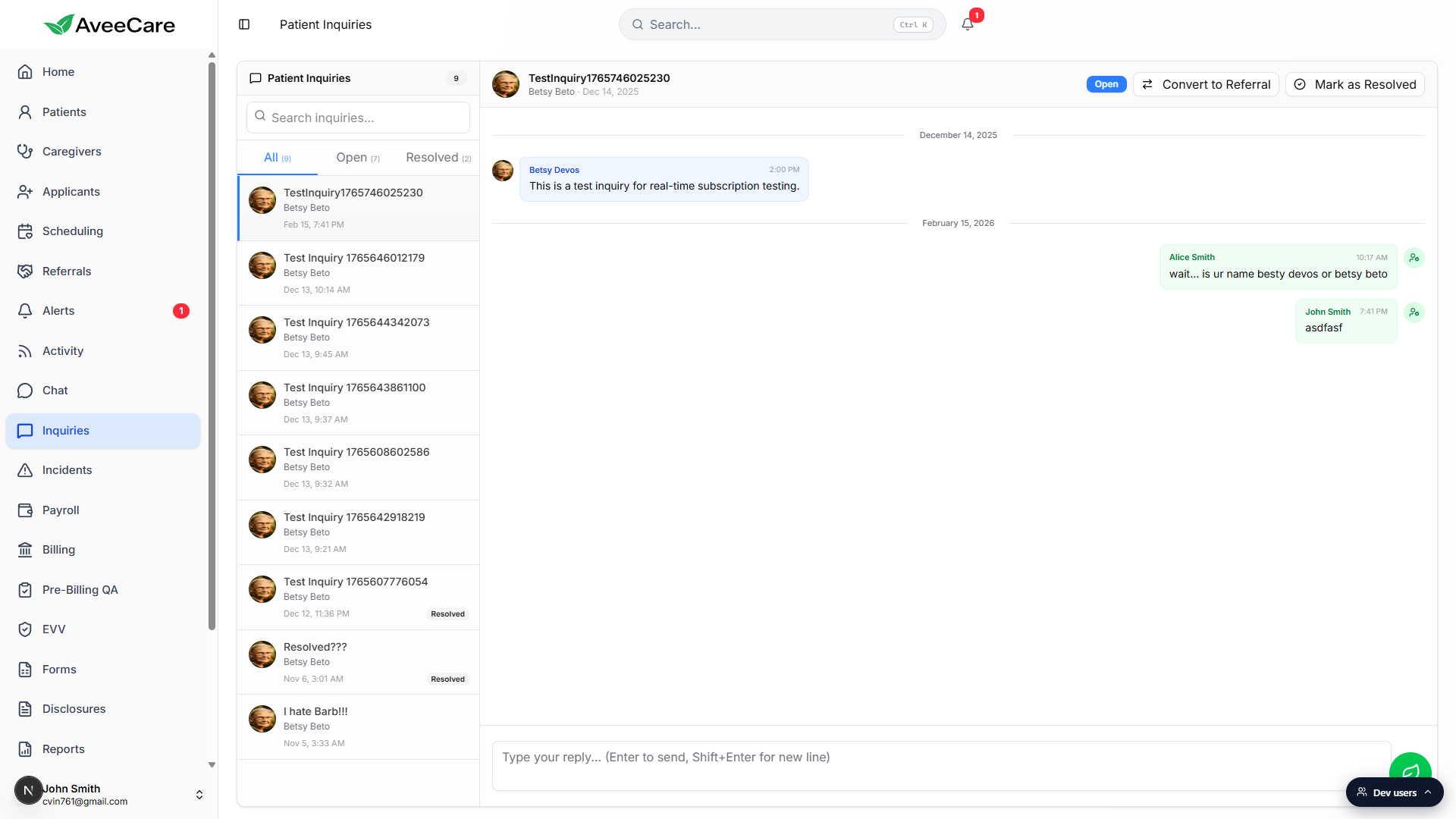
2. Read the thread top to bottom
The original inquiry sits at the top, replies below it in time order.
Messages are grouped by date, with a divider like December 14, 2025 above each day. Patient messages sit on the left in a blue bubble, your team's replies sit on the right in a green bubble. Each bubble shows the author name and the time. System events (Resolved, Reopened) appear inline as centered dividers so you can see what happened between replies.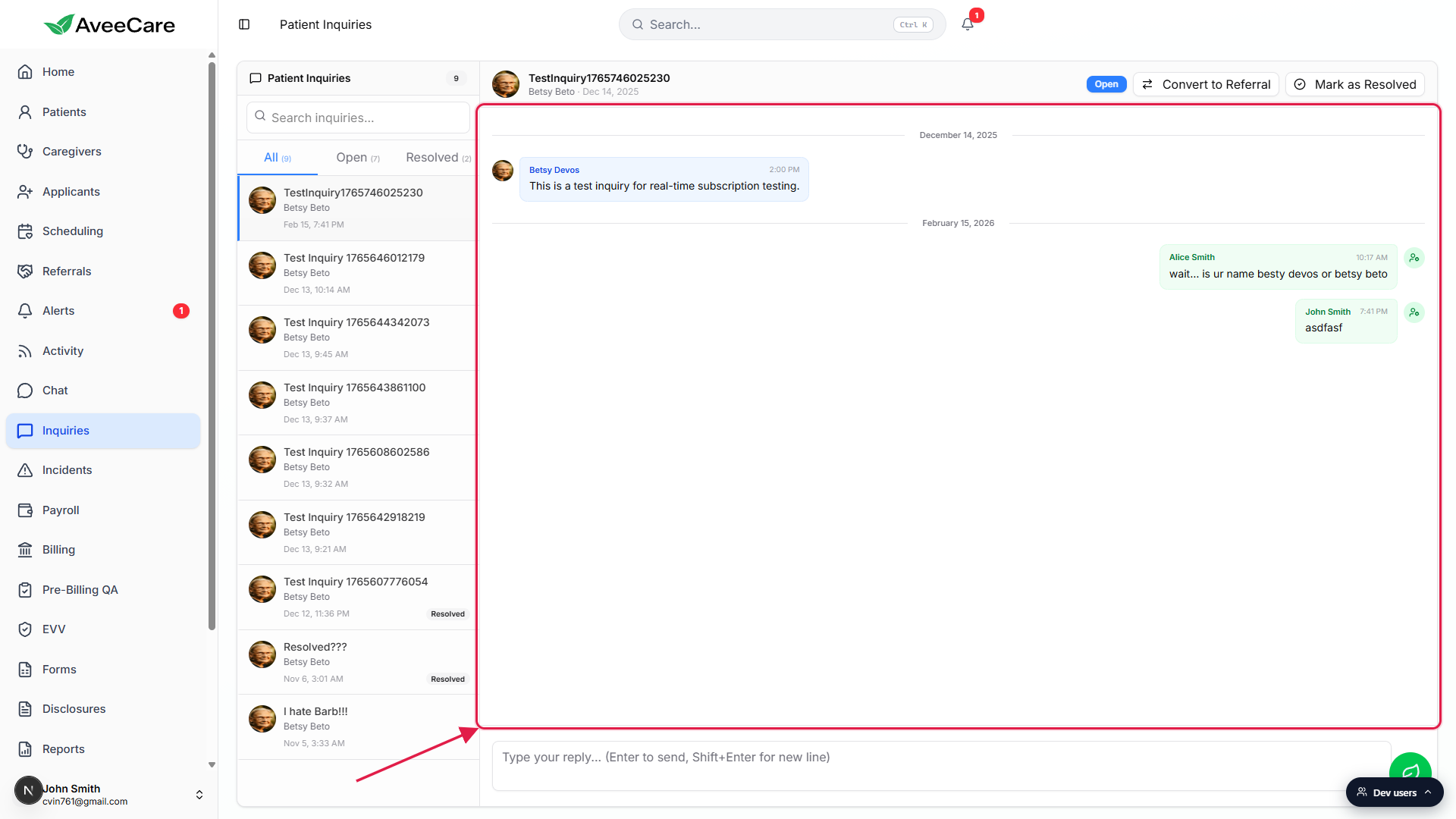
3. Type a reply in the composer
Click into the Type your reply... textarea at the bottom of the pane.
The placeholder reads Type your reply... (Enter to send, Shift+Enter for new line). The Send button to the right of the textarea stays disabled until you actually type something, so an empty Enter or empty click does nothing.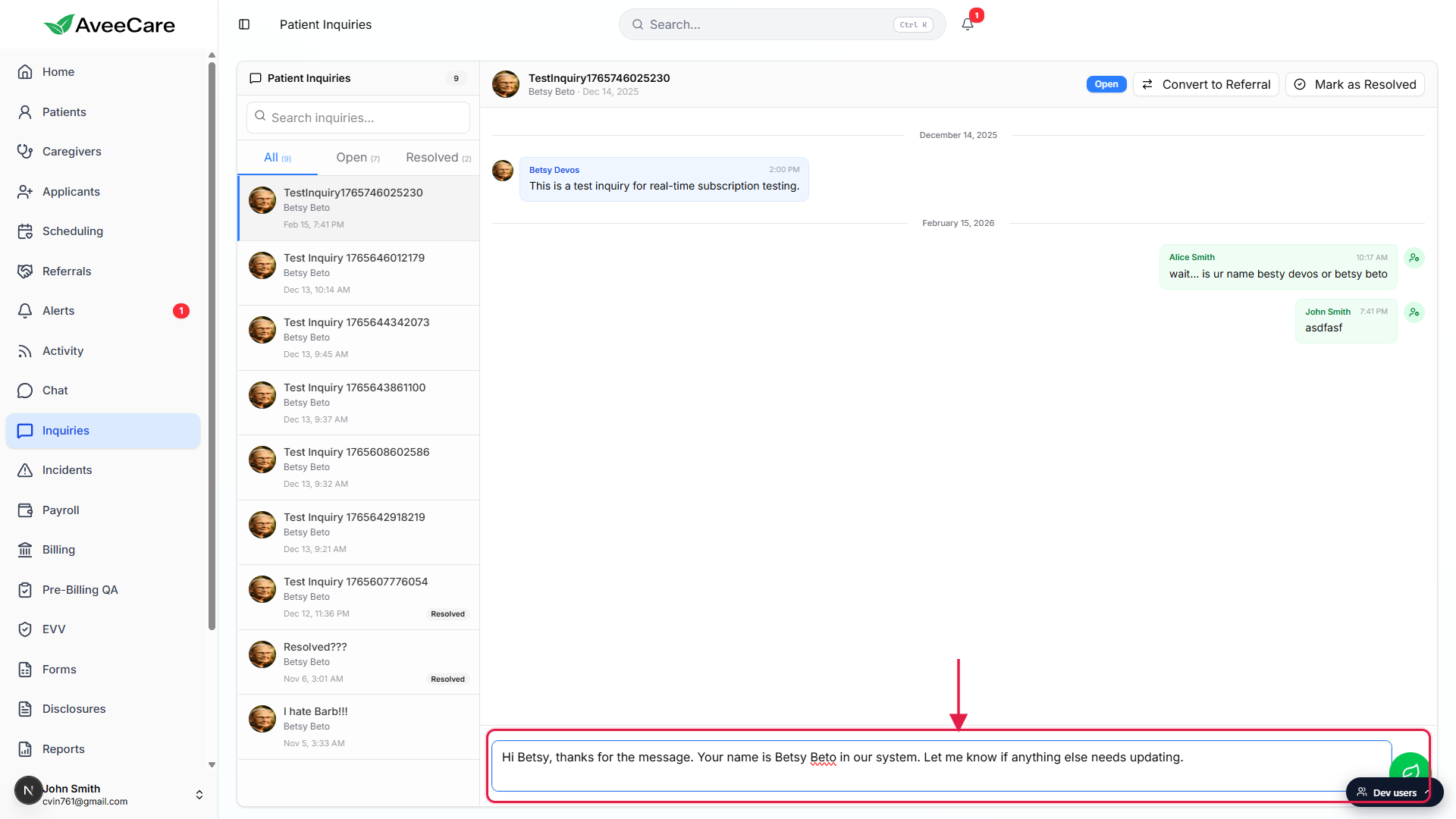
4. Press Enter to send
Press Enter, or click the green Send button to the right of the textarea.
Your reply appears at the bottom of the thread as a green staff bubble with your name and the current time. The composer clears so you can keep going. A small Reply sent toast flashes in the top-right to confirm. The patient gets notified through the channels they have enabled on the portal.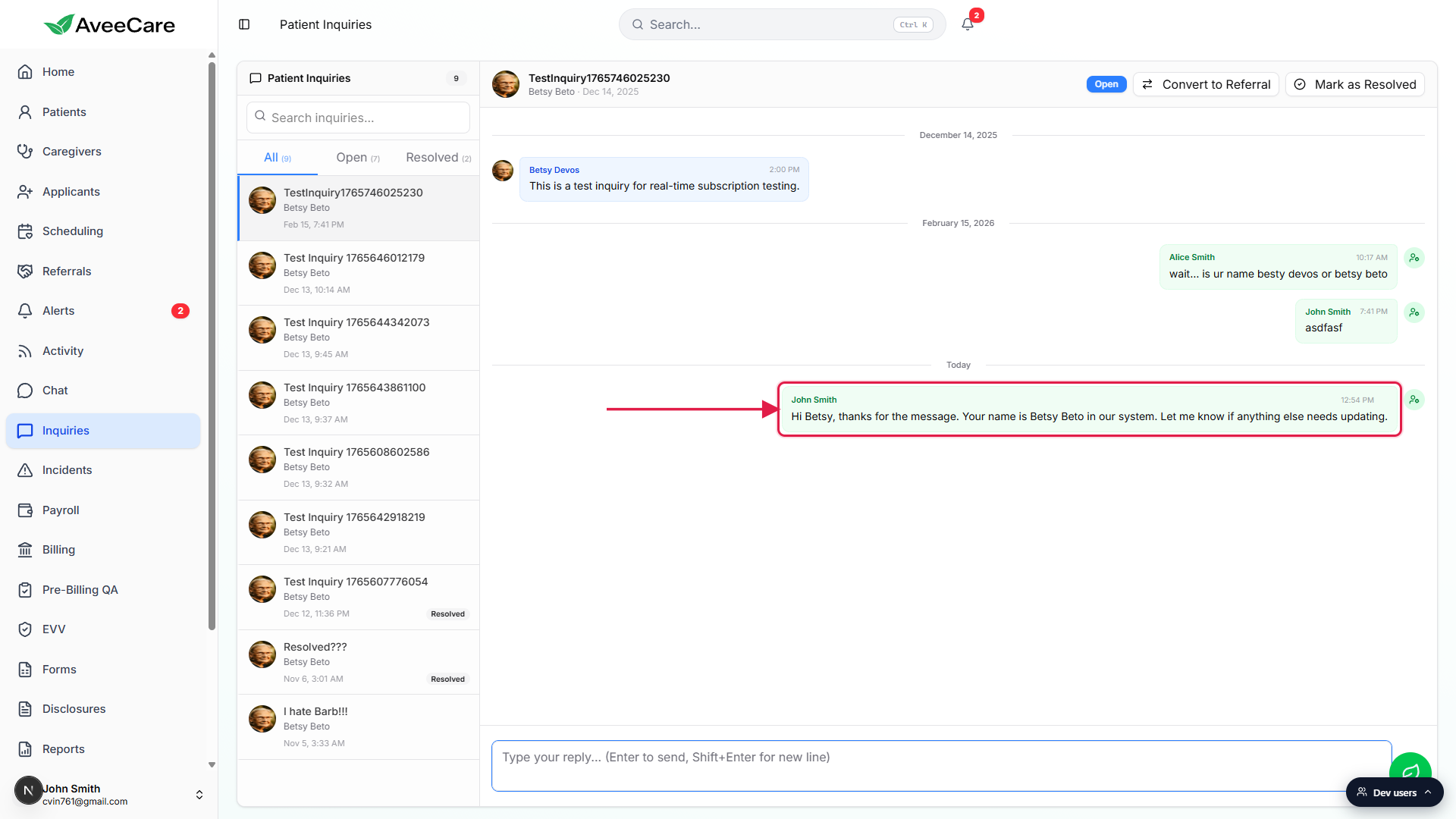
Need a new line in the same message? Hold Shift and press Enter.
Shift plus Enter inserts a line break inside the textarea instead of sending. The composer grows to fit, up to a comfortable height before it scrolls internally.
Common pitfalls
- Hitting Enter when you meant a new paragraph. Enter sends. Shift plus Enter is the new-line shortcut. If you sent half a thought by accident, send a follow-up message: inquiry messages can't be edited after a short window.
- Resolving before the patient replies back. Marking the inquiry resolved hides the composer (the patient also stops being able to send messages). If you think a follow-up is coming, leave the inquiry Open and let the patient confirm first.
- Forgetting the inquiry list keeps its selection. Once you click a row, the right pane stays on that thread even if new inquiries arrive in the list. Click another row to switch.
- Looking for attachments. The inquiry composer is text-only. If you need to share a document with the patient, post it on the patient's Files tab or send it through Chat.
Related
- Inquiries list and status tabs
- Mark inquiry resolved
- Convert inquiry to referral
- Message thread view (Chat)