When a patient inquiry is fully handled, mark it resolved so it stops showing up under the Open tab. The reply composer disappears, the right-pane header swaps Mark as Resolved for Reopen Inquiry, and a system event lands in the thread recording who closed it out. The full history stays in place on both your side and the patient portal.
Quick answer
Open Inquiries, click the inquiry you want to close, then click Mark as Resolved in the right-pane header. Confirm Yes, Resolve in the dialog. The composer becomes a This inquiry has been resolved notice and a Reopen Inquiry button replaces Mark as Resolved.
1. Open the inquiry from the list
Click the inquiry row in the Patient Inquiries list on the left.
The right pane fills in with the thread header, the message history, and the reply composer at the bottom. The header shows a green Open status pill, a Convert to Referral button, and the Mark as Resolved button on the far right.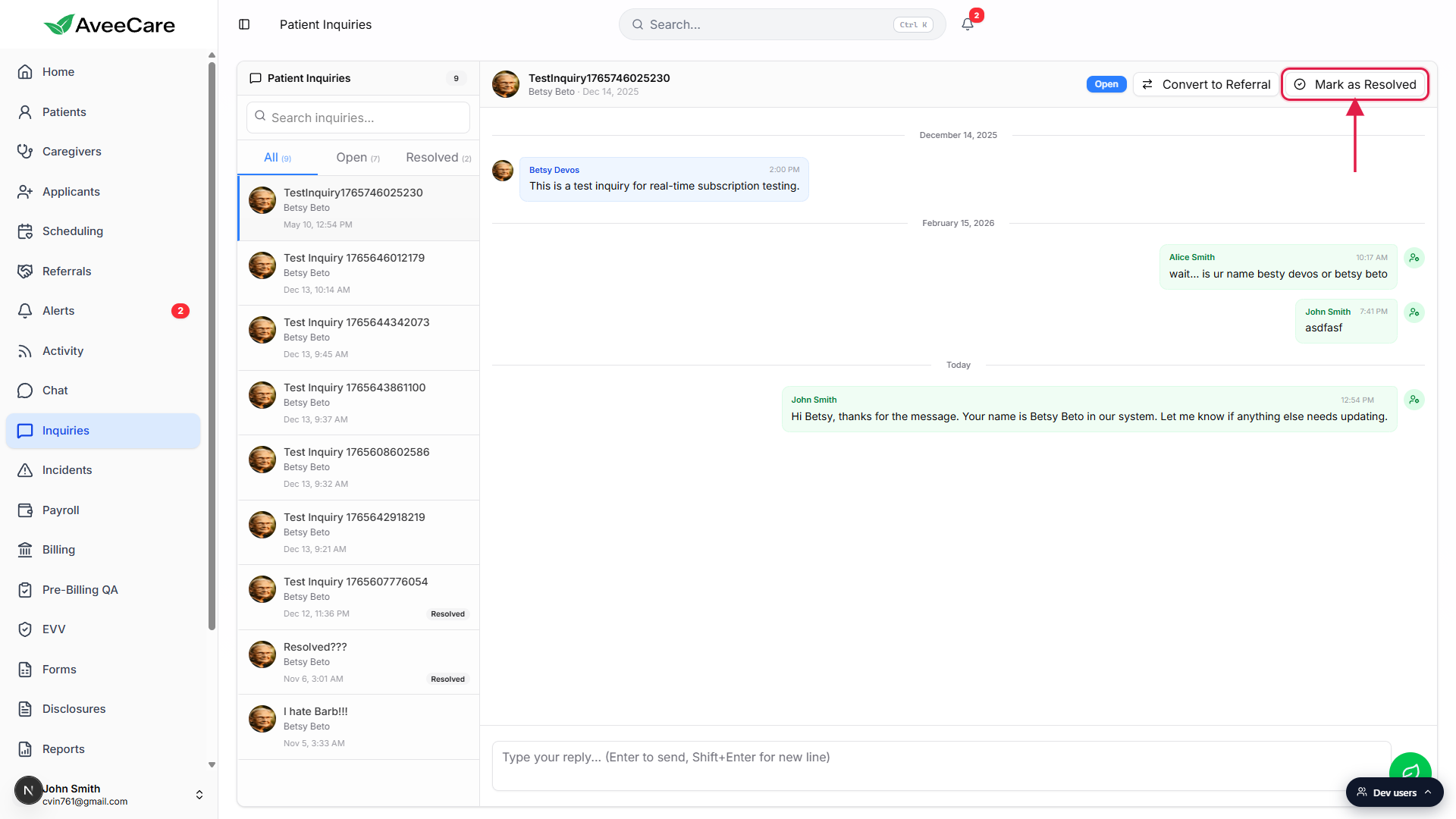
2. Click Mark as Resolved in the header
Click Mark as Resolved on the right side of the thread header.
On narrow screens the same button compresses to a shorter Resolve label, but the action is identical. A confirmation dialog opens straight away. You don't need to fill in a resolution note first; the dialog is the only step between you and the resolved state.
3. Confirm Yes, Resolve in the dialog
Read the confirmation prompt and click Yes, Resolve.
The dialog reads Are you sure you want to mark this inquiry as resolved? This will prevent the patient from sending further messages. Click Yes, Resolve to commit, or Cancel to back out. Cancelling leaves the inquiry Open with no changes.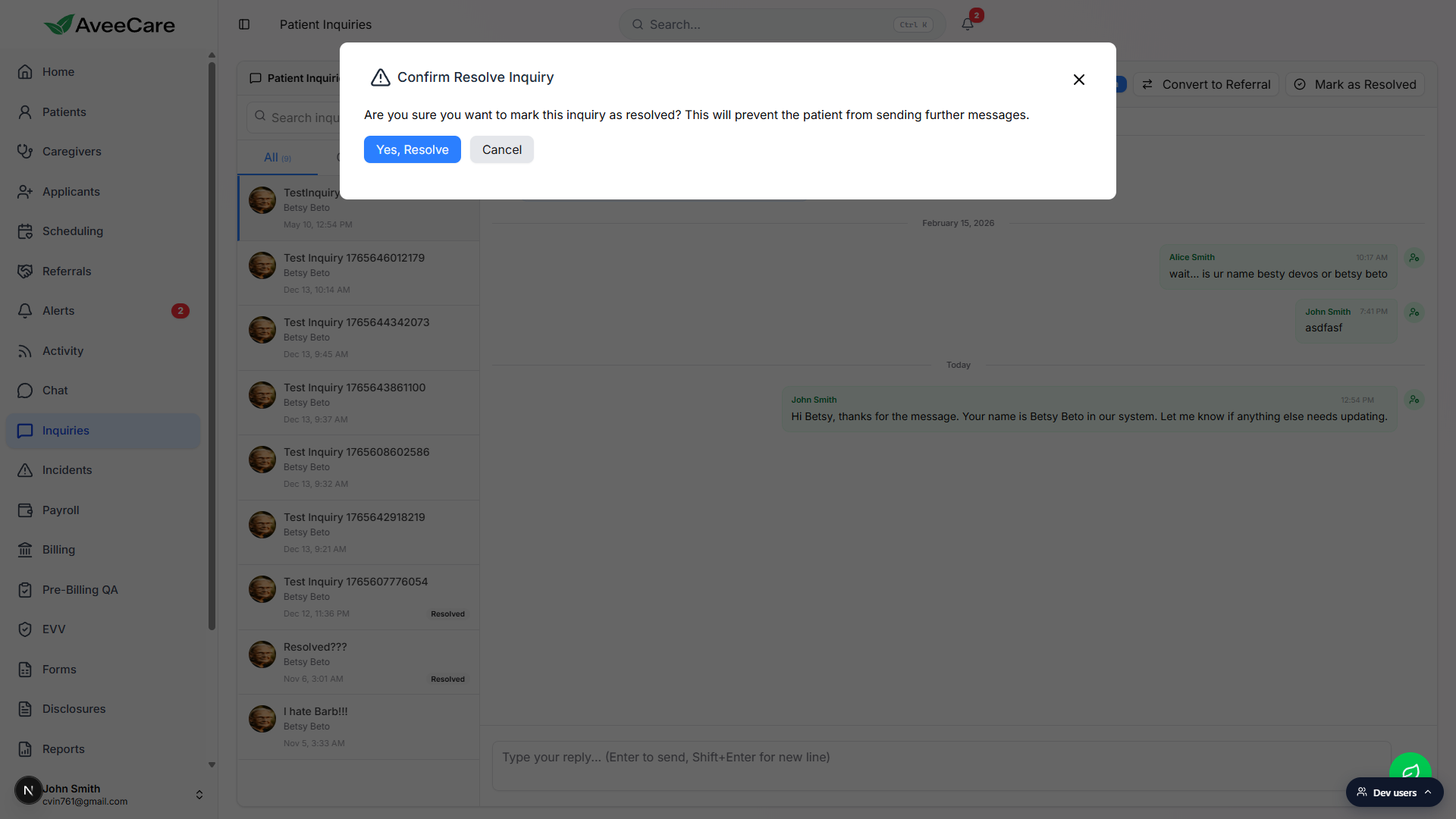
The right pane updates the moment the dialog closes.
The reply composer is replaced by a centered notice that reads This inquiry has been resolved, with your name attached as the staff member who closed it. The status pill flips from Open to Resolved, and the Mark as Resolved button in the header is replaced with Reopen Inquiry. A system divider also lands in the thread reading John Smith resolved this inquiry.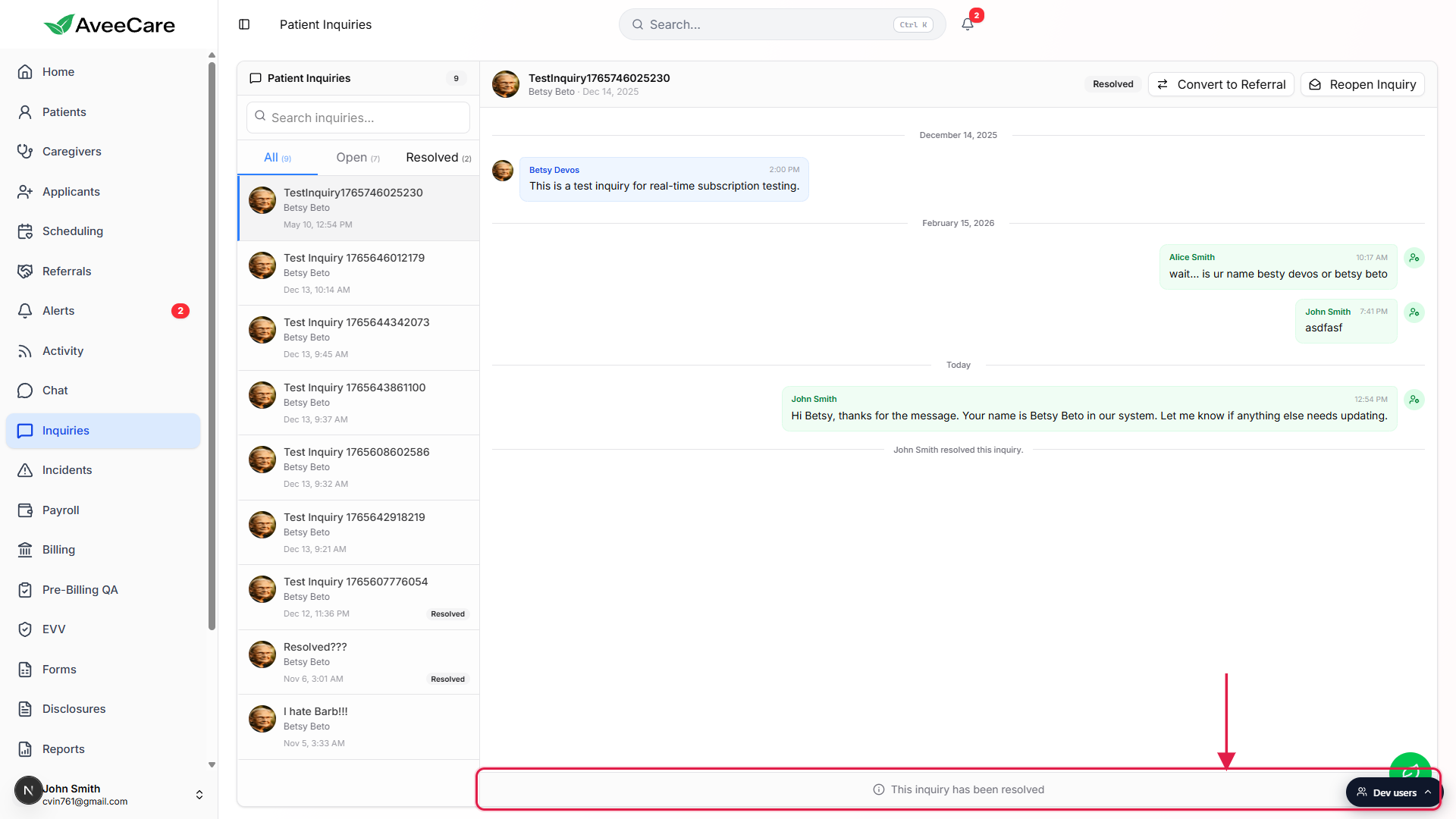
4. Reopen the inquiry later if needed
Open the resolved inquiry and click Reopen Inquiry in the header.
The Reopen Inquiry button sits in the same spot Mark as Resolved used to. A Confirm Reopen Inquiry dialog asks Are you sure you want to reopen this inquiry? The patient will be able to send messages again. Click Yes, Reopen to bring the composer back. A new system divider lands in the thread reading John Smith reopened this inquiry. so the patient can see exactly what happened.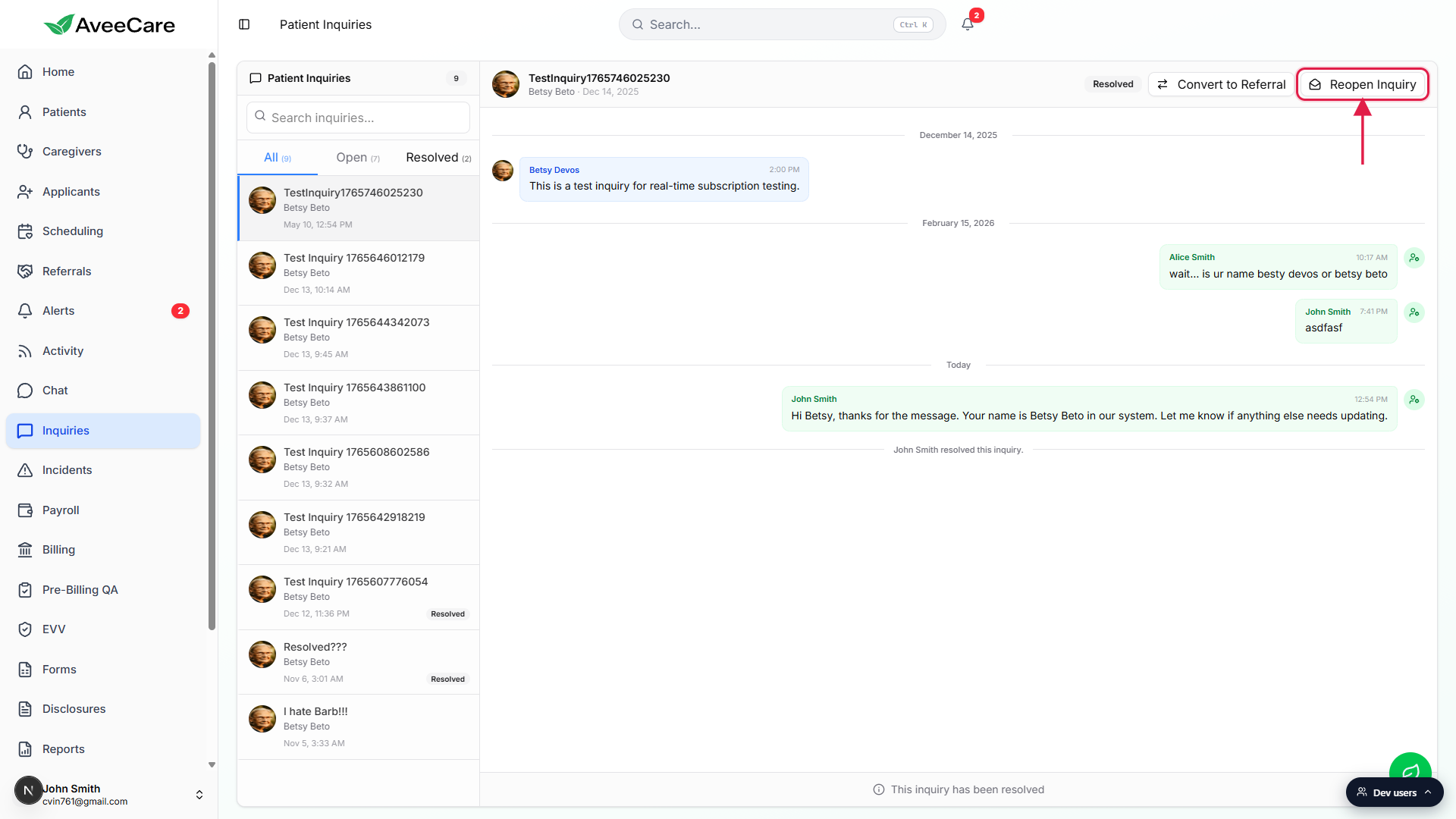
Common pitfalls
- Resolving before the patient finishes the conversation. Once you click Yes, Resolve the patient can no longer post a follow-up on that thread; they would have to start a fresh inquiry. If you suspect they have one more question, leave it Open another day.
- Expecting a resolution note field. The current resolve flow is a two-click confirm. There is no notes textarea on the dialog. If you want a written summary in the thread, send a final reply in the composer before clicking Mark as Resolved.
- Looking for a bulk-resolve button. Mark as Resolved is per-inquiry. The Open tab does not have a multi-select. To clear a queue, open each inquiry in turn.
- Missing the Reopen Inquiry control after resolve. It is in the same place Mark as Resolved used to be: the far right of the right-pane header, next to Convert to Referral. The label and icon both change, but the position does not.
- Forgetting the system divider is public. The John Smith resolved this inquiry. event in the thread is visible to the patient on the portal. That is intentional, but it means the staffer name on the close is something the patient sees.
Related
- Reply to an inquiry thread
- Inquiries list and status tabs
- Convert an inquiry into a referral
- Referral pipeline