Referral Pipeline is the tab on Referrals where every prospective patient sits while you work them. Each referral has a status (New, Contacted, Assessment Scheduled, Assessment Completed, Service Agreement Sent, Admitted, Declined, Lost), an urgency, and a source. Move it through the statuses as you call, assess, and close. Admitted is the conversion.
Quick answer
Open Referrals and click the Pipeline tab. Filter by status using the chips along the top. Click any row to open the referral detail. Use the Change Status buttons to move through the pipeline. Click Admitted when the referral becomes a patient, or Declined with a reason to close it.
The eight statuses, in order
The Change Status row inside a referral has these buttons:
- New. Just received, nobody has called yet.
- Contacted. First call or message done.
- Assessment Scheduled. An in-home or phone assessment is on the calendar.
- Assessment Completed. Assessment is finished, you have care needs and hours.
- Service Agreement Sent. Paperwork is out for signature.
- Admitted. Signed and active. The referral counts as converted and the source gets revenue credit.
- Declined. You said no, or the prospect said no. Capture a reason.
- Lost. Stalled or went cold. The lead is dead but the source still gets credit for sending it.
The button with the small chevron next to it is the suggested next step. AveeCare highlights it so you do not have to think about which status comes next.
1. Open the Pipeline tab on Referrals
Click Referrals in the left sidebar.
The page lands on Referral Sources by default. Click the Pipeline tab to switch.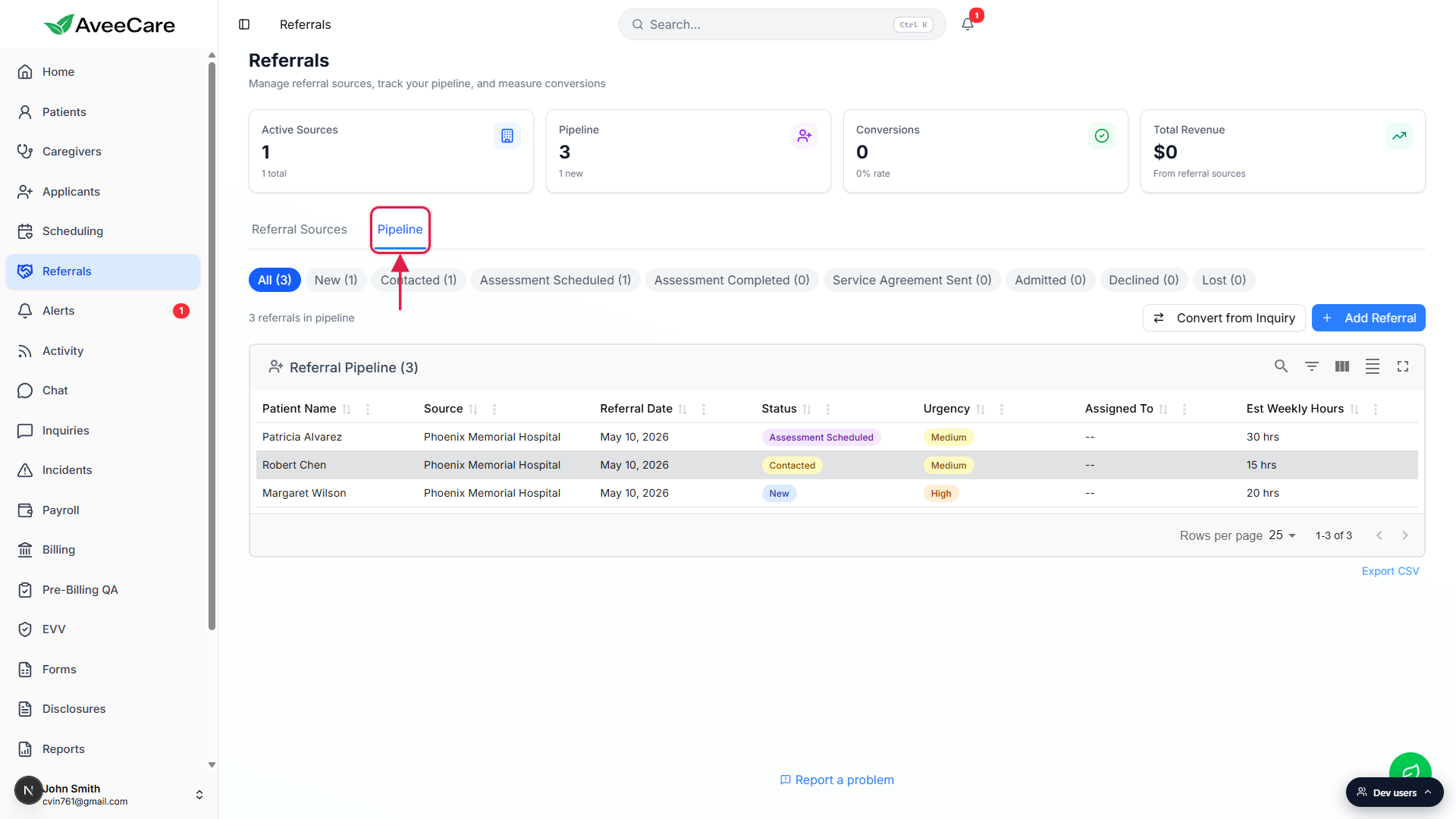
Read the chip row to scan pipeline counts at a glance.
The chips run All, New, Contacted, Assessment Scheduled, Assessment Completed, Service Agreement Sent, Admitted, Declined, Lost, each with a live count in parentheses. Click a chip to filter the table to just that status. Click All to clear the filter.
2. Read a referral row and open its detail card
Scan the columns: Patient Name, Source, Referral Date, Status, Urgency, Assigned To, Est Weekly Hours.
The table is sorted newest first by Referral Date. Click any column header to re-sort. The Status column shows a colored pill for each row (blue for New, yellow for Contacted, purple for Assessment Scheduled, green for Admitted, red for Declined, gray for Lost).Click anywhere on a referral row to open the detail card.
A modal opens showing the patient name with the current status pill, contact phone and email, the source name with its type badge, the referral date, urgency, assigned-to, estimated weekly hours, Estimated Care Needs, Notes, the Change Status row, and the Activity Log.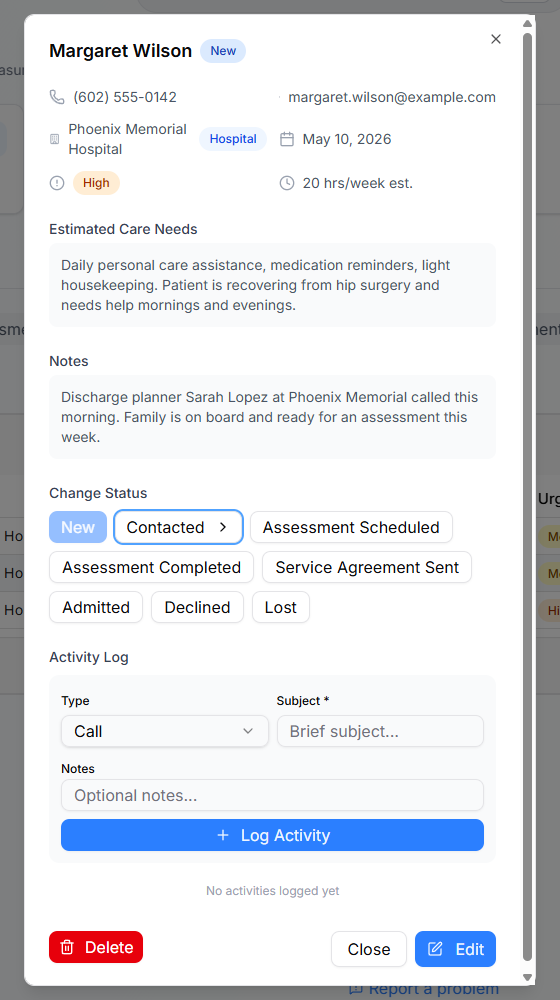
3. Move the referral through statuses
Use the Change Status buttons in the detail modal.
Each click writes a status change to the referral and adds an entry to the Activity Log so the audit trail stays intact. The button with the chevron is the suggested next step (for example, Contacted is highlighted when the current status is New). You are not forced to follow the order, but doing so keeps conversion math honest.Log a Call, Visit, Email, Meeting, Lunch, Conference, or Other touchpoint.
Inside the detail modal, the Activity Log section has a Type dropdown, a Subject field, and an optional Notes field. Click Log Activity to record it. Activity entries show below with the timestamp and the staff member who logged them.
4. Mark Admitted to convert, or Declined to close
Click Admitted to convert the referral.
Admitted writes a converted date on the referral, increments the source's totalConversions count, and adds estimated annual revenue (weekly hours times the default hourly rate times 52) to the source's Total Revenue. The source now shows up correctly under Conversions and Total Revenue on the Referrals KPI tiles.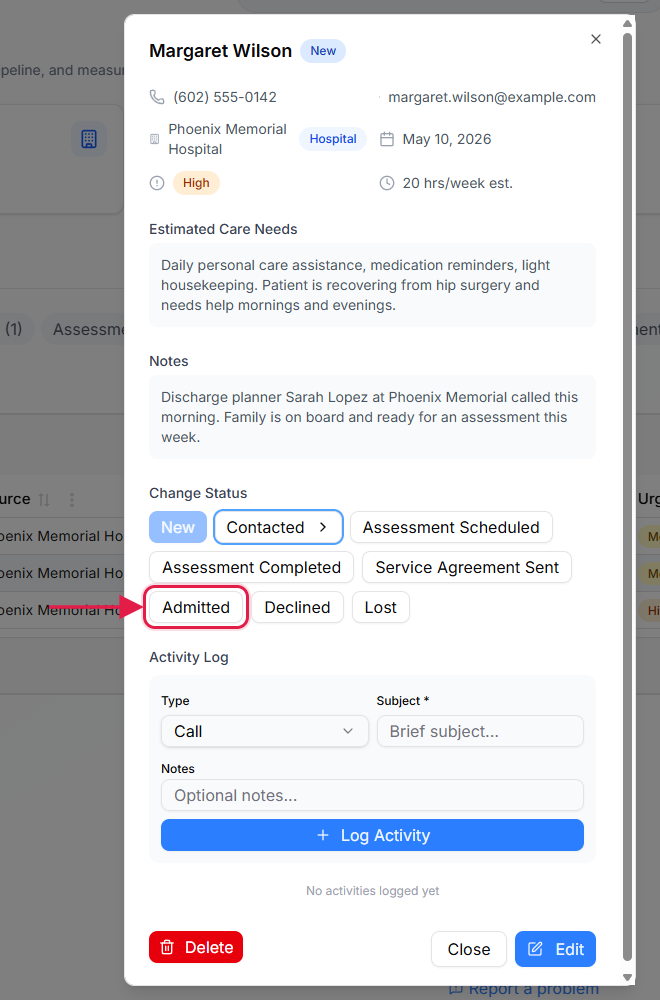
Click Declined to close the referral, then enter a reason.
Declined opens a small Decline Reason modal. Type a short reason (for example, out of service area, family chose another agency, financial hold) and click Confirm Decline. The reason is saved on the referral and copied into the Activity Log so the next person who looks at the record can see why it closed.Use Lost when a referral goes cold instead of an explicit no.
Lost is the right choice when no one ever picked up the phone, the family stopped responding, or the lead just stalled out. The source still gets credit for the lead but it does not count as a conversion.
Common pitfalls
- Forgetting to attach a Referral Source. Without a source, the referral has no owner. The source gets no credit, no revenue rolls up, and your conversion math is wrong. Always pick a source on creation, or add one with the Add Source button on the Referral Sources tab first.
- Skipping the Decline Reason. The Decline Reason modal will accept a blank submission, but a referral that closed with no reason is hard to learn from later. Type something even if it is short.
- Mixing up Declined and Lost. Declined means a decision was made (yours or theirs). Lost means it stalled and nobody ever decided. Keep them separate so reporting tells you whether you are losing winnable leads or whether you have a follow-up problem.
- Toggling Admitted off and on by accident. If you un-admit a referral (move it back to a non-Admitted status), the source's conversion count and revenue go down too. Only do this if the admission was actually a mistake.
- Using Add Referral when Convert from Inquiry is right. For an inbound web inquiry, click Convert from Inquiry in the action bar instead. AveeCare creates or reuses a Web Inquiry referral source automatically and pre-fills the patient name and notes from the inquiry. Manual Add Referral is for phone-in or paper referrals.
Related
- Referral sources (master list and KPIs)
- Convert an inquiry into a referral
- Add a patient manually
- Applicants pipeline (Kanban)