Referral Sources is the master list of every place new patients come from: hospitals, physicians, skilled nursing facilities, community partners, web leads, insurance, self-referrals. Track each source so you can see who is actually driving referrals and revenue, and keep contact details handy for follow-up.
Quick answer
Open Referrals. The page lands on the Referral Sources tab. Click Add Source in the action bar to add a new source. Click any row in the table to open the source detail drawer where you can edit, log activity, or deactivate.
Source types you can pick
The Type dropdown has eight options:
- Hospital. Acute-care hospitals and discharge planners.
- Physician. Individual MDs, DOs, NPs, and clinics.
- SNF. Skilled nursing facilities and rehab centers.
- Community. Senior centers, churches, support groups, and other local partners.
- Web. Inbound leads from your website, directories, or paid search.
- Insurance. Long-term care insurers and case managers.
- SelfReferral. Family members or patients who reach out directly.
- Other. Anything that does not fit the above.
1. Open Referrals and stay on the Referral Sources tab
Click Referrals in the left sidebar.
The page header reads Referrals with the subtitle Manage referral sources, track your pipeline, and measure conversions. Two tabs sit below the KPI row: Referral Sources (the default) and Pipeline.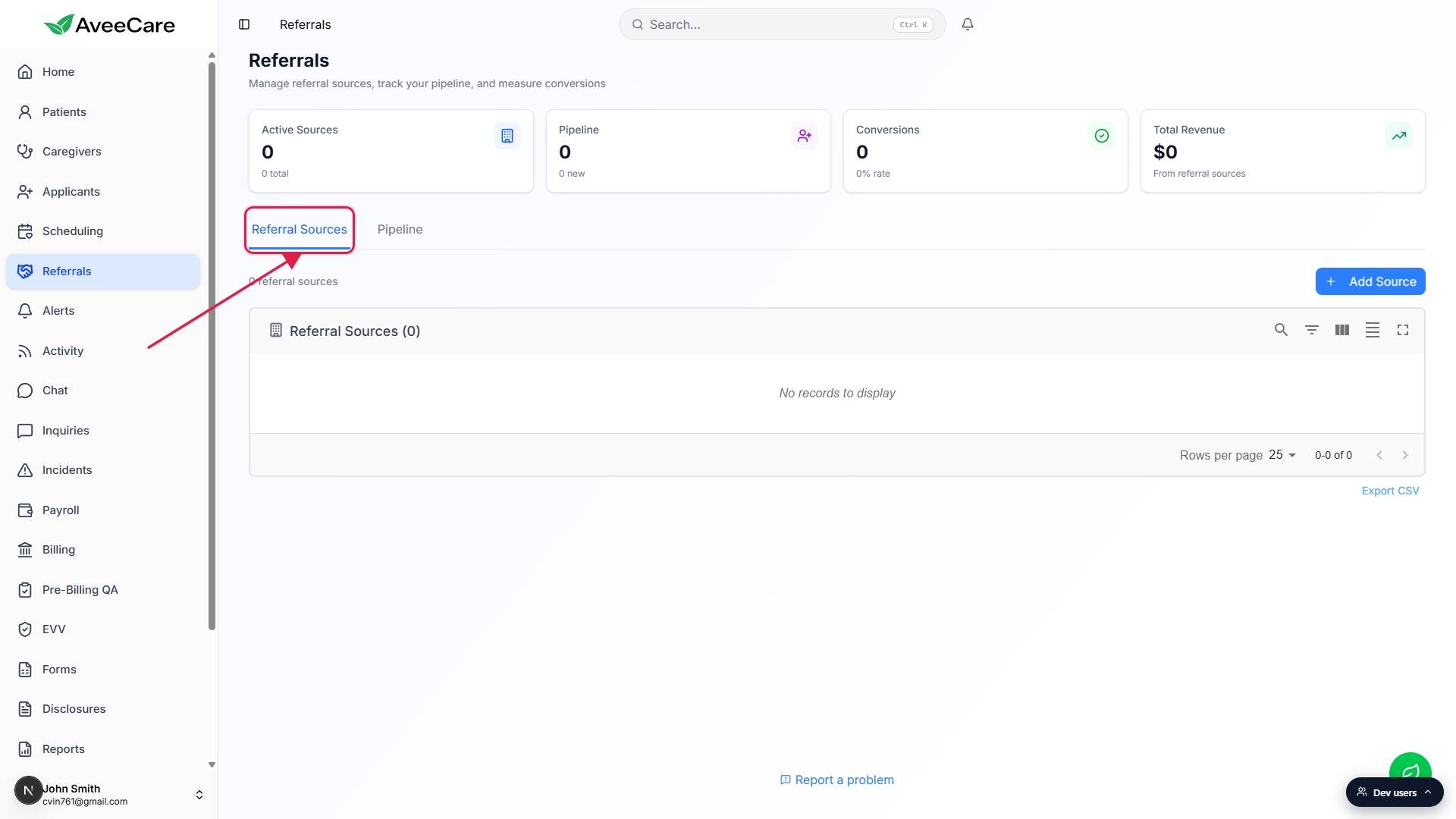
Confirm you are on the Referral Sources tab.
If you clicked into Pipeline by mistake, click Referral Sources to come back. The table below the action bar lists every source you have created so far, with columns for name, type, organization, contact name, phone, total referrals, conversions, revenue, last referral, and status.
2. Read the four KPI tiles at the top
Glance at Active Sources, Pipeline, Conversions, and Total Revenue.
The four cards above the tabs roll up everything Referrals tracks. Active Sources counts non-deactivated sources. Pipeline counts open referrals (anything not yet Admitted, Declined, or Lost). Conversions counts referrals that became patients, with the rate underneath. Total Revenue sums revenue across patients attributed to a referral source.
Use the tiles as a sanity check before drilling into the table.
If Active Sources is much lower than what your business development team expects, look for sources that were deactivated by mistake. If Total Revenue is zero on a source with admitted referrals, the patients probably are not tagged back to a source on intake.
3. Click Add Source and fill out the modal
Click Add Source in the top-right of the action bar.
The button sits to the right of the source count line (for example, 0 referral sources). The Add Referral Source modal opens centered on the screen.Fill in Name (required) plus any contact and address fields you have.
Name is the only required field. Type defaults to Hospital and you can change it from the dropdown. Organization, Contact Name, Contact Title, Phone, Email, Address, City, State, Zip Code, and Notes are all optional. Add what you have today, you can edit later.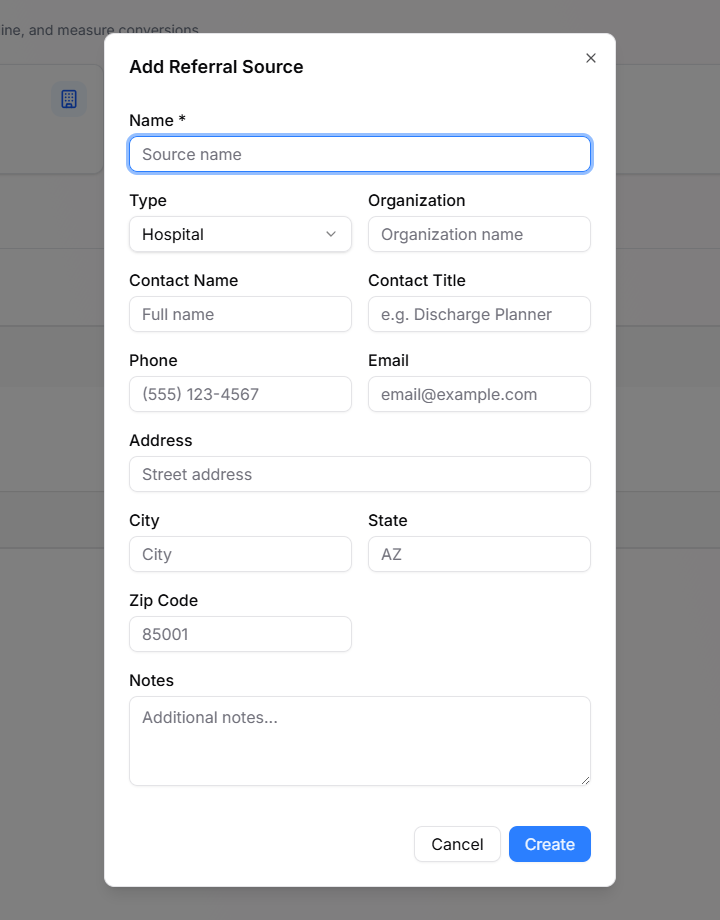
Click Create to save the source.
The new source lands at the top of the Referral Sources table with an Active status badge. The Active Sources KPI bumps by one. From here you can attach incoming referrals to this source from the Pipeline tab.
4. Open a row to see details, edit, or deactivate
Click any row in the Referral Sources table.
A drawer slides in from the right with the source name, an Active or Inactive badge, the type pill, and three small stat tiles: Referrals, Conversions, and Conv. Rate. Below that you will see Total Revenue (when greater than zero), Contact Information, Notes, the Referrals from this source list, and the Activity Timeline.Use the Edit button at the bottom of the drawer to change source fields.
Edit reopens the same modal you used to add the source, pre-filled with the current values. Toggle off the active flag in the form to deactivate. Deactivated sources stay in the table for historical reporting but stop counting toward Active Sources and pipeline math.Log activity from the drawer to keep a paper trail.
The Activity Timeline at the bottom of the drawer accepts quick-add entries (Call, Visit, Email, Meeting, Lunch, Conference, Status Change, Other) with a subject, optional notes, and a date. Each entry shows up in the timeline below so you can see a running history of every touchpoint.
Common pitfalls
- Forgetting to tag patients to a source on intake. Total Revenue and Conversions only roll up when each admitted patient has a referral source attached. If a source shows zero revenue but you know it sent you patients, fix the patient records.
- Deactivating instead of deleting. There is no hard delete on referral sources. Deactivation is the correct action when you stop working with a hospital or planner. The history stays for reporting and is still searchable.
- Picking the wrong type. Type drives the colored badge in the table and groups your reporting. SNF, Physician, and Hospital are not interchangeable. Pick the closest match so reports group cleanly. Use Other only when nothing else fits.
- Duplicate sources for the same organization. If two discharge planners at the same hospital each get their own source, conversion math splits across two rows. Either roll the planners into one source or keep them separate consistently. Mixing both is what hurts.
- Skipping contact info on day one. Phone and email are optional, but a source without a phone number is hard to follow up with later. Capture what you have on first entry and fill in the rest after the next call.
Related
- Referral pipeline (status flow and conversion)
- Convert an inquiry into a referral
- Applicants pipeline (Kanban)
- Patient list and filters