Some patient inquiries are actually inbound leads, someone shopping for home care for a parent. Convert to Referral promotes the inquiry into a real referral on the pipeline in one click. The Add Referral modal opens pre-filled with the patient name, a Web Inquiry source, and a note linking back to the original inquiry, so intake can start tracking it without retyping a thing.
Quick answer
Open Inquiries, click the inquiry, then click Convert to Referral in the top-right of the thread header. The Referrals page opens with an Add Referral modal already filled in. Click Create. The new referral lands on the Pipeline tab with Web Inquiry as the source.
1. Open the inquiry that is a lead
In the Patient Inquiries list, click the inquiry that reads like a new-patient lead.
Lead-style inquiries usually open with something like “I am looking for home care for my mom” or ask about hours, rates, or availability. The right pane fills in with the thread header, the message history, and the reply composer. The header shows an Open status pill, the Convert to Referral button, and the Mark as Resolved button.
2. Click Convert to Referral in the header
Click Convert to Referral in the top-right of the right-pane header.
It sits to the left of Mark as Resolved, with an arrow-swap icon. On narrower screens the label collapses to a shorter Referral, but the action is identical. There is no confirm dialog. The page navigates straight to Referrals on the Pipeline tab with the convert flow already running.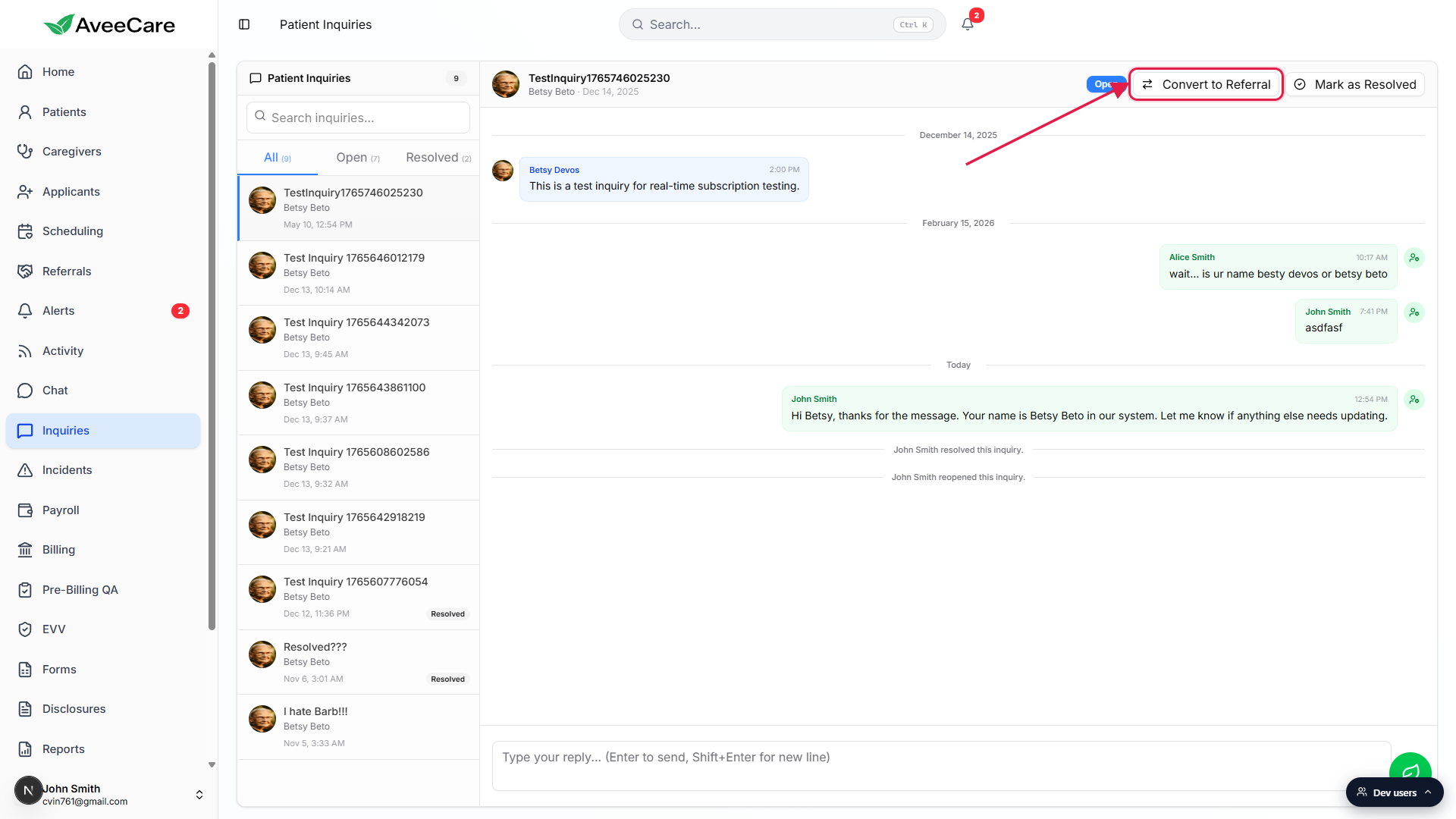
3. Review the pre-filled Add Referral modal
Look over the Add Referral modal that pops up automatically.
AveeCare pre-fills the fields straight from the inquiry. You do not have to fill anything in to save it. What you get: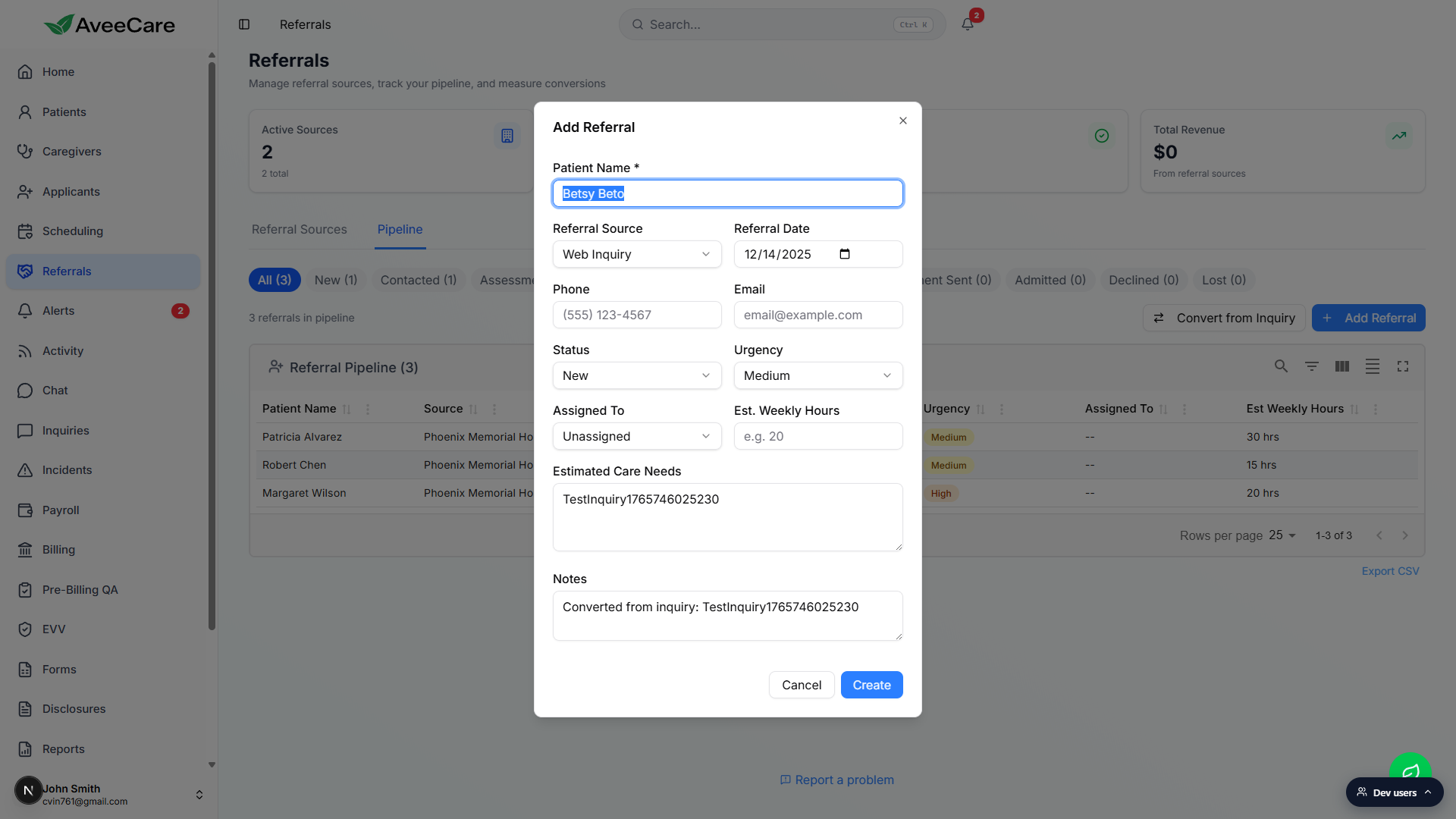
Patient Name, Referral Source, Estimated Care Needs, and Notes come from the inquiry.
Patient Name uses the linked patient's real name when the inquiry came from an existing patient, otherwise it falls back to the inquiry subject. The Referral Source is set to Web Inquiry, which AveeCare creates for you the first time you ever convert an inquiry. Estimated Care Needs echoes the inquiry subject, and Notes reads Converted from inquiry: {subject}. Status defaults to New and Urgency to Medium.Adjust any field before saving if you have more context.
You can change the source to a hospital or discharge planner you already track, bump Urgency to High, set Estimated Weekly Hours, assign a staffer, or add a phone or email address. Anything you edit here is the starting state of the referral record.
4. Click Create and find it on the Pipeline tab
Click Create at the bottom of the modal.
The modal closes, the Pipeline count goes up by one, and the new referral lands in the Referral Pipeline table. The All and New chips both increment. Source shows Web Inquiry, Status shows New, and the referral date is set to the inquiry's creation date.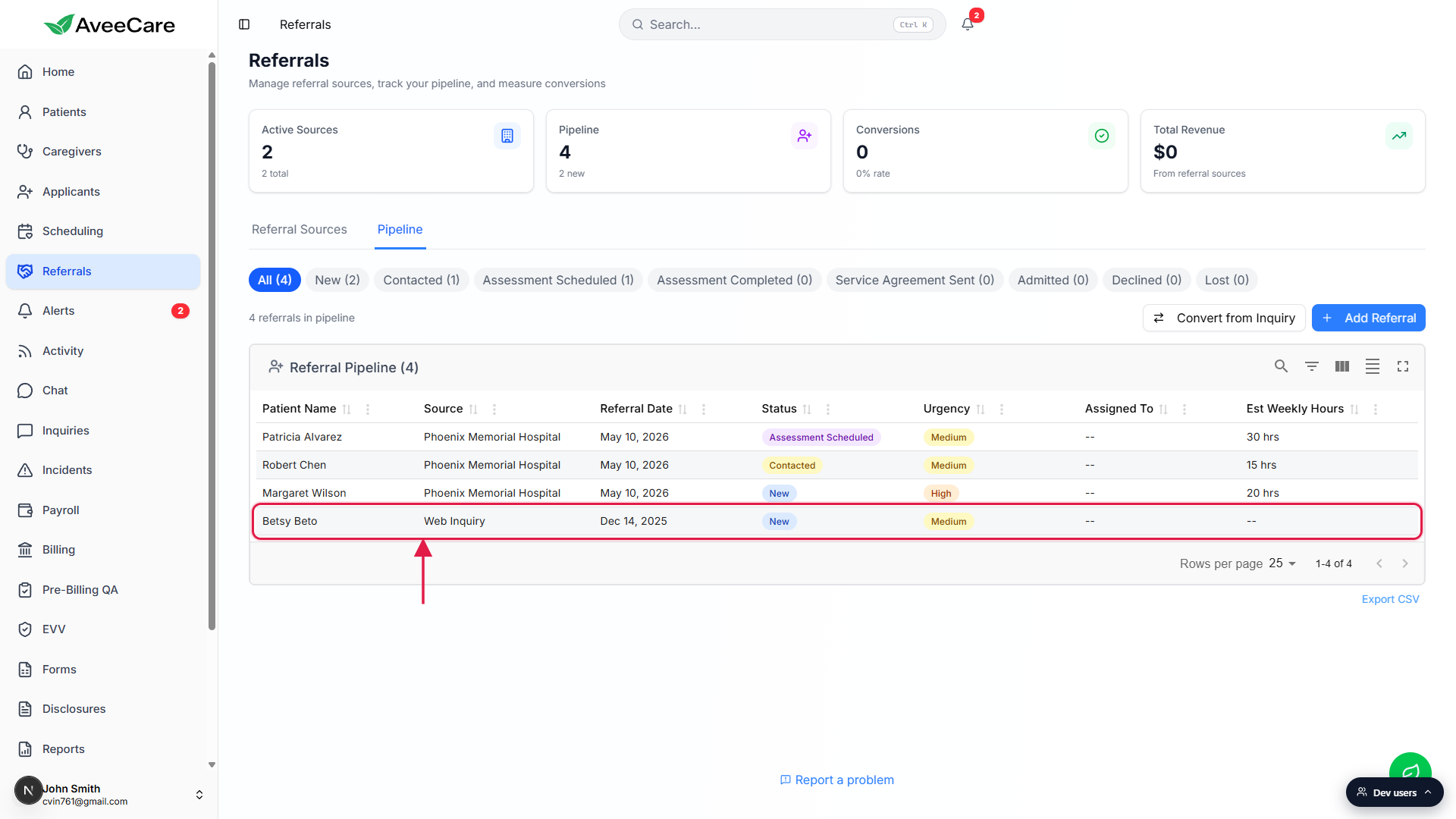
Walk the referral through the pipeline from here.
Click the row to open the Referral Detail panel. From there you can move it through Contacted, Assessment Scheduled, Assessment Completed, Service Agreement Sent, and finally Admitted, which prompts you to convert the referral into a real patient. The Convert to Referral path is the start of the intake funnel, not the whole thing.
Common pitfalls
- Thinking the inquiry auto-resolves on convert. It does not. The original inquiry stays in the Open tab so you can keep replying to the patient while intake works the new referral. If you're done with the thread, click Mark as Resolved on the inquiry separately.
- Skipping the Create button. The Add Referral modal is pre-filled but the referral does not exist until you click Create. Hitting Cancel or closing the modal throws the convert action away and you have to start again from the inquiry.
- Leaving the Web Inquiry source in place when a real one fits. Web Inquiry is the catch-all the platform creates for converted inquiries. If the lead actually came from a hospital, a discharge planner, or a known referral partner, change the Referral Source on the modal before saving so your source attribution stays accurate.
- Missing the Convert to Referral button on narrow screens. On smaller widths the label compresses to Referral. Same icon, same spot in the header, same action.
- Trying to undo a conversion. There is no one-click undo. Open the new referral on the Pipeline tab and delete it from the detail panel, then keep working the original inquiry as usual.