Export to your payroll provider
Download the period’s hours in the file your payroll company imports: Viventium, Gusto, QuickBooks, Paychex or ADP.
3 parts · 1 minPayrollFor the office
The lesson plays on a sample agency, so nothing you do in it changes anything. Open any item in the lesson's panel to read about it, and press See how to watch it done.
What this lesson covers
Everything the lesson says, part by part.
- 1
On the way: Payroll is in the sidebar.
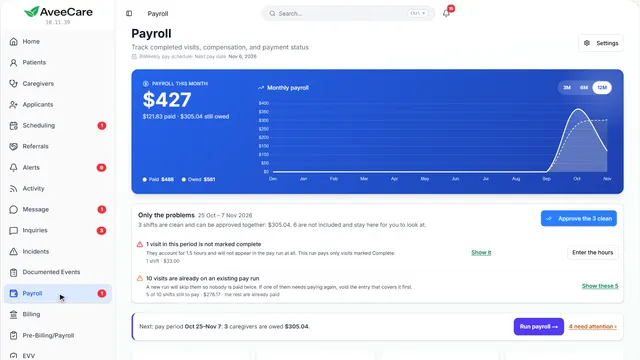
This is Payroll
The exports are above the list of visits, one for each payroll company.
In the sidebar under Payroll.
On this page
Export for ViventiumA file you import in Viventium
Downloads the hours in view in Viventium’s import format.
See how jumps ahead to part 2: Export hours for Viventium.
Export for GustoA spreadsheet for Smart Import
Downloads the hours in view as a spreadsheet Gusto imports.
See how jumps ahead to part 3: Export hours for Gusto.
Read the guideOther payroll companiesQuickBooks, Paychex, ADP
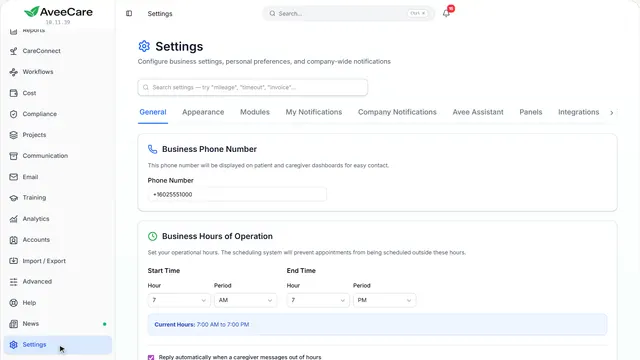
QuickBooks file downloads a timesheet file for QuickBooks Desktop. Paychex and ADP appear here once they are connected in Settings.
Read the guideSee how shows:
- QuickBooks file An .iif file you import in QuickBooks Desktop.
- 2
On the way: The exports are above the list of visits.
Export hours for Viventium
A file of the hours in view, ready to import into Viventium. It does not create a pay run or mark anything paid.
Payroll, then Export for Viventium above the visits.
On this page
What the file holdsLines, hours and pay, checked first
It counts the lines, hours and pay, says how much was verified at the door, and names anything the file cannot carry, such as expenses to pay back in Viventium.
See how shows:
- Download the file Then import it in Viventium.
Match your templateRename the columns once
Templates differ between agencies. Match the columns to yours before you download. The names are not saved, so check them each pay period.
See how shows:
- Match your Viventium template The importer will not say which column it disliked.
- 3
On the way: Gusto has its own export beside it.
Export hours for Gusto
A spreadsheet you upload in Gusto with Smart Import. Gusto pays at the rate on each person’s Gusto profile.
Payroll, then Export for Gusto.
On this page
Whose rates are usedGusto’s, not AveeCare’s
Gusto pays these hours at the rate on each employee’s Gusto profile. Check the totals on Gusto’s Run Payroll screen before you submit.
Read the guideSee how shows:
- Download the file Empty columns stay blank, so nothing you typed in Gusto is overwritten.
Check the totals in GustoBefore you submit the pay run
After the upload, compare Gusto’s Run Payroll totals with the hours here before you submit.
See how shows:
- Download the file Then upload it with Smart Import in Gusto.
At the end
Now you can send the hours to your payroll company