Email and letters
Your agency’s email inside AveeCare: writing, blasts to a group, your email design and an automatic reply, and letters filled in for a client.
5 parts · 2 minCommunicationFor the office
The lesson plays on a sample agency, so nothing you do in it changes anything. Open any item in the lesson's panel to read about it, and press See how to watch it done.
What this lesson covers
Everything the lesson says, part by part.
- 1
On the way: Email is in the sidebar.
This is your agency’s email
Mail to and from your agency’s address, kept beside the client or caregiver it is about.
In the sidebar under Email. An administrator connects your mailbox in Settings.
On this page
Received and sent mailWith who it is about
Open a message to read it. The panel beside it shows the client or caregiver it is about.
Read the guideSee how shows:
- Your mail Received and Sent are at the top.
Write an emailTo people or to a list
Write opens a new email. Send it to people, or to one of your email lists.
See how jumps ahead to part 2: A new email.
One email to a whole groupCaregivers, clients or everyone
A blast sends the same email to all your caregivers, all your clients, everyone, or an email list.
See how jumps ahead to part 3: Send one email to a whole group.
Your email designColors, logo, templates
Design sets the colors, logo and width every email uses, and keeps your templates.
See how jumps ahead to part 4: Your email design.
Scheduled sends, drip campaigns, auto-replyEach has its own tab
Scheduled holds emails waiting to go. Drip campaigns send a series to a list. Auto-reply answers mail while the office is closed.
See how shows:
- Set an auto-reply and your email design
- Open Auto-reply Turn it on, choose the dates it covers and write what it says.
- Open Design Your logo and colours, the footer everyone sends with, your own signature, and templates you start emails from.
A letter for a client or caregiverFilled in from their record
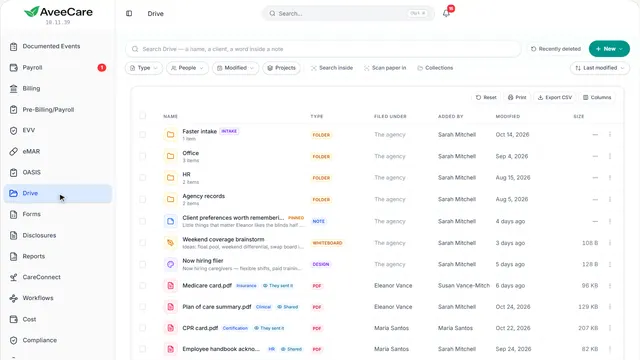
In Drive, New › From a template makes a document filled in for the client or caregiver you choose, ready to print or send.
See how jumps ahead to part 5: Letters are made in Drive.
Read the guide - 2
On the way: Write opens a new email.
A new email
Who it goes to, what it is about, and your message. Nothing is sent until you press Send.
Write, at the top of your mail.
On this page
People or a listPlus Cc and Bcc
Send to people you type in, or switch to A list to send to one of your email lists.
See how shows:
- To Cc and Bcc are beside it.
Start from a templateYour saved emails
Templates fills in an email you saved before. Make and change templates in the Design tab.
See how shows:
- Templates Your saved emails.
Subject and messageWith formatting and images
Give it a subject, then write. The toolbar has text styles, lists, links and images.
See how shows:
- Subject The message goes below it.
- 3
On the way: Blasts is a tab at the top of Email.
Send one email to a whole group
Pick who it goes to, start from a template or from scratch, then write it.
Email › Blasts.
On this page
Who it goes toCaregivers, clients, everyone, a list
Pick Caregivers, Clients, Everyone, or one of your email lists.
See how shows:
- Everyone Or pick one group.
Start from a templateOr write from scratch
Pick one of your templates, if you have made any, or write from scratch.
See how shows:
- Template Change anything before you send.
How past blasts wentSent, skipped, opened
Past blasts lists what you sent. The Delivery tab shows how each one went.
See how shows:
- Past blasts Every blast you sent.
- 4
On the way: Design is the last tab.
Your email design
The look every email from AveeCare uses, and the templates you start from.
Email › Design.
On this page
Colors and logoHeader, card, accent
Set the background, the card, the header color, your logo and the accent color. Default puts it back.
See how shows:
- Look The preview changes as you go.
Your templatesEmails you send often
Templates holds the emails you start from in Write and in Blasts.
See how shows:
- Templates Make one for each email you send often.
- 5
On the way: Letters are made in Drive.
Letters are made in Drive
New › From a template fills a document in for the client or caregiver you choose.
In the sidebar under Drive, then New.
On this page
From a templateFilled in for a person
Pick a template, then the client or caregiver, or several. Each gets their own copy filled in from their record.
Read the guideSee how shows:
- New › From a template Your agency’s templates and a few to start with.
A blank documentWrite it yourself
Document starts a blank page you write yourself, sized for printing.
See how shows:
- New › Document It saves to Drive as you write.
At the end
Now you can email from AveeCare
Watch next