Chat with your team
Message your office and caregivers, reach clients by email, start a group, and send a file or a schedule.
3 parts · 2 minCommunicationFor the office
The lesson plays on a sample agency, so nothing you do in it changes anything. Open any item in the lesson's panel to read about it, and press See how to watch it done.
What this lesson covers
Everything the lesson says, part by part.
- 1
On the way: Message is in the sidebar.
These are your conversations
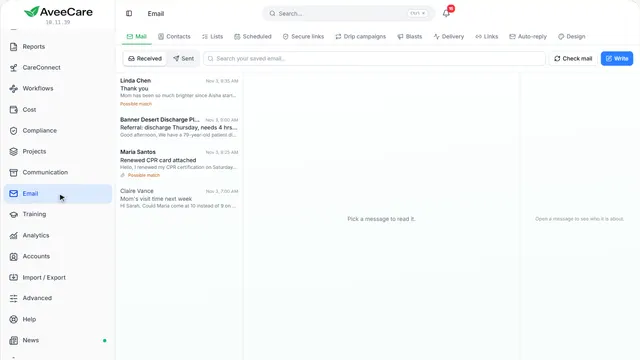
Every conversation with your office and your caregivers, newest first. Once your agency connects a mailbox, clients are here too.
In the sidebar under Message.
On this page
Every conversationNewest first, unread marked
Each person or group you talk with has one conversation. Press one to read it and reply.
Read the guideSee how shows:
- Your conversations The newest is at the top.
Mute a conversationNo notifications, still marked unread
Mute stops notifications from that conversation. It still shows as unread, so nothing slips past you.
See how shows:
- Mute Press it again to hear from them.
Reply, with a little formattingBold, italic, lists, reactions
Write at the bottom of the conversation. Bold, italic and lists are there, and each message can take a reaction.
Read the guideSee how shows:
- The conversation Your reply goes at the bottom.
Send a file or a scheduleAs a secure link or a copy
Attach files sends one from your computer; Attach from Drive and Insert from AveeCare send what is already here. Each item goes as a secure link or a copy. A link expires, can be switched off, shows when it was opened and goes to one person only. A copy can never be taken back. Client and caregiver records start as a link.
Read the guideSee how shows:
- Insert from AveeCare Attach from Drive is beside it.
Start a conversationWith anyone in your agency
New Message lists your office and your caregivers. Clients join the list once your agency connects a mailbox, and a message to a client goes as an email. Search for the person, then write.
See how jumps ahead to part 2: Who do you want to talk to?.
Start a groupThree to sixteen people
A group is one conversation with several people, like everyone on the morning shift.
See how jumps ahead to part 3: Start a group.
- 2
On the way: New Message starts a conversation.
Who do you want to talk to?
Everyone you can message is listed. Pick one person to start.
New Message, at the top of your conversations.
On this page
Search for themBy name
Type part of a name to narrow the list.
See how shows:
- Search Office staff and caregivers are here.
Who is listedOffice and caregivers, clients by email
Your office staff come first, then your caregivers. A caregiver needs a login to read your message. Clients have no message inbox, so they are listed only once your agency connects a mailbox in Settings, and your message reaches them by email.
See how plays the lesson Give a caregiver a login.
Read the guide - 3
On the way: New group puts several people in one conversation.
Start a group
Give it a name, then add the people. A group needs 3 to 16 people, you included.
New group, at the top of your conversations.
On this page
Name the groupSo everyone knows what it is for
A name like Morning Shift Team shows at the top of the conversation for everyone in it.
See how shows:
- Group name Choose it with care: it cannot be changed after the group is made.
Add the peopleStaff and caregivers
Search for each person and add them. The count shows how many are in, up to 16.
See how shows:
- Add people Press a name to add them.
At the end
Now you can message anyone in your agency
Watch next