Drive is one place for everything your agency keeps: files and PDFs, forms, signed disclosures, notes and spreadsheets. It replaces the old Documents and Notes pages, and links to those pages now open Drive.
Quick answer
Open Drive, drop a file in and choose who it belongs to. Press New to make a folder or a spreadsheet. Search always looks across every folder and inside scans. In a spreadsheet, press AveeCare data to pull in visits, caregivers or clients.
1. Upload a file and choose who it belongs to
Drop a file onto Drive, or press New and upload.
Choose who it belongs to: a client, a caregiver, or The agency. Agency files, such as your licence and insurance certificate, are for the office only.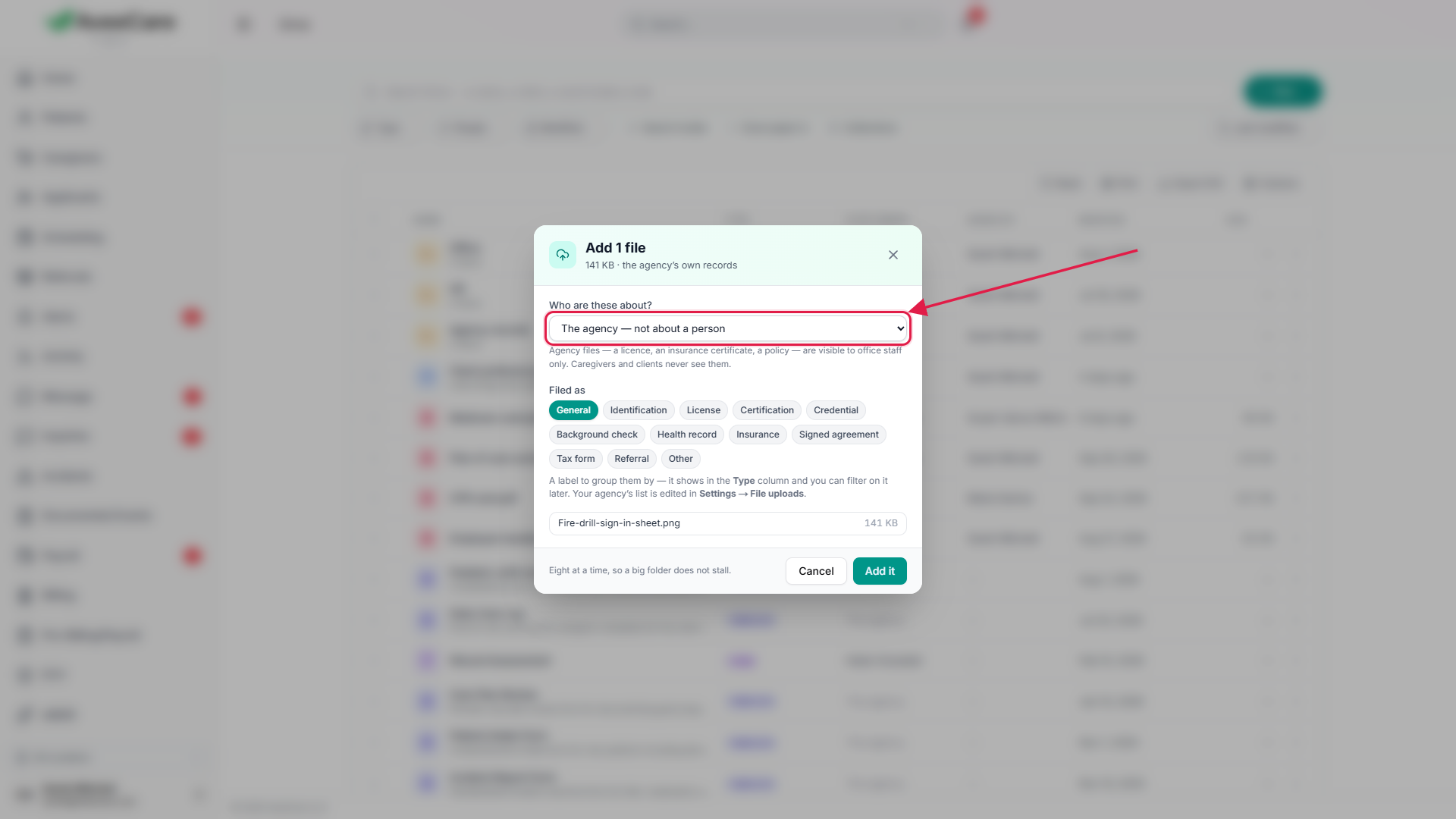
Drop a whole folder to keep its shape.
The folders inside it are recreated and each document lands in the right one.
2. Make folders and file things into them
Press New and choose Folder.
Folders can go inside folders. The trail across the top shows where you are.Tick rows, then move, delete or download them.
Hold Ctrl (or Cmd) to add one row, or Shift to take a run of them. Drag the selection onto a folder to file it, or onto the trail to bring it back out. Download several at once as one .zip.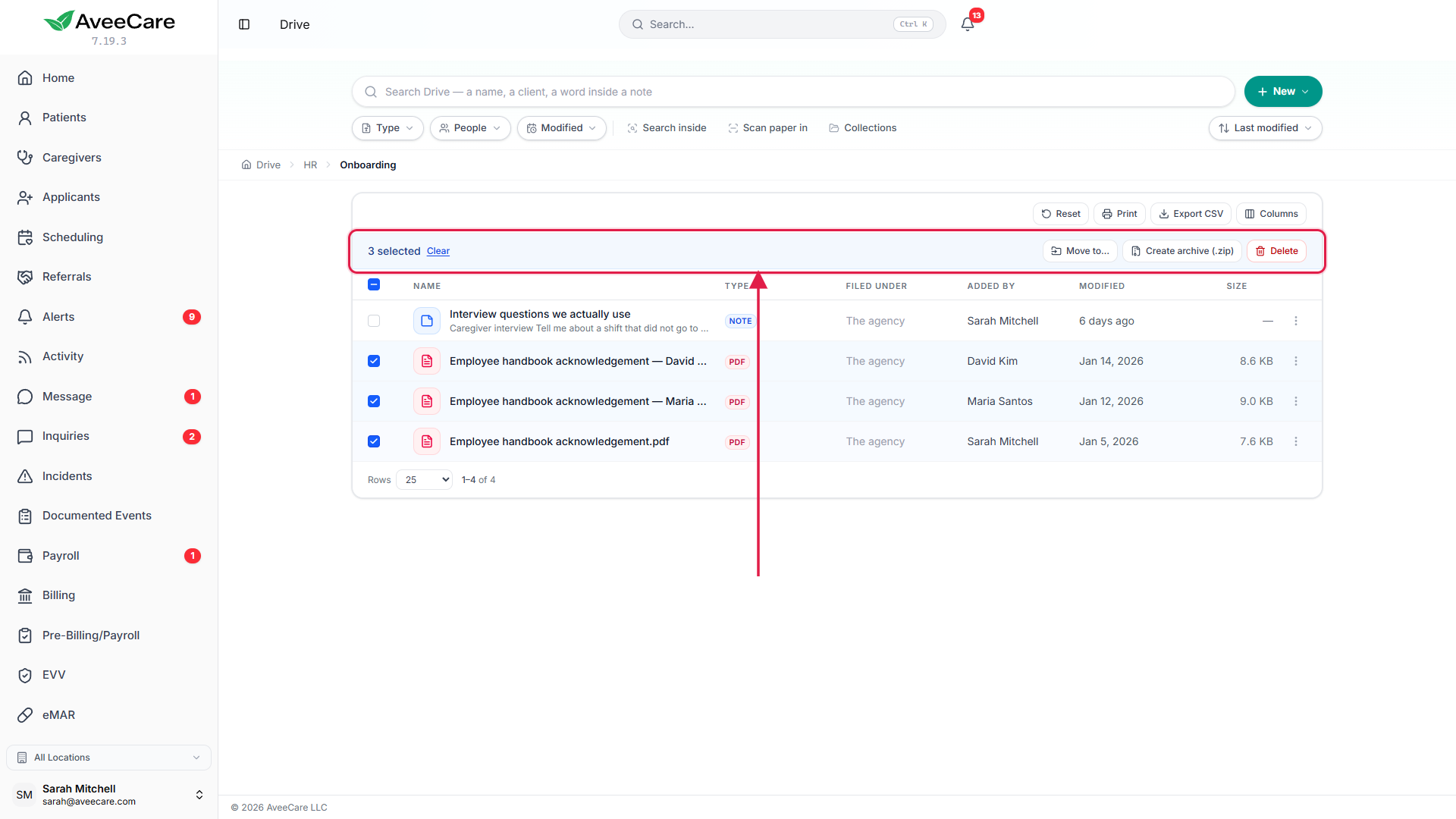
3. Search and filter
Type in the search box to search names and what is inside.
Search reads inside scans, PDFs and Word documents, and always looks across every folder. Each result says which folder it lives in.Narrow by type, person, date, how it arrived or tag.
Each filter shows as a pill you can remove. Switch between the card view and the list, and use the Added by column to see who put a document there.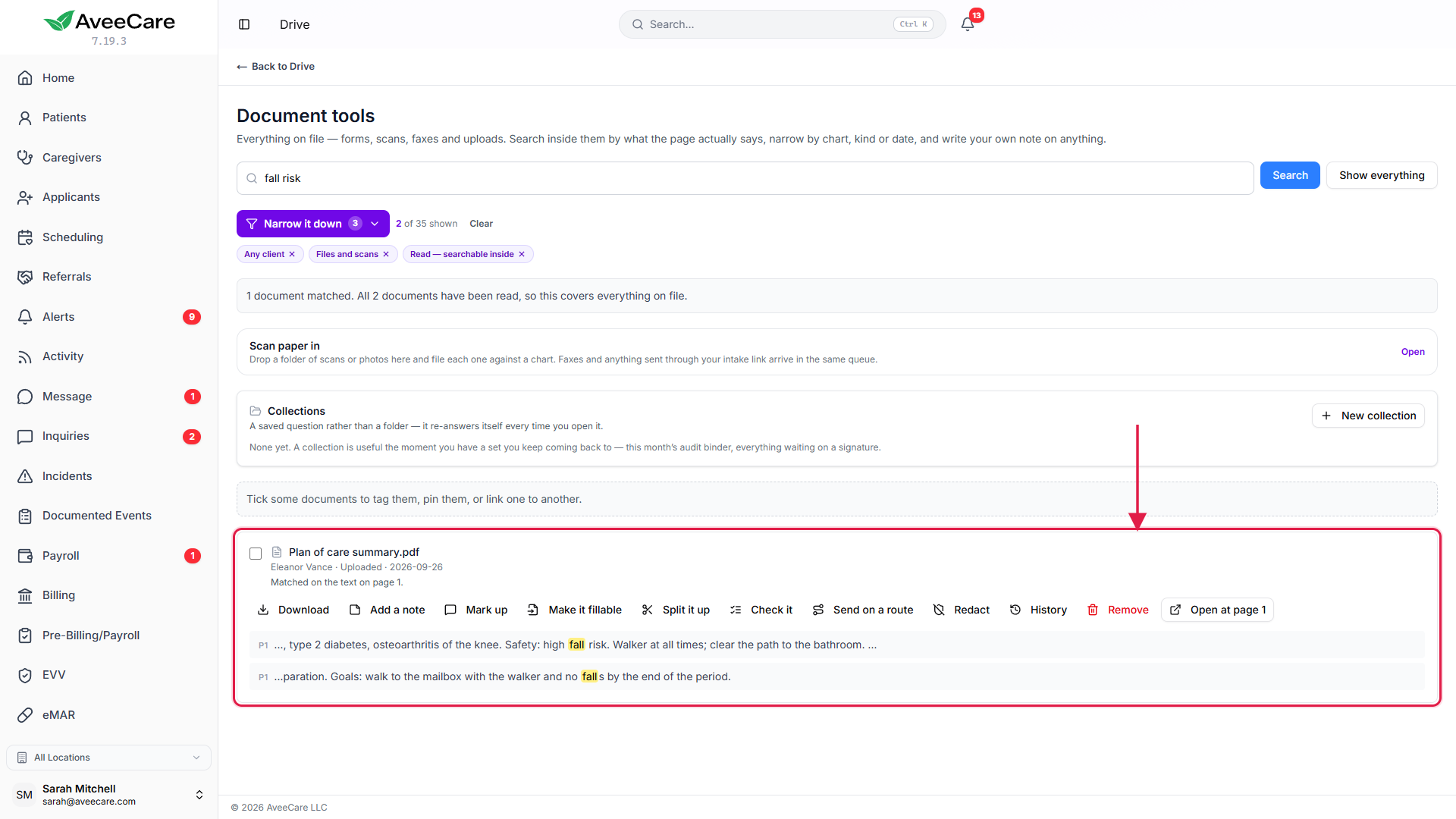
4. Make a spreadsheet with AveeCare data
Press New and choose a spreadsheet, or bring in an Excel file.
Spreadsheets do formulas, colours, conditional formatting, filters and sorting. Pick some cells to add a bar, line or pie chart. Summarize groups and totals your rows on a new sheet.Press AveeCare data, choose what to bring in and tick the columns.
Choose visits, caregivers, clients, authorizations, care plans or credentials. The sheet remembers the question, so next month you press Refresh instead of exporting again. Money arrives in dollars and dates in your agency’s time zone.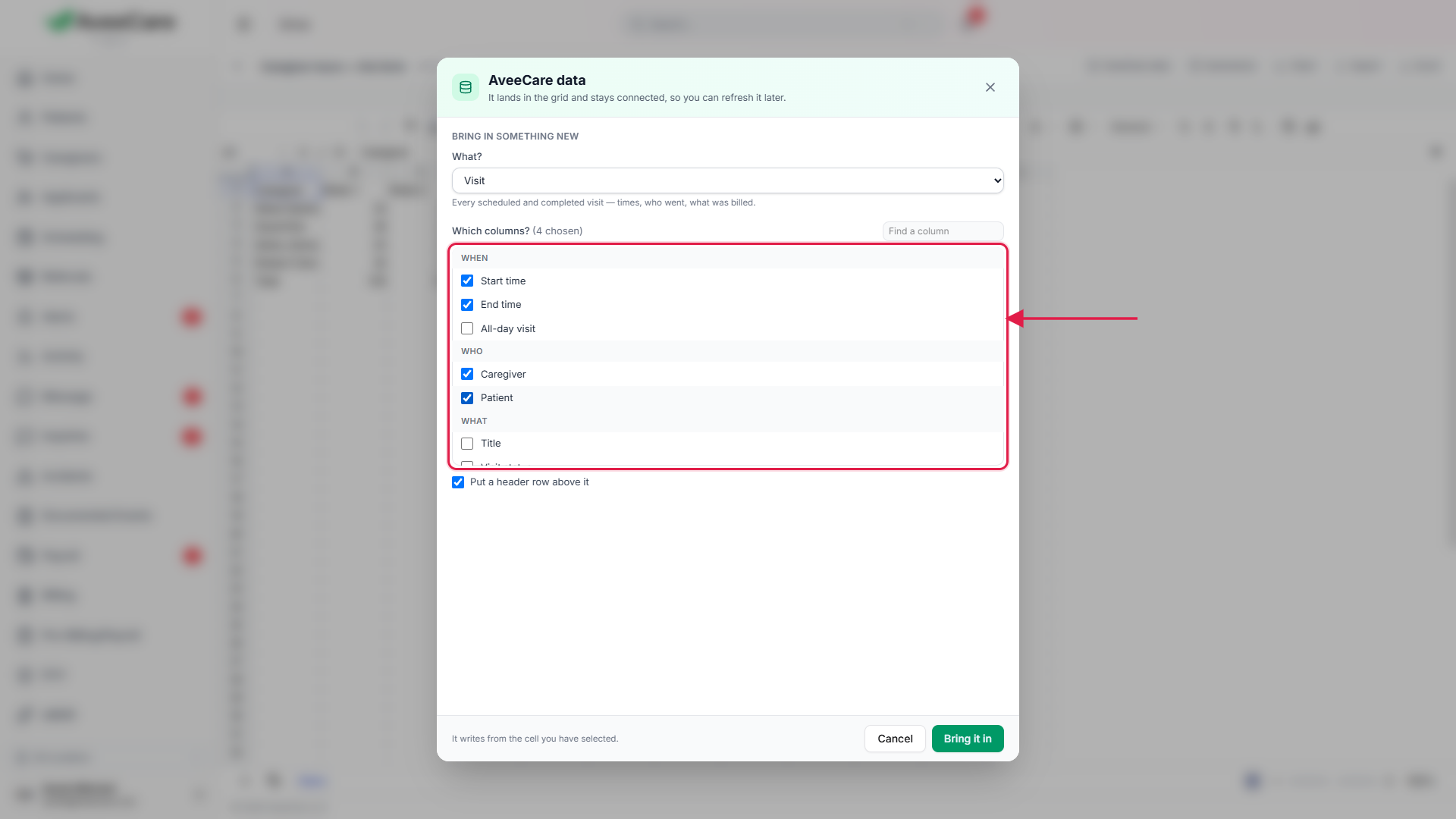
Common pitfalls
- Using a folder to hide something. A folder does not change who can open a file. Save office-only paperwork to The agency.
- Filing an agency licence under a staff member. It then belongs to that person. Upload it to The agency instead.
- Exporting the same report every month. Pull the data into a spreadsheet once and press Refresh next month.
- Searching inside one folder only. Search always covers every folder, so you do not need to open the right folder first.
Related
- Patient files: documents on a client’s record.
- Caregiver files: documents on a caregiver’s record.
- Drive feature overview