A payer, a hospital or your own HR sends you a PDF that needs filling in and signing. You do not have to rebuild it as a form or print, sign and scan it. Put boxes on the PDF itself, send it round in order, and get the real document back with every answer printed on it.
Quick answer
Open the PDF in Drive and press Form fields. Add a box for each answer and drag it into place. Then choose Send on a route, say who fills which box and in what order, and press Send it.
1. Add boxes with Form fields
Open a PDF in Drive and press Form fields.
If the PDF already came with boxes, you see the ones it has and can add to them rather than start again.Name each box, pick what kind of answer it takes, and drag it where the answer should print.
For example a signature, a tick box, a choice from a list, or text. Save, and the PDF is fillable.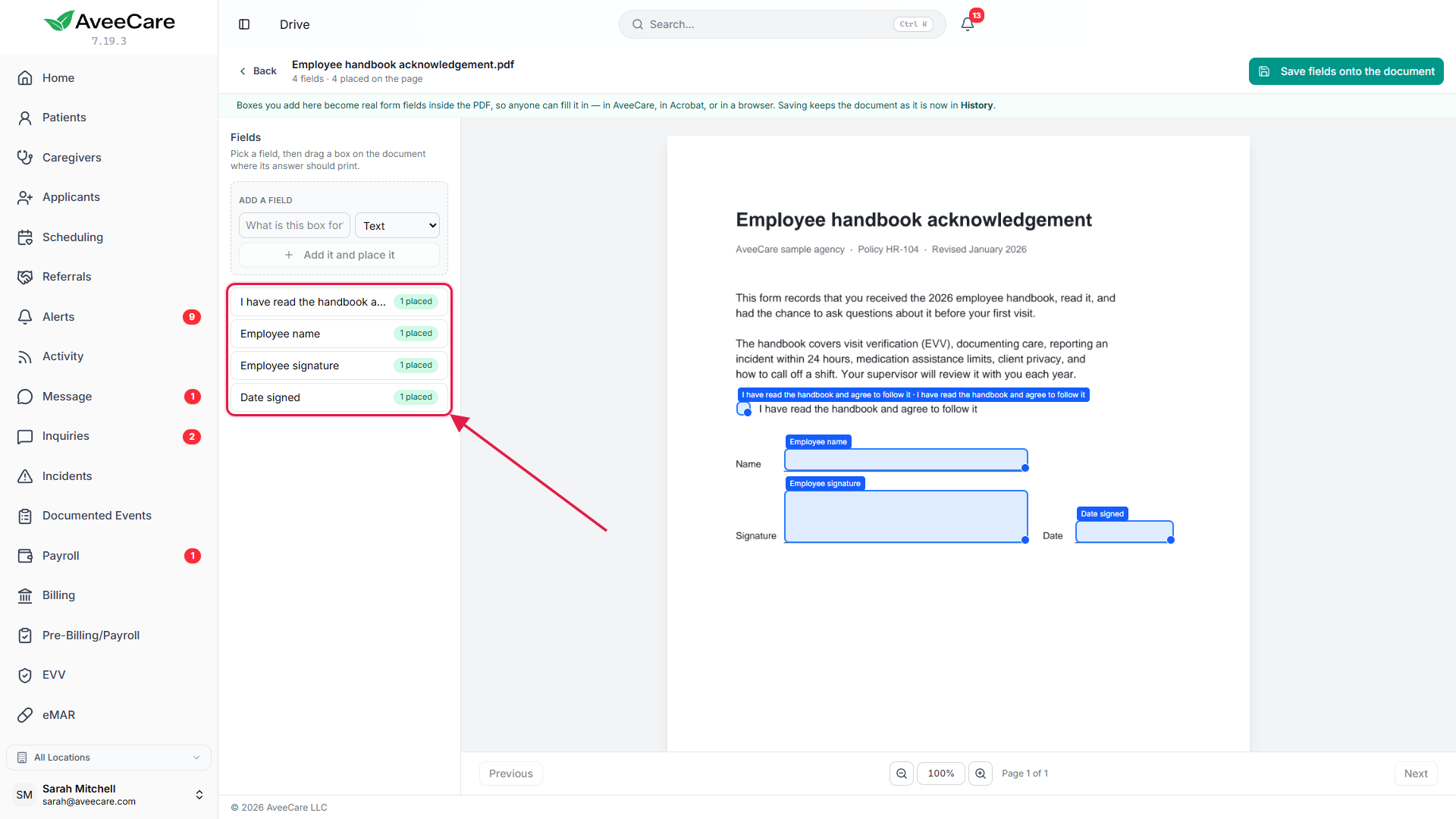
2. Send it on a route
Choose Send on a route.
It works on a client’s file, a caregiver’s file and your agency’s own paperwork. Pick a route you have used before or set one up: the steps, the people and the order, the same way a form route works.Say who fills which box.
A box you have given to somebody carries a tick. Before you send, AveeCare tells you if somebody on the route has nothing to fill in, or if a box has been given to nobody. You can still send it.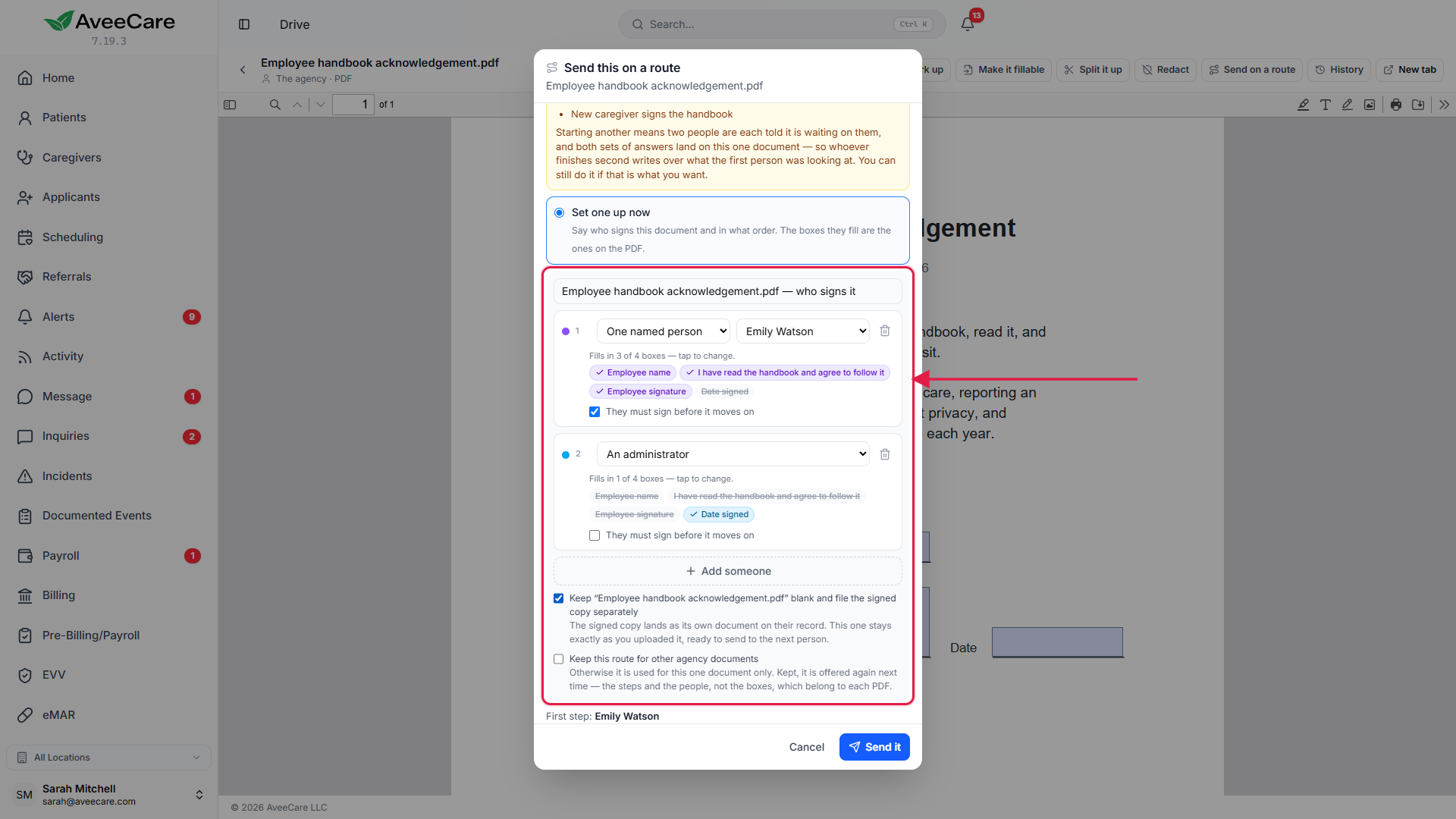
Tick Keep this blank if you will send the same form to other people.
The signed copy then lands as its own document on the person’s record, and this one stays exactly as you uploaded it. Press Send it.
3. Find the signed copy
Open the document when it comes back.
Whoever sent it is told when the last person finishes. The document opens as the filled copy, printable, with the answers and signatures written onto it. Download, print, fax or email it and you send the signed page.For a blank you kept, right-click it and choose Signed copies.
Everybody who has signed it is listed, newest first. Open any of them.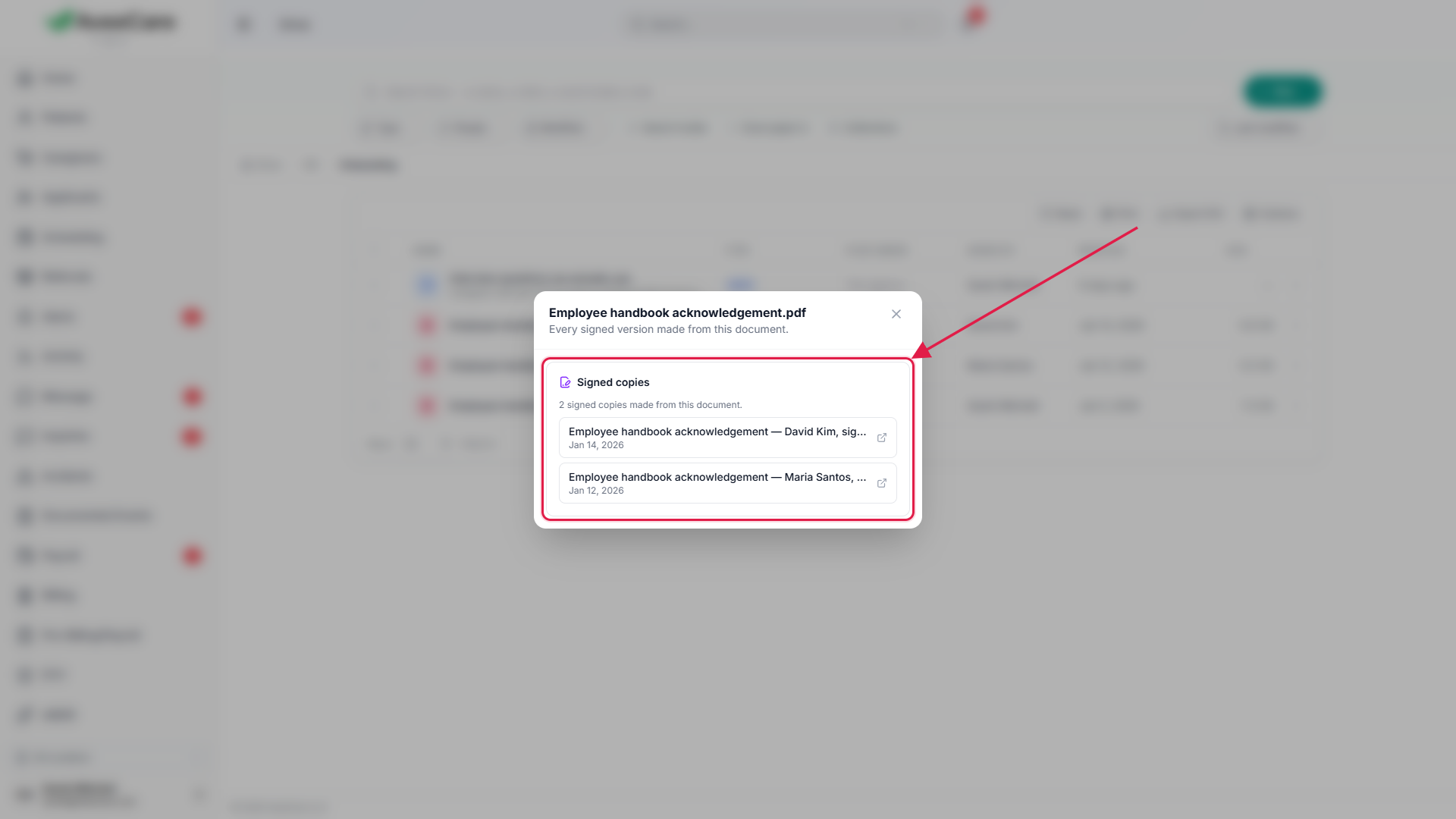
Common pitfalls
- Forgetting Keep this blank on a form you reuse. The answers become the document, so the next person would start from a filled copy. The blank is still in its History.
- A box given to nobody. Nobody can fill it. Check the warning before you send.
- Editing the filled copy. Make changes to the blank original; the filled copy is the record of what was signed.