Convert to Caregiver is the one-click bridge between Applicants and Caregivers. Once you have decided to hire someone, this action creates an Active caregiver record with everything you already captured on the applicant, copies any uploaded documents into the caregiver Files tab, and marks the applicant as Onboarded so the pipeline funnel stays accurate.
Quick answer
Open Applicants, click into the applicant from the Pipeline or All Applicants tab, then click Convert to Caregiver on the right side of the applicant header. A confirmation dialog lists the data that will be transferred. Click Convert, then View Caregiver Profile from the success dialog to finish onboarding.
What gets copied to the caregiver
The conversion creates a new caregiver record with status Active. The confirmation dialog only previews the most common fields (Name, Email, Phone), but the conversion copies every applicant field that has a value:
- First name, middle name, last name
- Email, phone, alternate phone
- Date of birth and gender
- Address, city, state, zip code
- NPI number, state license number / state / expiry
- Primary language and additional languages
- Certifications, specializations, years of experience
- CPR certification flag and driver license flag
- Any documents you uploaded under the applicant Documents tab
The applicant record is preserved and moved to the Onboarded stage with a link back to the new caregiver, so the time-to-hire and source-effectiveness metrics on Applicants analytics keep working.
1. Open the applicant detail
Go to Applicants and find the candidate.
Use the Pipeline tab if you want a Kanban view of every stage, or the All Applicants tab if you want to search by name, email, or phone.Click the applicant card or row to open the detail page.
The detail page header shows the applicant photo, name, stage badge, and contact info on the left, with the action buttons stacked on the right.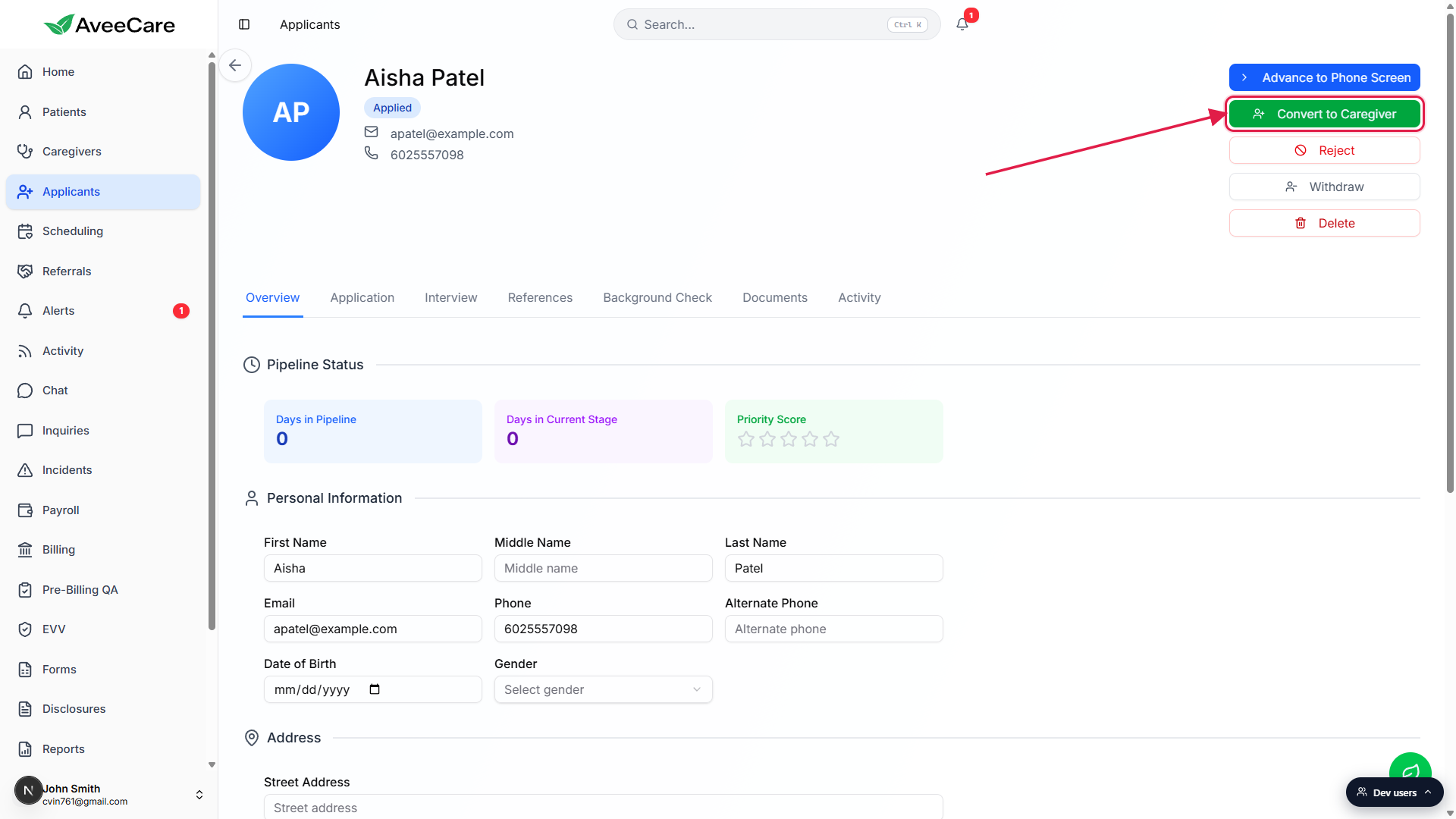
2. Click Convert to Caregiver
Click the green Convert to Caregiver button.
The button shows on every applicant whose stage is not yet terminal. Once an applicant is in Onboarded, Rejected, or Withdrawn, the button is hidden because the candidate is past the point where conversion makes sense.You can convert from any active stage, not just the last one.
Convert is available from Applied all the way through the pipeline. Most agencies wait until they have cleared their reference, background, and credential checks, but the system will not block you if you want to convert sooner.
3. Review the transferred fields and confirm
A Convert to Caregiver dialog opens with a preview of the data.
The preview shows Name, Email, and Phone so you can sanity check the most common fields. Address, certifications, license numbers, and the rest are also copied even though the dialog does not list them.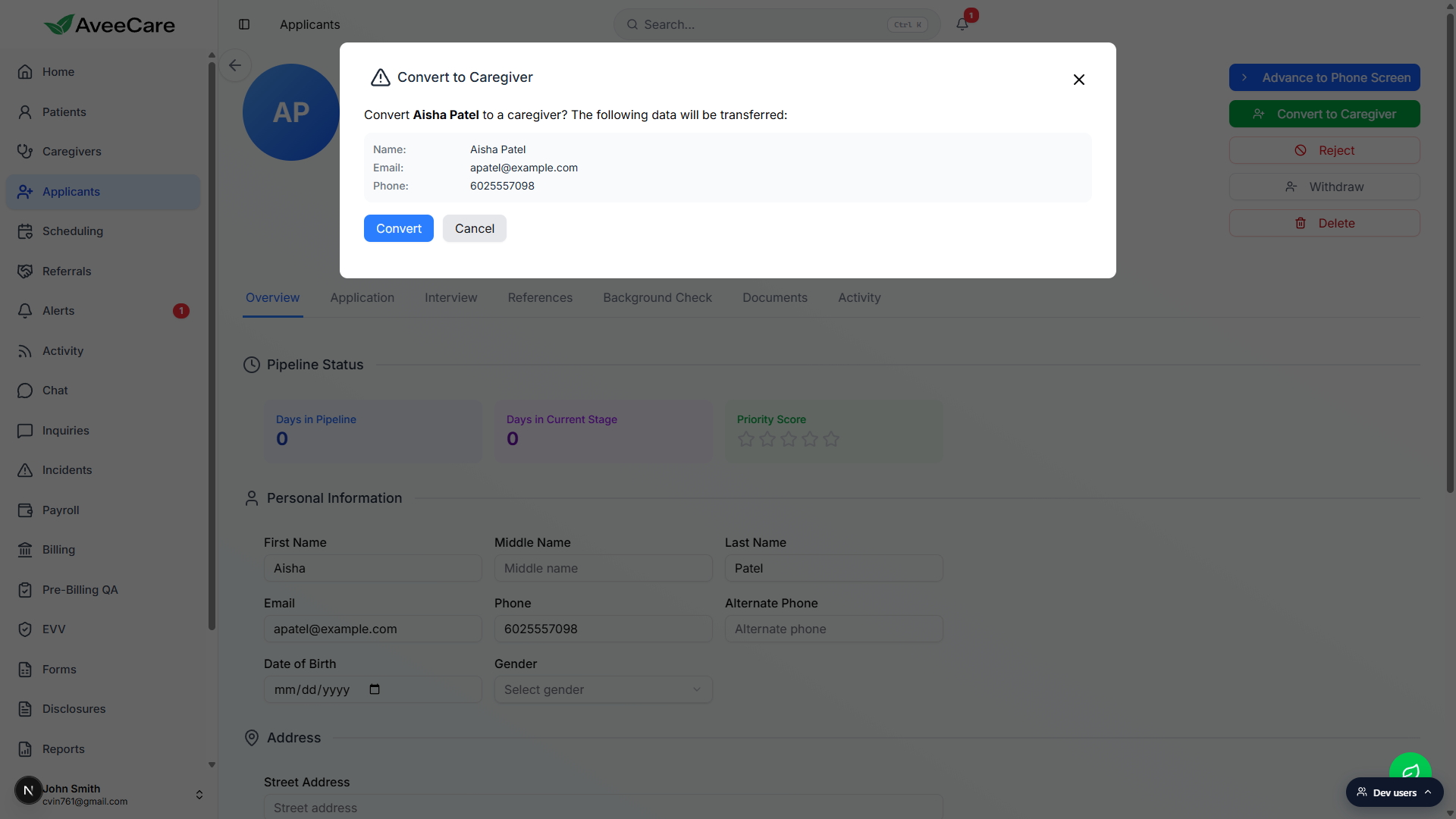
Click Convert to create the caregiver record.
AveeCare creates the caregiver as Active, copies every applicant document into the caregiver Files tab, writes a Converted entry on the Activity timeline, and moves the applicant stage to Onboarded.
4. Open the new caregiver profile
A Caregiver Created success dialog appears.
It confirms the conversion in plain language and gives you two buttons: Stay Here keeps you on the applicant detail (useful for adding final notes to the applicant record), and View Caregiver Profile jumps straight to the new caregiver.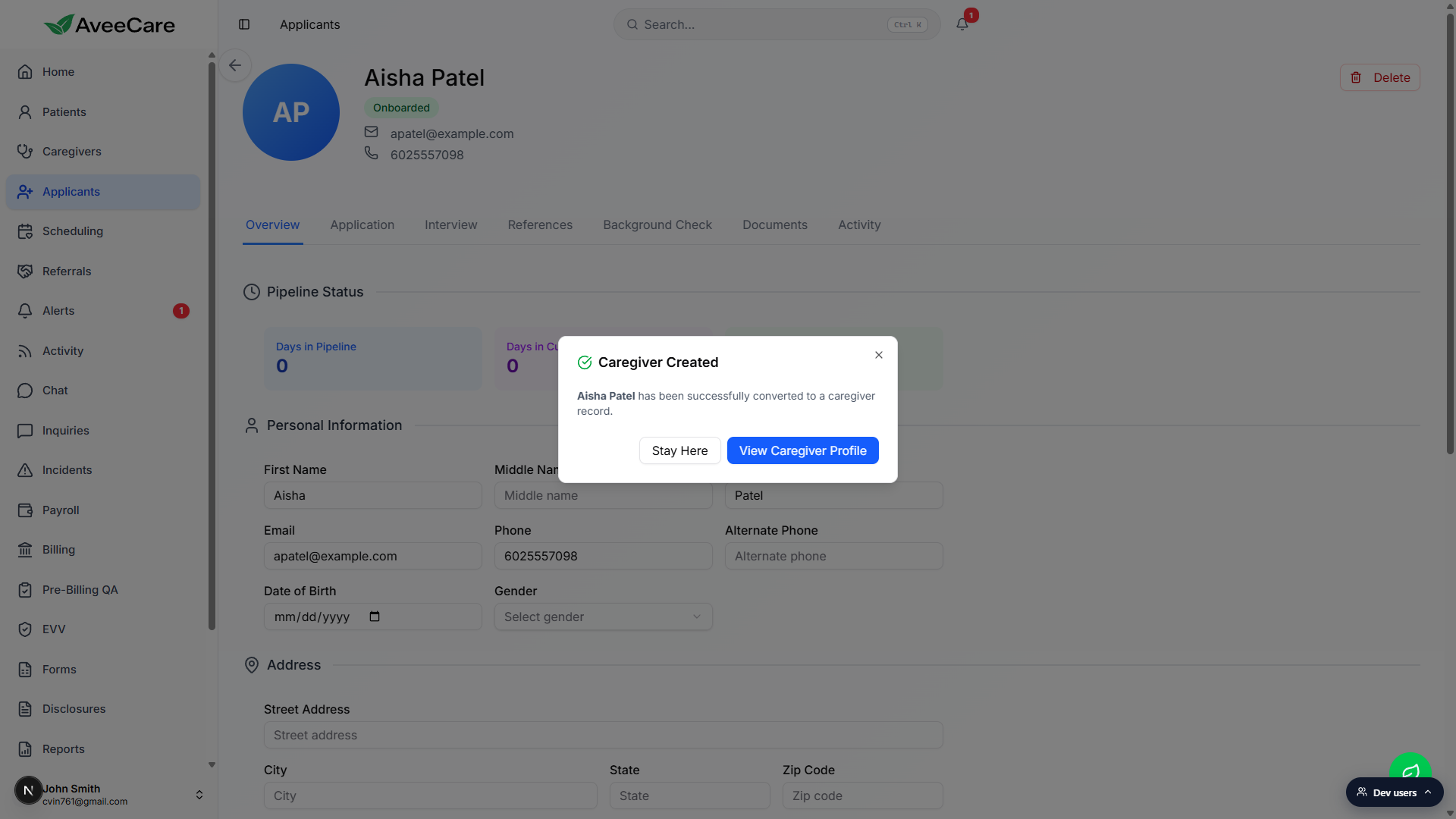
Finish onboarding in the caregiver record.
The applicant fields land in the matching caregiver fields automatically. Set up payroll on the Caregiver payroll and pay rate tab before the first visit, add any structured certifications on the Certifications tab, and assign an Active Region so the new caregiver shows up on Scheduling and the Activity Map.
Common pitfalls
- Forgetting payroll setup. Convert creates the caregiver, but it does not fill in Pay Type, Pay Rate, or the payroll provider link. Open the new caregiver and set those on the Payroll tab before the first paid visit.
- Converting too early. Convert is available from any active stage. The pipeline stages exist to enforce your hiring policy, so do not skip Reference, Background, or Credential checks just because the button is showing.
- Re-converting the same applicant. Once the applicant moves to Onboarded the button is hidden, but if you delete the new caregiver the applicant still shows as Onboarded. Manually move the applicant back to an earlier stage or re-create the caregiver from scratch instead of looking for a re-convert button.
- Missing certifications. Free-text certification notes copy over as a string, but they do not become structured certification rows with expiry tracking. Add proper certifications on the new caregiver Certifications tab so expiry alerts work.
- Profile picture does not carry over. The applicant photo lives in the applicant table and is not copied to the caregiver profile. Re-upload the photo on the caregiver record if you want it to appear on schedules.