All Applicants is the table view of every active candidate in your hiring pipeline, regardless of stage. It sits next to the Pipeline Kanban on the same page and is the right place for searching across large pipelines, bulk-changing stages, and exporting recruitment data to share with leadership.
Quick answer
Open Applicants from the left nav and click the All Applicants tab. Type in the search box at the top to filter by name, email, or phone. Use the All Stages dropdown to narrow by hiring stage. Click any row to open the applicant detail page. Click Export CSV in the bottom-right to download the current filter as a file.
Default columns and sort
The table ships with these visible columns, in this order: Name, Stage, Stage Display, Source, Applied Date Display, Assigned To, Phone, and Email. Rows sort newest-first by application date by default, and the page size starts at 25 rows. Click any column header to flip the sort, or use the column-actions menu on each header for per-column sort, hide, and pin.
Terminal-stage applicants (rejected, withdrawn, hired and onboarded) are excluded from this tab. They live on the Archived tab so the All Applicants count matches the active pipeline.
1. Open the All Applicants tab
Click Applicants in the left nav, then click the All Applicants tab.
The page header stays the same. The body switches from the Kanban board to a table titled All Applicants (N) where N is the active count. The KPI tiles (Active Pipeline, Onboarded, This Month, Total Applicants) above the tabs stay visible on every tab.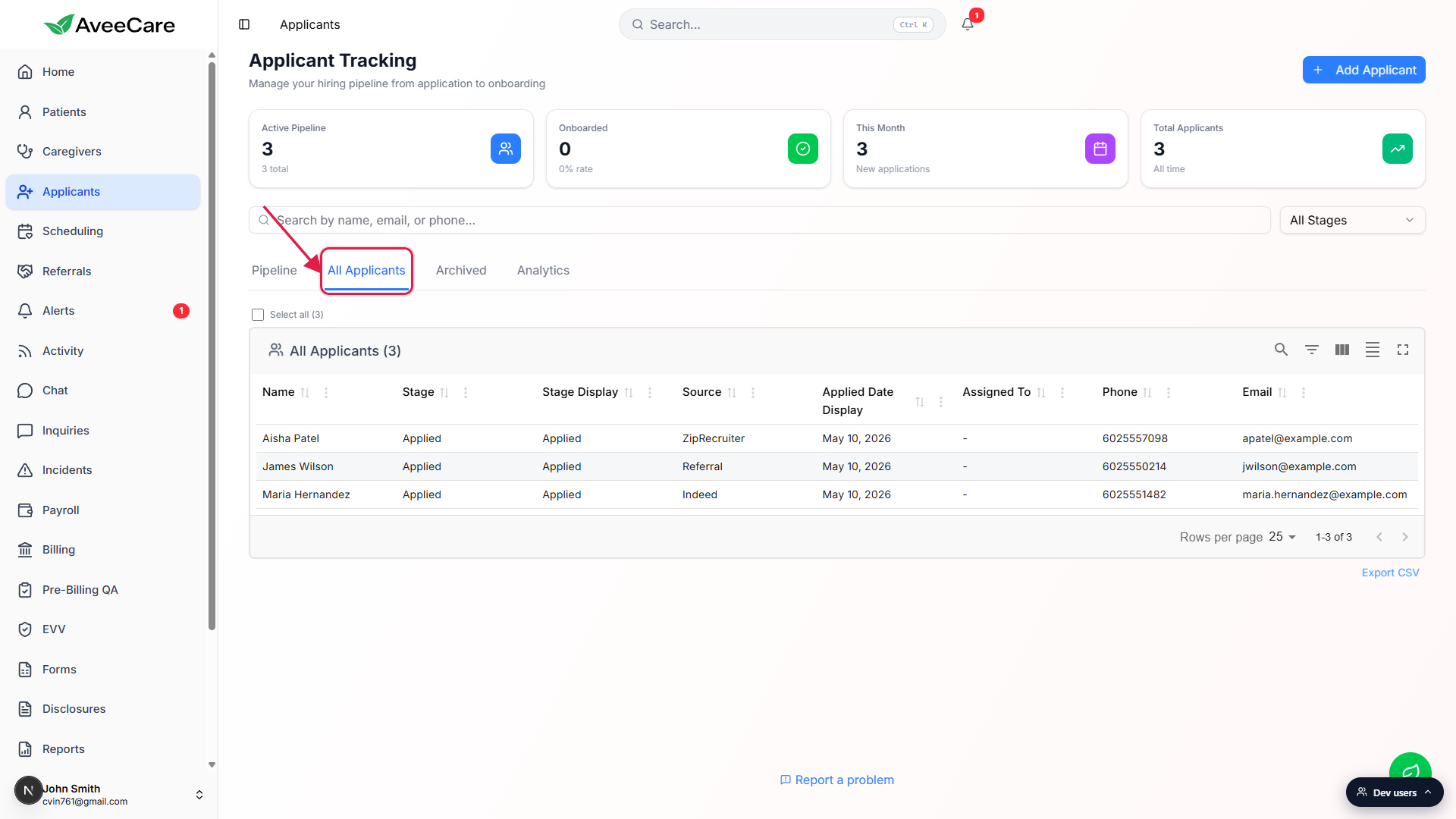
2. Use the toolbar to search, filter, and tune columns
Type a name, email, or phone in the page-level search box above the tabs.
The placeholder reads Search by name, email, or phone. Results filter as you type. The All Applicants header count updates from (3) to (1) as the table narrows.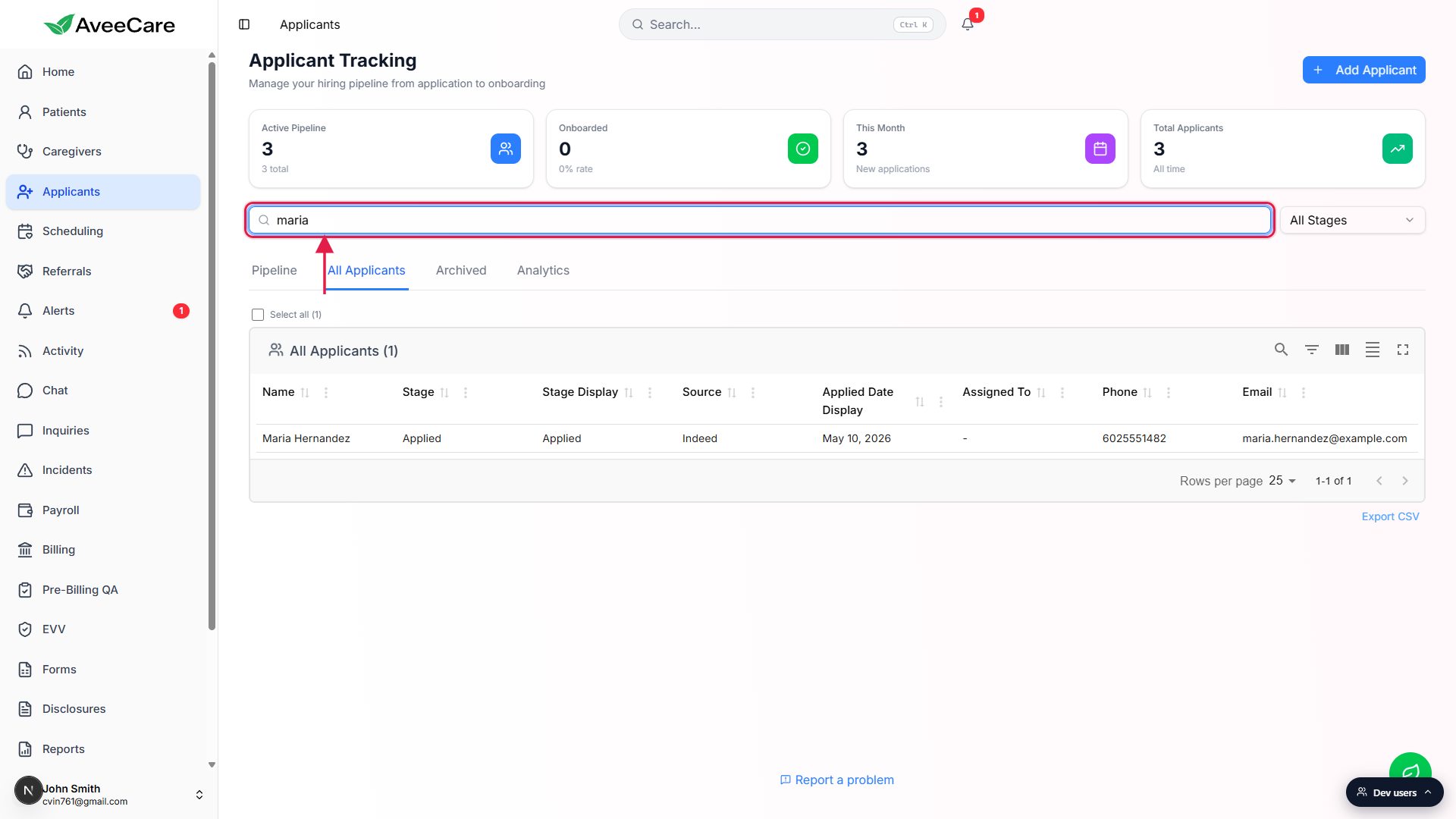
Pick a single stage from the All Stages dropdown to narrow further.
Choose any one stage (Applied, Phone Screen, Interview, and so on) to keep only that stage in view. Leave it on All Stages to keep the active pipeline in scope.Use the toolbar icons in the top-right of the table card for deeper controls.
The five icons are Show/Hide search, Show/Hide filters, Show/Hide columns, Toggle density, and Toggle full screen. Show/Hide filters surfaces a per-column filter row inside the table. Show/Hide columns lets you turn any of the eight default columns off, useful for trimming the view before an export.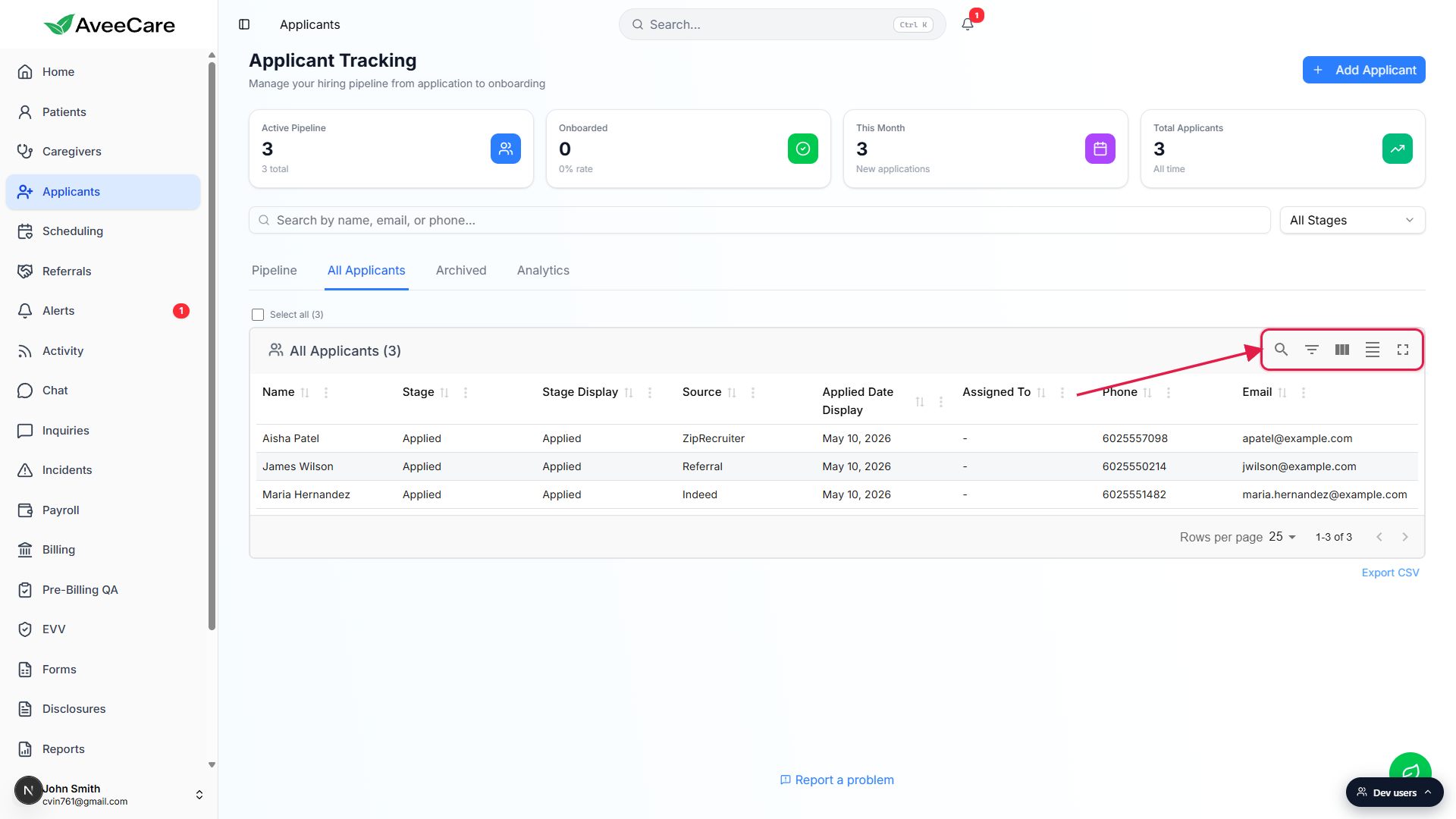
3. Click a row to open the applicant detail page
Click anywhere on a row that is not the select checkbox.
The row is the navigation target. The detail page loads with the applicant's name and current stage at the top, action buttons (Advance to Phone Screen, Convert to Caregiver, Reject, Withdraw, Delete), and seven tabs (Overview, Application, Interview, References, Background Check, Documents, Activity).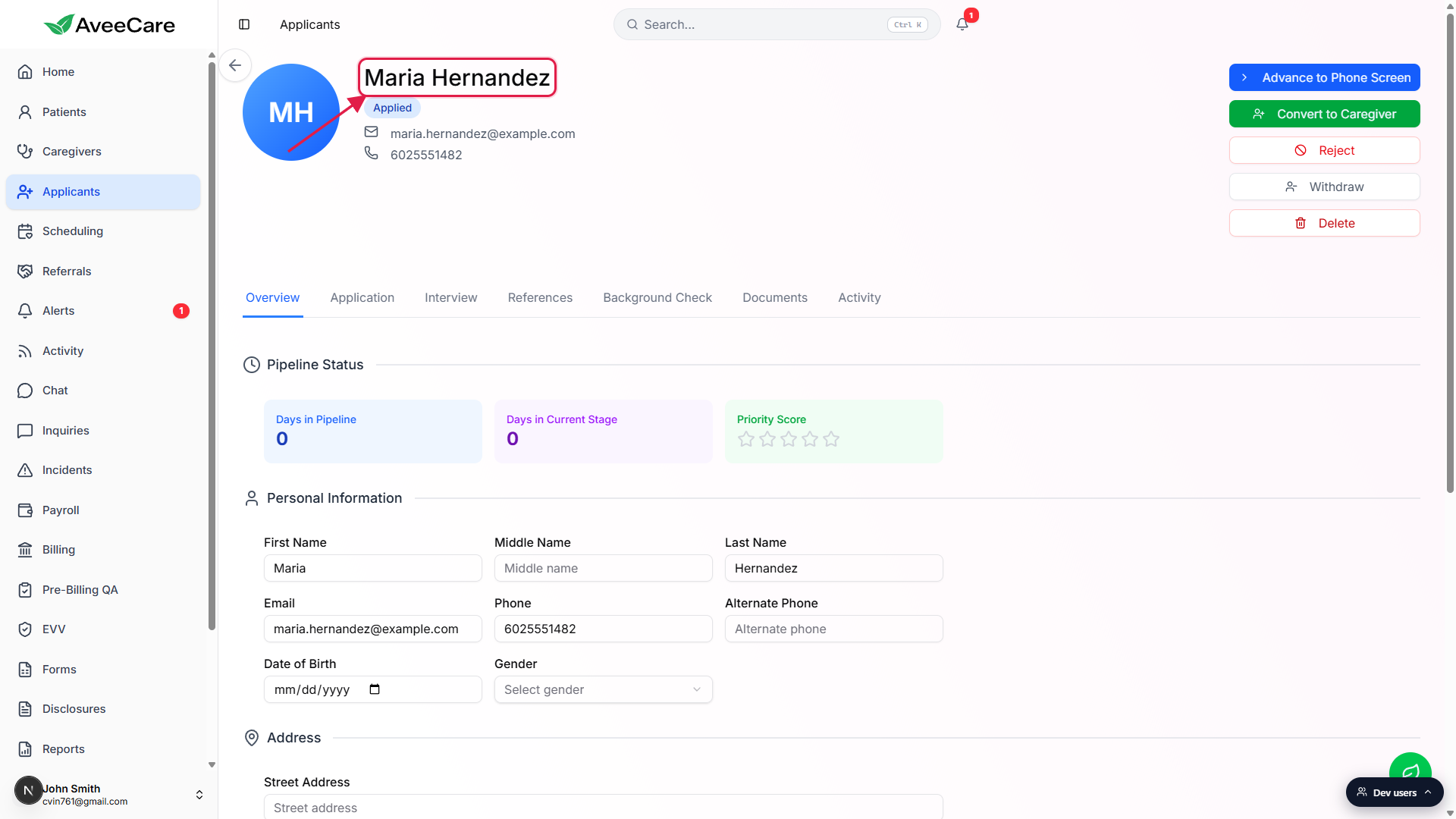
Tick row checkboxes to enable bulk actions instead.
A blue bulk-action bar appears above the table once you select one or more rows. From there you can change stage in batch via the Change Stage dropdown plus Apply, or click Delete to permanently remove the selected applicants. Tick the Select all (N) box above the table to grab every row in the current filter at once.
4. Filter then export to CSV
Narrow the table to the rows you want to export.
Use the search box, the All Stages dropdown, the toolbar filters, and column-visibility to land on exactly the rows and columns you want in the export. Whatever the table shows is what the CSV will contain.Click Export CSV in the bottom-right of the table card.
The file downloads asapplicants-YYYY-MM-DD.csvwith today's date in the filename. Open it in Excel, Google Sheets, or send straight to your hiring manager. The export respects the current search and stage filter, so narrow first, then export.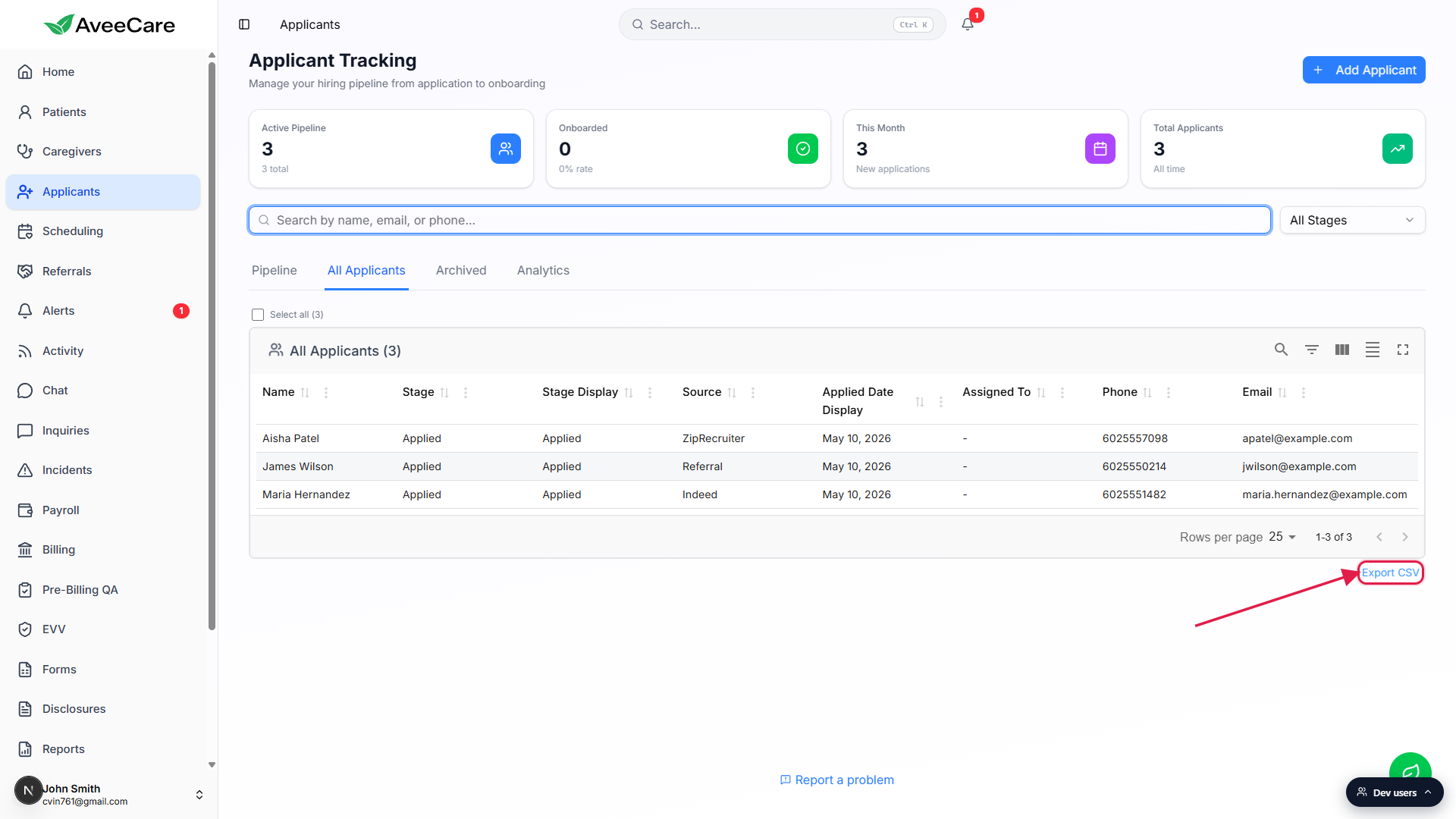
Common pitfalls
- Looking for archived applicants on this tab. All Applicants only shows active stages. Rejected, withdrawn, and fully-onboarded candidates live on the Archived tab. Switch tabs if a former applicant has gone missing.
- Exporting an unfiltered table by accident. The CSV mirrors the visible rows. If you wanted everyone but only see a stage filter, the CSV will be that filtered subset, not the whole pipeline. Reset filters before exporting if you want the full active list.
- Phone search format mismatch. Phone is matched on the stored string. If the number was saved as 6025551234 and you search 602-555-1234 with hyphens, the partial does not match. Search by area code and a few digits, or by name instead.
- Using the table to advance one applicant at a time. Single-card moves are faster on the Kanban view. Use the table when you want to change five or twenty stages in one pass via the bulk-action bar.
- Forgetting that row click navigates. The whole row is clickable. If you only meant to select the row for a bulk action, click the leftmost checkbox, not the row body.
Related
Frequently asked questions
applicants-YYYY-MM-DD.csv with today's date. The export respects search, stage, and column-visibility filters, so narrow the table before clicking export.