Import caregivers in bulk
Bring your whole team in from a payroll export or a spreadsheet, match the columns, and check every row before it is saved.
2 parts · 1 minCaregiversFor the office
The lesson plays on a sample agency, so nothing you do in it changes anything. Open any item in the lesson's panel to read about it, and press See how to watch it done.
What this lesson covers
Everything the lesson says, part by part.
- 1
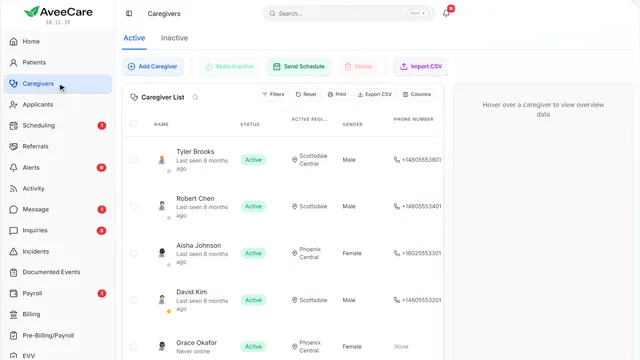
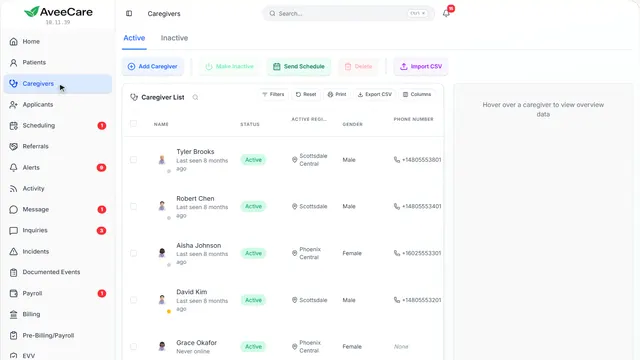
On the way: Import starts on your Caregivers page.
Your Caregivers page
Import is beside Add Caregiver at the top of the list.
In the sidebar under Caregivers.
On this page
Import from a spreadsheetA payroll export, or any CSV file
Exports from ADP, Gusto, Paychex and QuickBooks match on their own. Any other spreadsheet works too: you match its columns in the next step.
See how jumps ahead to part 2: Import caregivers from CSV.
Read the guideAdd one at a time insteadFor someone you just hired
Add Caregiver takes a name and a way to reach them, and the rest can wait.
See how plays the lesson Add a caregiver.
- 2
Import caregivers from CSV
Three steps: upload your file, match its columns to ours, then review every row before anything is saved.
Caregivers, then Import at the top of the list.
On this page
Upload your fileDrop it in, or click to choose it
Save your spreadsheet or payroll export as a CSV file and drop it here. Quoted fields, and commas inside them, are handled for you.
See how shows:
- Drop it here Or click to browse for the file.
Match the columnsYour column names, our fields
Next shows each of your columns beside the field it fills. Payroll exports are matched for you; change any match you like.
See how shows:
- Next Once your file is in, Next matches its columns.
Review, then importEvery row, before it is saved
The last step lists every caregiver it found, with anything that needs a look marked. Nobody is added until you import.
Read the guideSee how shows:
- It starts with your file Upload it here. Review & import is the third step, after your columns are matched.
At the end
Now you know how to import your caregivers
Watch next