AveeCare does not have a Users tab inside Settings. The canonical user and role table lives on the top-level Accounts page, and the per-user preferences that do live inside Settings are on the My Notifications tab. This article shows where each surface actually is so guides written against an older mental model do not send you in circles.
Quick answer
Open Settings and the tab strip reads Business Settings, My Notifications, Company Notifications, Subscription and Billing, Payment Integrations, Clearinghouse and Claims, Payroll, Locations, API Keys, and Account. There is no Users tab. For the user and role roster, open Accounts from the left sidebar. For your own notification preferences, use the My Notifications tab inside Settings.
What this covers and what it does not
This page is for readers who searched for a Users settings tab in AveeCare. It records the actual layout so you stop hunting for a tab that is not there. For the table itself and what each column means, read User and access account list. For inviting a teammate, read Invite a user. For the role rules attached to each account, read Roles and permissions.
1. Open Settings and scan the tab strip
Click Settings in the left sidebar.
The page opens on the Business Settings tab. The full tab strip is Business Settings, My Notifications, Company Notifications, Subscription and Billing, Payment Integrations, Clearinghouse and Claims, Payroll, Locations, API Keys, and Account. There is no Users tab in this strip, and that is intentional. The user roster moved to the top-level Accounts page so it sits alongside the rest of your audit surface.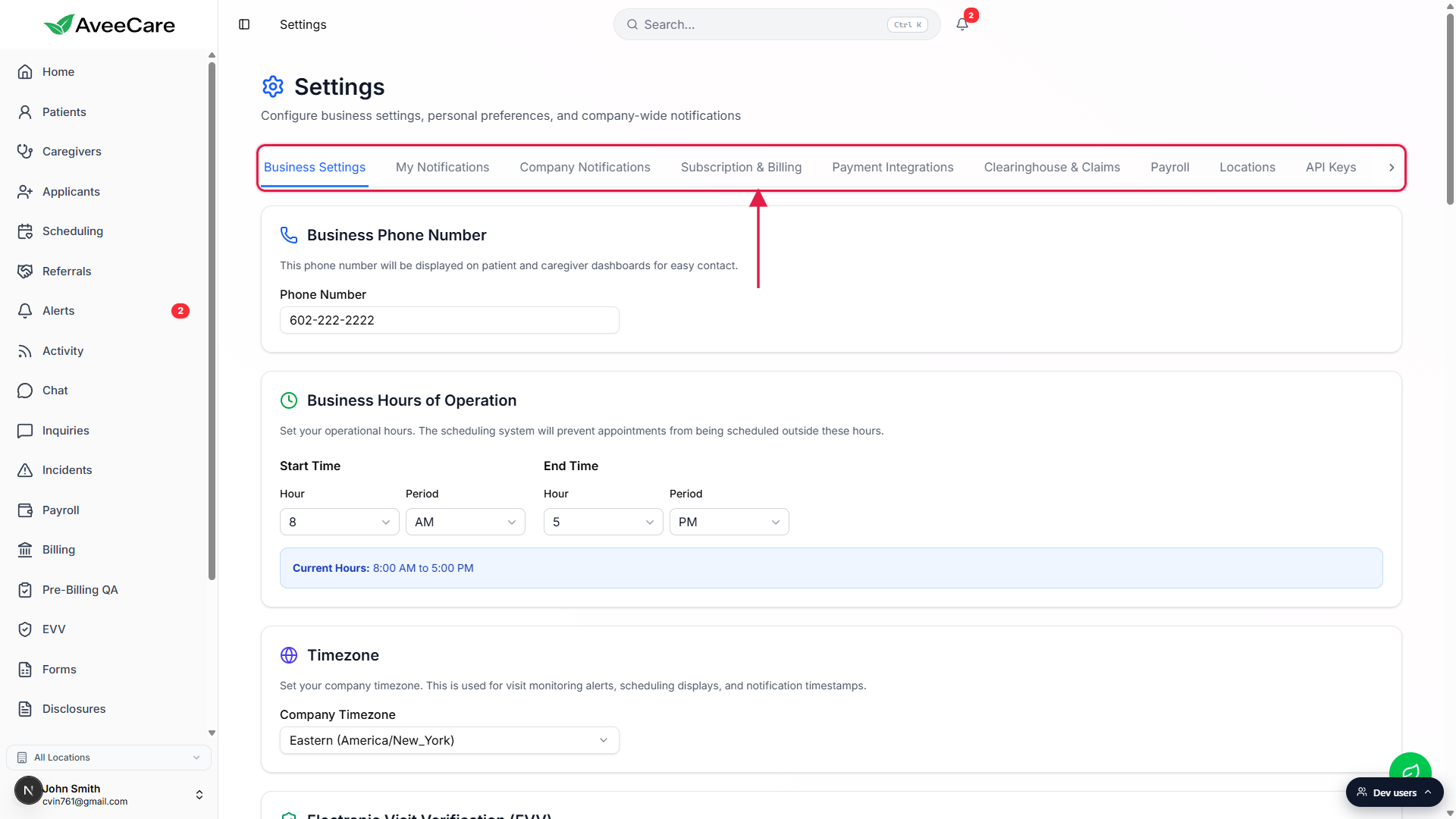
Confirm there is no Users tab anywhere in Settings.
If a third-party guide or a competitor screenshot suggests a Settings > Users tab in AveeCare, that guide is out of date. Direct the link to Accounts instead.
2. Go to Accounts for the user roster
Click Accounts in the left sidebar.
The Accounts page has three action cards at the top: Create User for an employee login, Link Caregiver to attach a login to an existing caregiver profile, and Link Patient to attach a login to an existing patient or family member. Below the cards is the Account List table with one row per account.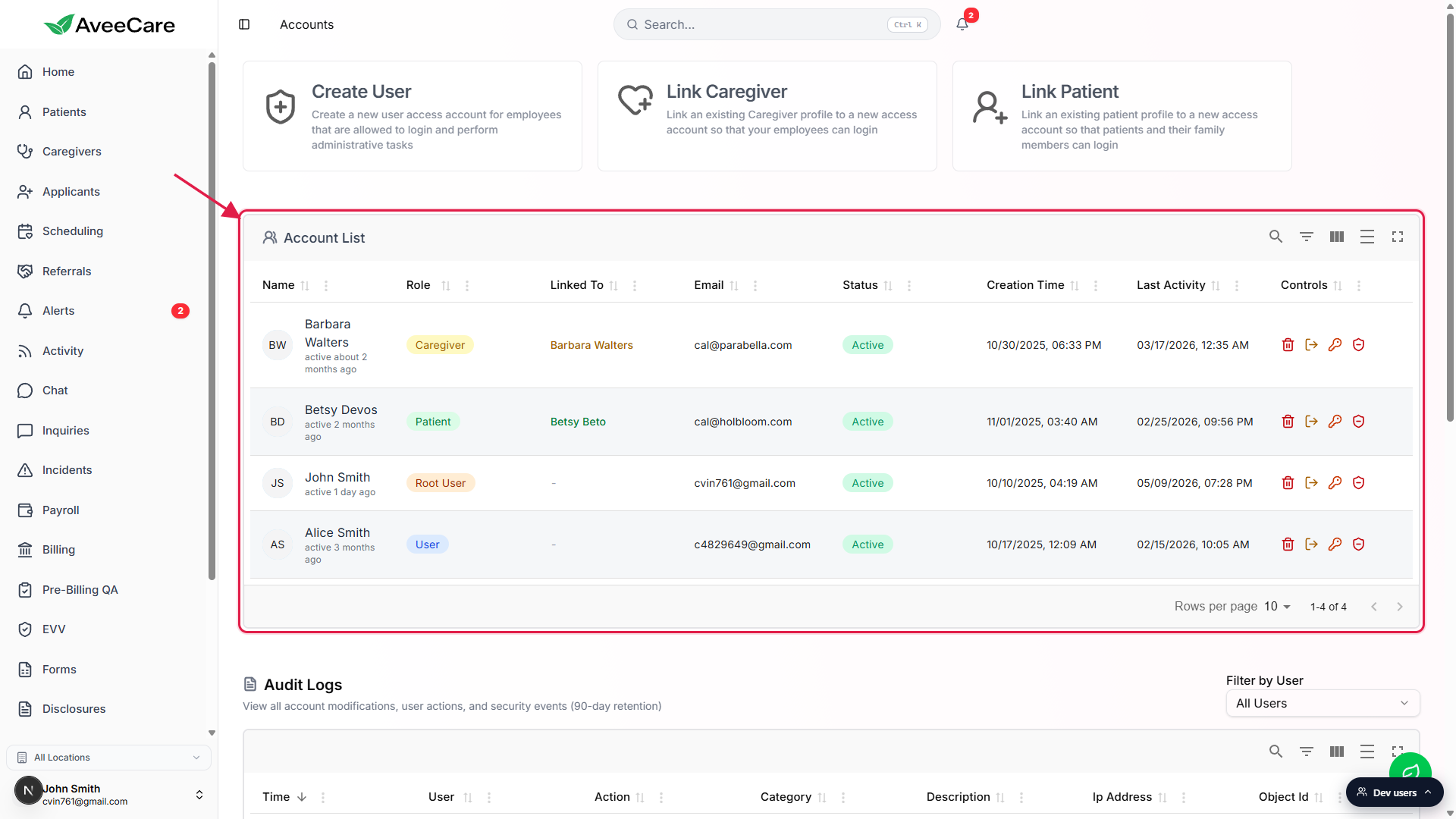
Read the columns for each account.
The Account List columns are Name, Role, Linked To, Email, Status, Creation Time, Last Activity, and Controls. Roles include Root User, User, Caregiver, and Patient. The Linked To column points at the underlying caregiver or patient profile when one is attached. Active status and last-activity timestamps make it the right place for an audit walkthrough.Scroll past the Account List to see Audit Logs.
Beneath the table is an Audit Logs panel that records account modifications, user actions, and security events for the past 90 days. Filter by user from the dropdown on the right of the panel.
3. Use My Notifications for per-user preferences
Inside Settings, click the My Notifications tab.
My Notifications is the one surface inside Settings that is scoped to the signed-in user, not the company. Anyone in the agency can open it and tune their own preferences. The card at the top is titled Your Personal Notifications, and the toggles below control Email Notifications and Push Notifications independently.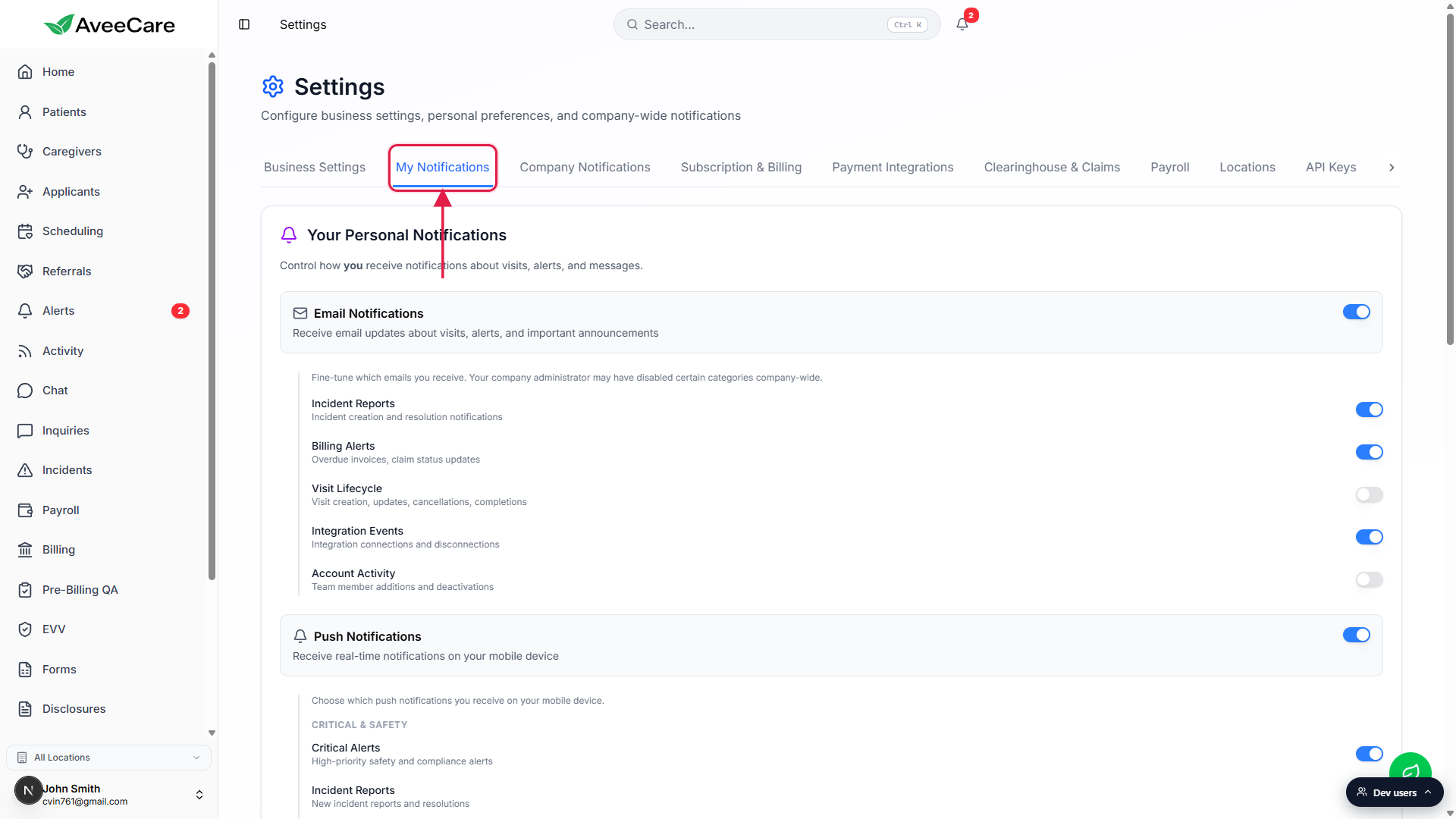
Toggle Email Notifications and Push Notifications independently.
Email is broken out into Incident Reports, Billing Alerts, Visit Lifecycle, Integration Events, and Account Activity. Push is grouped under Critical and Safety, Staff and Patients, and Financial, with rows for things like Critical Alerts, EVV Validation Failures, Staff Changes, Patient Changes, Applicant Updates, Billing Failures, Payroll Failures, and Insurance Claim Failures. Your company administrator can disable an entire category company-wide from Company Notifications, and the disabled row will be greyed out for you.For company-wide rules, read Notification settings.
The right-hand tab, Notification settings, covers the Company Notifications tab and the rules an admin sets for the whole agency. My Notifications only controls your own inbox and phone.
Common pitfalls
- Looking for Settings and then Users. There is no Users tab inside Settings. The roster is on the top-level Accounts page in the left sidebar.
- Assuming /settings/users is a valid route. The URL resolves but the page renders an empty Settings shell with no Users body. Use /accounts instead.
- Confusing My Notifications with Company Notifications. My Notifications is scoped to your own account. Company Notifications is the company-wide rules tab that only a Root User or an admin should be changing.
- Trying to invite a teammate from Settings. Invites start from the Accounts page using the Create User card, not from anywhere inside Settings.
- Looking for roles or permissions in Settings. Roles are set per-account from the Accounts row controls. The permission rules attached to each role are documented in Roles and permissions, not edited from Settings.