Office Locations lets a multi-office agency keep each branch as its own record with its own address and phone, and pick one as the agency-wide default. Staff and patients can be assigned to any office, and reports and lists filter on that assignment.
Quick answer
Open Settings, click the Locations tab, then use Add Office to create one. Each office card has Assign, Edit, and a red delete icon. Promote-to-default lives inside the Edit modal as the Default Office toggle. Changes save the moment you click Create Office or Update Office; there is no tab-level save button.
1. Open Settings and click the Locations tab
Click Settings in the sidebar.
Settings opens on Business Settings by default. The Locations tab is near the right side of the tab strip, between Payroll and API Keys. On smaller screens you may need the right scroll-arrow on the tab strip to bring it into view.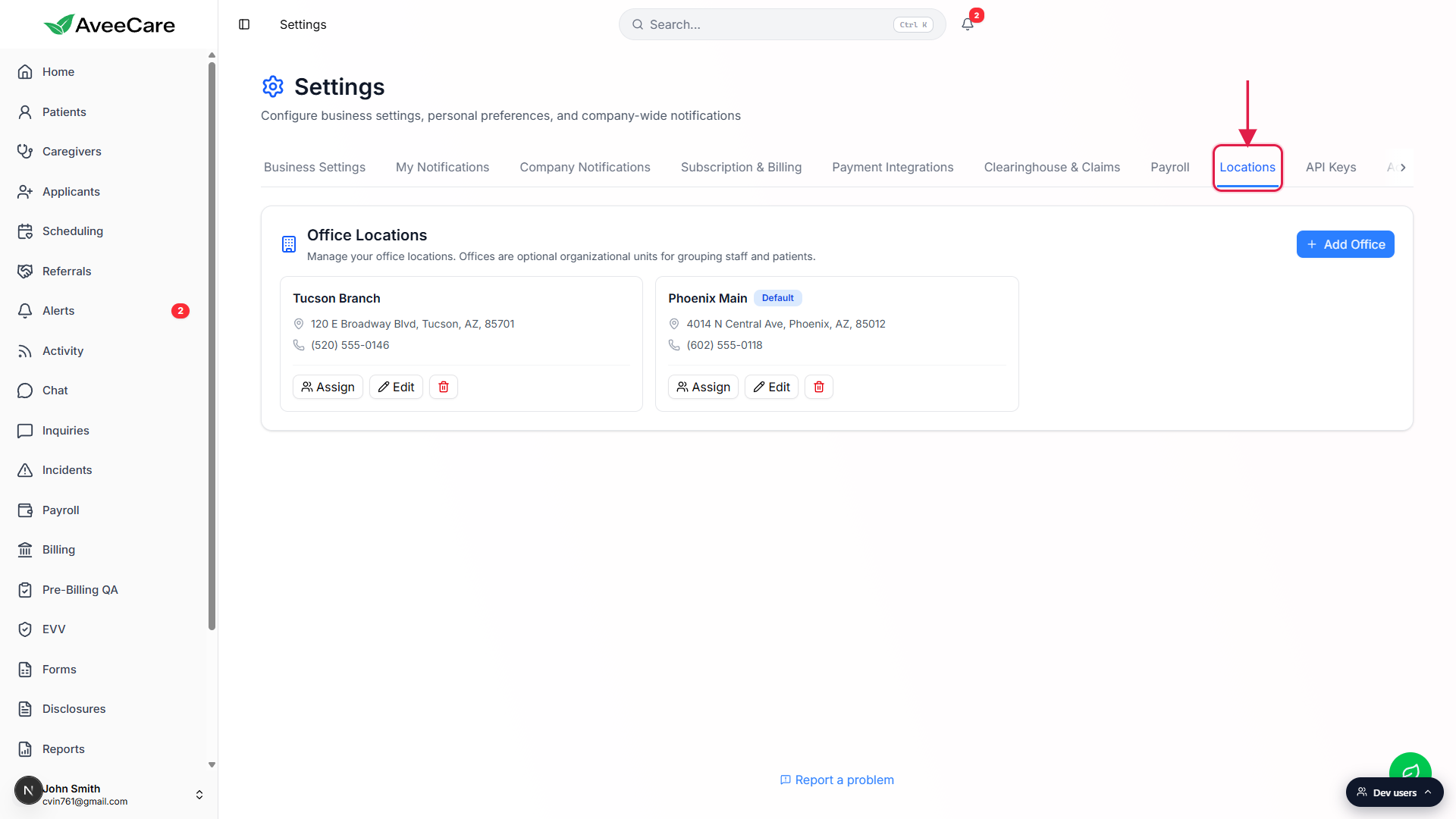
Land on Office Locations.
The tab body is one card titled Office Locations with a short helper line that reads “Manage your office locations. Offices are optional organizational units for grouping staff and patients.” New tenants see an empty state with No offices yet and a prompt to add your first one.
2. Add an office with the Add Office button
Click Add Office in the top-right of the Office Locations card.
An Add Office dialog opens with one required field, Name, and five optional fields: Address, City, State, Zip Code, and Phone. The Default Office toggle at the bottom marks the new office as the agency-wide default.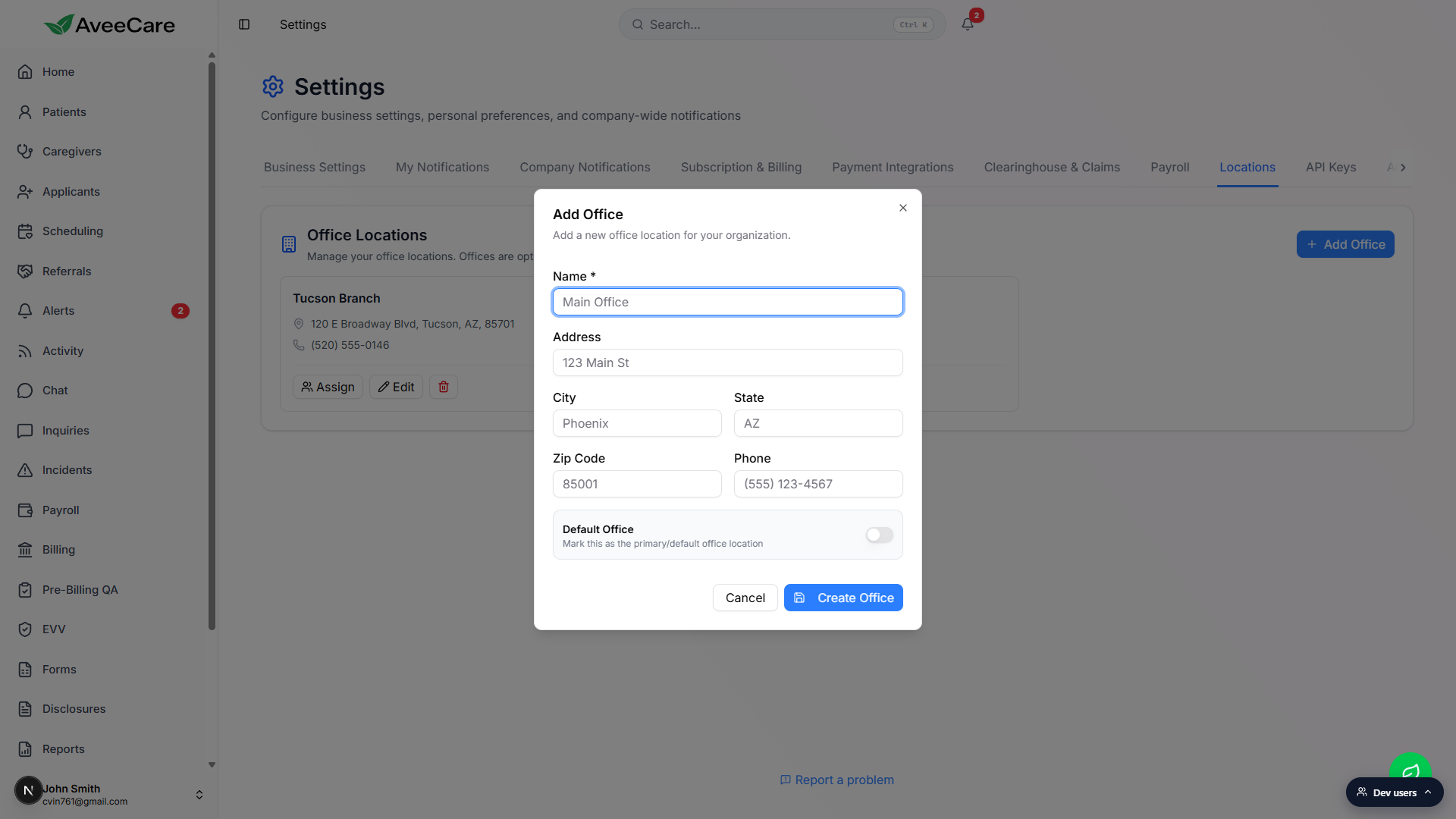
Fill in Name and the address fields, then click Create Office.
Only Name is required. The address is what shows on the office card and is geocoded for the activity map. Phone is the branch-level number for that office, separate from the tenant-wide Business Phone Number on Business Settings.The new office card appears in the grid.
Cards lay out three across on a wide screen, two across on medium, and one across on mobile. Each card shows the name, address (with a pin icon), and phone (with a phone icon). If the office has assigned patients or caregivers, a third line shows the count.
3. Rename, edit, or delete an existing office
Use the Assign, Edit, and red trash buttons at the bottom of each card.
Assign opens a modal where you check or uncheck patients and caregivers to move them in or out of this office. Edit reopens the same dialog you used to create the office, prefilled, including the Default Office toggle. The red trash icon deletes; AveeCare asks for confirmation inline (Confirm or Cancel) before it actually removes the record.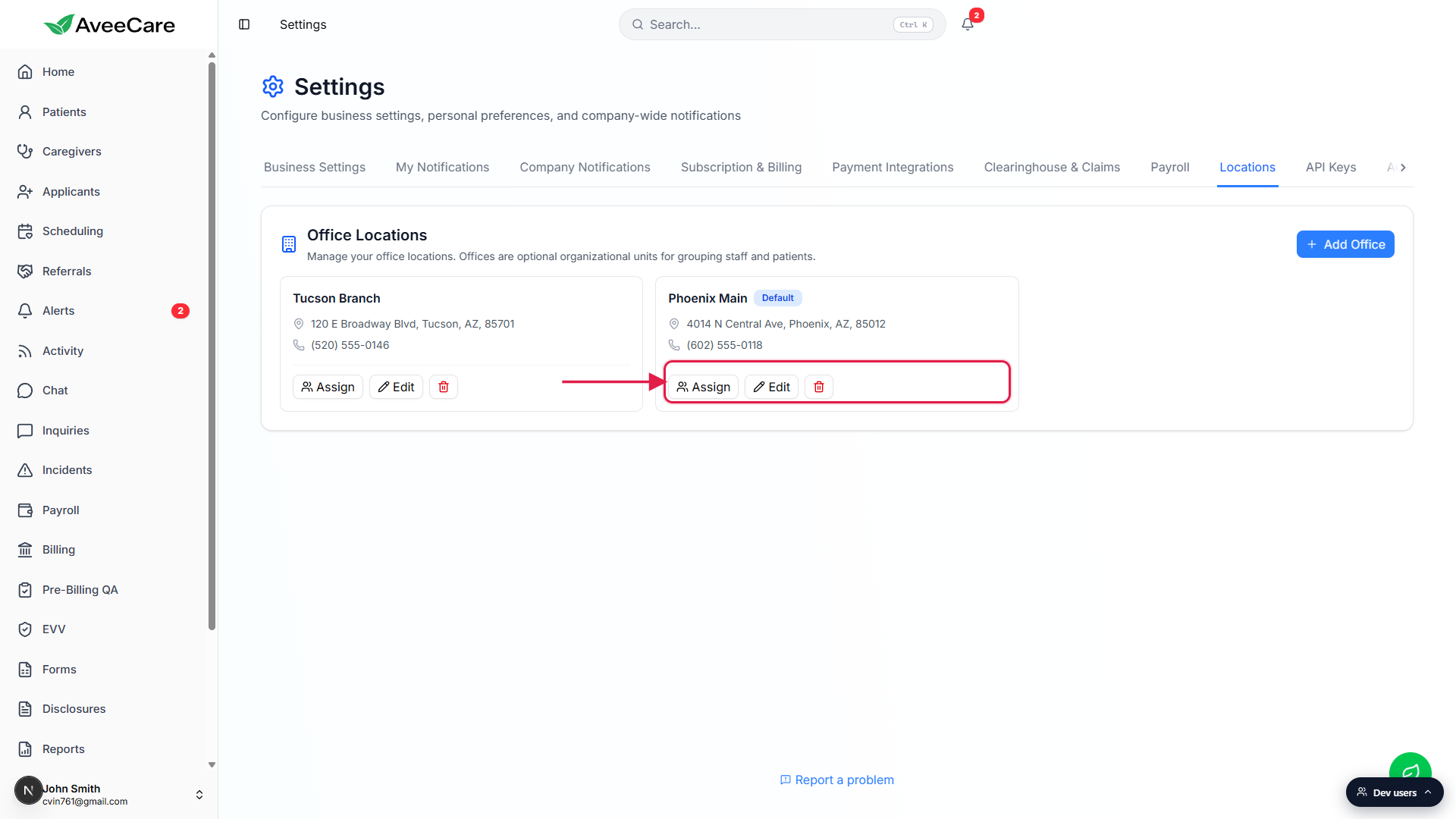
Deletes are blocked while staff are still assigned.
If patients or caregivers are still pointing at this office, the delete fails with a toast that reads “Cannot delete office: N patients and M caregivers still assigned to this office. Reassign them first.” Use Assign on the office card to move them off first, then retry the delete.
4. Promote an office to Default
Click Edit on the office you want to promote.
The same dialog you used to create the office opens, this time with all the existing values filled in.Flip the Default Office toggle on, then click Update Office.
Only one office can be the default at a time, so promoting one automatically demotes the previous default. A small blue Default badge appears next to the name on the card. The default office seeds the office field on new patient and caregiver records and is the fallback whenever a list filters by office without a specific selection.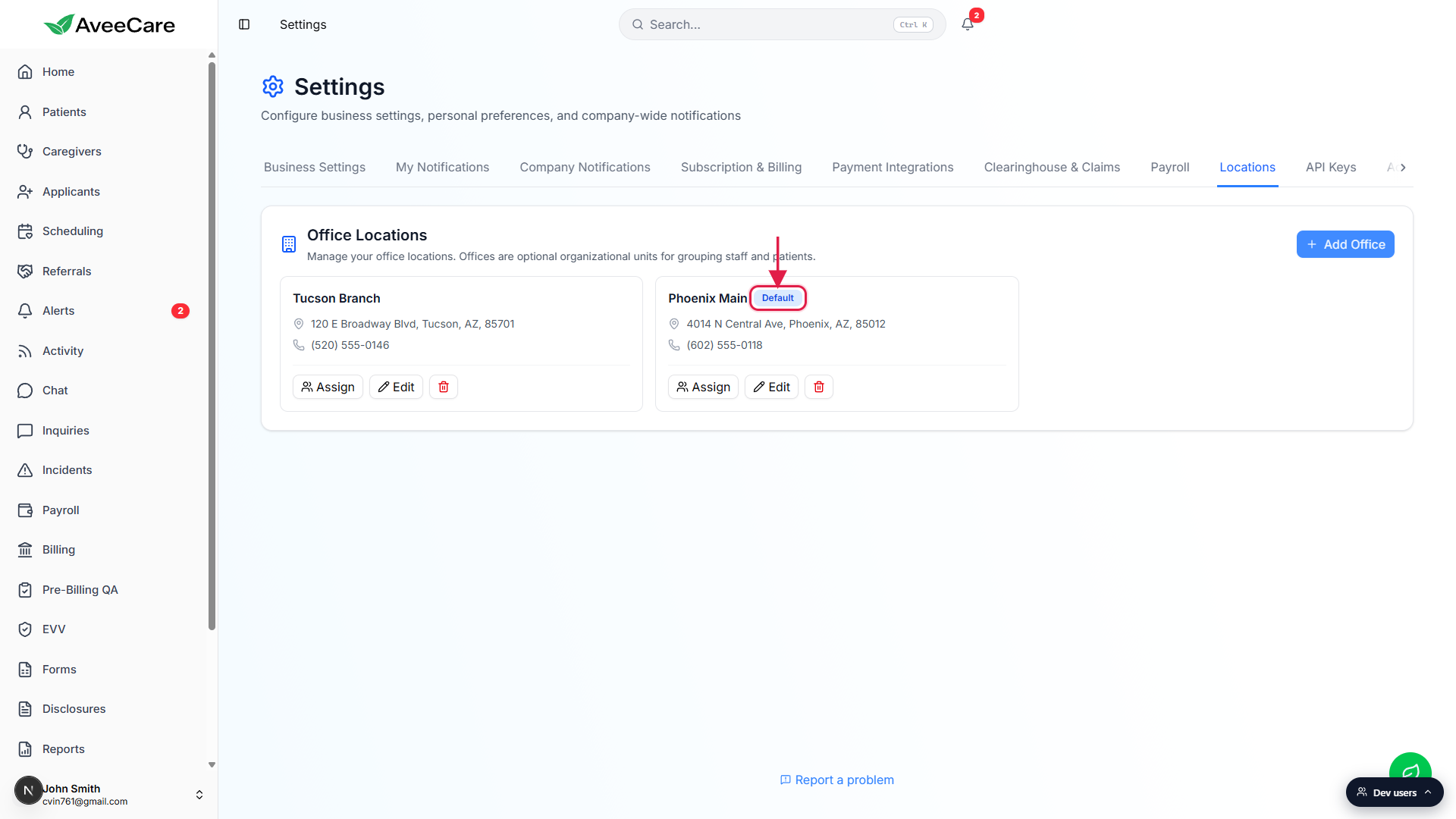
Common pitfalls
- Looking for an Offices tab. The tab is labeled Locations, not Offices. The card title inside it reads Office Locations, which is what the rest of the app calls the same concept.
- Trying to delete an office that still has staff. AveeCare refuses the delete and tells you exactly how many patients and caregivers are still assigned. Use the Assign button on the card to move them off first.
- Expecting one Save button at the bottom of the tab. Unlike Business Settings, the Locations tab saves per office. Each Create Office or Update Office click is its own transaction. There is no tab-level save.
- Forgetting to update the default after a move. The default office seeds the office field on every new patient and caregiver. If your headquarters changes branches, promote the new one first, otherwise new records keep landing under the old default.
- Confusing office Phone with Business Phone. The phone field on the office card is the branch number for that one office. The agency-wide Business Phone Number lives on the Business Settings tab and is what patients and caregivers see on their dashboards.