Default Billing Settings is the agency-wide block of invoice values every new patient inherits: payment terms, invoice prefix, default tax rate, an overdue warning window, and the company-wide auto-bill toggle. Per-patient overrides live on the patient Billing tab and beat these defaults whenever a real invoice is generated.
Quick answer
Open Settings, click the Payment Integrations tab, scroll past the Stripe, QuickBooks, Square, and PayPal sections to the Default Billing Settings card. Set Default Payment Terms, Invoice Prefix, Default Tax Rate, and Overdue Warning. Flip the Tax Exempt and Auto-Bill Visits toggles if you want them on, then click Save Billing Settings at the bottom of the card.
1. Open Settings and click the Payment Integrations tab
Click Settings in the sidebar, then click the Payment Integrations tab.
Settings opens on Business Settings by default. The Payment Integrations tab sits to the right of Subscription & Billing in the tab strip. On narrow screens use the right scroll-arrow on the tab strip to bring it into view.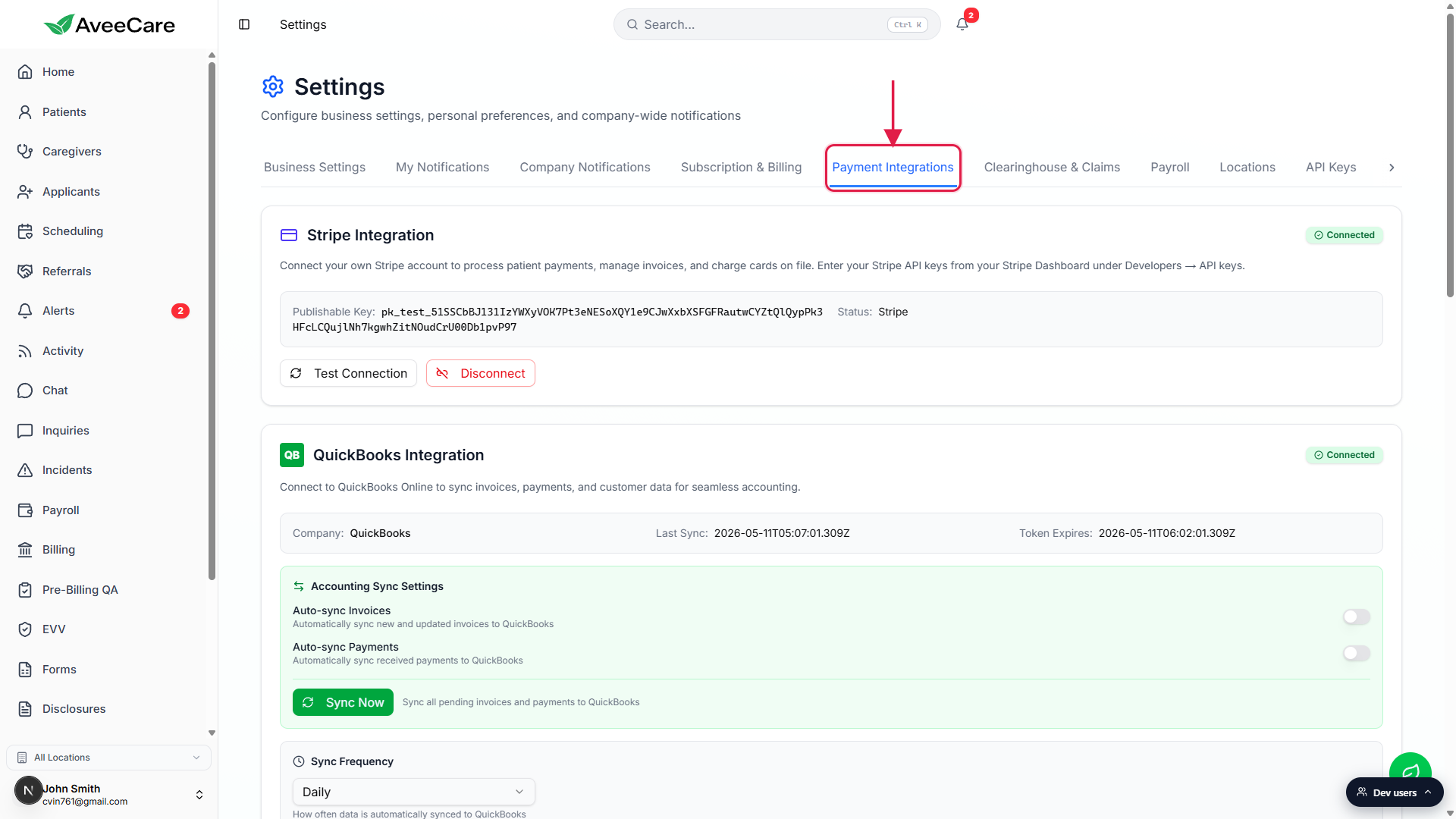
Scroll past Stripe, QuickBooks, Square, and PayPal to the Default Billing Settings card.
The Default Billing Settings card lives below the four payment-processor sections, just above Billing Rates. It is the card titled Default Billing Settings with a green dollar-sign icon and a helper line that reads “Configure company-wide default settings for invoicing and billing.”
2. Fill in the Default Billing Settings card
Pick Default Payment Terms.
The dropdown ships with five choices: Due on Receipt, Net 15, Net 30 (the default for new tenants), Net 45, and Net 60. The value you pick stamps the due date on every new invoice as invoice date plus the chosen number of days.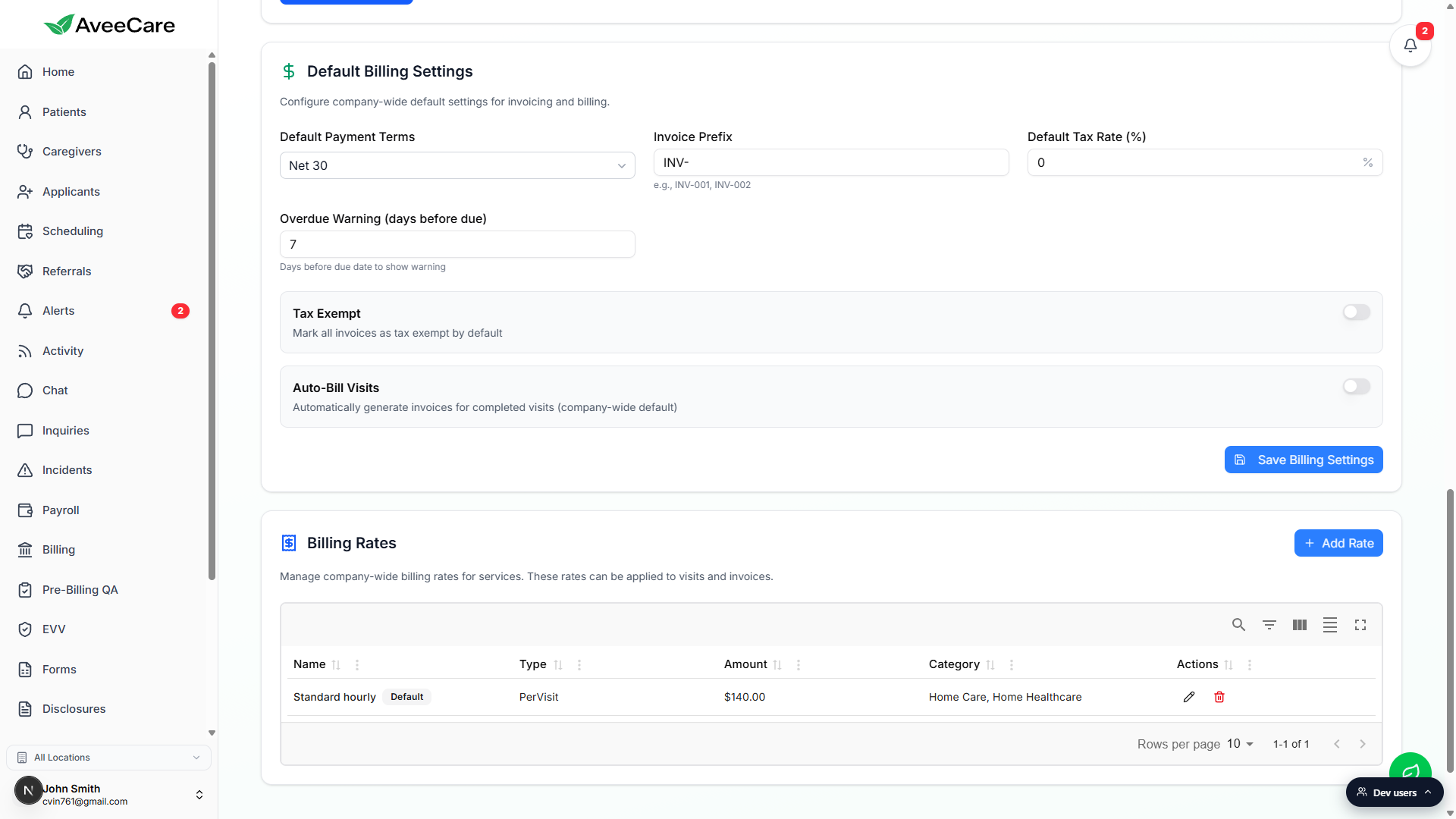
Set Invoice Prefix.
Default isINV-. The prefix is prepended to every new invoice number, for exampleINV-001,INV-002. Year-stamped prefixes likeINV-2026-are valid; AveeCare keeps appending the next sequence number regardless of what you put here.Type a Default Tax Rate percentage and an Overdue Warning value.
Default Tax Rate is a single number, percent. Leave it at 0 if your services are tax-free across the board. Overdue Warning (days before due) controls how many days ahead of an invoice due date the dashboard starts flagging it as nearly overdue; default is 7.
3. Flip the Tax Exempt and Auto-Bill Visits toggles
Tax Exempt marks every new invoice as tax-exempt by default.
Use this when your agency only bills Medicaid or other tax-exempt payers. Default Tax Rate still saves its value; Tax Exempt simply skips applying it on each new invoice. Per-patient or per-invoice overrides can still add tax later.Auto-Bill Visits flips the company-wide auto-billing default.
When this toggle is on, completed visits roll into draft invoices automatically on the cadence configured in your billing rules. Off (the default) leaves invoice creation manual. Either way, individual patients can override the setting on their patient Billing tab.
4. Click Save Billing Settings
Click Save Billing Settings in the bottom-right of the card.
A success toast confirms the save, and the values stay applied to every new patient and visit created after that point. Existing invoices and patient overrides are not changed; the defaults only seed new records.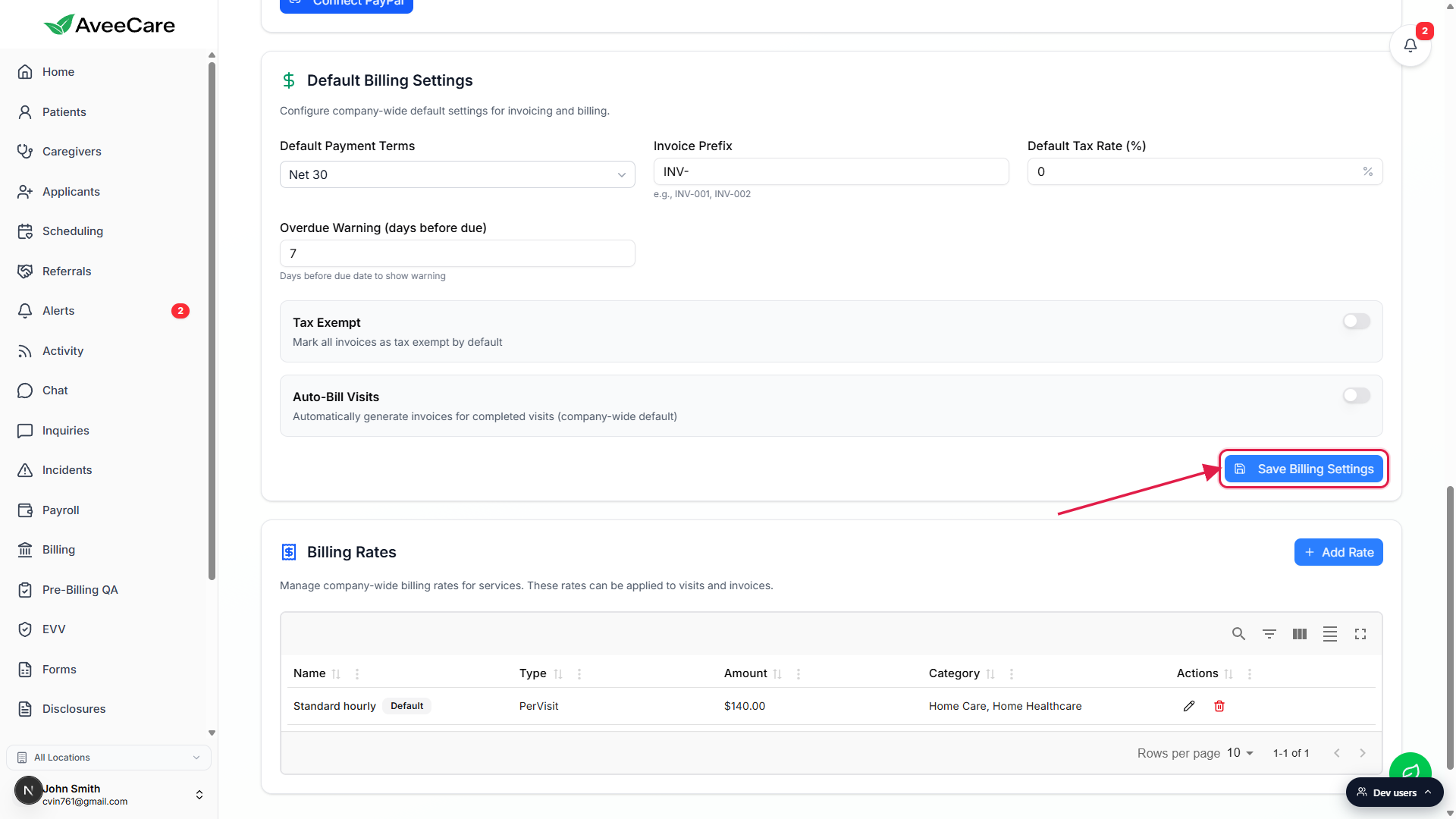
Common pitfalls
- Looking for a Billing Defaults tab. There is no standalone Billing Defaults tab in Settings. The card lives on the Payment Integrations tab, after the four payment-processor sections. The tab strip label is Payment Integrations, the card inside it is Default Billing Settings.
- Expecting these values to rewrite existing invoices. Saving new defaults only seeds new patients and new invoices. Open invoices keep their existing payment terms, prefix, and tax. To retroactively change a single invoice, edit it on the Billing tab.
- Changing the Invoice Prefix mid-year. AveeCare accepts the change and applies it to new invoices going forward. Older invoices keep their original numbers. If you want a clean break, change the prefix at the start of a billing period and warn anyone reading invoice numbers in your accounting system.
- Confusing Auto-Bill Visits with Medicaid claims. Auto-Bill Visits creates patient-pay invoices on a cadence. Medicaid and other insurance claims go through Claim Presets and the Clearinghouse & Claims tab, not the Default Billing Settings card.
- Forgetting to click Save Billing Settings. The card only saves when you press the button at the bottom-right. Switching tabs or navigating away with the toggles flipped but unsaved silently discards the change.