A claim preset is a saved bundle of CMS-1500 line-item values for one service type: procedure code, modifiers, and diagnosis codes. Each preset pre-fills those fields whenever you generate a claim for that service type, so the same codes do not have to be retyped per visit.
Quick answer
Open Settings, click Clearinghouse & Claims, scroll to the Billing Defaults card, and click Add Preset. Pick a Service Type, type the Procedure Code, the Modifiers, add one or more Diagnosis Codes, then click Create Preset. Repeat for every service type your agency bills.
Manual vs Learned presets
Every preset in Billing Defaults has a Source badge:
- Manual. A preset you created in this card. It stays in place until you edit or delete it.
- Learned. A preset AveeCare added automatically from your past claim submissions for that service type. Learned presets can be promoted to Default or edited just like manual ones.
1. Open Settings and click the Clearinghouse & Claims tab
Click Settings in the sidebar, then click the Clearinghouse & Claims tab.
Settings opens on Business Settings by default. The Clearinghouse & Claims tab sits to the right of Payment Integrations in the top tab strip. On narrow screens use the right scroll-arrow on the tab strip to bring it into view.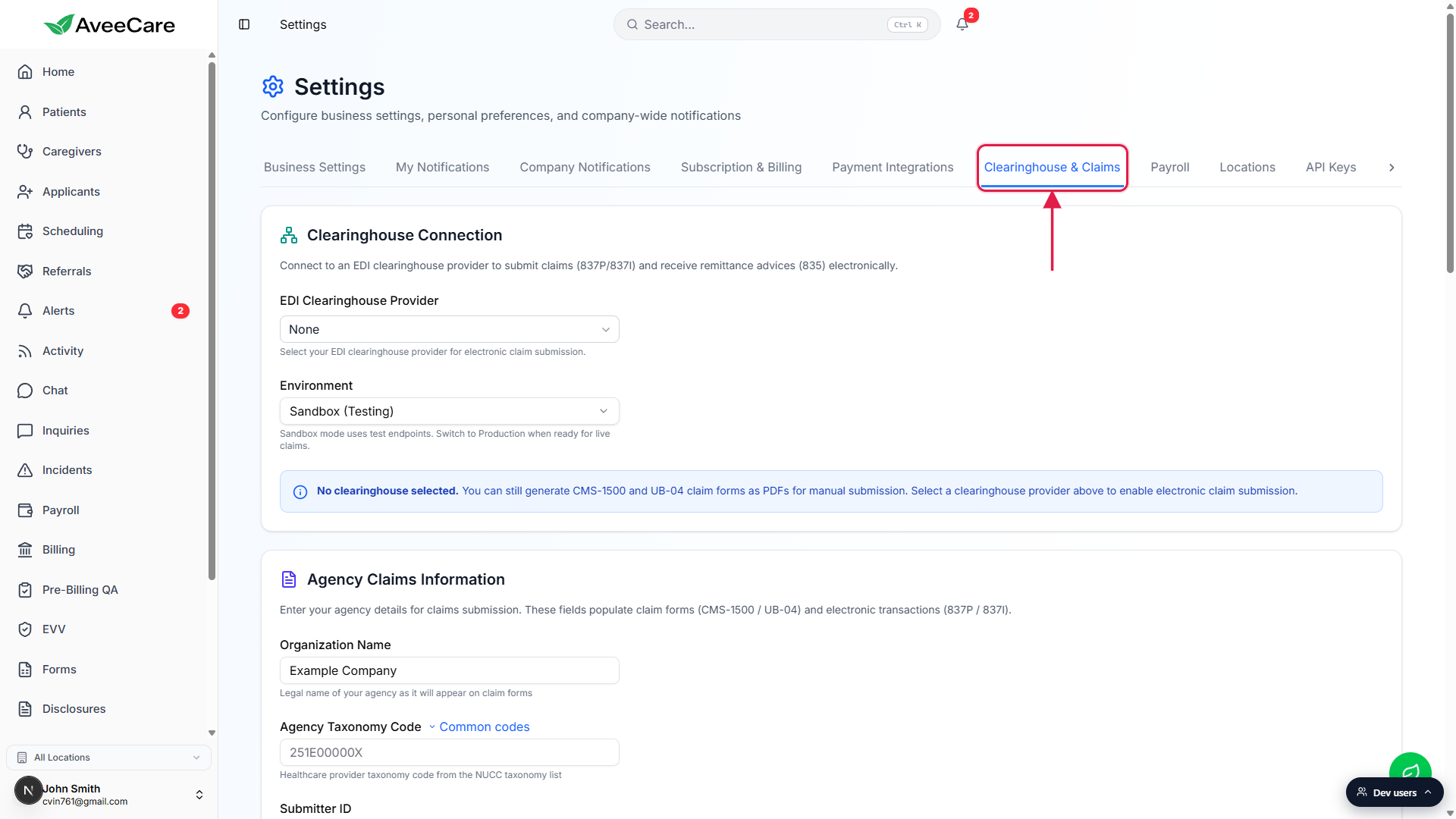
2. Scroll to Billing Defaults and click Add Preset
Scroll past Clearinghouse Connection, Agency Claims Information, and Payer Directory.
Billing Defaults is near the bottom of the tab, between Payer Directory and the Save Clearinghouse & Claims Settings button. The card header says Billing Defaults with the helper line “Manage default billing presets by service type.” With no presets saved yet, the card shows an empty state with a single Add Preset button.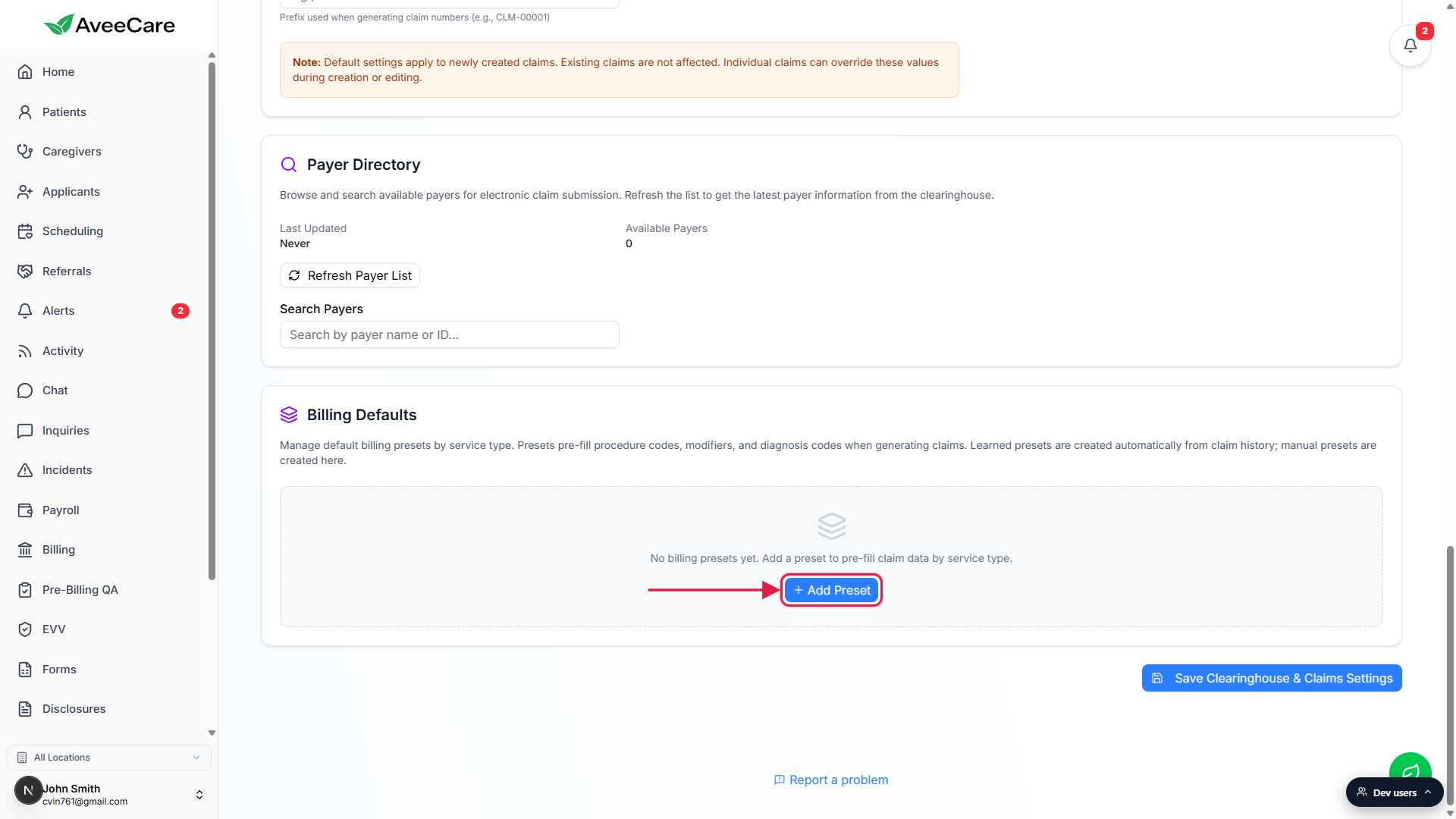
Click Add Preset to open the inline preset form.
The form drops in below the empty state and contains four fields: Service Type, Procedure Code, Modifiers, and Diagnosis Codes. Nothing is persisted yet; closing the form with Cancel discards the values.
3. Fill in service type, procedure code, modifiers, and diagnosis codes
Pick the Service Type from the dropdown.
Service Type is the only required field. The dropdown lists the service types your agency has configured, for example Skilled Nursing, Personal Care, or Companion Care. Each service type can have one Default preset plus any number of additional manual or learned presets.Type the Procedure Code.
CPT or HCPCS code, monospace, no spaces. Example:G0299for home health skilled nursing. The field accepts a single code; if a visit needs multiple lines, use Modifiers below or fall back to the CMS-1500 Advanced form per claim.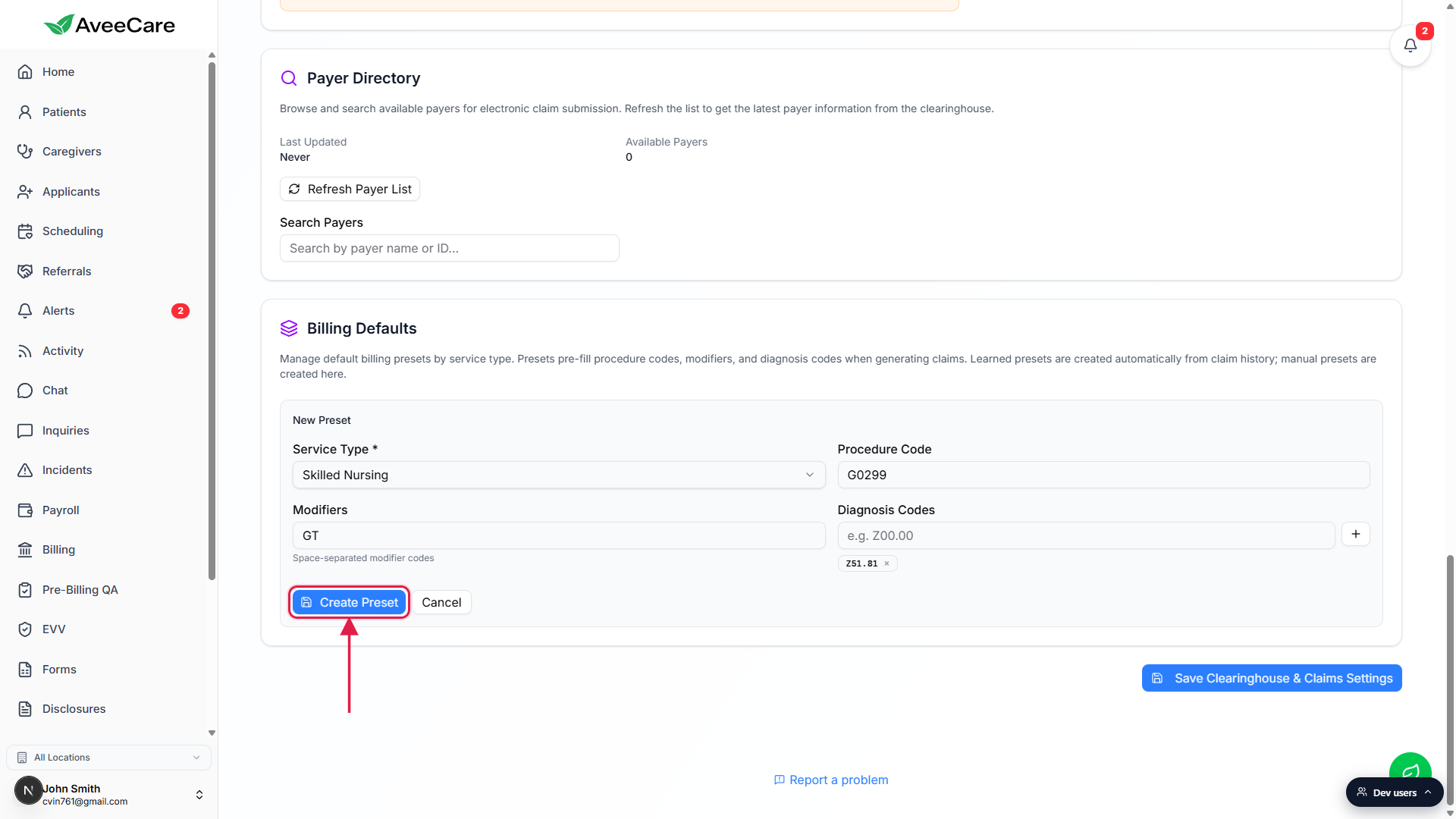
Add Modifiers (space-separated).
Modifiers go in the second field, separated by spaces. The helper text under the field reads “Space-separated modifier codes.” Common examples areGT(via interactive telecommunication),GP(under a physical therapy plan), orTH. Leave blank if the service type does not need one.Add Diagnosis Codes one at a time.
Type an ICD-10 code likeZ51.81in the Diagnosis Codes input and press Enter or click the + button to add it as a chip. Each chip has a small x to remove it. Add as many as the service type typically bills with; the wizard prepopulates them on every new claim for this service type.
4. Save the preset and set defaults per service type
Click Create Preset to save.
A row appears in the Billing Defaults table with the Service Type, Procedure Code, Modifiers, Diagnosis Codes as chips, a Source badge (Manual for ones you create, Learned for ones AveeCare derived from past claims), and an Actions cell with Default, edit (pencil), and delete (trash) buttons.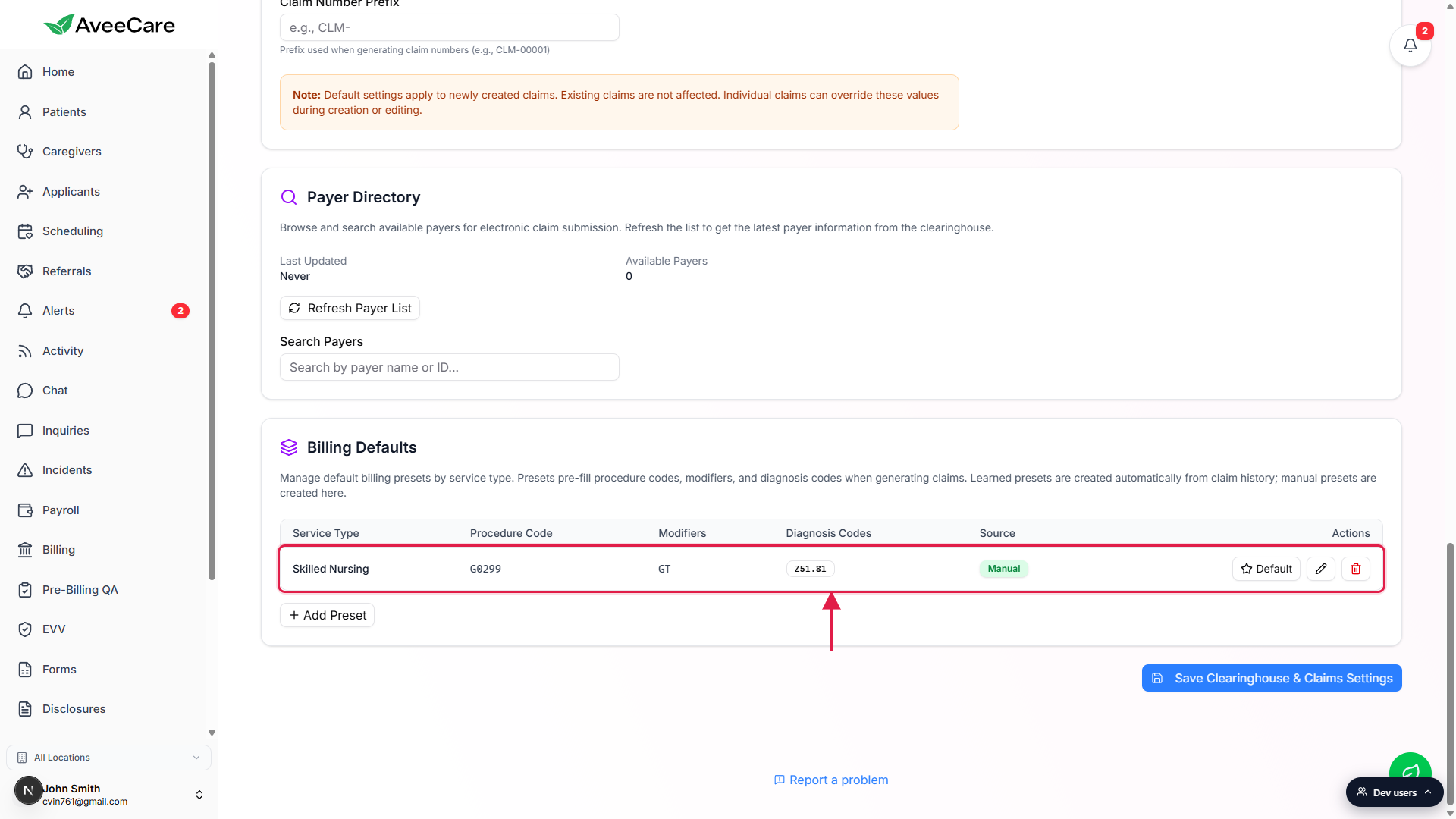
Click Default on the row to mark it as default for that service type.
Each service type can have exactly one Default. Clicking Default on a second row flips the Default flag off the previous row automatically; only the most recently chosen preset is highlighted with the purple Default badge. The default preset is the one the CMS-1500 wizard pre-fills first when a claim of that service type is created.Edit or delete rows as your codes change.
The pencil reopens the form with the row's values pre-filled and a Save Changes button. The trash button asks for a Confirm click before the row is removed. Edits take effect on the next claim generated for that service type; existing draft claims are not rewritten.
Common pitfalls
- Looking for a Claim Presets tab. There is no standalone Claim Presets tab. Presets live in the Billing Defaults card on the Clearinghouse & Claims tab, between the Payer Directory and the Save button.
- Confusing diagnosis codes with modifiers. Modifiers are the two-letter codes like
GTorGPthat ride alongside the procedure code. Diagnosis codes are ICD-10 values likeZ51.81. They live in different fields and are submitted in different CMS-1500 boxes. - Picking the wrong Service Type. Each preset is keyed to a single service type. A preset under Skilled Nursing will not pre-fill a Personal Care claim. If you bill the same code under multiple service types, create one preset per service type.
- Mistaking Learned for Manual. The blue Learned badge means AveeCare auto-derived the preset from past claims. You can still edit or set them as default, but they reappear on their own if the underlying claim history keeps producing the same pattern. Delete the underlying claim pattern, not just the preset, if you want it gone for good.
- Forgetting that defaults are per service type. Marking a Skilled Nursing preset as Default does not affect Personal Care defaults. Each service type carries its own Default, and only one row per service type can hold the badge at a time.
Related
Frequently asked questions
Z51.81 or Z00.00. Type one code at a time in the Diagnosis Codes input and press Enter or click the plus button to add it as a chip. Each chip has an x to remove it if you make a typo.GT for telecommunication, GP for a physical therapy plan).