The Payment Integrations tab in Settings is where you wire AveeCare to the payment processors and accounting tools that drive Billing. Stripe and Square handle card payments and OAuth-based payouts, PayPal accepts patient payments through API credentials, and QuickBooks Online keeps invoices, payments, and customer records in sync with your books.
Quick answer
Open Settings, click the Payment Integrations tab, and use the card for each provider. Each row has a green Connected or gray Not Connected pill on the right, a Connect button when disconnected, and a Test Connection plus Disconnect pair once the integration is live.
Providers on the Payment Integrations tab
Four providers ship in this tab today. Each one has its own card with a status pill and provider-specific connect flow:
- Stripe. Card payments and invoicing. Connect with a Publishable Key and Secret Key from your Stripe dashboard under Developers, API keys. The Test Mode toggle accepts sk_test_ and pk_test_ keys for sandbox accounts.
- QuickBooks. Accounting sync for invoices, payments, and customers. OAuth popup handshake to Intuit. Once connected, the card unfolds Accounting Sync Settings with Auto-sync Invoices, Auto-sync Payments, a Sync Now button, a Sync Frequency dropdown, and an Account Mapping section for your Revenue and Expense accounts.
- Square. OAuth-based card processing. Click Connect Square, approve on Square, and the row flips to Connected with the merchant ID and location name.
- PayPal. Patient payments through PayPal API credentials. Click Connect PayPal and paste the Client ID and Client Secret from your PayPal developer dashboard, with an optional sandbox toggle for testing.
Each connected card carries a Test Connection button so you can confirm the credentials are still valid without putting a real charge through, and a Disconnect button that opens a confirmation dialog before revoking the credentials.
1. Open Settings and switch to the Payment Integrations tab
Click Settings in the left sidebar, then click the Payment Integrations tab in the top tab strip.
The tab sits between Subscription and Billing and Clearinghouse and Claims. The page opens on Business Settings by default, so you have to click across the tab strip to land on Payment Integrations.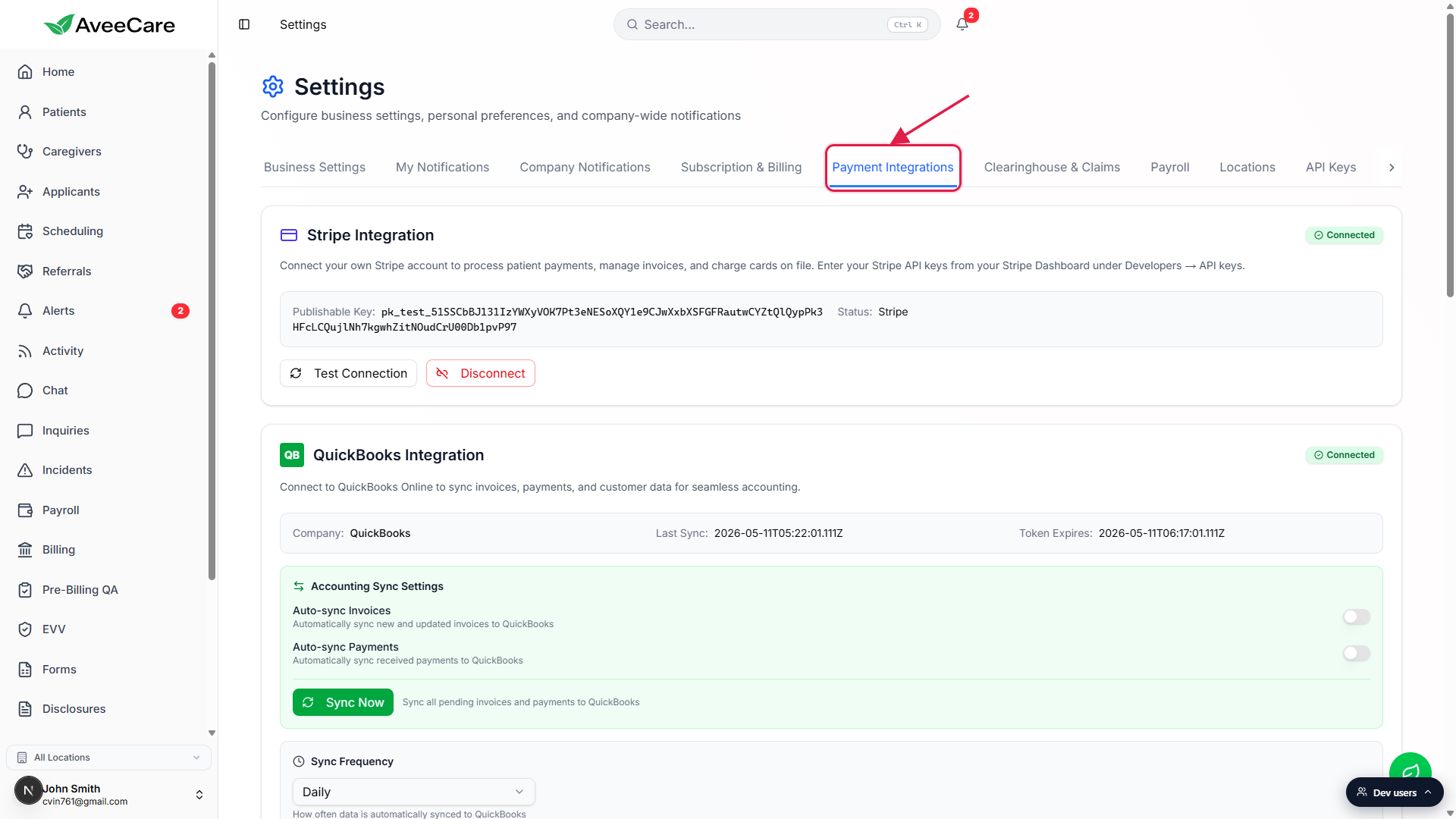
2. Connect Stripe with API keys
Click Connect Stripe on the Stripe Integration card.
The card unfolds into a form with Publishable Key and Secret Key fields and a Test Mode toggle. Open your Stripe dashboard at dashboard.stripe.com, go to Developers, API keys, and copy both values. Paste the Publishable Key (it starts with pk_live_ or pk_test_) and the Secret Key (sk_live_ or sk_test_). The Secret Key field is masked behind an eye toggle so it does not leak into screenshots.Flip Test Mode on for a sandbox account, off for a real account.
If you toggle Test Mode on, the form rejects keys that do not start with sk_test_ and pk_test_ with a toast. If Test Mode is off, the form accepts either live or test prefixes so you can flip between them while wiring things up.Click Connect at the bottom of the form.
The card flips to a green Connected pill, shows the Publishable Key under Publishable Key, and replaces the form with Test Connection and Disconnect buttons.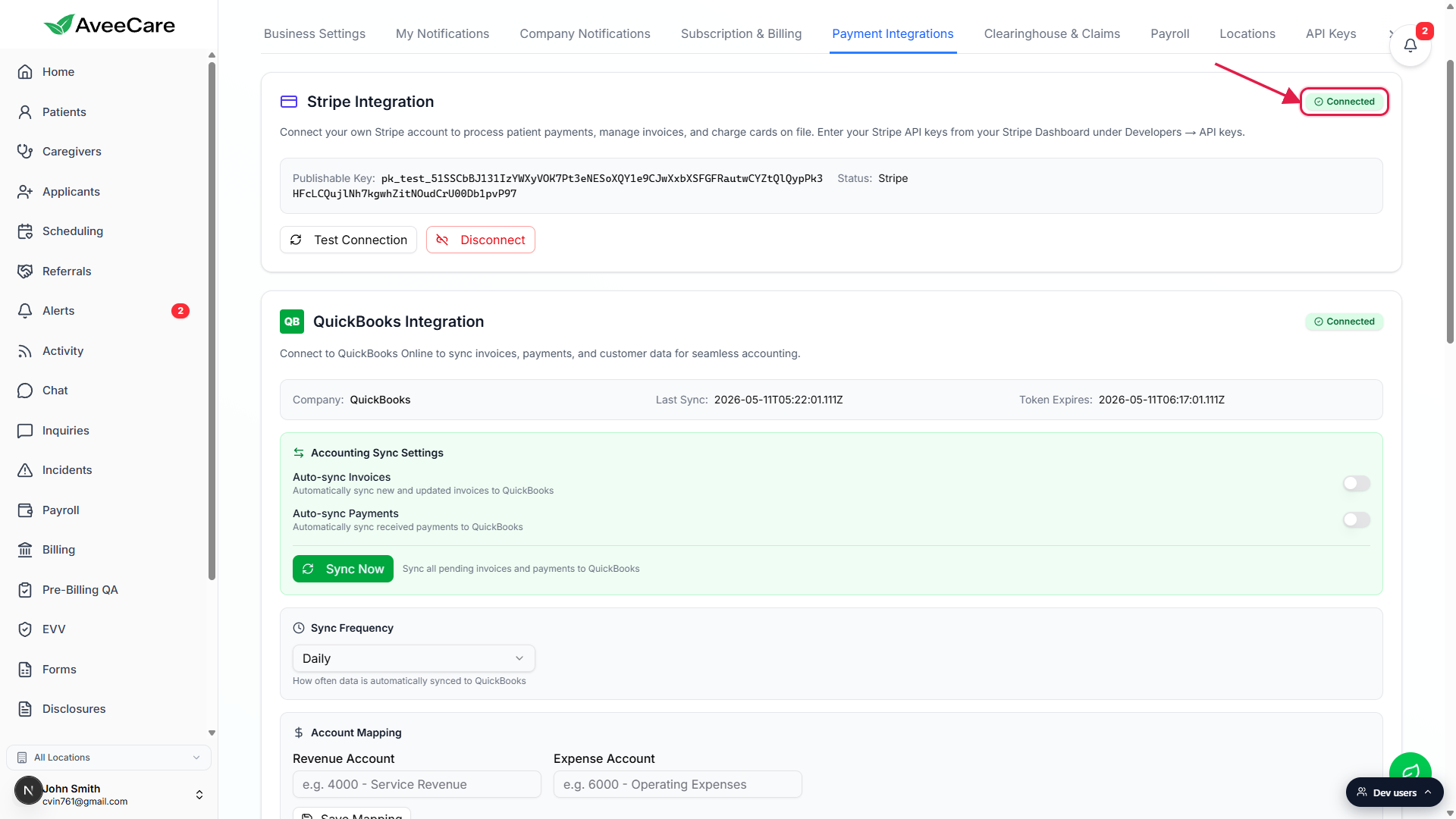
3. Connect QuickBooks for accounting sync
Click Connect on the QuickBooks Integration card.
A small OAuth popup opens at Intuit. Sign in to your QuickBooks Online company and grant AveeCare access to Invoices, Payments, and Customers. The popup closes automatically and the card refreshes to a green Connected pill with the company name, a Last Sync timestamp, and a Token Expires timestamp.Use Accounting Sync Settings to control automation.
The connected card expands with toggles for Auto-sync Invoices and Auto-sync Payments, a green Sync Now button that pushes everything pending right away, and a Sync Frequency dropdown (Daily is the default) for the background schedule.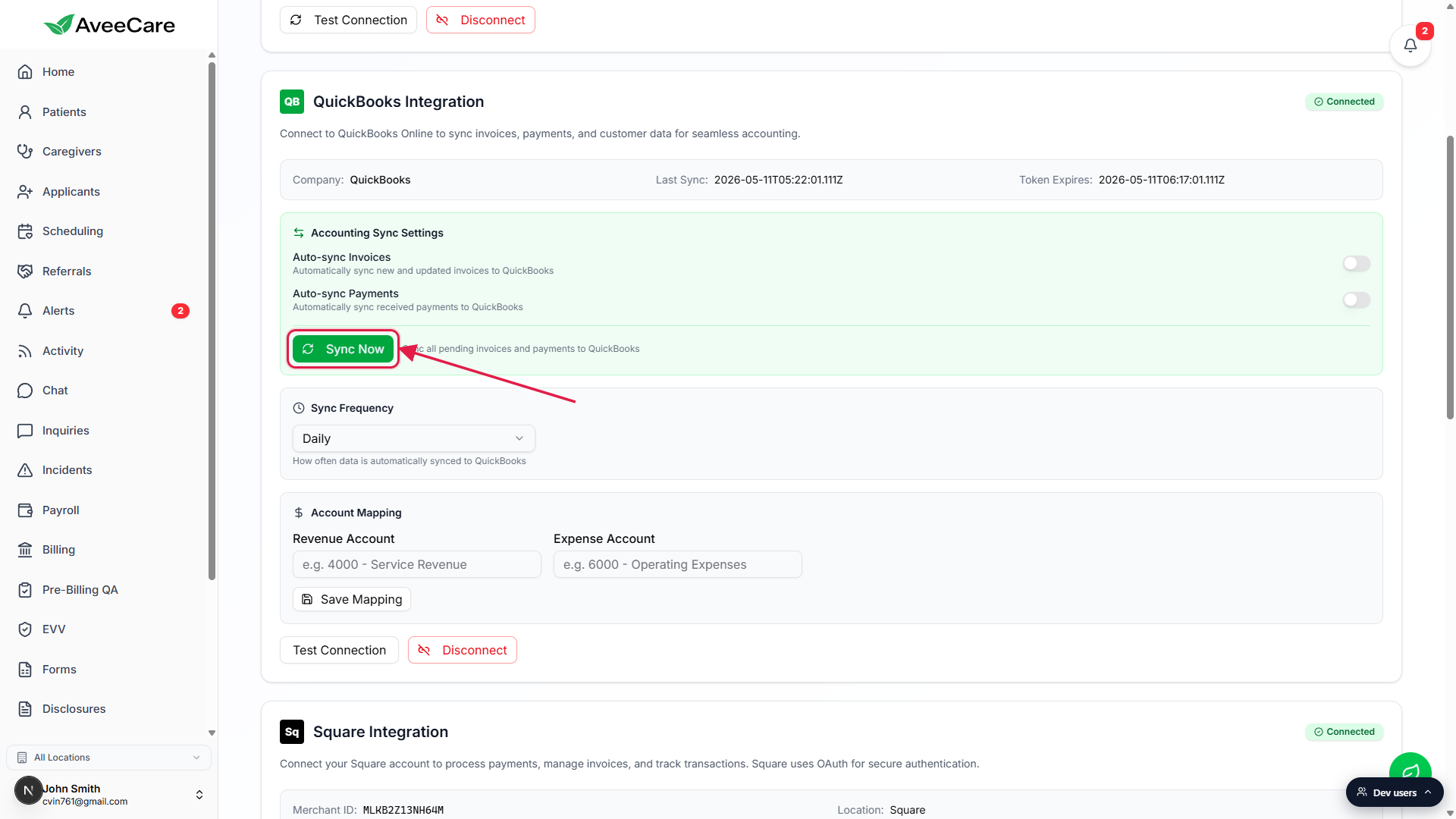
Map your Revenue and Expense accounts under Account Mapping.
Type or paste the QuickBooks Chart of Accounts entries you want AveeCare to post Revenue and Expense lines into. Click Save Mapping to commit them. Without a mapping, syncs still run but post to the QuickBooks default income and expense buckets.
4. Connect Square or PayPal
Square uses OAuth, PayPal uses API credentials.
On the Square Integration card, click Connect Square. You bounce to Square, sign in, approve the connection, and bounce back to Settings with a toast that reads Square account connected successfully. The card now shows the Merchant ID, the Location name, and the same Test Connection plus Disconnect pair as the other connected cards.Click Connect PayPal on the PayPal Integration card.
The card unfolds into a form with Client ID, Client Secret, PayPal Email, and a Sandbox toggle. Paste the Client ID and Client Secret from your PayPal developer dashboard at developer.paypal.com under Apps and Credentials. Toggle Sandbox on for testing accounts. Click Connect to save.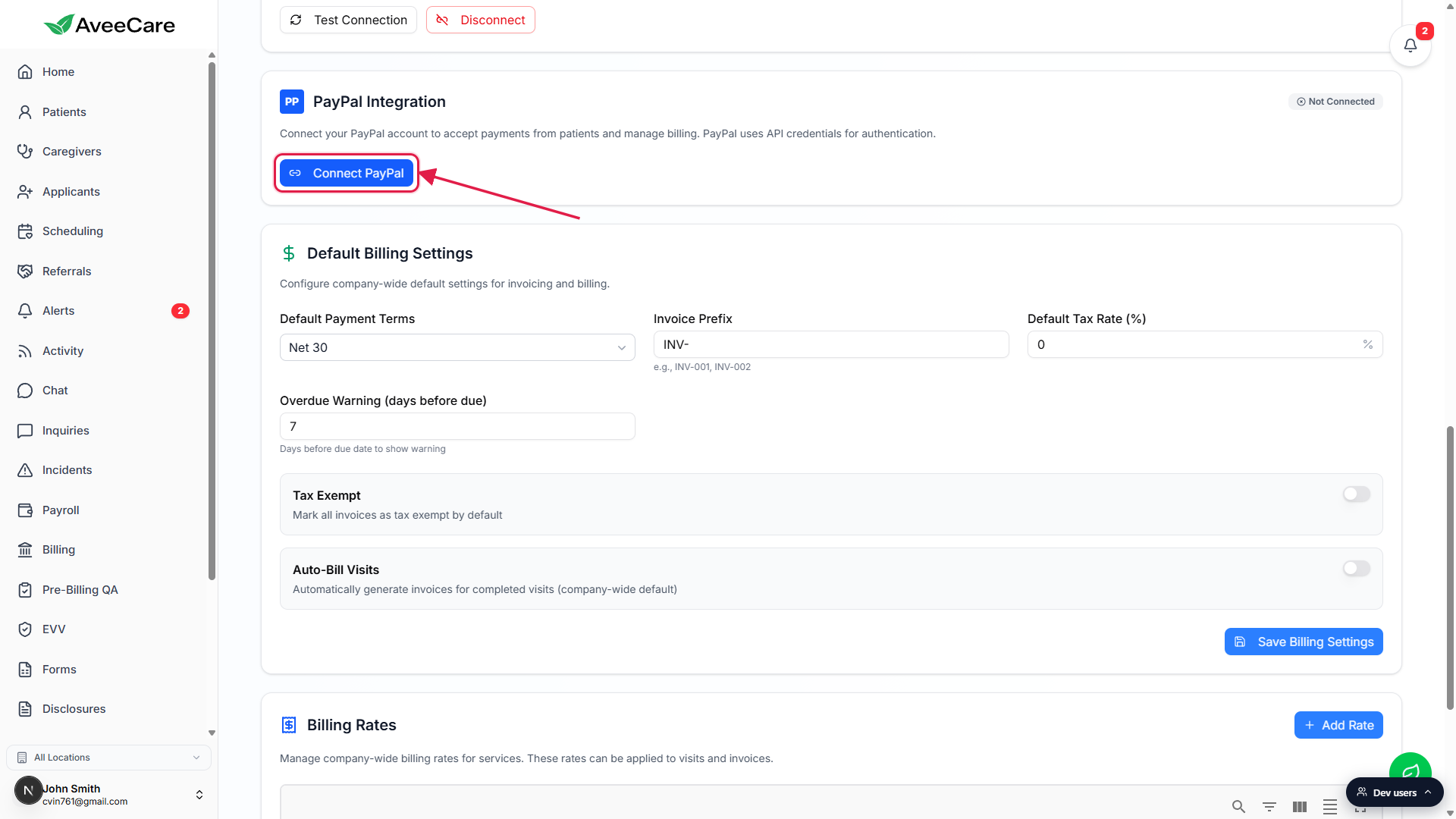
Use Test Connection on any connected card before live use.
Test Connection fires a no-charge round trip to the provider and shows a green toast if the credentials are valid. Run it once after each new connection and anytime a real Billing or Invoice attempt fails for an auth-looking reason.
Common pitfalls
- Wrong key prefix on Stripe. Test Mode on rejects sk_live_ and pk_live_ keys, and Test Mode off rejects keys that do not start with sk_ or pk_ at all. The form surfaces the mismatch with a toast that names the expected prefix. Paste from the right Stripe environment.
- OAuth popup blocked. The QuickBooks and Square connect flows open in a browser popup. If your browser blocks popups for the AveeCare site, the connect click does nothing and you see no progress. Whitelist localhost or app.aveecare.com under your browser popup settings and try the connect button again.
- Confusing this tab with Settings, Payroll. QuickBooks shows up on both tabs because the same OAuth connection backs accounting sync (here) and payroll push (on the Payroll tab). Connecting on one tab lights up the green pill on the other. Disconnecting on either side revokes the shared connection for both, so do it intentionally.
- Token expired silently. The Token Expires line on a connected card is a real countdown, not a decoration. When a token lapses, the next Billing sync or payment attempt fails with an auth error. Click Test Connection on the affected card, and if it fails, click Disconnect and Connect again to refresh the token.
- Forgetting Account Mapping on QuickBooks. Without a Revenue Account and Expense Account selected, syncs still run, but every invoice lands in the QuickBooks default income account. Save the mapping before the first Sync Now so your books are not a cleanup project later.