Visits is the tabbed view of every appointment on the patient record, split into Upcoming, Active, and Past. Each tab shows a counter, like Past (67), so you know how many records are in it before you click.
Quick answer
Open Visits in the Patient Portal sidebar. The page header reads Visits with three tab buttons under it: Upcoming, Active, Past. Tap a tab to filter, then tap any card to open that visit's detail page with caregiver, time, address, and status.
1. Open Visits from the Patient Portal sidebar
Sign in with the patient email on file.
The Patient Portal sidebar shows Dashboard, Timeline, Visits, Billing, Inquiries, Alerts, and Settings. A red badge on Billing or Inquiries means there is something new on those pages.Click Visits in the sidebar.
The page header reads Visits, with three tab buttons immediately below it: Upcoming, Active, and Past. Each tab shows a count in parentheses so you know how many visits live behind it.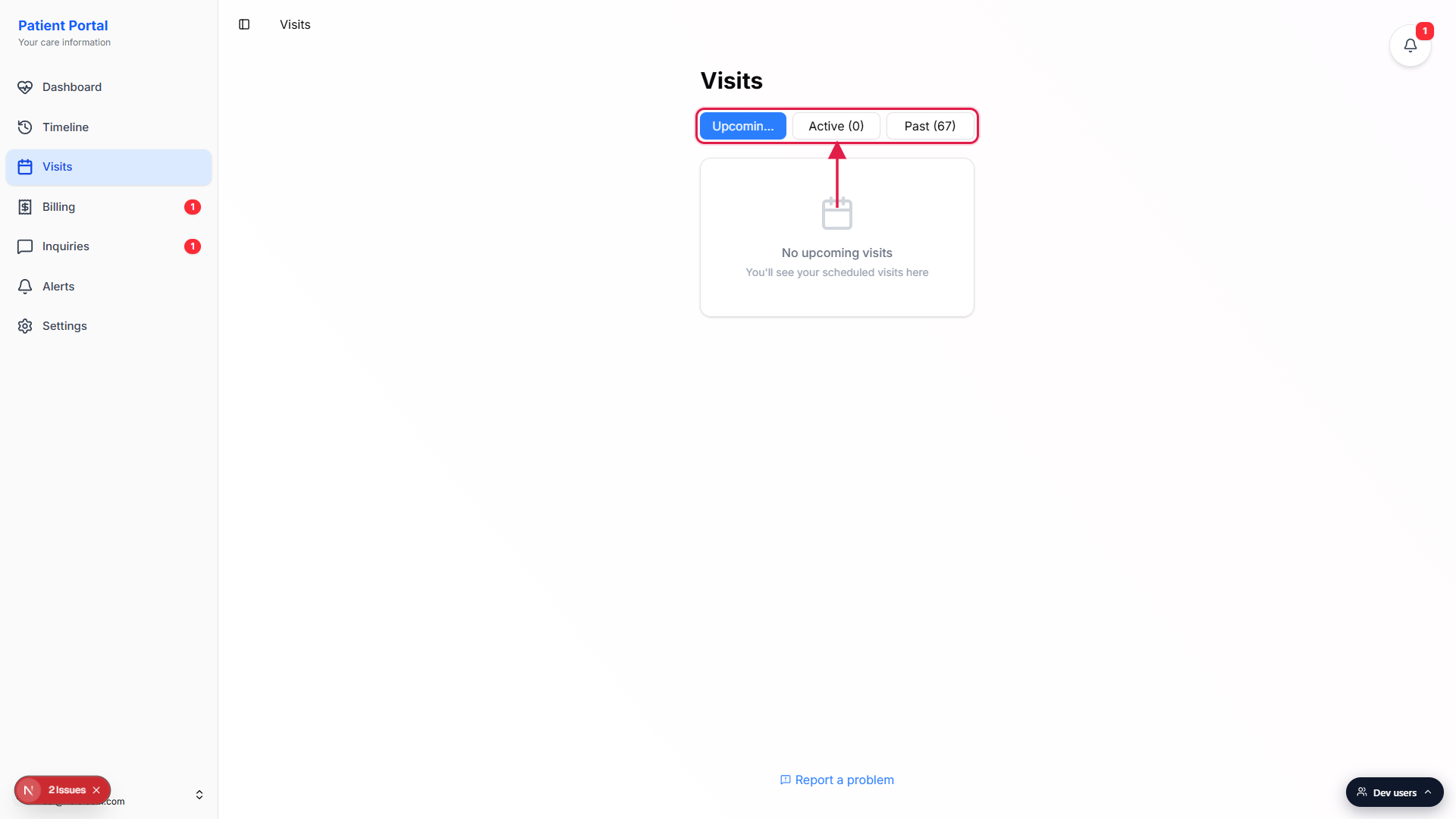
2. Switch between Upcoming, Active, and Past
Upcoming shows future scheduled visits.
Any visit with a start time in the future and a status other than Cancelled lands here. Visits are sorted soonest first, so the next appointment is at the top of the list.Active shows visits in progress right now.
A visit moves into the Active tab when the caregiver clocks in and the status becomes In Progress. While no caregiver is on shift, the tab reads Active (0) and shows an empty state card with the message No active visits and the subtext Visits in progress will appear here.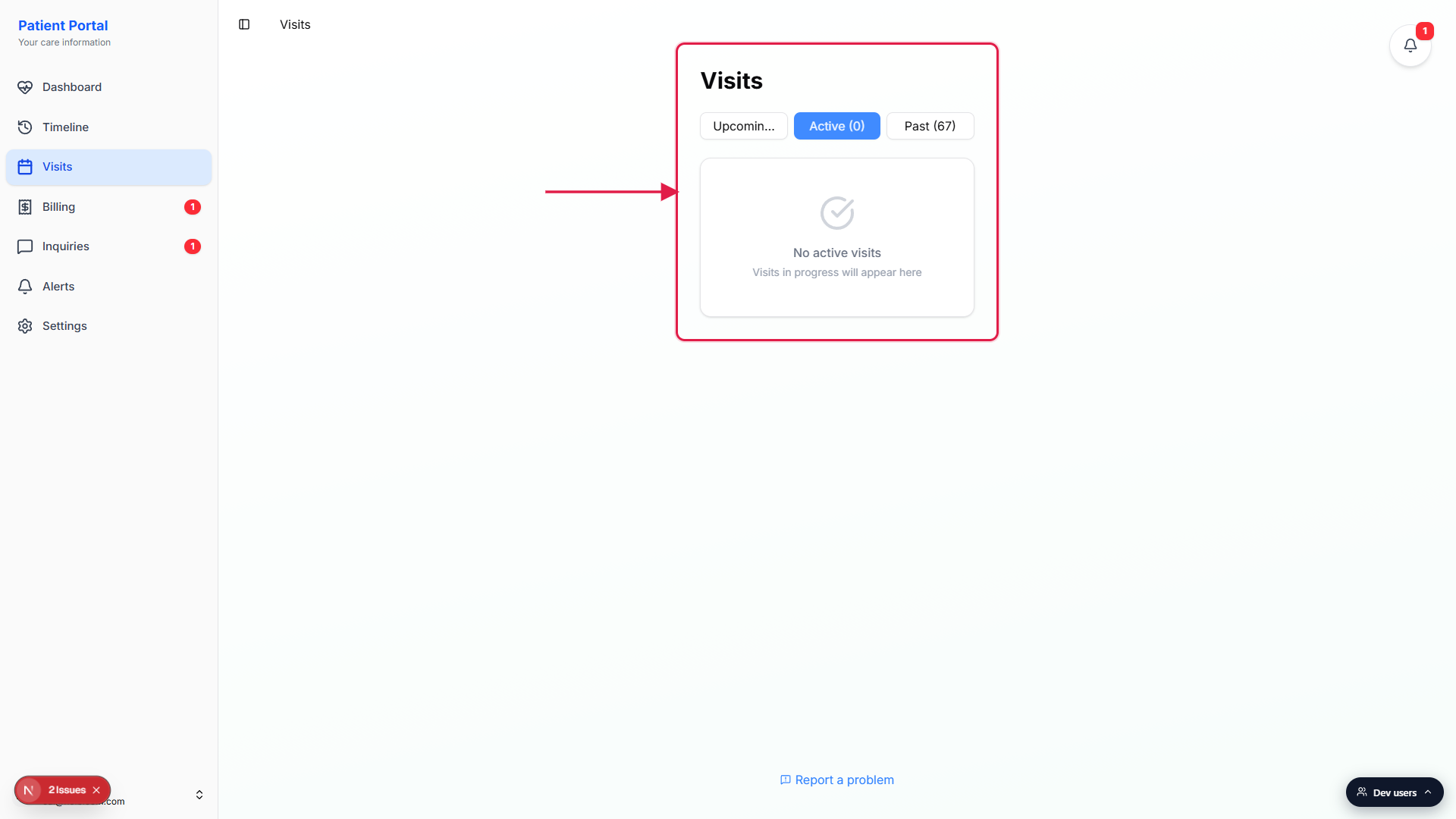
Past shows finished, completed, and cancelled visits.
Past holds every visit whose end time has elapsed plus anything explicitly marked Completed or Cancelled. The tab counter (for example, Past (67)) is the lifetime history. Visits are sorted newest first.
3. Read a visit card
Every card has the same four blocks.
Top row: the visit title (like Mid-Morning Wellness Check). Below the title, a date and time window on the left, then three labeled blocks across the right: Caregiver, Location, and Status. The Status block uses a colored icon to match the badge (blue for Scheduled, green for In Progress, gray for Completed, red for Cancelled).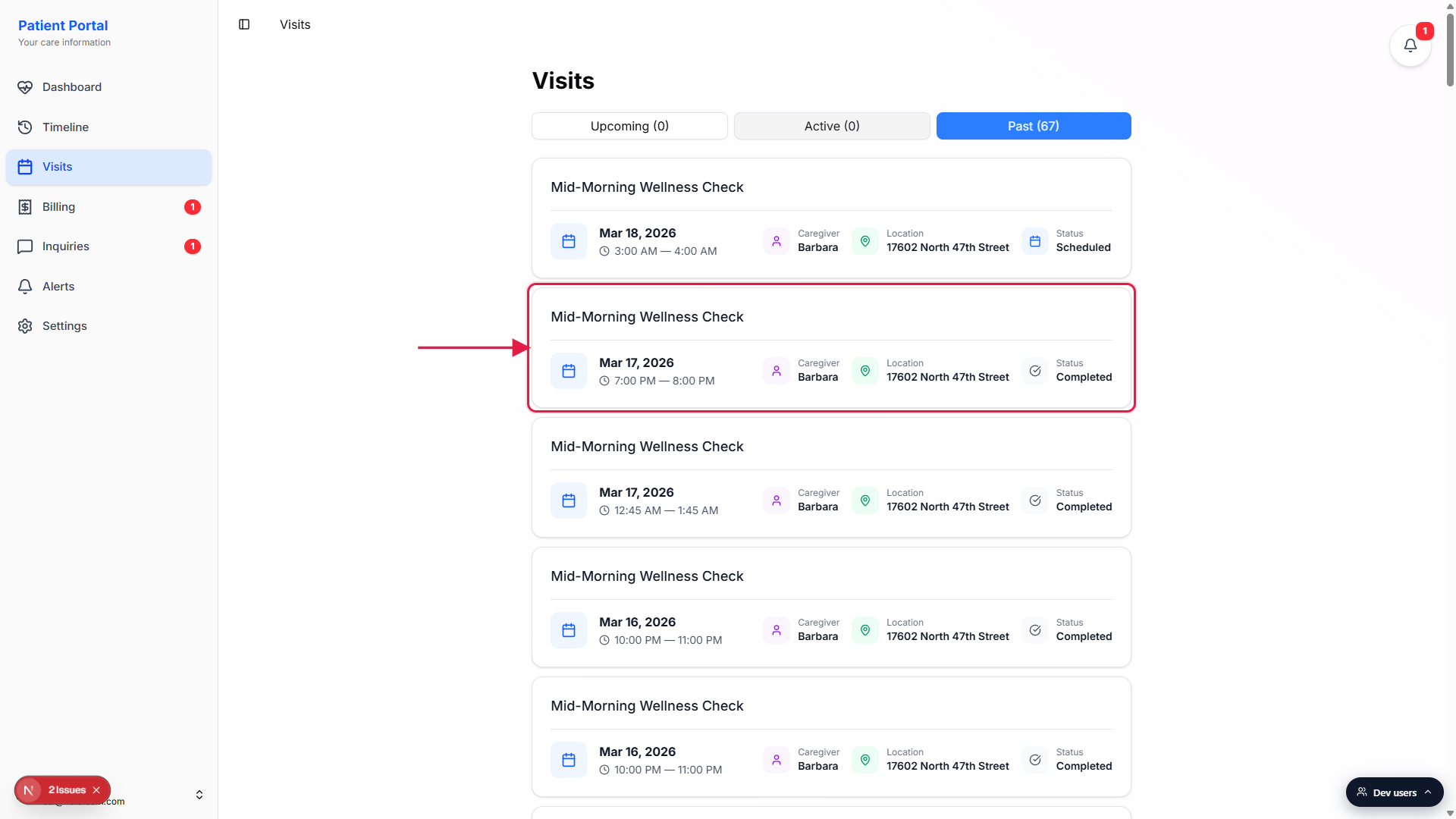
Caregiver shows first name only.
The Caregiver block displays the first name of whoever covered the shift, like Barbara. If the visit went out as Unassigned, the block reads Unassigned and the office still owes it a caregiver.Location is the address the visit was performed at.
The Location block shows the street address used for EVV check-in. It may be truncated on narrow windows, but the full address opens with the visit detail.
4. Tap a card to open the visit detail
Tap anywhere on the card.
The whole card is clickable. The page swaps to the visit detail screen for that occurrence, with care plan, task list, EVV check-in and check-out times, notes the office has marked patient-visible, and the visit address.Use the back arrow at the top to return to Visits.
The detail view has a back link that returns to the same Visits tab you came from, preserving your scroll position so you can keep browsing the list.
Common pitfalls
- Active is empty most of the time. A visit is Active only while a caregiver is clocked in. Between appointments, the tab reads Active (0). That is normal, not an error.
- Cancelled visits land in Past. Past is not just completed care. It is every visit whose end time has elapsed plus anything marked Cancelled, so the count can be higher than the number of visits actually delivered. The status badge on each card tells you which is which.
- No patient-side cancel button. You cannot cancel a visit from the Patient Portal. If you need to reschedule or cancel, send a message through Inquiries and the office will adjust the schedule.
- Past sort is newest first, not oldest first. The top of the Past tab is the most recent finished visit. Scroll down to walk backwards through the history. There is no sort toggle.
- Visits differs from Timeline. Timeline is a single vertical history feed with status dots and search. Visits is the tabbed view that splits the same data by status. Use whichever view fits the question you are answering.