The Visit Timeline is the patient-side history of every visit on the record, ordered newest first. It runs down a vertical line in the middle of the page, with a colored dot for each visit and a card next to it showing the date, status, time window, caregiver, and (for completed visits) tasks finished, check-in and check-out times, and the visit address.
Quick answer
Open Timeline in the Patient Portal sidebar. The header reads Visit Timeline with a lifetime count like 68 visits. Below that, a search box and an All Statuses filter sit above the timeline. Tap any visit card to open the full visit detail. Use Load More to page through older visits.
1. Open Timeline from the Patient Portal sidebar
Sign in with the patient email on file.
Patients land in the Patient Portal sidebar, with Dashboard, Timeline, Visits, Billing, Inquiries, Alerts, and Settings. A red badge on Billing or Inquiries means there is something new on those pages.Click Timeline in the sidebar.
Timeline loads with the newest visit at the top, the vertical line down the middle, and a Load More button at the bottom of the first batch of cards.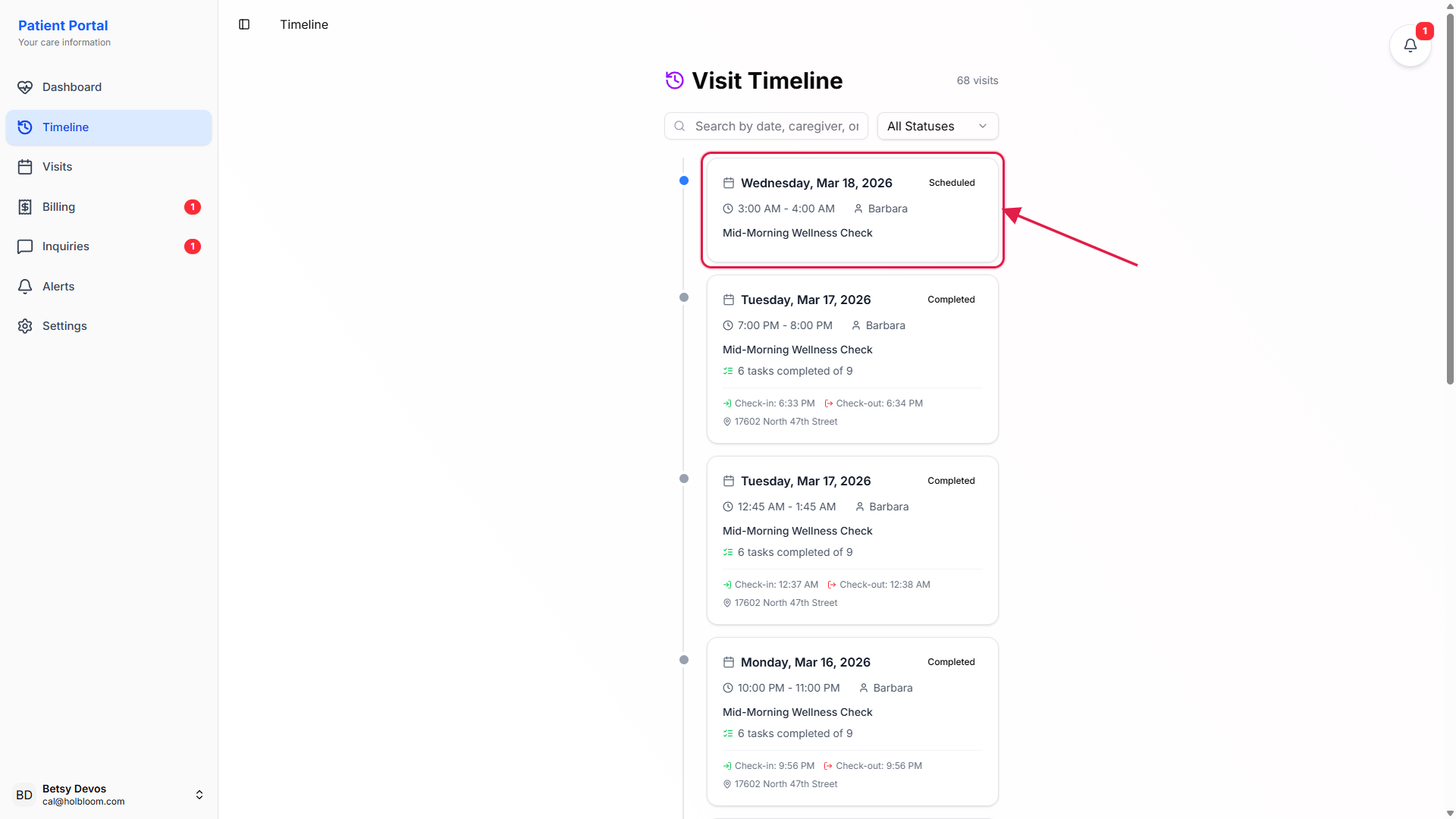
2. Read the lifetime visit count
Look at the count next to the Visit Timeline header.
The number above the search row is the lifetime visit count for the patient record. Every visit that has ever been on the calendar counts, regardless of status. A cancelled visit still counts. A no-show still counts. The total only ever goes up.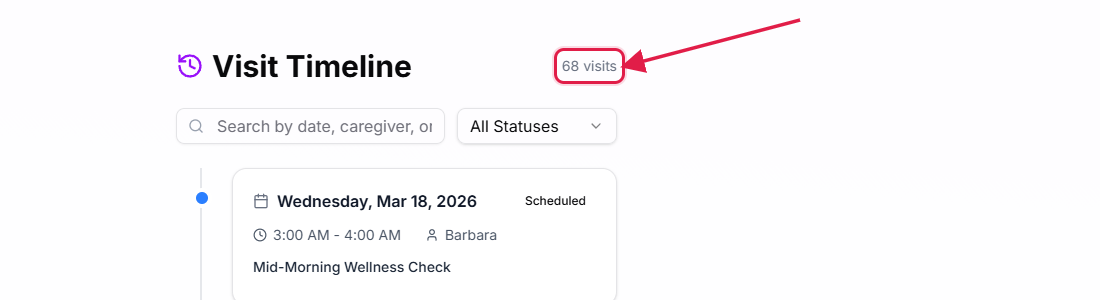
The list shows the most recent ten visits first.
If the count is larger than the visible list, scroll to the bottom of the cards. A Load More button shows how many remaining visits are not yet rendered, like Load More (58 remaining). Each tap loads another batch.
3. Scan the vertical timeline and status dots
Each row pairs a status dot on the line with a visit card.
The dot is color-coded by visit status, and the matching status label sits in the top-right of the card. A blue dot is a Scheduled visit. A gray dot is a Completed visit. A red dot is a Cancelled visit. Late, OverTime, Incomplete, and In Progress also have their own colors.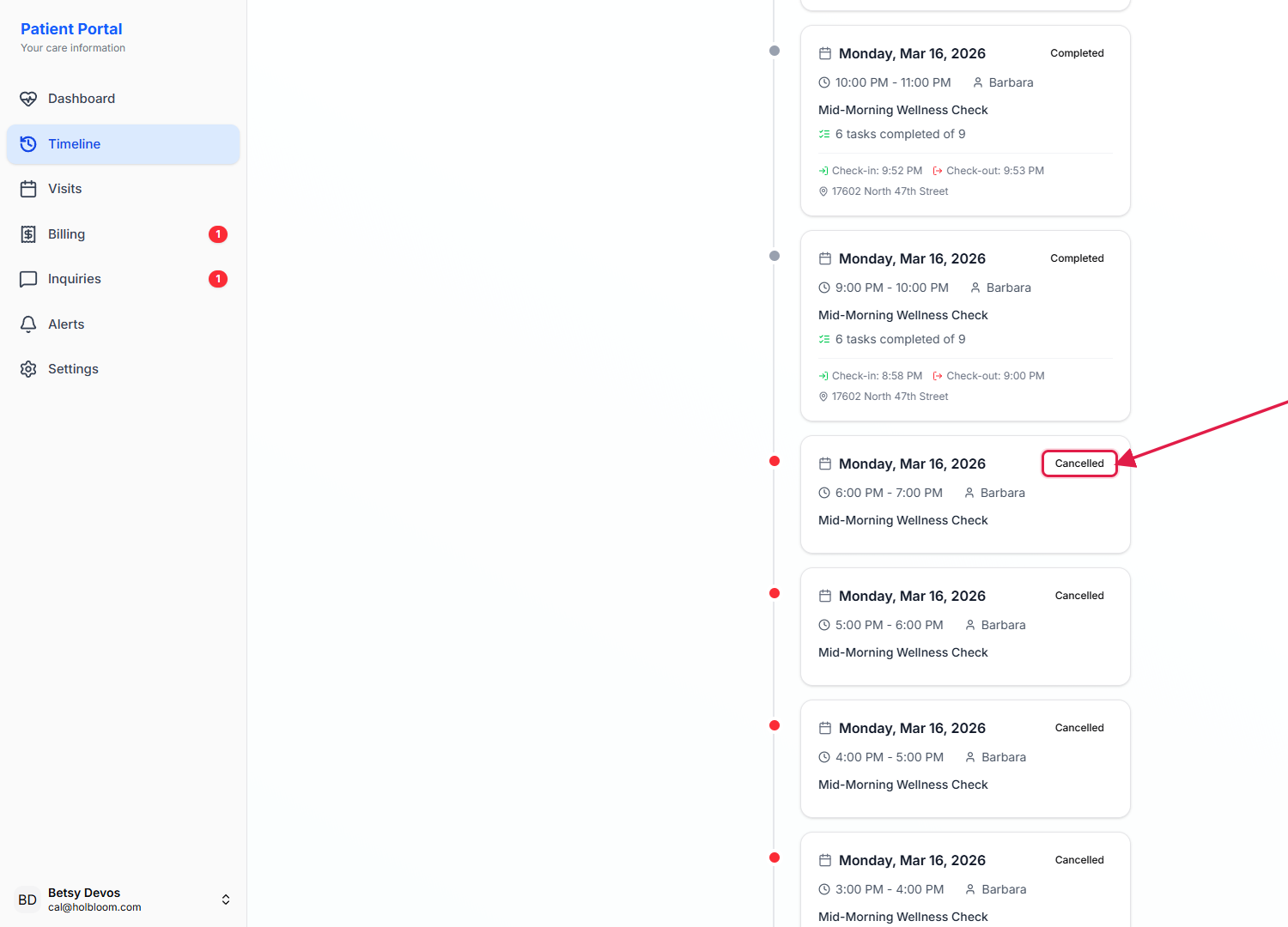
Completed cards expand to show tasks, EVV clock times, and the visit address.
A completed visit card adds three rows of detail under the visit title: how many tasks were finished out of the total (for example, 6 tasks completed of 9), the Check-in and Check-out timestamps captured at the door, and the street address the visit was performed at.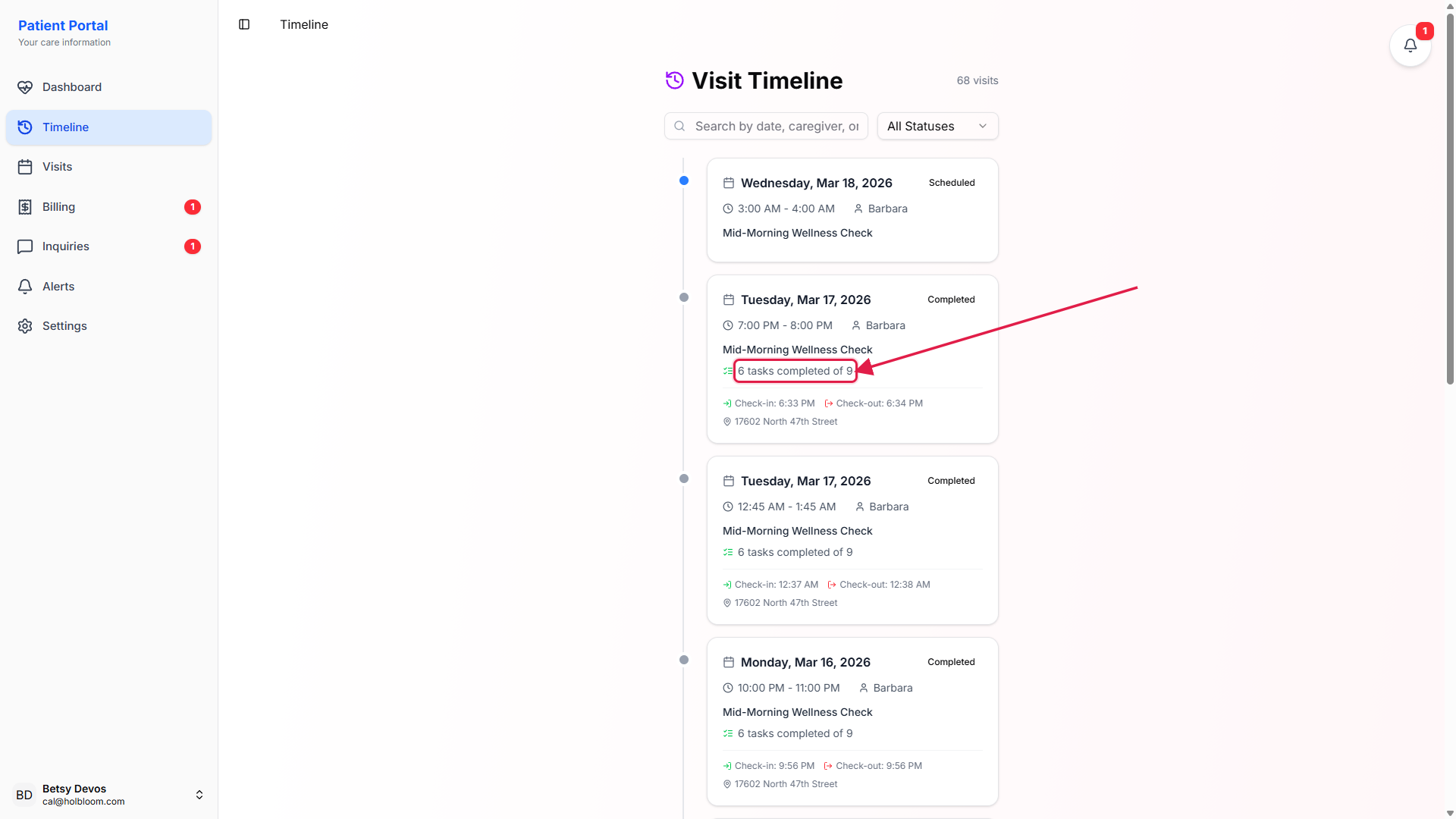
Tap any card to open the full visit detail.
Each card is a link to the visit detail screen for that occurrence. Detail shows the care plan, full task list, notes, EVV signature, address, and any timer events. From detail you can also submit an inquiry tied to that visit.
4. Search, filter, and load older visits
Type in the search box to filter by date, caregiver, or task.
The search input above the timeline reads Search by date, caregiver, or task. It is a live filter, not a server query. As you type, cards that do not match drop off the list.Pick a status from the All Statuses dropdown to narrow the view.
The dropdown has eight options: All Statuses, Scheduled, In Progress, Completed, Cancelled, Late, Over Time, and Incomplete. Picking one hides every card that does not match. Pick All Statuses to clear the filter.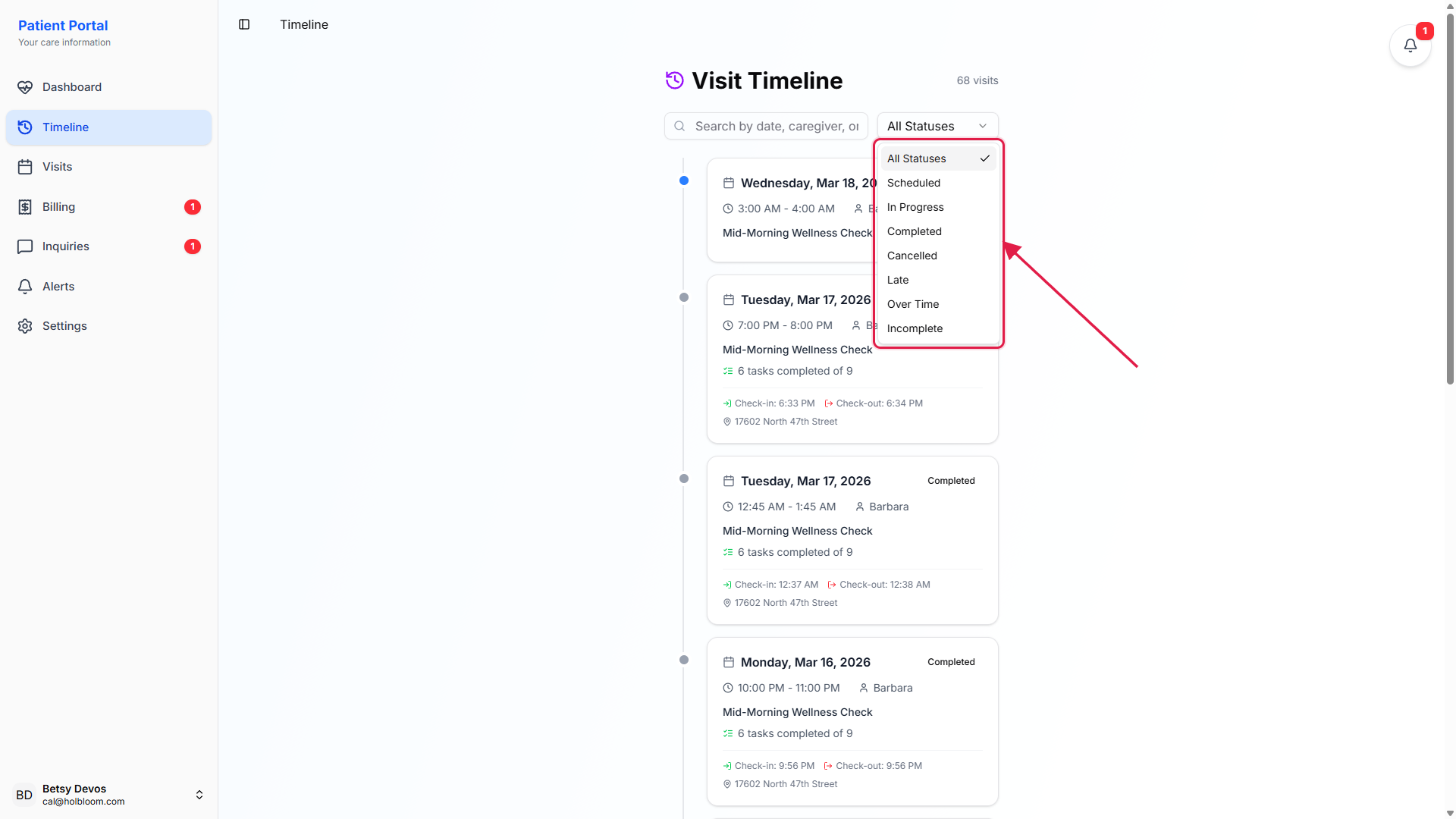
Tap Load More at the bottom to render older visits.
The bottom of the list shows a Load More button with the remaining count in parentheses, like Load More (58 remaining). Each tap appends the next batch onto the same scroll, so search and filter still apply across the full set.
Common pitfalls
- The count looks too high. The lifetime number includes every visit ever scheduled, including cancelled and no-show visits. It is not the count of completed care. For billable, completed visits only, filter the list with the Completed status from the dropdown.
- Search returns nothing. The search box is a live filter on the cards currently rendered. If the visit you want is older than the first batch, tap Load More once or twice so the matching card is in the list before searching. Date searches respect the format shown on each card, like Mar 17, 2026.
- A Completed card has no tasks or address. A visit that was completed without EVV check-in still shows up as Completed but skips the tasks-and-address detail rows. The office can backfill the details from the admin side.
- Cancelled cards still show on the timeline. That is by design. Cancellation is part of the record. To hide them, pick Completed (or any non-Cancelled status) from the All Statuses dropdown.
- Confusing Timeline with Visits. Timeline is a read-only history feed of every visit, newest first. Visits (next item in the sidebar) is the tabbed view that splits the same data into Upcoming, Active, and Past with table-style sorting and filtering.