Visit detail is the per-visit screen on the Patient Portal. It shows the status badge, the caregiver who covered the shift, the scheduled date and time, the address used for EVV, and a breakdown of every activity the caregiver checked off on the visit.
Quick answer
Open Visits from the Patient Portal sidebar, tap any card to drop into the detail page. The top card is Visit Information (status, date and time, caregiver, location, additional notes). Below it is the Activities Completed card with three rows: Activities of Daily Living, Additional Activities, and Tasks Completed. Visit Notes, Incident Reports, and Scheduling History sit underneath.
1. Open a visit from the Visits tab
Sign in to the Patient Portal and click Visits in the sidebar.
The Visits page splits visits into Upcoming, Active, and Past tabs. Tap the Past tab to find a completed visit, or Upcoming to peek at a scheduled one. Every card is a clickable link into the detail page for that occurrence.Tap the card whose detail you want to read.
The page swaps to the detail screen. The URL updates to/visits/[id]/detail, so you can bookmark or share the link. Use Back to Visits at the top-left to return to the list.
2. Read Visit Information at the top
The status badge is in the top-right of the Visit Information card.
Completed visits show a gray Completed badge. Scheduled visits show a blue Scheduled badge with a Mark Completed button next to it. In Progress visits show a green badge and a small pulsing Live indicator. Cancelled visits show a red badge. The badge sets the tone for everything else on the page.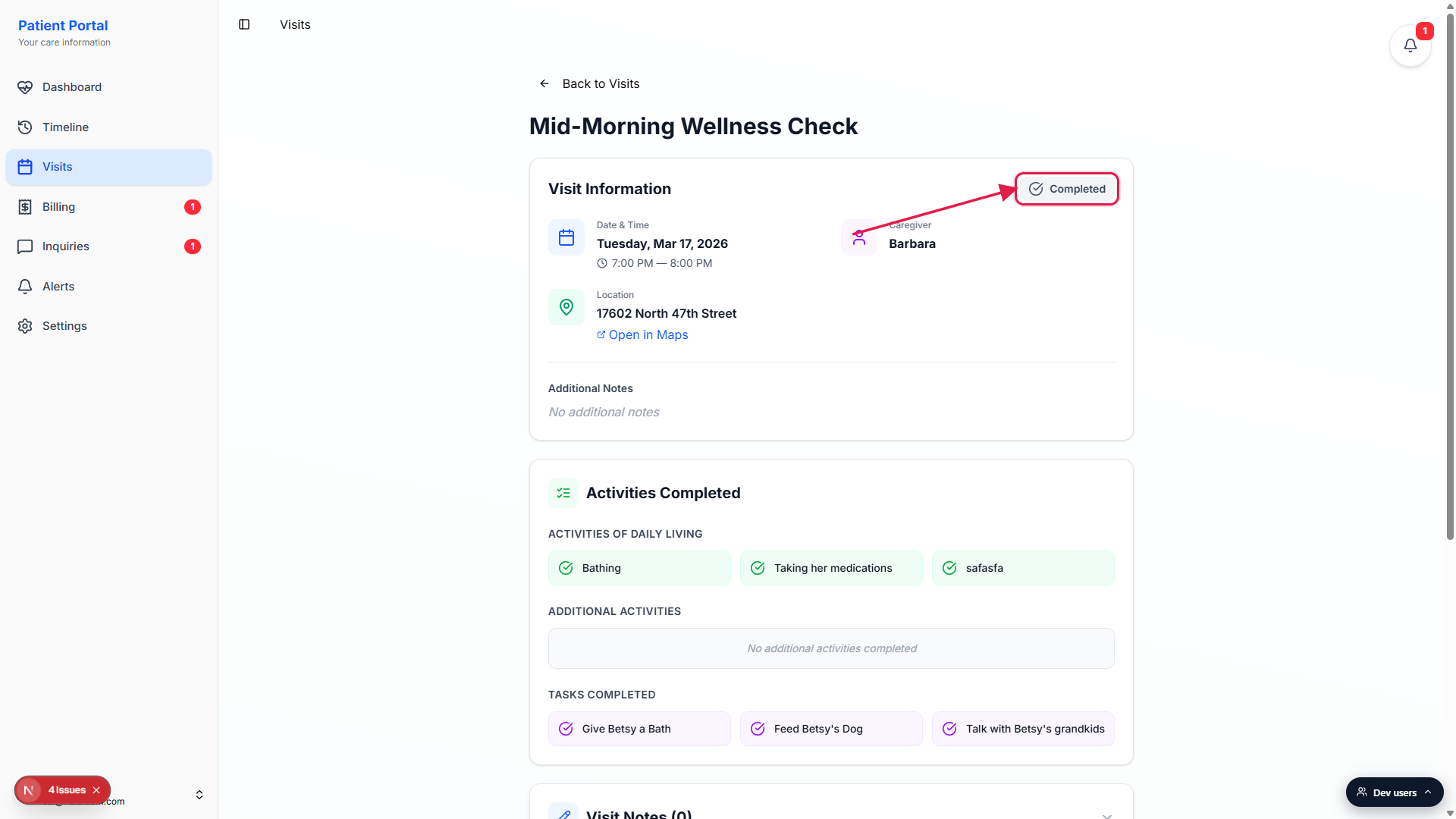
Date and Time shows the scheduled window for the visit.
Dates render in the patient timezone with weekday spelled out, like Tuesday, Mar 17, 2026, followed by start and end times. This is the scheduled window, not the actual clock-in and clock-out times. Clock-in details live in the office EVV records and are not exposed on the patient side.Caregiver shows the first name of whoever covered the shift.
The Caregiver block shows just the first name, like Barbara. Last names are hidden on the patient side as a privacy default. If the visit went out as Unassigned, the block reads Unassigned and the office still owes it a caregiver.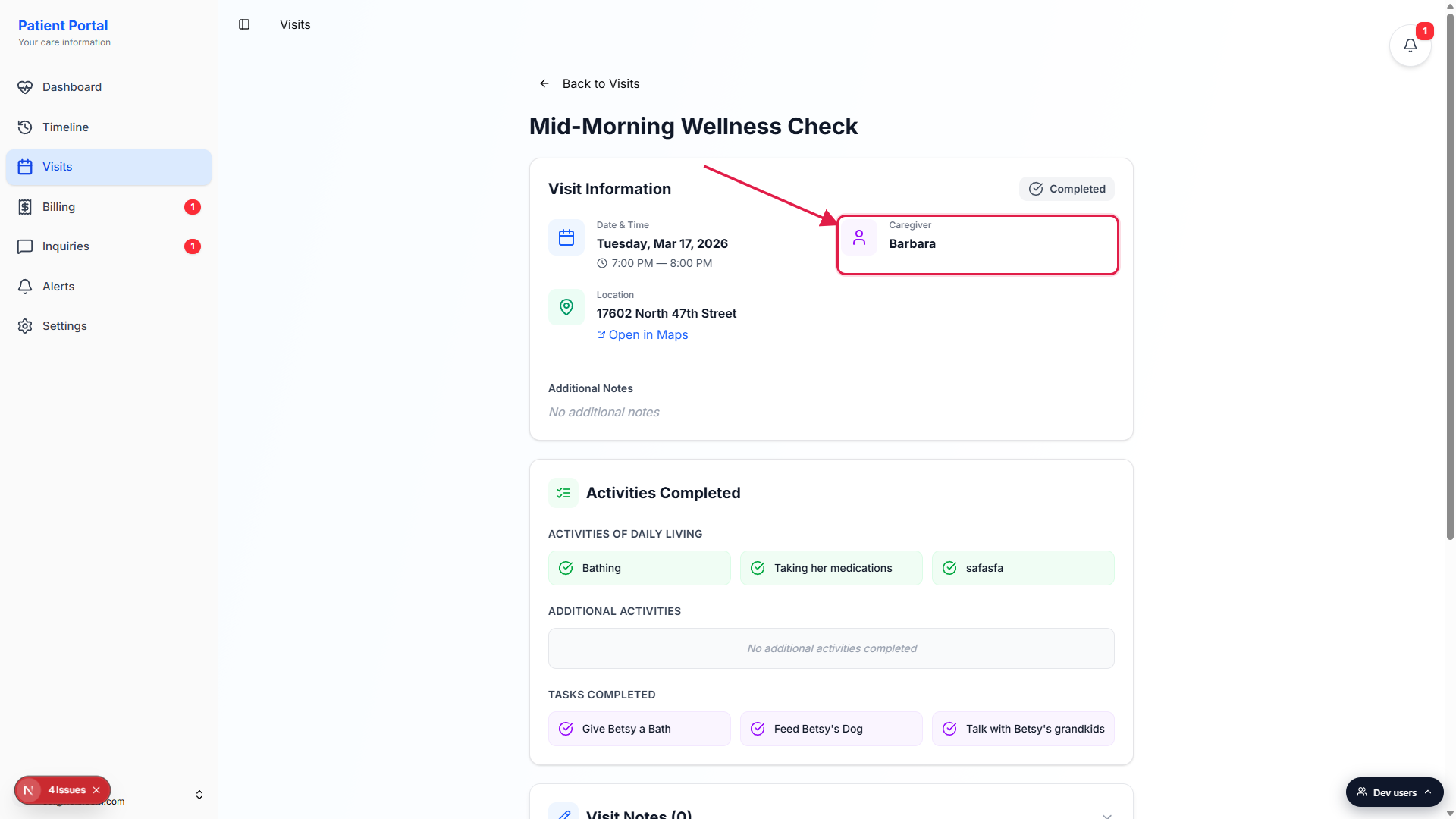
Location is the address EVV used for the check-in.
The Location block shows the visit address with an Open in Maps link underneath, which opens Google Maps in a new tab. The address is whatever was on the visit record at check-in time, which is usually the patient home but can be a community appointment or hospital if the office overrode it.Additional Notes is the patient-visible note from the office.
If the office added a note that they marked patient-visible when scheduling, it appears here. Internal staff notes never surface on the patient side. If there is no note, the block reads No additional notes.
3. Review Activities Completed
Activities of Daily Living lists every ADL the caregiver checked off.
Each ADL shows up as a green chip with a checkmark, things like Bathing or Taking her medications. The list comes from the care plan ADL set the office assigned, plus anything the caregiver added on the fly while the visit was in progress.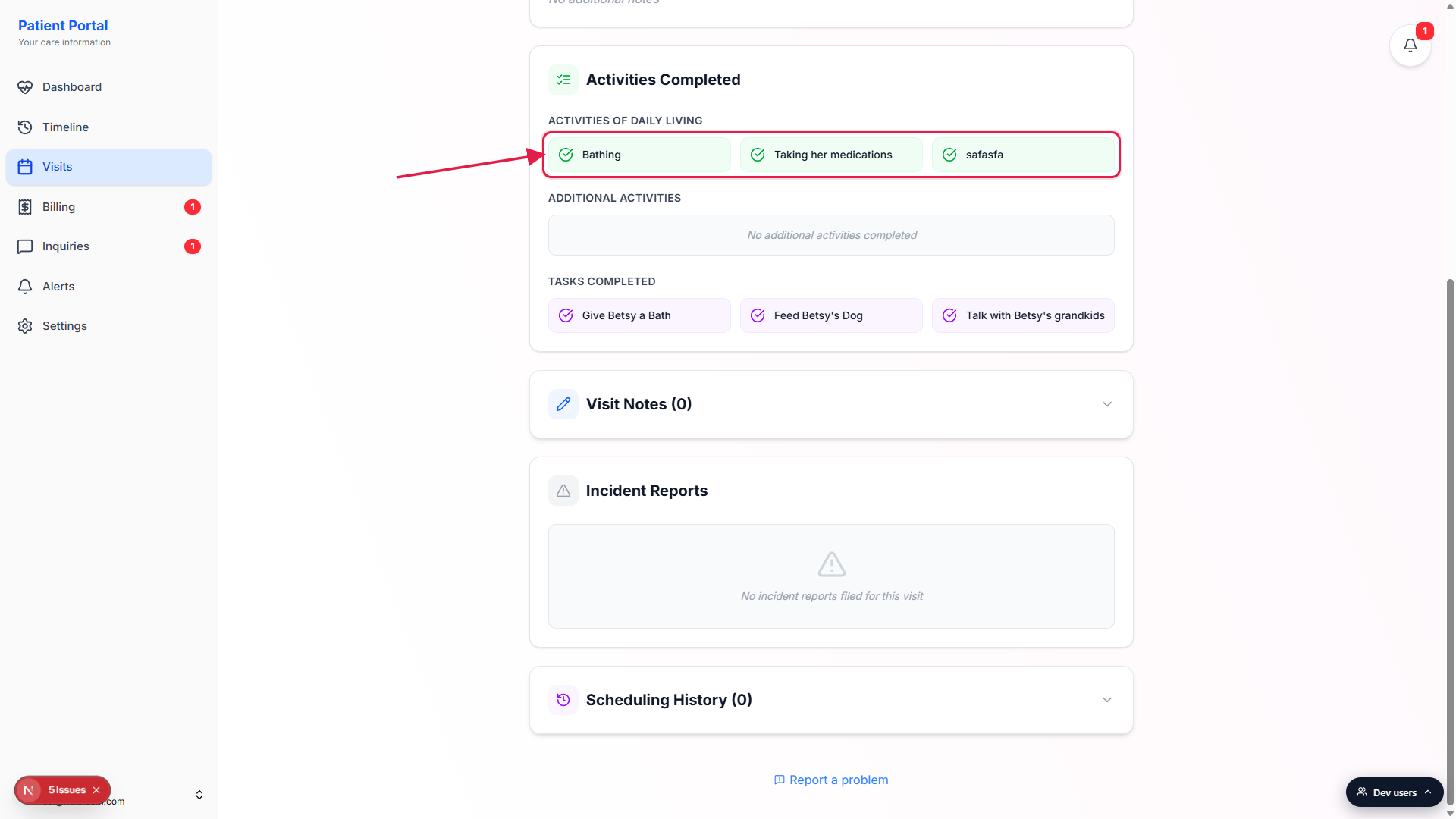
Additional Activities holds anything caregiver-added beyond the care plan.
These appear as blue chips. If the care plan only listed Bathing but the caregiver also helped with grooming, the grooming entry lands in Additional Activities, not in the ADL row. The split makes it obvious what was prescribed versus what the caregiver added during the shift.Tasks Completed is the per-visit task list.
Tasks render as purple chips, like Give Betsy a Bath or Feed Betsy's Dog. Tasks live on each individual visit separate from ADLs. Office staff and caregivers build the task list, and the caregiver checks each item off as they go.
4. Check notes, incidents, and history
Visit Notes counts patient-visible notes the office shared.
The Visit Notes header reads Visit Notes (N) where N is how many notes the office marked patient-visible. Click the header to expand the section. Notes that staff or caregivers wrote for internal use never appear here.Incident Reports shows any safety event tied to this visit.
If a caregiver filed an incident report during the shift, like a fall or a medication issue, it appears here with the title, severity (Low, Medium, High, or Critical), a description, and a Reported timestamp. If the office resolved the incident, a green Resolved row appears at the bottom. If no report exists, the section reads No incident reports filed for this visit.Scheduling History is the audit trail for the visit record.
The Scheduling History (N) header counts the audit entries. Click to expand a chronological list of every edit, like rescheduling, caregiver reassignment, or status changes. Use this when something on the visit looks different from what you remember being told.
Common pitfalls
- The status badge is the scheduled state, not a live clock. A Scheduled badge means the visit is on the books for later. It does not mean a caregiver is on the way right now. Watch for the green In Progress badge with the pulsing Live indicator for a shift that is actually under way.
- Caregiver shows first name only. Last names are hidden on the patient side. If you need the full name for a record, send a message through Inquiries and the office will confirm.
- Notes you expect to see may be internal. Only notes the office marks patient-visible flow to Visit Notes. Caregivers and staff often leave internal notes the patient cannot see, which is normal.
- Cancelled visits still keep this detail page. The status badge flips to red Cancelled and the activity sections may be empty, but the page still exists so the schedule history is intact.
- Map link uses the visit address, not the patient home. Open in Maps uses whatever address EVV captured for the visit, so a community appointment opens that location, not your house.