The Patient dashboard is the home screen every patient (and any family member with a linked account) sees after sign-in. It greets them by first name, surfaces a quick count of today, active, upcoming visits, and unread alerts, and routes them into the visits list, inquiries, billing, or alerts with one tap.
Quick answer
Sign in with a patient email. AveeCare drops you on the Dashboard inside the Patient Portal sidebar. The blue and purple banner says Welcome, then your name. Below that are four quick-stat tiles (Today, Active, Upcoming, Unread), any cards for today's and upcoming visits, a Quick Actions row, and a Recent Updates feed.
1. Sign in and land on Dashboard
Sign in with the patient email on file.
AveeCare reads role from the user record. Patients land in the Patient Portal sidebar with Dashboard, Timeline, Visits, Billing, Inquiries, Alerts, and Settings. A red badge on Billing or Inquiries means there is something new to look at.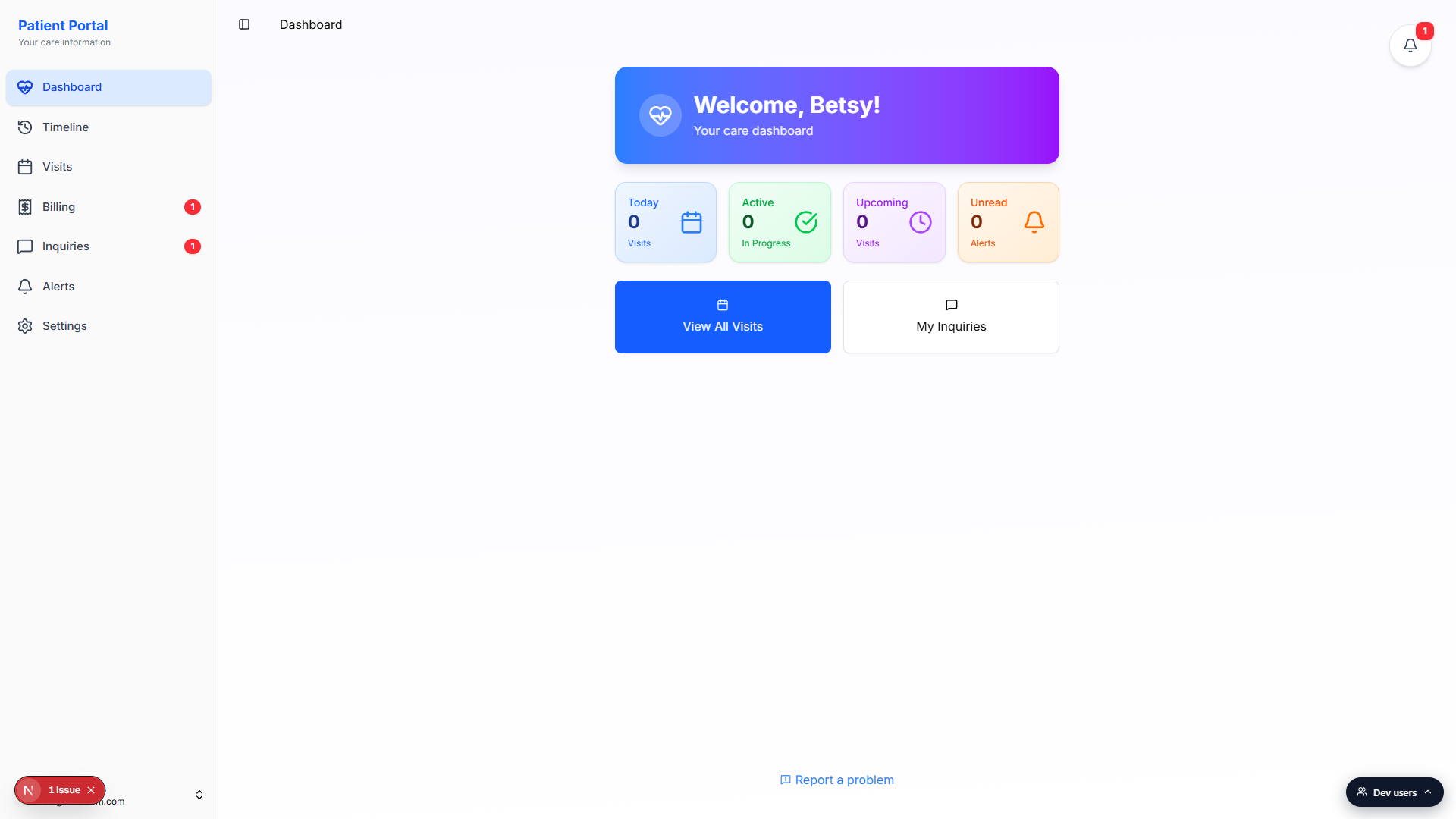
Read the Welcome banner at the top.
The banner pulls the first name from the patient profile. If a responsible party is set on the patient record, it reads Welcome, then the responsible party name, with a second line that says Managing care for, then the patient first name. Otherwise the second line just says Your care dashboard.Use the Patient Portal sidebar to jump between pages.
Dashboard is your home. Timeline shows a vertical history of every visit. Visits opens the Upcoming, Active, and Past tabs. Billing lists invoices with a Pay Now button. Inquiries is where you submit a message to the office. Alerts holds important updates. Settings covers your profile and notification preferences.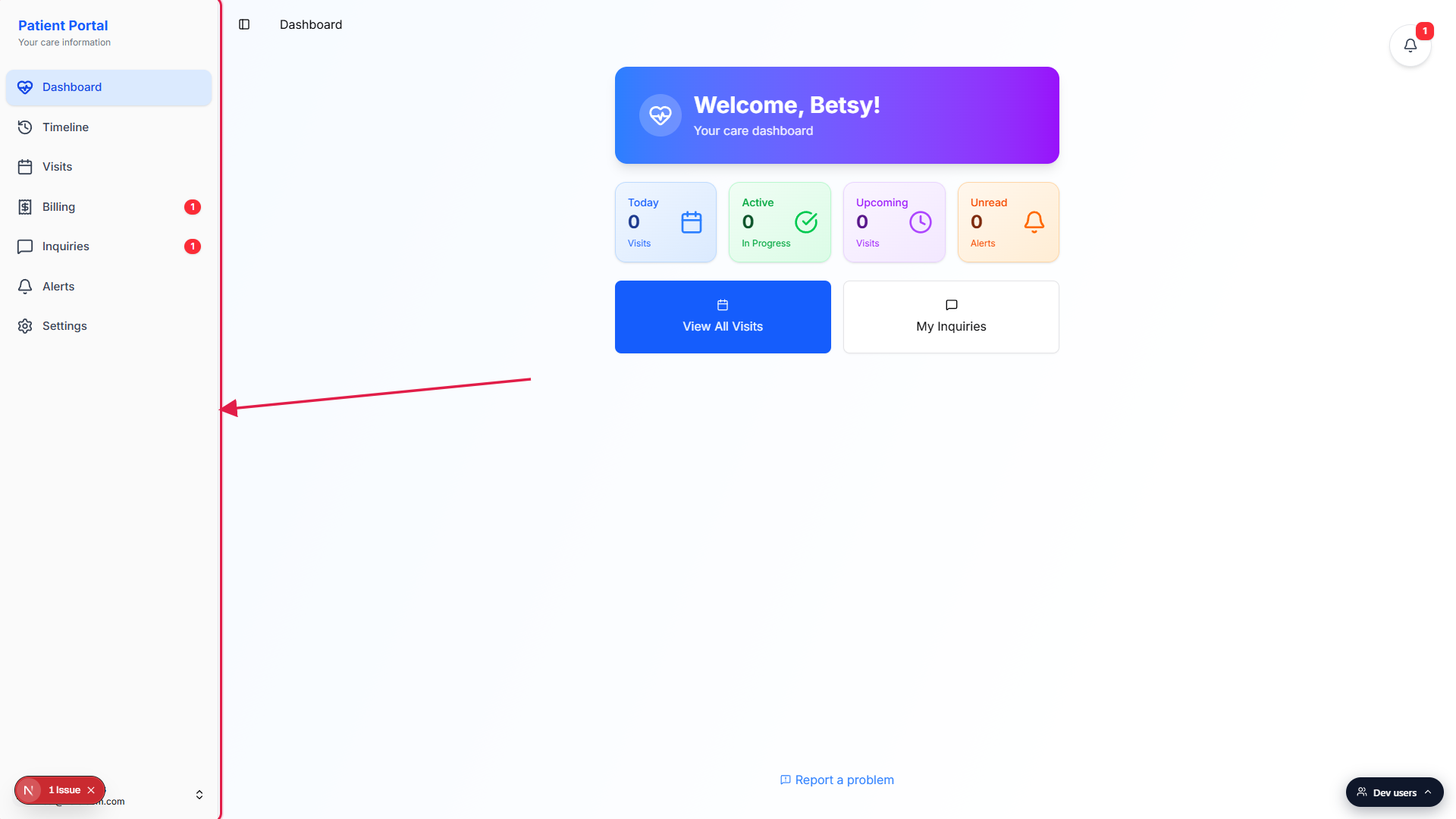
2. Read the four quick-stat tiles
Scan Today, Active, Upcoming, and Unread.
Each tile shows a number and what it counts. Today is the visit count for the current day. Active is visits that are currently in progress (a caregiver is clocked in right now). Upcoming is visits scheduled for a future day. Unread is the alert count you have not opened yet.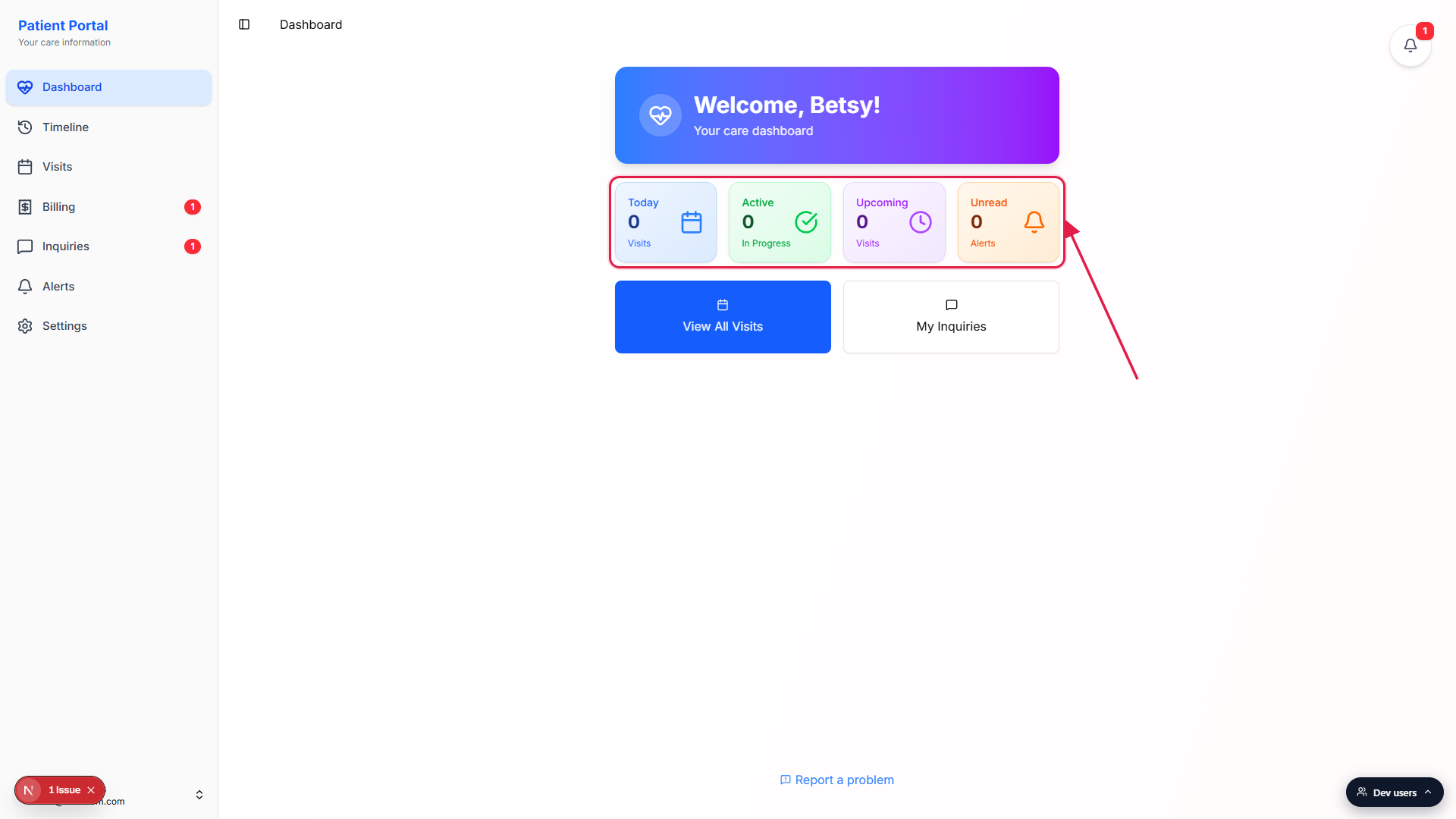
Tile colors match the rest of the portal.
Today is blue, Active is green, Upcoming is purple, and Unread is orange. The same color shows up on the matching section header further down the page when there is data to display.
3. Work today and upcoming visit cards
If a visit is scheduled today, read the Today's Visits card.
Each row shows the visit status (Scheduled, In Progress, Completed, Cancelled, Late, OverTime, or Incomplete), the caregiver name, the start and end time, and the visit title. An in-progress visit also shows a small green Live dot that pulses while the caregiver is clocked in.Tap any row to open the visit detail screen.
The visit detail screen shows the full care plan, tasks, notes, address, and any EVV signatures. From there you can confirm details with the office or reply to the caregiver.Read the Upcoming Visits panel for the next five.
The Upcoming Visits panel only appears when something is actually scheduled for a future day. It shows the next five visits with the caregiver, date, time, and title. If you have more than five upcoming, a View All Visits button drops you into the full list.
4. Use Quick Actions and recent updates
Pick a Quick Action tile.
Two tiles sit below the visit cards. View All Visits opens the Visits page with Upcoming, Active, and Past tabs. My Inquiries opens the inquiry inbox where you can submit a new question or reply to an existing thread.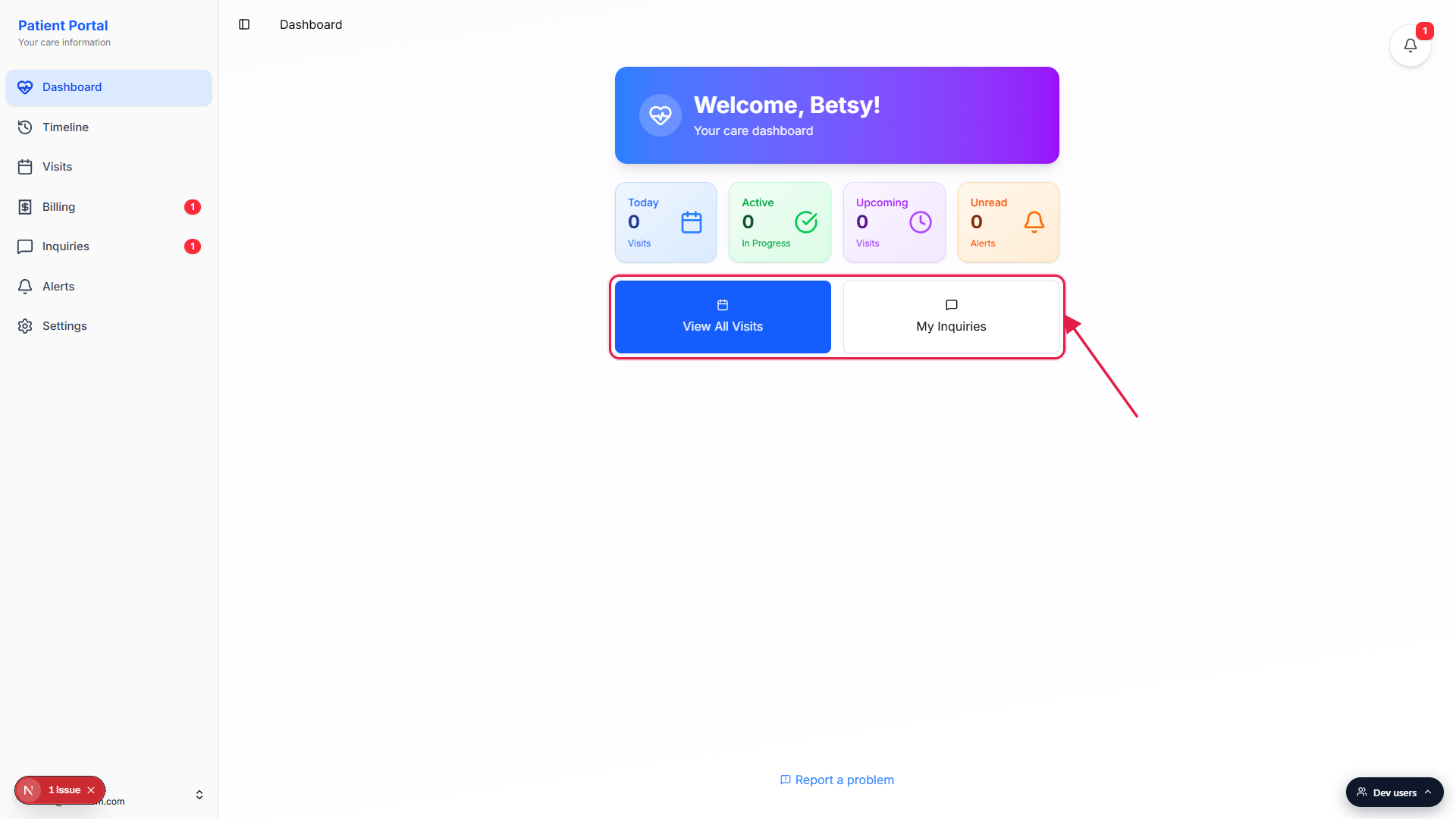
Read the Recent Updates card for the last few alerts.
When there are alerts on your record, a Recent Updates card shows the five most recent. A red triangle icon marks Critical alerts, an orange bell marks Important, and a blue check marks Notice. A blue dot on the right edge means the alert has not been reviewed by the office yet. Tap an alert to read the full description.If your office set a business phone, tap to call from the footer.
When the office adds a business phone under Settings, a small blue card at the bottom of the dashboard reads Need help? Call us at, followed by the number. The number is a live tel link, so tapping it from a phone places the call.
Common pitfalls
- No Today's Visits or Upcoming Visits card.Both cards are conditional. They only render when there is actual data. A patient with nothing scheduled sees the welcome banner, the four stat tiles, the Quick Actions row, and nothing else.
- Stats read zero but the past visit count is high.The four tiles only count today, active, upcoming, and unread. They never count past visits. To see the full history, open Timeline or the Past tab on Visits.
- Family member sees the wrong name on the banner.The banner pulls from the responsible party field on the patient record. If your family member is signed in but the banner still shows the patient's name, the office has not set them as the responsible party yet. Ask the office to update the patient profile.
- Recent Updates card is missing. The Recent Updates section only renders when at least one alert exists on the record. No alerts means no card. Once the office sends one, the card appears with the most recent five.
- Dashboard does not refresh. The dashboard subscribes to real-time updates for visits, alerts, and inquiries, so a clock-in or new alert should appear within a few seconds. If something looks stale, reload the page to force a fresh fetch.