Inquiries is the patient-side message inbox between you and the home care office. Anything that is not a scheduling or billing emergency belongs here: a question about a caregiver, a request to shift a visit time, a note about supplies. The office answers from the agency-side Inquiries page, and the back-and-forth lives in one threaded view.
Quick answer
Open Inquiries from the Patient Portal sidebar. Click New Inquiry to send a fresh question, or click an existing card in the list to open the thread and type into the Type your reply... box at the bottom. Threads with a gray Resolved chip are read-only and show a “Contact staff to reopen if needed.” note in place of the reply box.
1. Open Inquiries from the Patient Portal sidebar
Click Inquiries in the Patient Portal left sidebar.
The sidebar entry shows a chat-bubble icon and a small red badge when there is an unread staff message. The page opens on a two-column layout: the thread list on the left, a “Select an inquiry” placeholder on the right.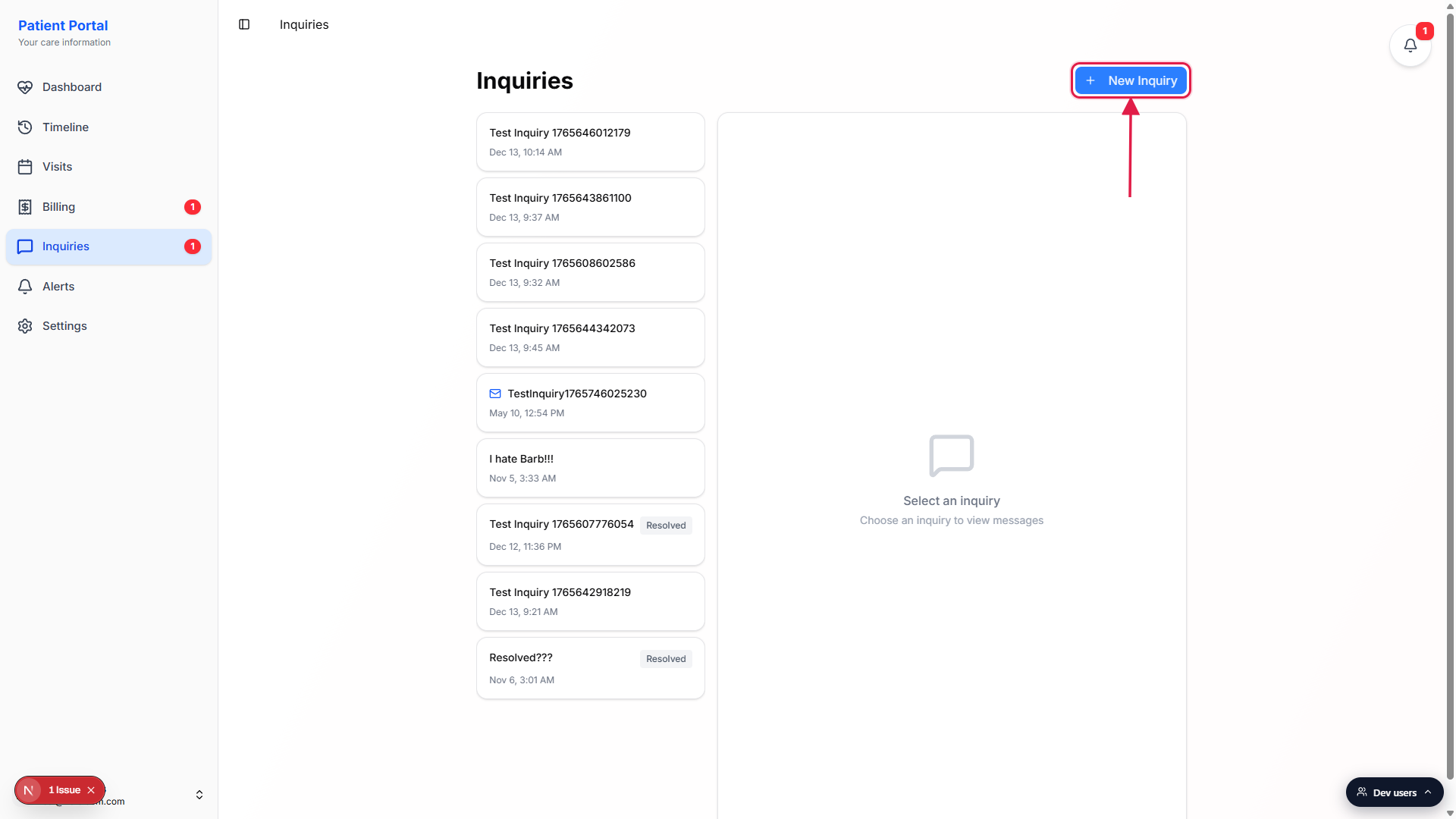
Scan the list for unread or resolved threads.
Each card shows the subject, the last-activity timestamp, and a small blue mail icon when the office replied since the patient last opened the thread. Threads that the office has marked done show a gray Resolved chip on the right side of the card.
2. Start a new inquiry with New Inquiry
Click the New Inquiry button in the top right.
The thread list collapses and a Create New Inquiry card slides into view with two fields: Subject and Message.Fill in Subject and Message, then click Submit Inquiry.
Subject is a one-line summary like “Question about Friday visit time”. Message is the longer body. Both are required and both go straight to the office once you hit Submit Inquiry. Hit Cancelto back out without sending. A toast at the top of the page confirms the inquiry was created.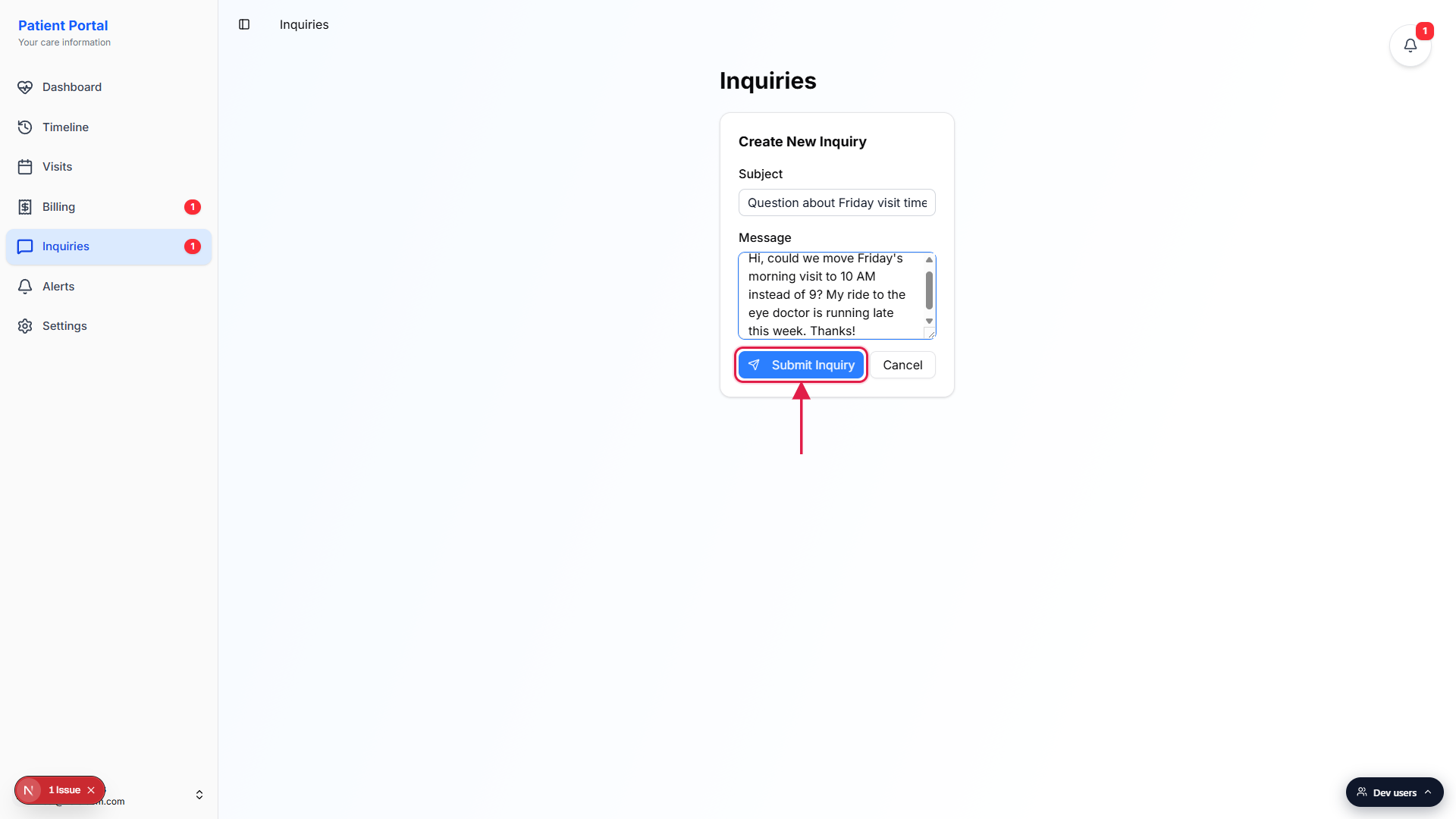
3. Reply inside an open thread
Click any card in the thread list to open it.
The right pane swaps to the thread view: subject + created date at the top, a scrolling message column in the middle, and a reply box pinned to the bottom. Your messages sit on the right in blue, staff replies on the left in gray. Centered gray divider lines mark system events like “Jane resolved this inquiry” or “Jane reopened this inquiry”.Type into the Type your reply... box and hit the send icon.
The reply box is a multi-line textarea with a small paper-plane send button on the right. The button stays disabled until you type at least one character. Opening a thread also marks it as read, so the red unread badge on the sidebar Inquiries entry clears once you have looked at every new message.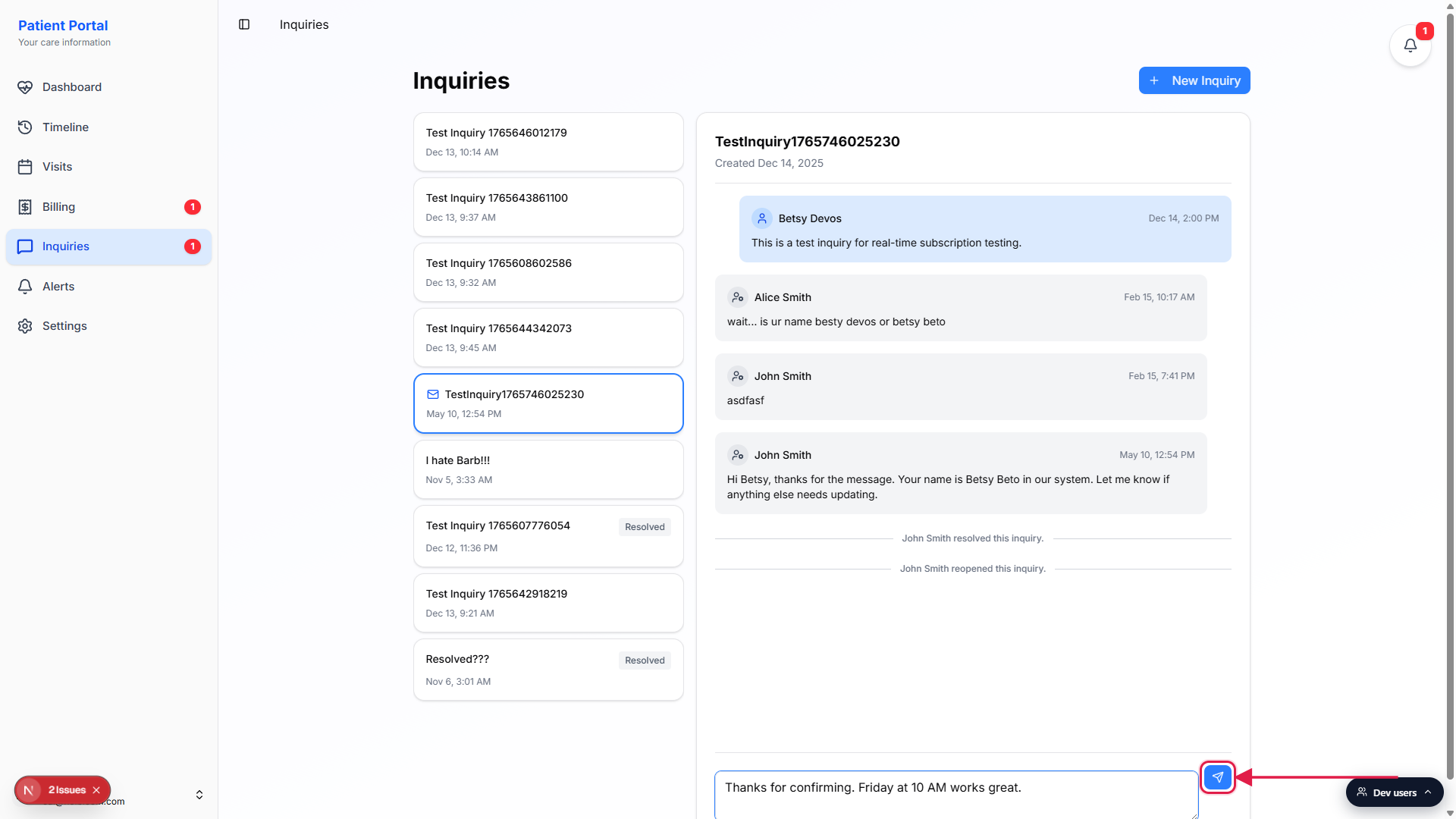
4. Read a Resolved thread
Click a card with the gray Resolved chip to open it.
The thread view is identical to an open inquiry except the reply box is replaced with a centered note that reads “This inquiry has been resolved. Contact staff to reopen if needed.” Past messages stay readable.Start a new inquiry to follow up.
Patients cannot reopen a resolved thread from the portal. If the issue comes back, either call the office or click New Inquiry at the top of the Inquiries page and reference the original subject in the message. Staff can reopen a thread from the agency-side Inquiries page if they prefer to keep the history together.
Common pitfalls
- Using Inquiries for a same-day visit emergency. Inquiries is a non-urgent inbox. If a caregiver did not show up for a visit or there is a medication problem right now, call the agency directly. The office checks Inquiries on their normal workflow cadence, not the second a message lands.
- Forgetting that staff can resolve the thread on you. When the office marks a thread Resolved, the reply box disappears for the patient even if you had more to say. A “Jane resolved this inquiry” divider line shows up in the message column. Start a new inquiry if you still need to talk.
- Assuming the office got a phone-style ping. New inquiries create an internal alert for staff inside AveeCare. Whether that alert turns into a phone or text notification on the staff side depends on the agency's notification settings. For anything time-sensitive, do not rely on it landing on a specific person within a specific number of minutes.
- Trying to attach a file. The patient-side New Inquiry form has Subject and Message only. There is no attachment field on this version of the form, so describe the situation in text. If the office needs a photo or document, they will say so in their reply.
- Mistaking the small mail icon for a notification. The blue mail icon on a thread card means the office sent a message since the last time you opened that thread. The sidebar badge counts those unread threads. Opening the thread clears both. There is no separate notifications page for Inquiries.
Related
- Patient dashboard
- Inquiries list and status tabs (staff side)
- Inquiry thread reply (staff side)
- Patient alerts