Payment History is the running list of every invoice the patient has already settled with the agency. It sits at the bottom of the Patient Portal Billing page, below Outstanding Invoices, and stays around as a permanent in-app receipt of past payments.
Quick answer
Open Billing from the Patient Portal sidebar, scroll past the three summary cards and the Outstanding Invoices list, and you land on the Payment History section. Each entry is a paid invoice card showing the invoice number, the green Paid badge, the amount, the invoice date, the paid date, and the visit it covers. When no invoices have been paid yet, a single No payment history card sits in that slot instead.
What the list contains
Each Payment History card is one paid invoice. The fields you see on every row are:
- Invoice number. The agency-side invoice id, in the format Invoice #abcd1234.
- Status badge. A green Paid chip. Auto-charged invoices also carry a blue Auto-billed chip next to it.
- Amount. The total that was paid, in dollars.
- Invoiced date. The day the office cut the invoice.
- Due date. The day the invoice was due, even though it has been paid.
- Paid date. The day the payment cleared.
- Caregiver, Location, Visit details. The visit the invoice billed for, including date, time, and duration.
Multi-visit invoices use a service period (Service: MMM d - MMM d, yyyy) instead of a single Visit line and list each covered visit underneath. Single-visit invoices show the Visit line directly.
1. Open Billing and scroll to Payment History
Click Billing in the Patient Portal sidebar.
The page header is the green Billing banner. Three summary cards sit underneath (Outstanding Balance, Last Payment, Auto-Pay), then the Outstanding Invoices section, then the Payment History section.Scroll until the Payment History heading is in view.
The heading sits below the Outstanding Invoices list and uses a small clock icon next to the words Payment History. Paid invoice cards stack vertically underneath, newest at the top.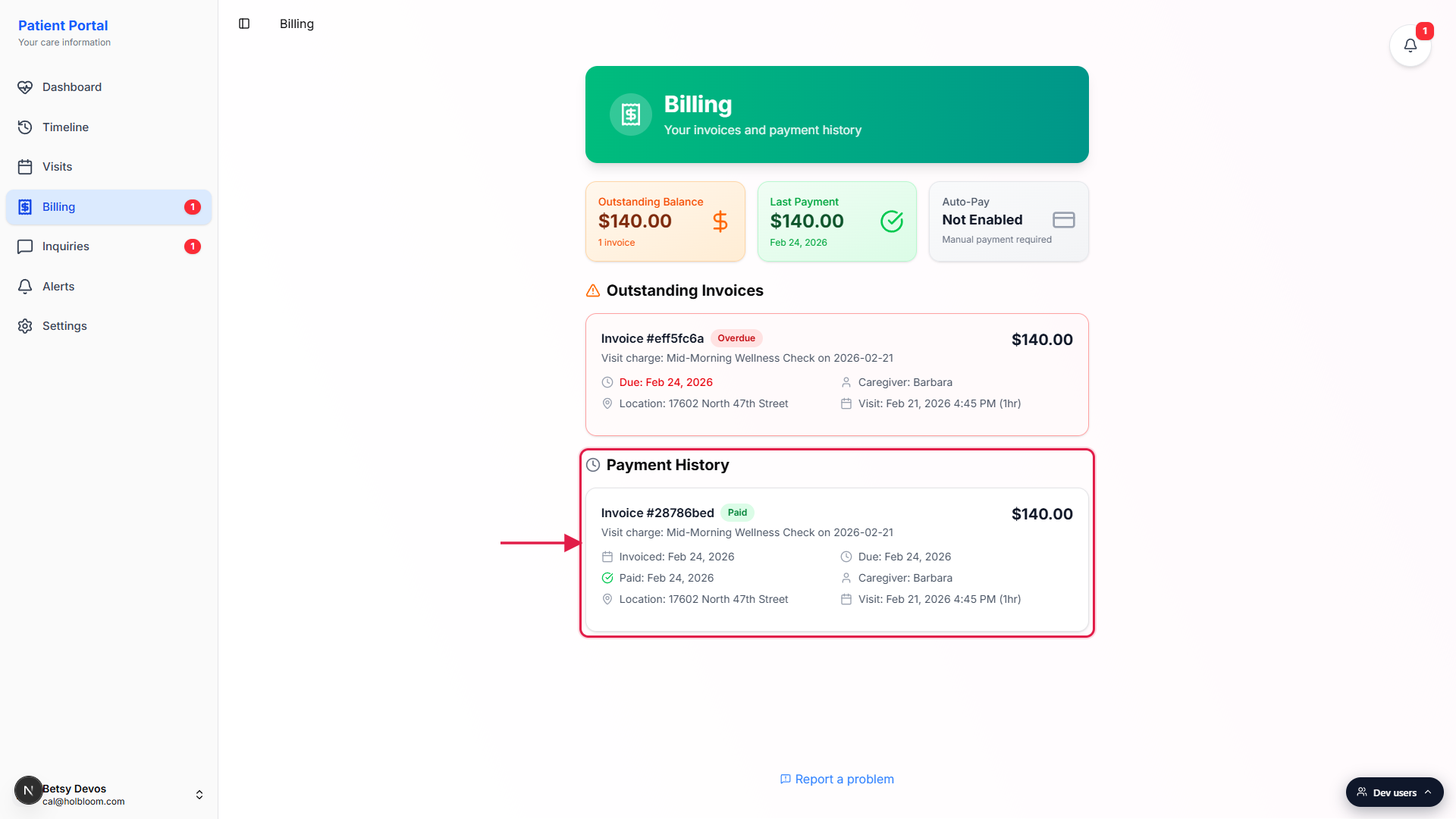
2. Read what a paid invoice row tells you
Each card is one paid invoice.
The top of the card lists the invoice number, the green Paid chip, and the amount on the right. The middle of the card shows three dates, Invoiced, Due, and Paid, plus the caregiver, location, and visit time. The Paid date is the day the payment actually cleared, which is the entry you usually want for reimbursement or recordkeeping.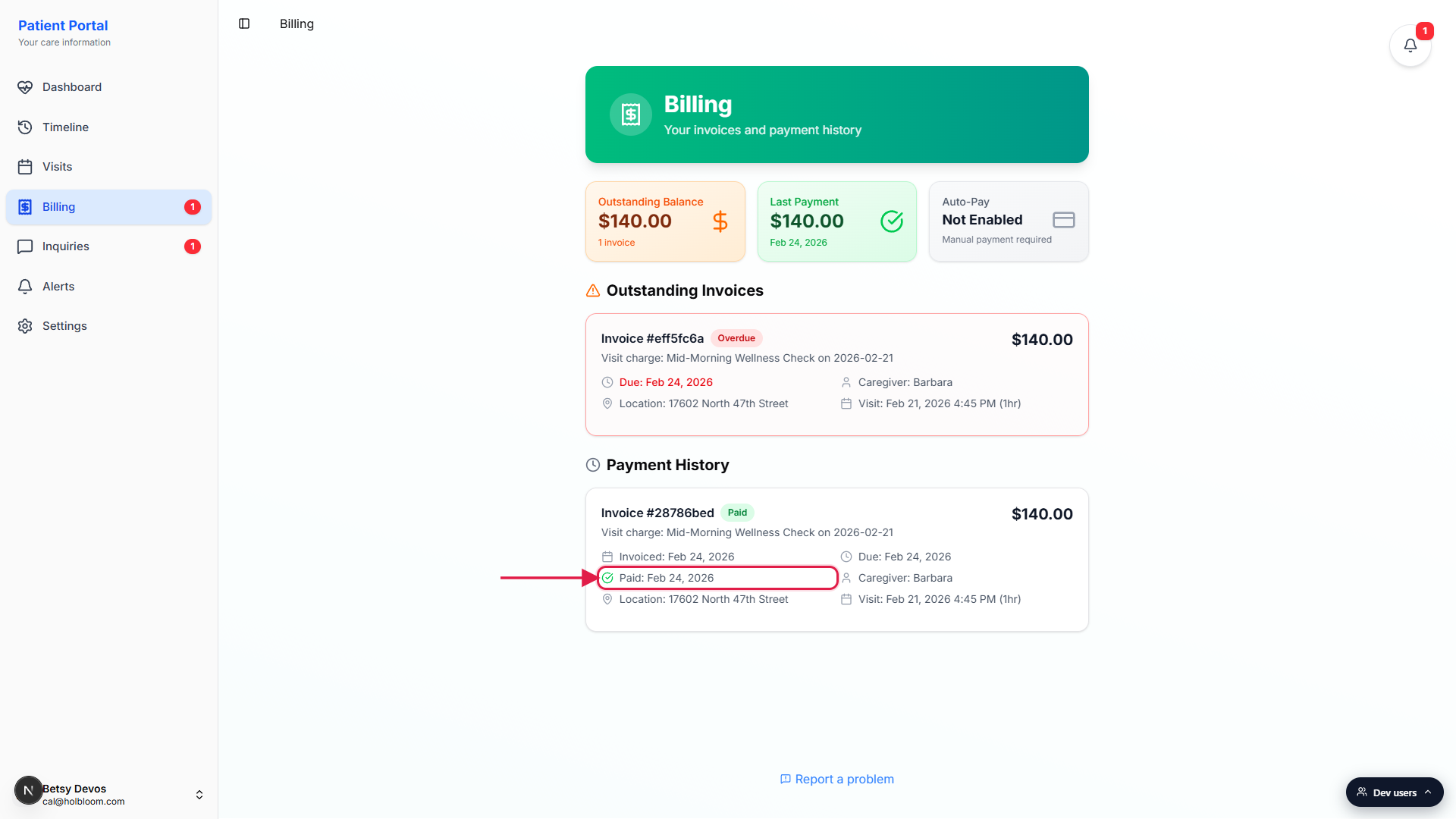
Auto-billed invoices are marked with a blue chip.
If Auto-Pay was on and the charge ran on its own, an Auto-billed pill sits next to the Paid chip. That is the only way the row tells you the agency did not have to take manual payment. The card itself looks identical otherwise.Click or tap the card for full details.
The full visit details (caregiver name, address, visit window) are already on the row, so most patients never need a deeper drill-in. To pull a receipt that lives outside the portal, call the office and ask for an email or PDF copy tied to the invoice number.
3. Recognize the empty state
No payments yet means a single empty card under Payment History.
When the patient has not paid any invoices, Payment History shows a single centered card that reads No payment history with the helper line Completed payments will appear here. There is no separate page or tab. Once a payment clears, that card is replaced by the first paid invoice row.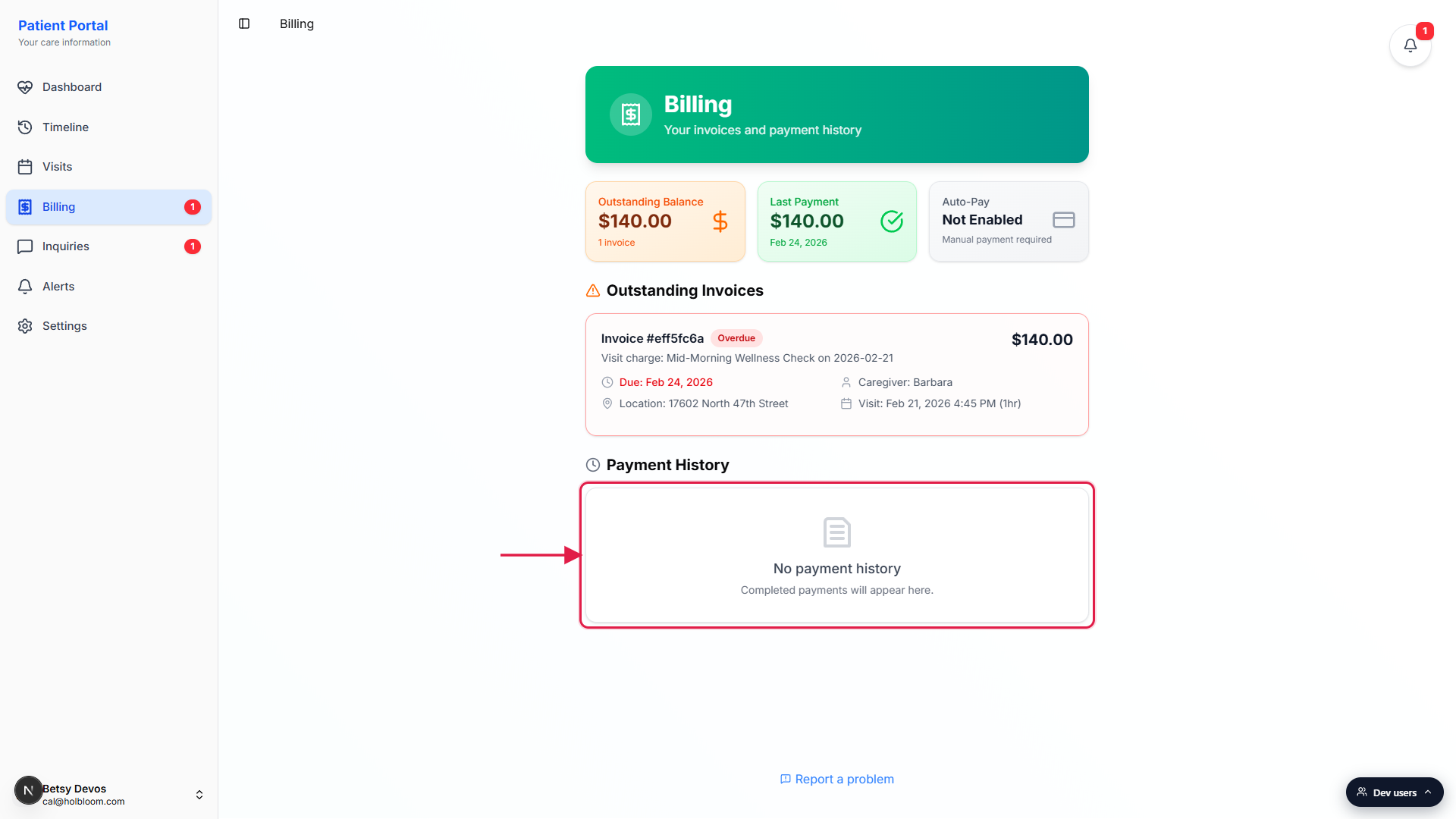
The empty state does not mean Auto-Pay is broken.
Auto-Pay status lives on the Auto-Pay summary card up top, not here. A patient can have Auto-Pay Enabled and still see No payment history when no visits have been invoiced and paid yet. The first auto-charge will show up here as soon as a visit completes and is invoiced.
Common pitfalls
- Looking for a refund column. Payment History only tracks paid invoices. Refunds and credits are handled by the office and do not show up as separate rows here. Call the agency if you need a refund record for taxes or insurance.
- Confusing Invoiced date with Paid date. Invoiced is the day the office cut the bill. Paid is the day money actually changed hands. Use the Paid date for reimbursement claims and ledger entries.
- Missing a paid invoice. If a charge cleared but the row is missing, check Outstanding Invoices for a Failed badge. Auto-Pay declines stay in Outstanding, not Payment History, until the card is updated and the invoice is settled with a manual Pay Now.
- Insurance and Medicaid payments. Payment History is the patient-pay record. Insurance, long-term care, and Medicaid payments are reconciled on the agency side and are not surfaced as patient-portal rows.
- Older history is not paginated, it just keeps stacking. The list is the full history, not a 30-day window. Long-standing patients should expect a long scroll once their record fills up.