Auto-Pay charges the saved card on file as soon as a visit is invoiced, so the patient does not have to open Billing and click Pay Now for every invoice. The Patient Portal Billing page shows the current Auto-Pay state in a summary card and, when enabled, a blue banner underneath the three summary cards.
Quick answer
Open Billing from the Patient Portal sidebar. The third summary card at the top of the page is labeled Auto-Pay and reads either Enabled (blue, with the card last 4) or Not Enabled (gray, with Manual payment required). When Enabled, a blue Auto-Pay Enabled banner appears below the three cards, naming the card brand and last 4 that will be charged. The toggle itself lives on the office side under the patient's Billing tab, so contact the agency to switch it on or off.
1. Read the Auto-Pay status card on Billing
Open Billing from the Patient Portal sidebar.
The page header is the green Billing banner. Three summary cards sit underneath: Outstanding Balance (orange), Last Payment (green), and Auto-Pay (blue when on, gray when off). The Auto-Pay card is the third card on the right.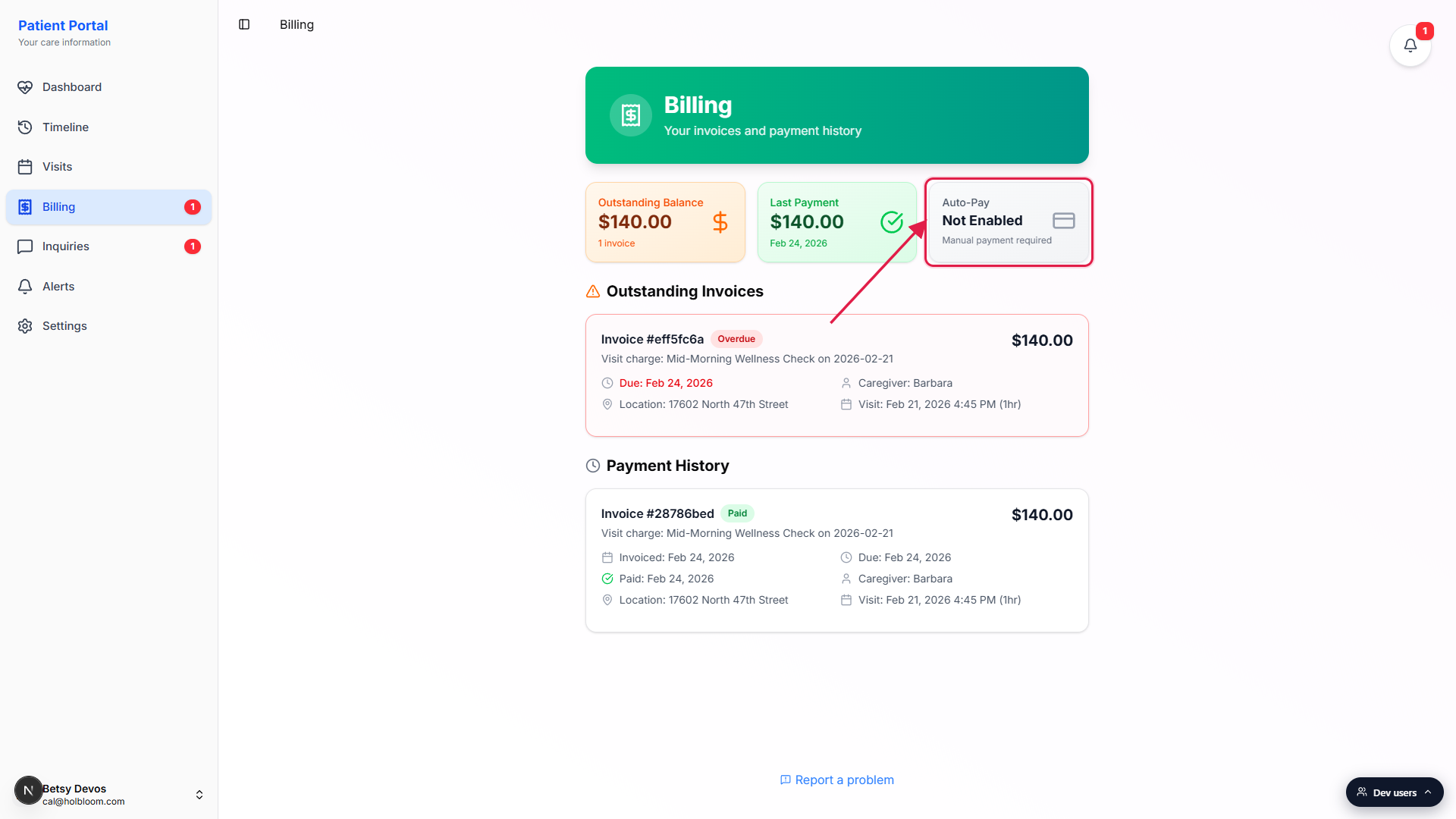
Confirm the current state on the card.
Enabled means new invoices will auto-charge the saved card. Not Enabled means the patient or billing contact has to open the invoice and click Pay Now, or call the office to pay another way.
2. Confirm a saved card is on file
Look at the small line under Enabled on the Auto-Pay card.
When Auto-Pay is on, the card displays Card ending in last 4 just below Enabled. That is the card AveeCare will charge for every new invoice. If the line is missing, no saved payment profile is attached to the patient and Auto-Pay cannot actually run, even if the toggle on the office side is on.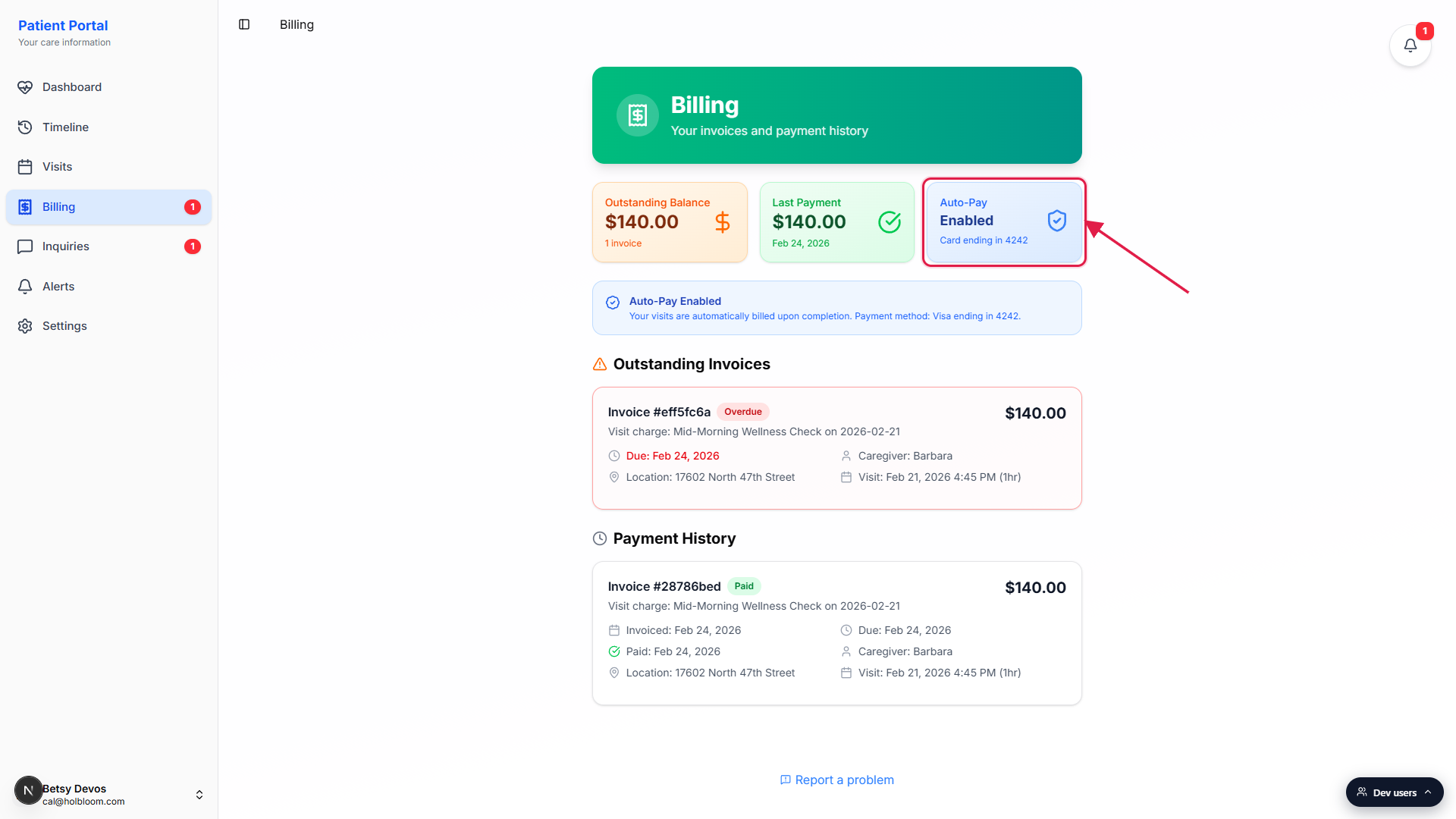
No saved card on file?
Ask the office to add a payment method to the patient record under Patients, the target patient, Billing tab, Payment Methods. Auto-Pay charges the default profile on that list. If no profile is set as default, the agency picks one when turning Auto-Pay on.
3. Ask the office to turn Auto-Pay on or off
There is no toggle inside the Patient Portal.
The Auto-Pay summary card on Billing is read-only. The actual Auto-bill visits switch lives on the agency side, under Patients, the patient, Billing tab, Billing Preferences. A company-wide Auto-bill visits switch in Settings also turns Auto-Pay on for every patient at once.Call or email the office to change it.
Use the agency phone or email shown on the Contact us to make a payment notice on Billing when no payment integration is connected. Ask them to enable or disable Auto-bill visits for your record. The change shows up on the next page load of Billing.
4. Watch new invoices auto-charge on completion
When Auto-Pay is on, a blue banner sits below the three summary cards.
The banner reads Auto-Pay Enabled, then Your visits are automatically billed upon completion, then Payment method followed by the card brand and last 4. This is the same card named on the Auto-Pay summary card. The banner is the strongest in-app signal that future visits will charge on their own.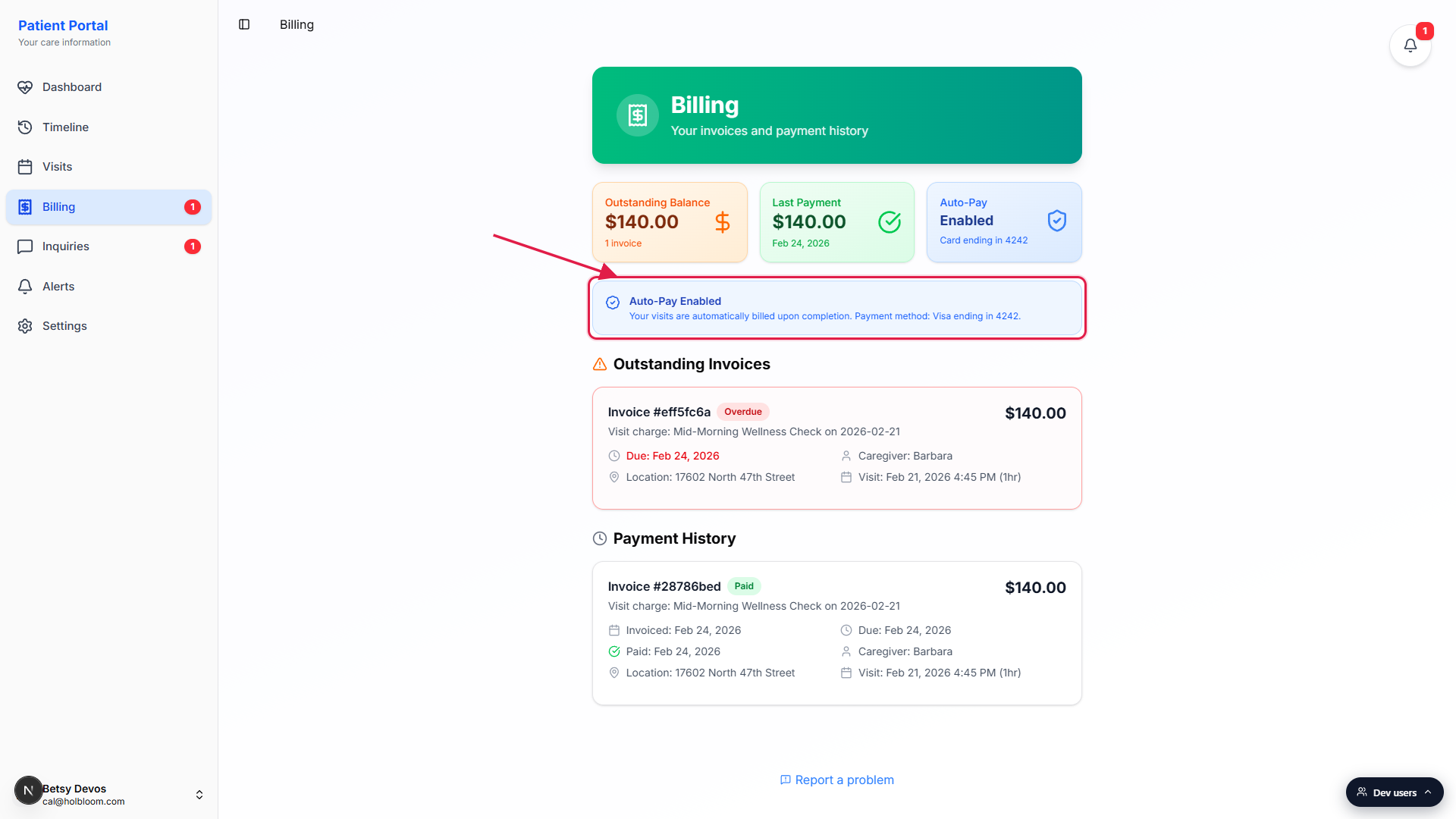
New invoices land paid, not outstanding.
As the agency completes and invoices each visit, AveeCare runs the charge against the saved card. Successful charges drop straight into Payment History with a green Paid badge. Outstanding Invoices stays empty unless an auto-charge fails.When an auto-charge fails, the invoice shows up in Outstanding with a Failed badge.
Common reasons are an expired card, a declined charge, or insufficient funds. Update the card on file (ask the office), then open the invoice in Outstanding and click Pay Now to catch it up manually.
Common pitfalls
- Auto-Pay reads Enabled but no card last 4 is shown. The toggle is on but no payment profile is attached to the patient, so charges will not run. Ask the office to add a default card under the patient's Billing tab, otherwise invoices will still pile up in Outstanding even though the banner says Auto-Pay Enabled.
- Looking for an in-portal toggle. The Patient Portal does not show an Auto-Pay switch. The Auto-Pay summary card and banner are read-only. The actual switch is on the office side, under Patients, the patient, Billing tab.
- Company-wide vs per-patient Auto-Pay. The agency can flip Auto-bill visits on at the company level in Settings, which makes every patient auto-pay by default. A per-patient override on the patient's Billing tab still works on top of that. If a single patient should stay manual, the per-patient toggle stays off and the company switch is ignored for that record.
- Failed charges look like missed payments. When the card declines, the invoice lands in Outstanding with a red Failed badge, not in Payment History. Auto-Pay does not silently retry on its own, so a stuck Failed invoice needs a manual Pay Now after the card is updated.
- Multiple saved cards. Auto-Pay only charges the default card on file. If the patient has more than one card saved, a non-default card never runs through Auto-Pay even after a decline. The office controls which card is the default.