Billing on the Patient Portal lists every invoice the office has sent to the patient, with outstanding balances at the top and a Pay Now button on each unpaid card when the agency has a payment processor connected. Past payments fall into Payment History underneath.
Quick answer
Open Billing from the Patient Portal sidebar. The Outstanding Invoices section lists unpaid invoices with a green Pay Now $X.XX button at the bottom of each card. Click it, review the Confirm Payment modal that shows the amount and the card on file, and click Pay Now again to capture payment. The invoice moves to Payment History once it clears.
1. Open Billing on the Patient Portal
Sign in to the Patient Portal and click Billing in the sidebar.
The page header is a green Billing banner with the subtitle Your invoices and payment history. Three summary cards sit underneath: Outstanding Balance (orange), Last Payment (green), and Auto-Pay status (blue when enabled, gray when not).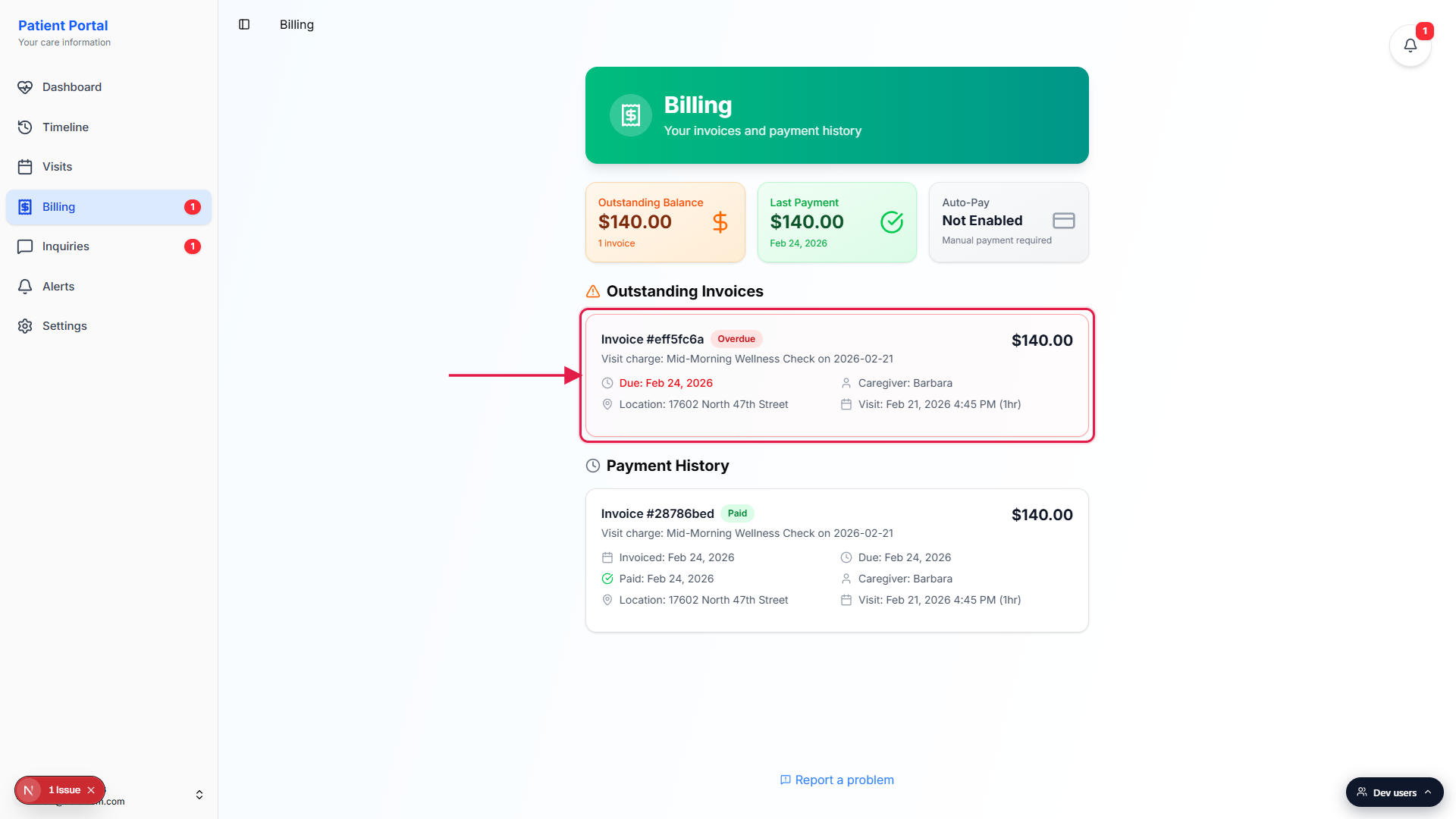
Scan the summary cards before scrolling.
Outstanding Balance is the total still owed and the invoice count. Last Payment is the most recent paid amount and date. Auto-Pay reads Enabled when the office or patient has turned on automatic billing on visit completion, otherwise Not Enabled.
2. Find the outstanding invoice
Outstanding Invoices lists every unpaid invoice at the top.
Each invoice card shows the invoice number, status badge (Pending, Processing, Overdue, Partially Paid, or Failed), the amount due on the right, and a row of details: invoice date, due date, caregiver first name, visit location, and the visit date with duration in parentheses. Overdue cards highlight in red. Multi-visit invoices show a Multiple Visits section with one row per visit.Confirm the amount and the line items.
A Services section underneath the details lists each line item with its amount. If tax or a discount applies, the card shows Subtotal, Tax, and Discount rows above the total.
3. Click Pay Now on the invoice card
Click the green Pay Now $X.XX button at the bottom of the invoice card.
The button only appears when the agency has a payment integration enabled and the patient has at least one active payment profile on file. If you do not see the button and the invoice is still outstanding, an amber Contact us to make a payment notice appears further down with the agency phone and email, since online payment is not available for this tenant.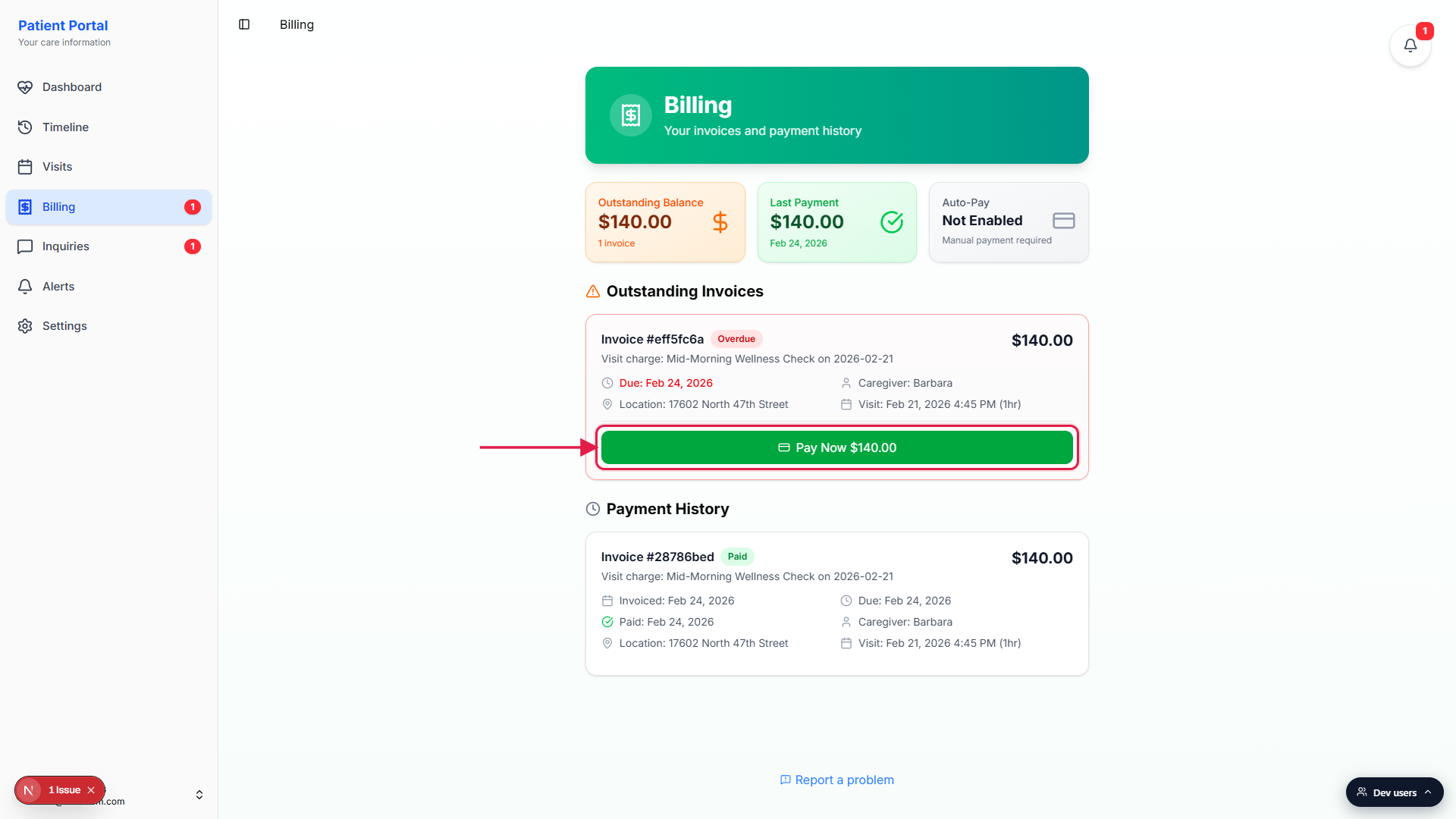
4. Confirm payment in the modal
Review the Confirm Payment modal.
The modal opens centered over the page. It restates the amount being paid and the invoice number, then shows the saved payment method (card brand, last 4 digits, expiration). Cancel closes the modal without charging. The green Pay Now button on the right submits the charge.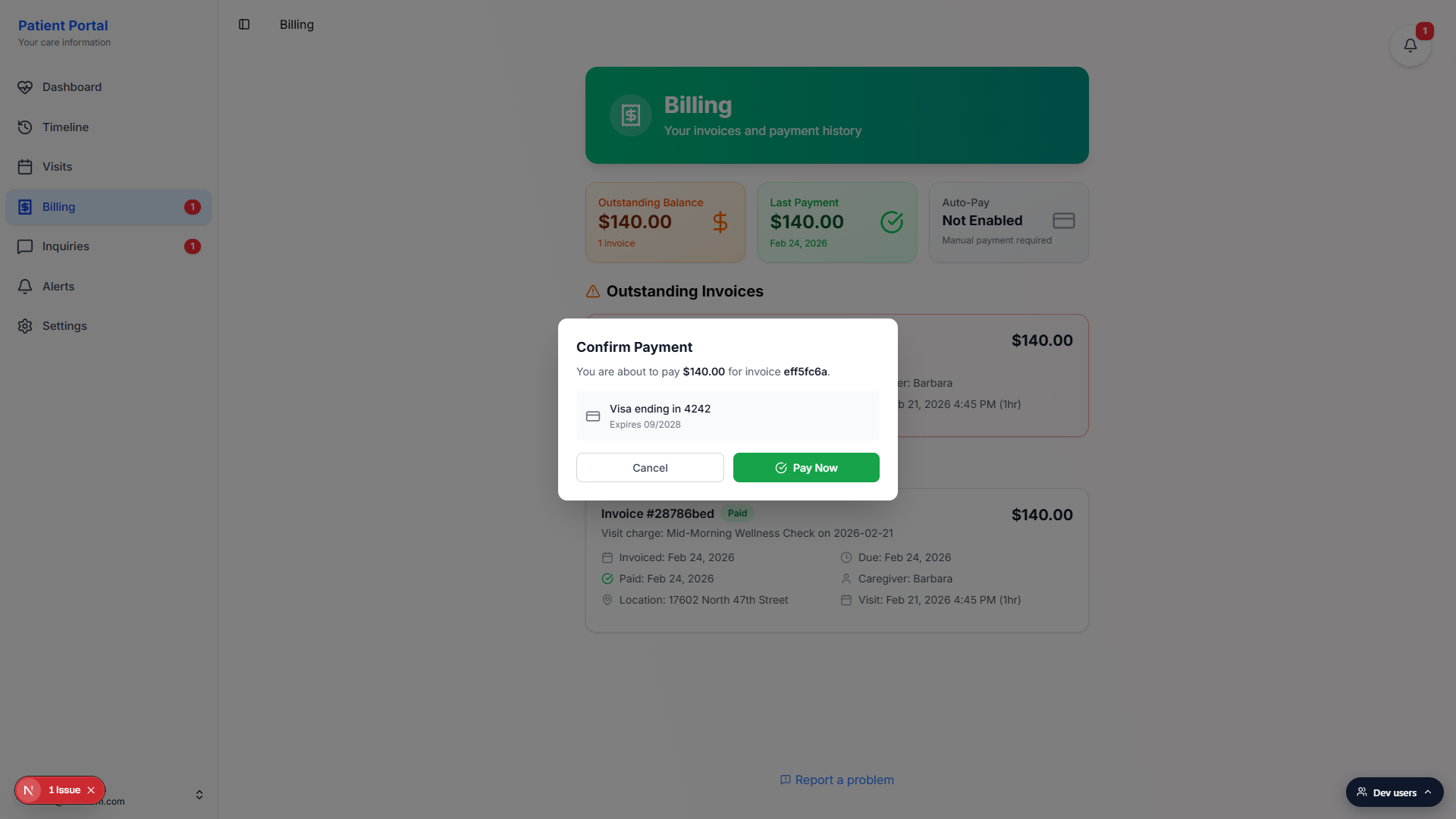
Click Pay Now to submit the charge.
A processing spinner replaces the button text while AveeCare runs the payment. On success, a green Payment processed successfully toast appears in the top-right corner, the modal closes, and the invoice moves out of Outstanding Invoices into Payment History with a green Paid badge and the paid date.On failure, the modal stays open and a red toast explains why.
Common reasons include an expired card, a declined charge, or an insufficient funds response from the processor. The invoice status updates to Failed on the card. Update the card on file under Settings or contact the office, then click Pay Now again.
Common pitfalls
- No Pay Now button at all. The agency may not have a payment processor connected, or no card is on file for the patient. The Outstanding Invoices section still lists the invoice, and an amber Contact us to make a payment notice surfaces the agency phone and email. Call the office to pay by phone, mail, or another method.
- Pay Now charges the default card without asking which one. The confirmation modal shows the card that will be charged. If a different card is on file as the default, switch it under Settings before opening Billing. The modal does not have a card picker.
- Auto-Pay is on, so why do I still see an outstanding invoice? Auto-Pay charges on visit completion. An invoice can land in Outstanding briefly while it processes, or it can stay outstanding if the auto-charge failed (expired card, decline). Check Auto-Pay status and the invoice status badge. A Failed badge means the auto-charge did not go through.
- Paid invoices vanish from Outstanding the moment they clear. They move into Payment History with a green Paid badge and a Paid date. If an invoice you just paid is missing, scroll down to Payment History, do not assume it disappeared.
- Partial payments stay in Outstanding. A Partially Paid badge appears on the card and the amount shown is the remaining balance, not the original total. Pay Now charges the remaining balance, not the full original invoice.