Hospitalizations is the per-patient log of inpatient stays. You record the facility, admission and discharge dates, reason and diagnosis, and a Status that tracks where the patient is today. AveeCare uses these records to calculate readmission counts and to give clinicians and schedulers context that affects the care plan and the next visit.
Quick answer
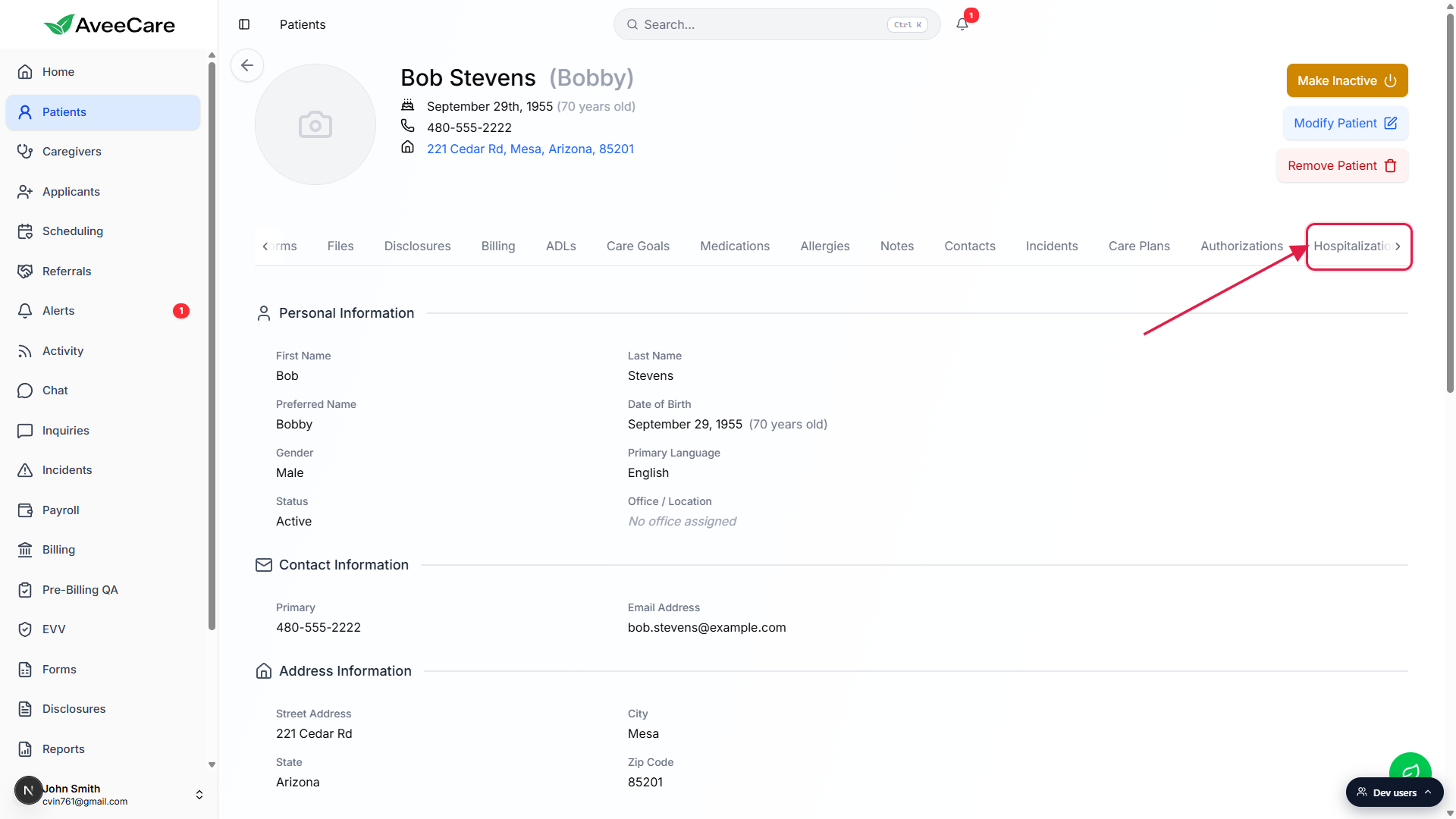
Open Patients, open the patient, and click the Hospitalizations tab on the patient tab strip. Click Add Hospitalization, fill the modal (Facility Name and Admission Date are required), pick a Status, and save. The record lands on the list with three readmission stat cards above it.
Status values you can pick
The Status dropdown has four options:
- Admitted. The patient is currently in the hospital. Use this until you know they are out.
- Discharged. The patient has gone home. Set Discharge Date when you set this.
- Transferred. The patient moved to a different facility (a SNF, rehab, another hospital). Use the notes field to record where.
- Pending. Admission is expected or in-progress and you do not have full details yet.
Status is manual. AveeCare does not flip a record to Discharged just because you set a Discharge Date, and it does not flip a record back to Admitted if you clear the date. Pick the value you want and save.
1. Open the patient and click Hospitalizations
On the Patients page, click a row to open the patient.
The patient detail view loads with a horizontal tab strip across the top. Hospitalizations sits near the right end of the strip, after Authorizations.Click Hospitalizations on the tab strip.
2. Click Add Hospitalization
On a patient with no hospitalizations, click the centered Add Hospitalization button in the empty state.
The empty state shows a hospital icon, the message “No hospitalizations recorded”, and a centered + Add Hospitalization button.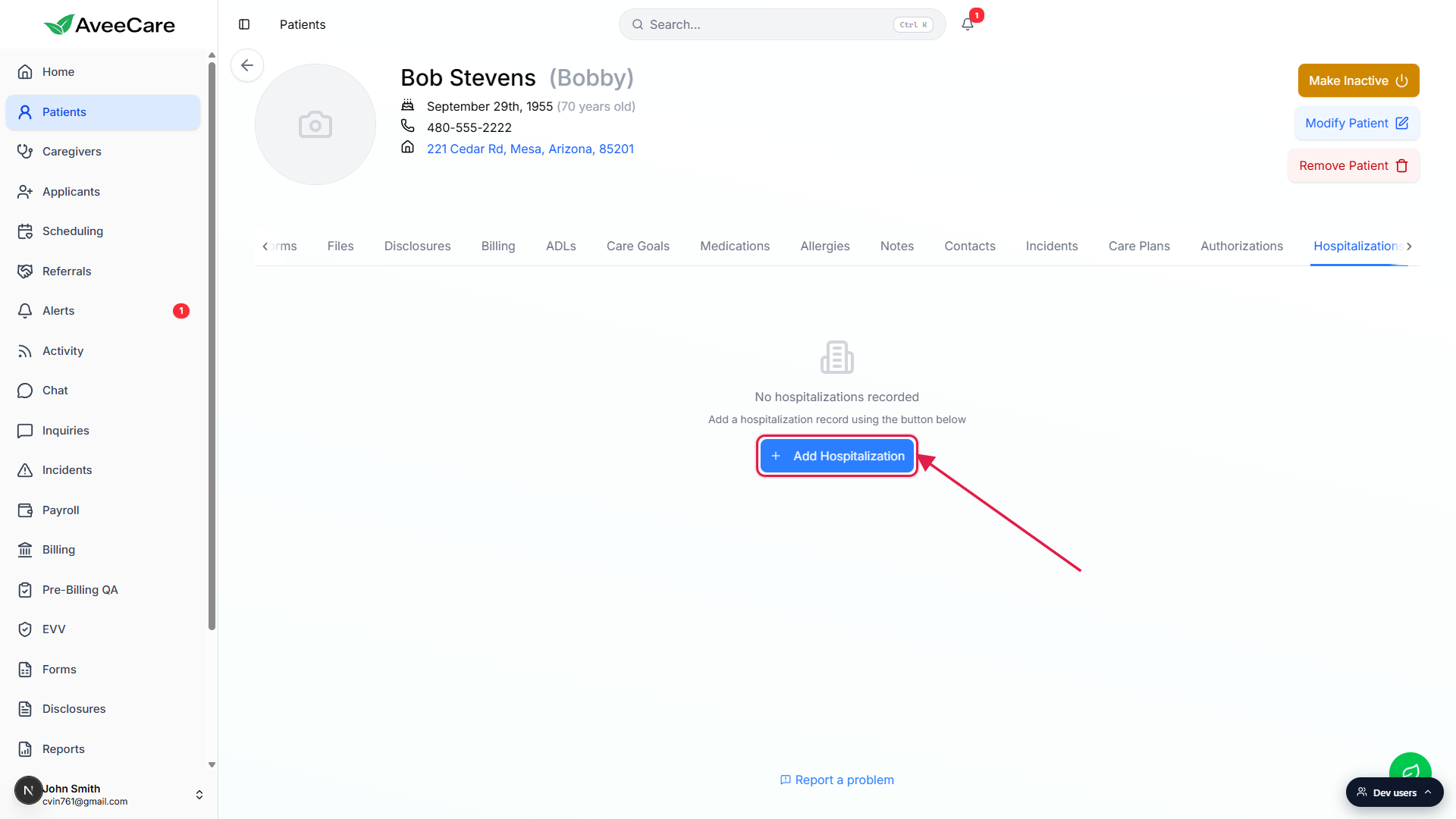
On a patient with existing records, use the Add Hospitalization button above the list.
Once one record exists, three stat cards (Total Hospitalizations, Readmissions, Readmission Rate) appear above the list and the Add button moves to the right above the cards.
3. Fill the modal and pick a Status
Type the Facility Name. This field is required.
Free text. Use the actual facility name (Banner Desert Medical Center, HonorHealth Scottsdale Shea, etc.) so future visits to this record have a clear reference.Pick a Facility Type if you have one.
Optional. Choices are Hospital, ER, SNF, Rehab Center, and Other. Leave it as Not specified if unsure.Set Admission Date. This field is required.
Set Discharge Date if the stay is over. Set Scheduled Discharge Date if you have an expected date but the patient is still inpatient. Both are optional.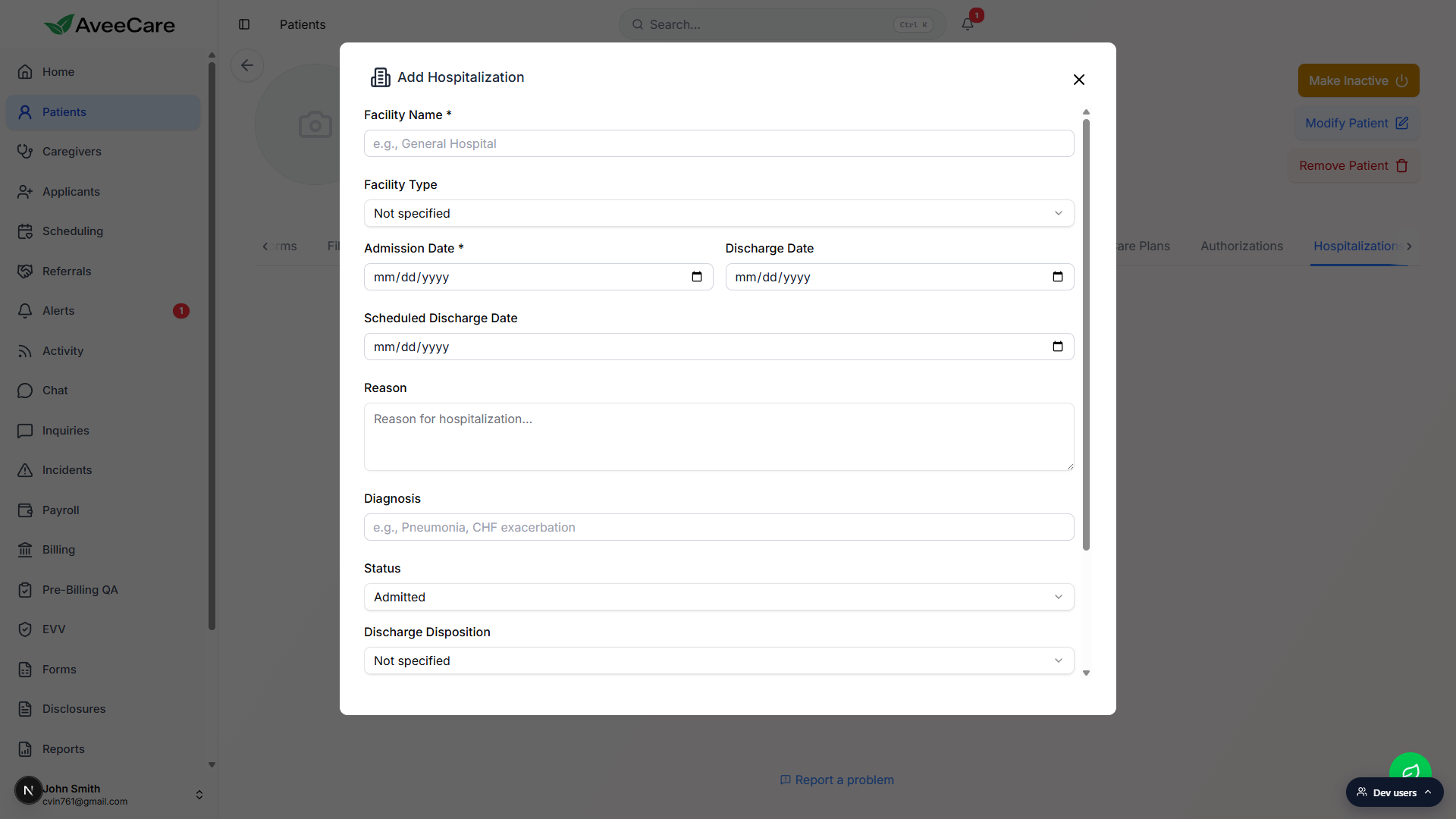
Type a Reason and a short Diagnosis.
Reason is the long-form why (Acute pneumonia, four-day inpatient stay). Diagnosis is the short clinical label (Pneumonia, CHF exacerbation, Hip fracture). Both are searchable in reports.Pick a Status.
The Status dropdown lists Admitted, Discharged, Transferred, and Pending. Status drives the colored badge on the record card in the list, so set it to match where the patient actually is.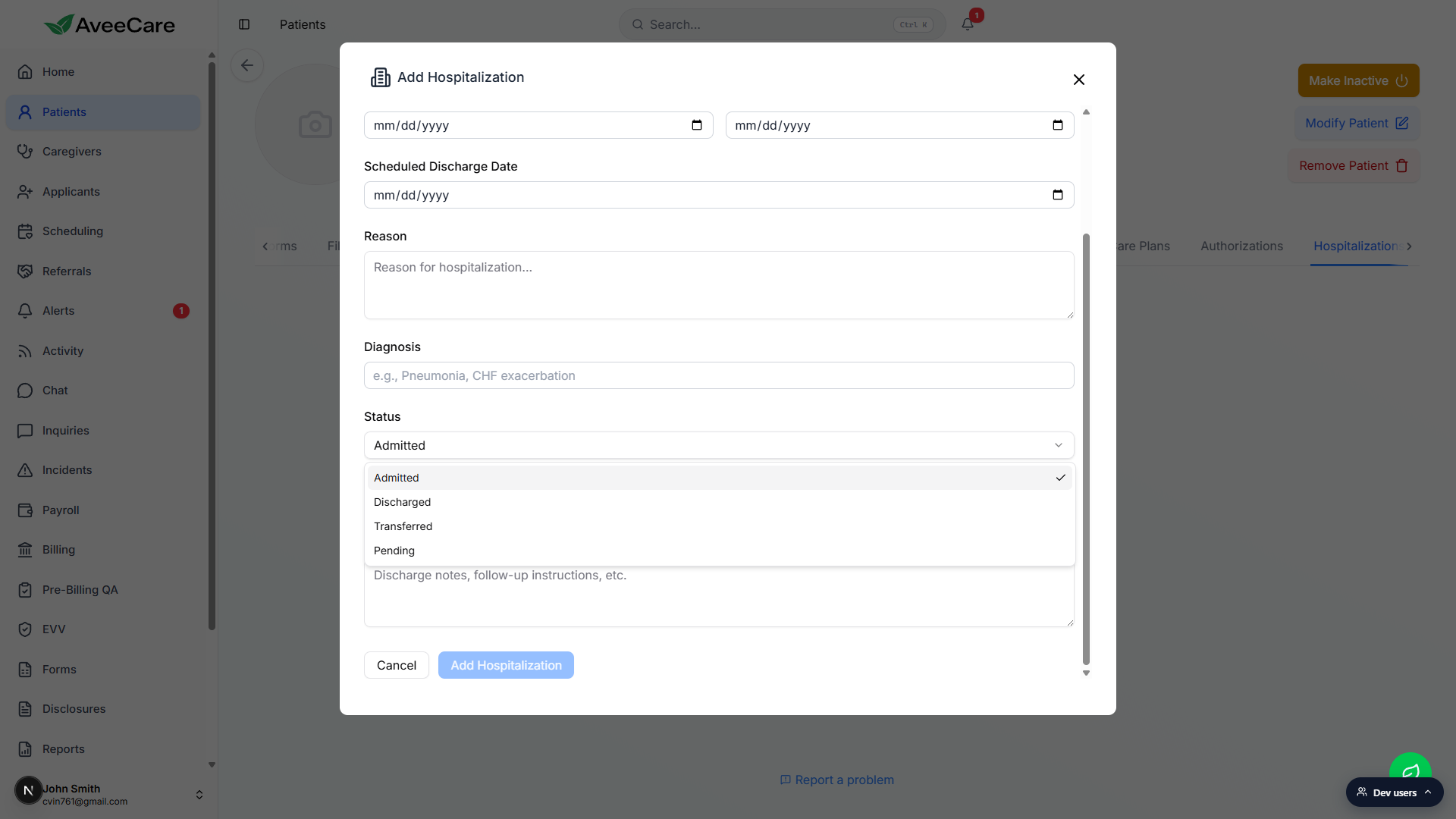
Optional: pick a Discharge Disposition and add notes.
Discharge Disposition lists Returned Home, Transferred to SNF, Transferred to Rehab, Deceased, and Other. The notes field is free text for follow-up instructions or anything the next caregiver needs to know.
4. Save and edit when discharge happens
Click Add Hospitalization at the bottom of the modal.
The modal closes and the new record lands on the list. Newest records are sorted to the top by admission date. Each record card shows the facility, the colored status badge, admission and discharge dates, diagnosis, and reason.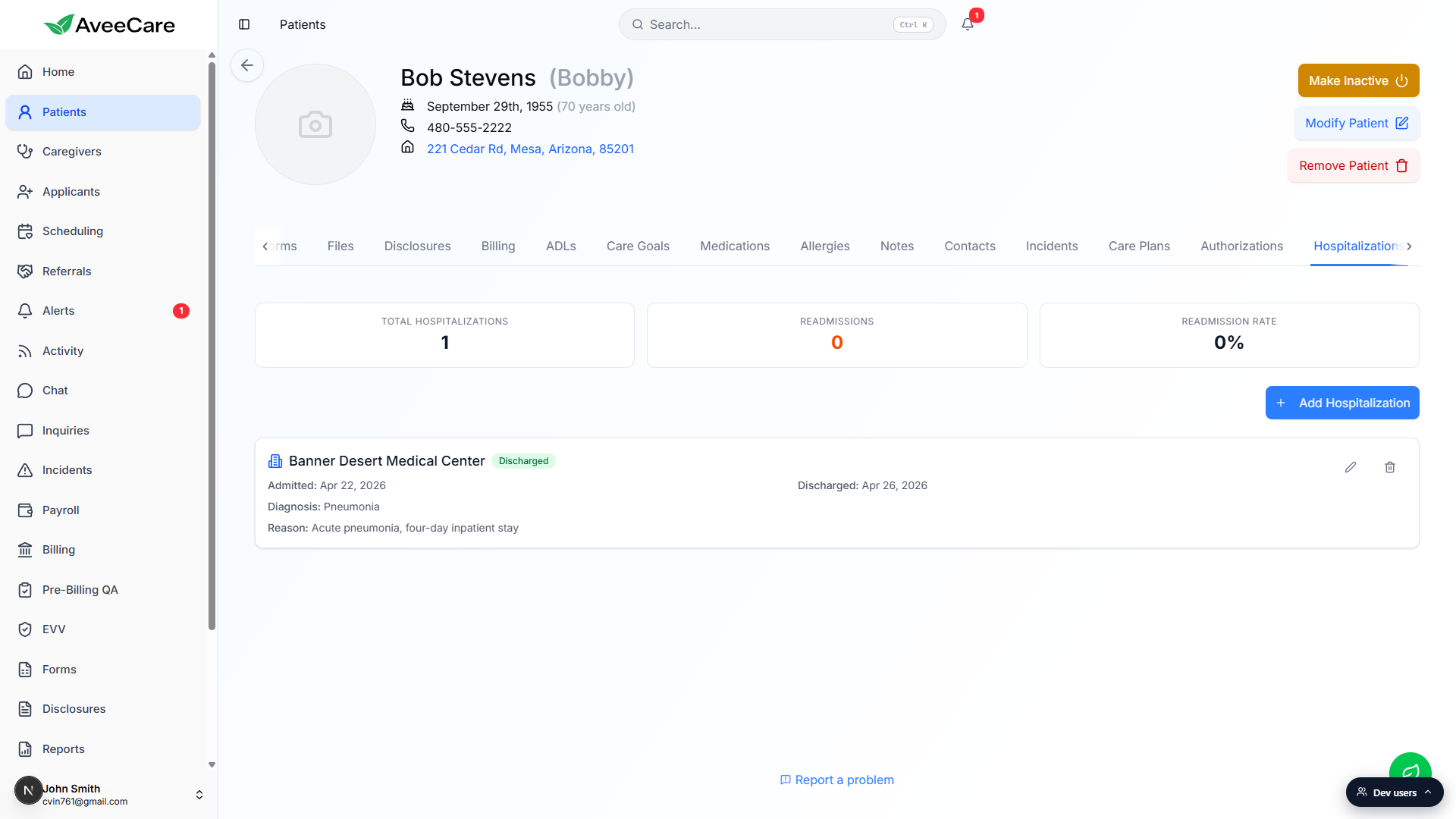
Click the pencil icon on a record to edit it.
Use this when the patient is discharged: open the record, set the Discharge Date, change Status to Discharged, set the Discharge Disposition, and save. The card updates immediately and the badge color flips from red (Admitted) to green (Discharged).Click the trash icon to delete a record.
A confirmation modal appears. Deletion is permanent. Use this only for records created by mistake, not to mark a stay as no longer relevant.
How readmissions work
AveeCare auto-flags a record as a readmission when its Admission Date is within 30 days of a previous record's Discharge Date for the same patient. The orange Readmission badge appears next to the status badge on the record card, the Readmissions stat card increments, and the Readmission Rate is calculated as readmissions divided by discharged records. There is no setting to turn this off and no warning before you save.
Common pitfalls
- Leaving Status on Admitted after the patient comes home. Setting Discharge Date does not change Status. Open the record and flip Status to Discharged so the badge color and the readmission math reflect reality.
- Vague Reason or Diagnosis. “Hospital stay” isn't useful three months later when a different caregiver is reading the record. Capture the actual clinical reason (Pneumonia, Hip fracture, CHF exacerbation) so future-you and clinicians have context.
- Forgetting to pause billing for inpatient days. Visits that overlap an inpatient stay generally should not bill. Hospitalizations is documentation only, AveeCare does not auto-cancel visits during the stay. Open the calendar for those dates and cancel or reschedule the visits.
- Skipping Scheduled Discharge Date. If you know the expected discharge date but the patient is still inpatient, fill Scheduled Discharge Date instead of leaving it blank. Schedulers can use that to start staging the resumption-of-care visit.
- Open records that are stale. Walk the list weekly and close out anything that should have been marked Discharged already. Stale Admitted records throw off the Readmission Rate and mislead anyone glancing at the patient.